Bookmarks Bar
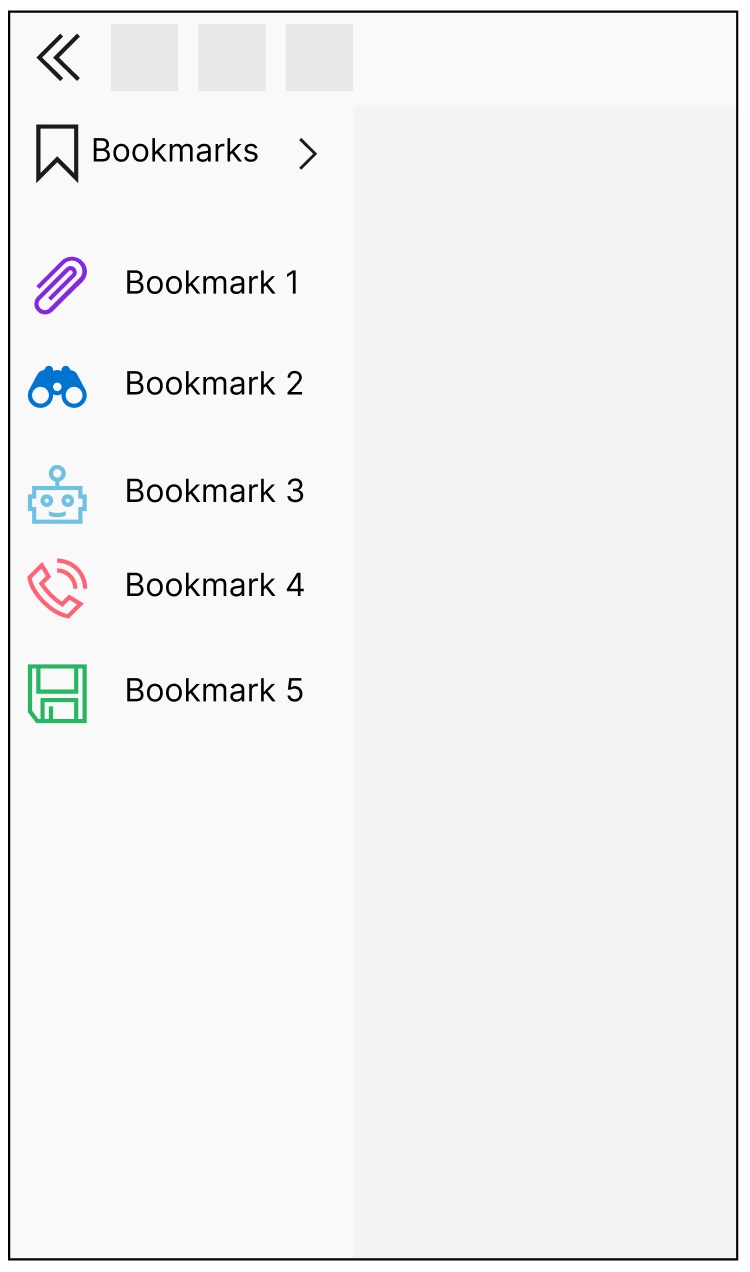
You can bookmark your favorite IFS cloud pages using the bookmark option. All your bookmarks are listed in the bookmarks menu at the left on your IFS cloud screen.
Bookmarks
You can expand / collapse bookmarks using Expand/Collapse Bookmarks option in Bookmarks Bar.
 Expand / Collapse Bookmarks
Bookmarks provide easy access to the IFS cloud pages, web pages, tools and files that you want to work with on a frequent basis.
There are number of icons & colors available to choose from when creating a bookmark, this makes it easy for you to identify the bookmark. By clicking on a bookmark, the page linked to it will be opened. As a user you can create your own bookmarks, these are personal and stored in your user profile.
Add / Manage Bookmarks

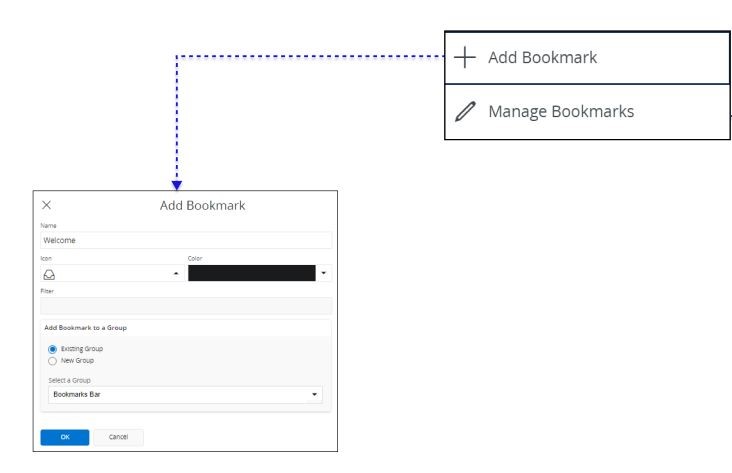
To add a new bookmark or manage your existing bookmarks, click on the Add / Manage Bookmarks button.
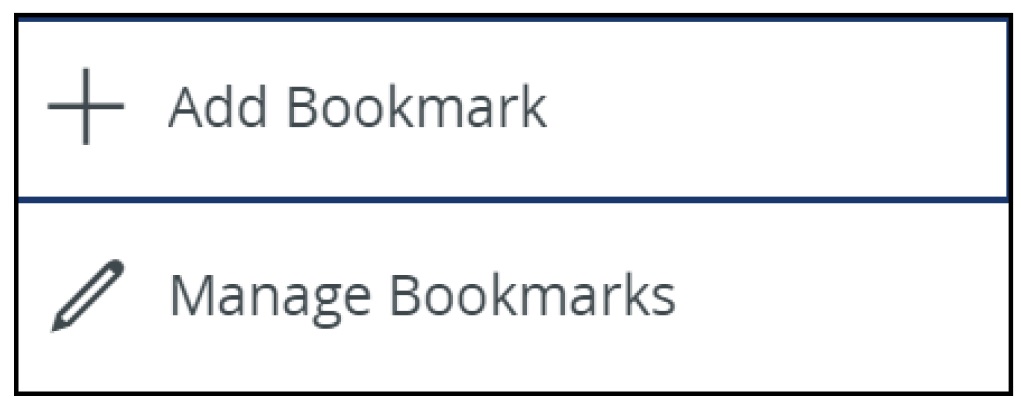
Add / Manage Bookmarks has following two options.
- Add Bookmark
- Manage Bookmarks
Add Bookmarks
Once you are in a desired IFS Cloud page, click on the Add/Manage
Bookmarks icon and select + Add Bookmark button.
This will lead you to the "Add Bookmark" slide-out menu, which consists of several data field to customize the properties of the bookmark.
Add a name to the new bookmark by adding content in the Name
input field.

Add a new icon to the bookmark by selecting
a new icon from the Icon drop down menu.

Add a new display color for the bookmark by picking a color from the
Color drop down menu.

If you have applied any filters to the page, those filters will be displayed
in the filter section:

Add Bookmark to a Group
In IFS Cloud Web, you have the option to organize your bookmarks into groups. You can create a new group when adding a bookmark, or you can add the bookmark to an already existing group using the Add Bookmark to a Group section.
-
Existing Group
- In order to add a bookmark to an existing group, select Existing Group radio button.
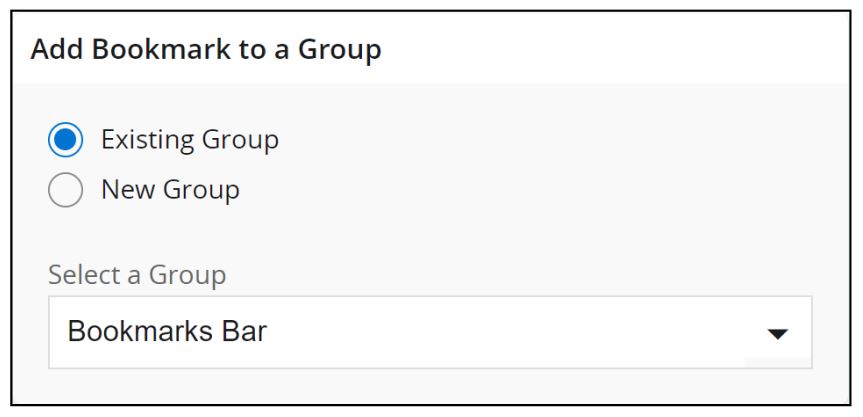
- Select an available group from the Select a Group
drop down menu.
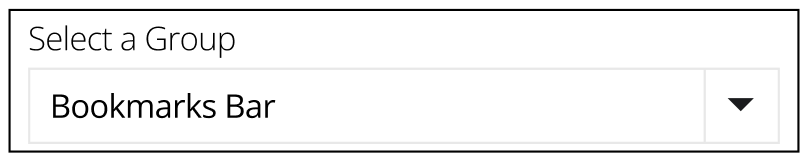
Noted: Default selection would be Bookmarks Bar
- In order to add a bookmark to an existing group, select Existing Group radio button.
-
New Group
- In order to add a bookmark to a new group, select New
Group radio button.
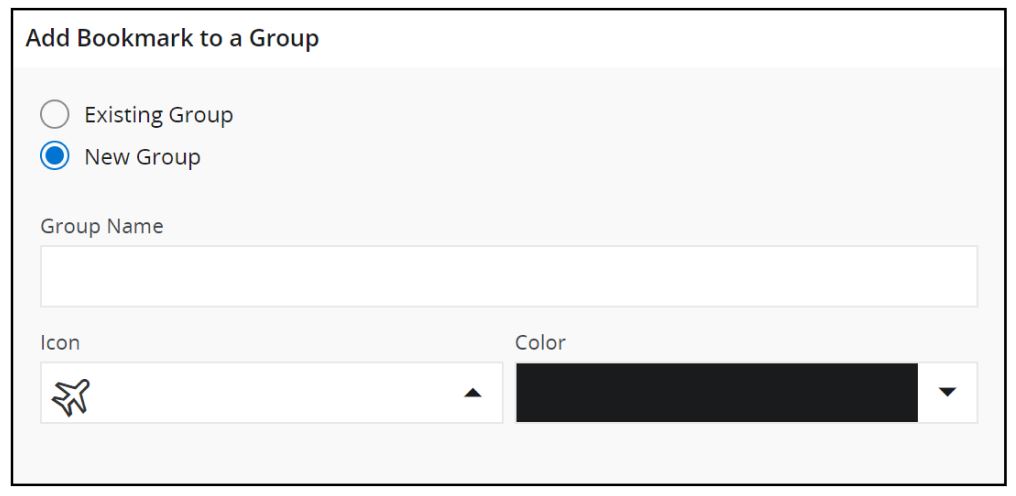
- Add a name to the new bookmark group by adding content in the
Group Name input field.

- Add a new icon to the bookmark group by selecting a new icon
from the Icon drop down menu.
- Select a group color from the Color drop down
menu.
- In order to add a bookmark to a new group, select New
Group radio button.
- Click OK button to apply changes.

- Click Cancel button to cancel adding a bookmark.
Manage Bookmarks
If you wish to modify your existing bookmarks or bookmark groups, Click on the Add/Manage Bookmarks Icon and select Manage bookmarks button.

Manage Existing Groups |
Create New Group |
|---|---|
|
If you wish to modify an already-existing bookmark group, click the Manage Existing Group radio button and follow the steps provided below. Go to Select a Group section and select a bookmark group from the drop-down menu (Bookmarks Bar is selected by default). Go to Add Bookmarks to the Group section and click on the drop-down menu to view all the created bookmarks and add them to the current group. 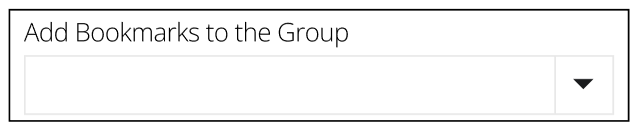 |
If you wish to create a new bookmark group, click the Create New Group radio button and follow the steps provided below. Add a name to the new bookmark group by adding content in the Group Name input field.  Add a new icon to the bookmark group by selecting a new icon from the Icon drop down menu. 
Add a new display color for the bookmark group by picking a color from the drop down menu labeled Color.
If you want to include existing bookmarks in the newly created bookmark group, you can choose the desired bookmarks from the Add Bookmarks to the Group drop down menu.
Click OK button to
confirm.
|
Manage Bookmarks In The Group
You can modify your existing bookmarks in the group by clicking the Edit button
Once you click the Edit button you will be prompted with the Edit Bookmark slide out menu.
Change the bookmark name by modifying the content in the Name input field.
Change the bookmark icon by choosing
a new icon from the drop down menu labeled Icon. Change the display color of the bookmark by picking a different color
from the drop down menu labeled Color. Delete a bookmark by clicking the Delete button next
to the respective bookmark.
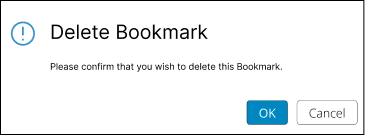
After clicking Delete, you will receive a confirmation prompt in the form of a "Delete Bookmark" toast.
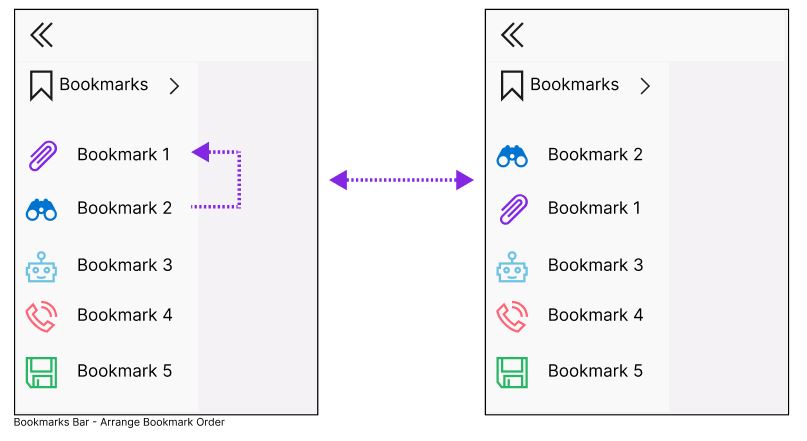
Rearrange the order of bookmarks in
the bookmark list by clicking on the six-dot button
|

 next
to any bookmark shown in the list.
next
to any bookmark shown in the list.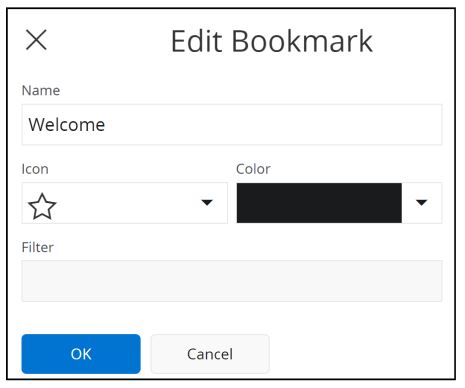

 and drag the bookmark to a different position in the list.
Re-arrange Bookmark Order
You can change the physical order of the bookmarks within a group by dragging it Up or Down in the bookmark list.
Short Keys Associated with Bookmarks Bar
 |
Move the focus to Bookmarks Icon. |
 |
Once your focus is in the Bookmarks bar, use Up arrow key to move your focus up on the bookmark Icons. |
 |
Once your focus is in the Bookmarks bar, use Down arrow key to move your focus down on the bookmark icons. |
|
|
 |
 |
Once your focus is in the Bookmarks Icon, use Right arrow key to open Add/Manage Bookmark section. |
 |
If you open the Add/Manage Bookmark section, use Left arrow key or ESC key to close it. |