Manage User Data
User Profile Overview
Every user in IFS Cloud has a personal profile containing their personal information. Depending on your organization's policies, the system administrator might ask you to update your profile when you first log in. To update your details, follow the steps below.
Edit Information
Once you log into IFS Cloud Web:
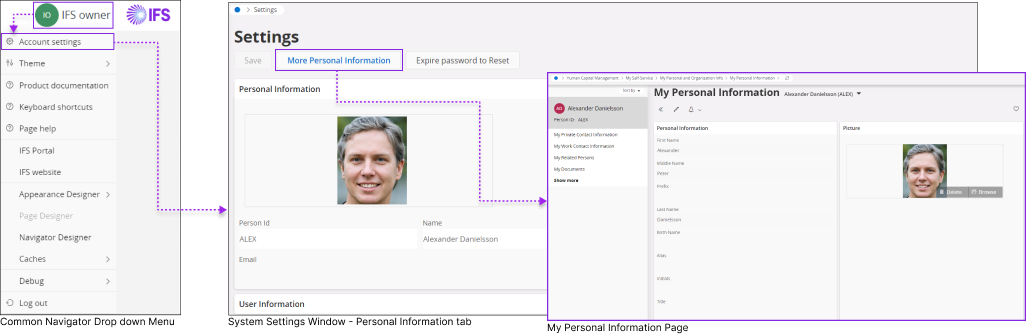
- Click the Common Navigator drop down menu to accessSystem Settings.
- In the Settings window, you can view your personal information in “Personal Information” tab.
- If you wish to modify your personal information click on More Personal Information button to access My Personal Information page.
My Personal Information
Once you go to My Personal Information page:
 |
|
 |
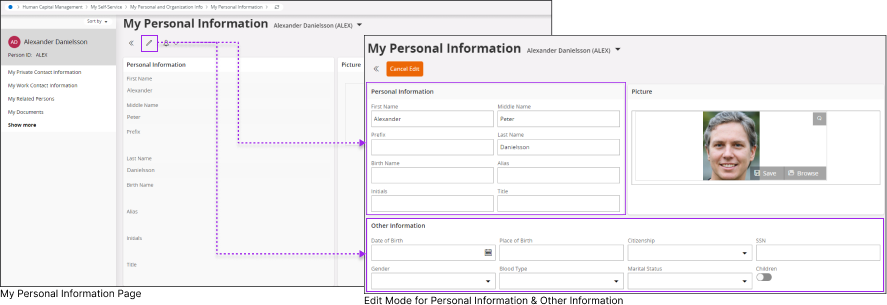
If you wish to stop editing the information, click the Cancel Edit button. This will remove any new information you've added and take you out of the editing process. |
Note:
- The Personal Information section and Other Information Section may have different data fields based on your organization's specific requirements.
New Private Contact Information
Once you go to My Personal Information page click on the My Private Contact Information title on the Record Selector Panel to access My Private Contact Information page.
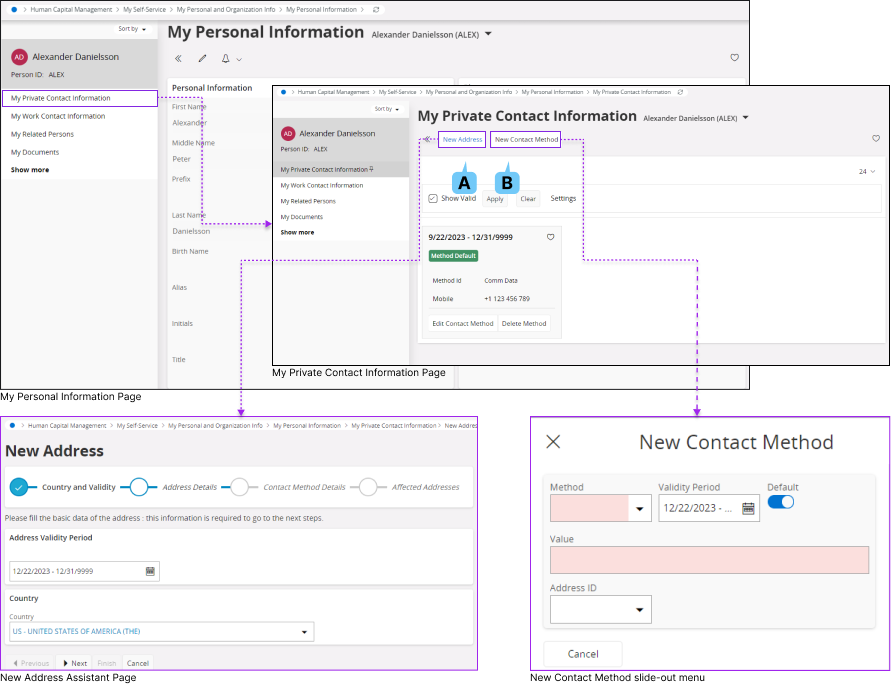
A : New Address
 |
|
B : New Contact Method
 |
|
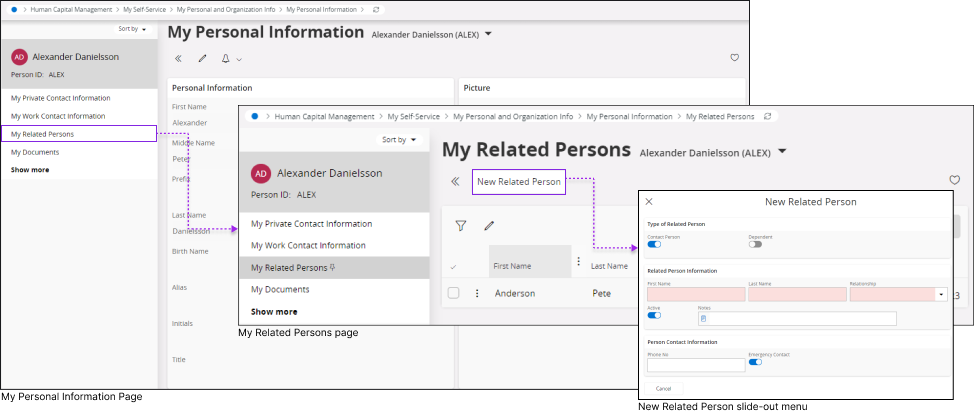
New Related Person / Emergency Contact
Once you go to My Personal Information page click on the My Related Persons title on the Record Selector Panel.
 |
|
 |
|
Editing Picture
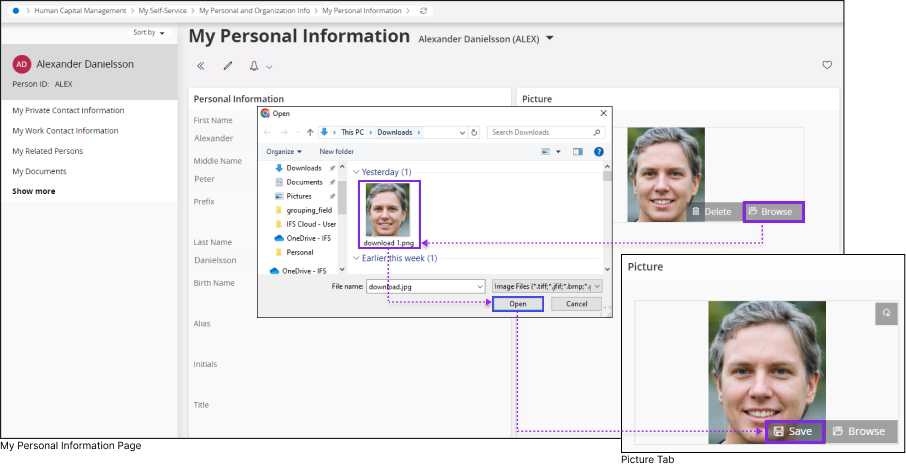
Once you are in the My Personal Information page go to Picture section to edit your profile picture.
 |
Click the Delete button to delete your existing picture. |
 |
Click on the Browse button to browse for a new picture from your local repository
|
 |
Click the Save button to save your selected picture in IFS Cloud Web |
 |
If you wish to rotate your uploaded picture, use the rotate button located at the top right corner of the profile picture window |
New Work Contact Information
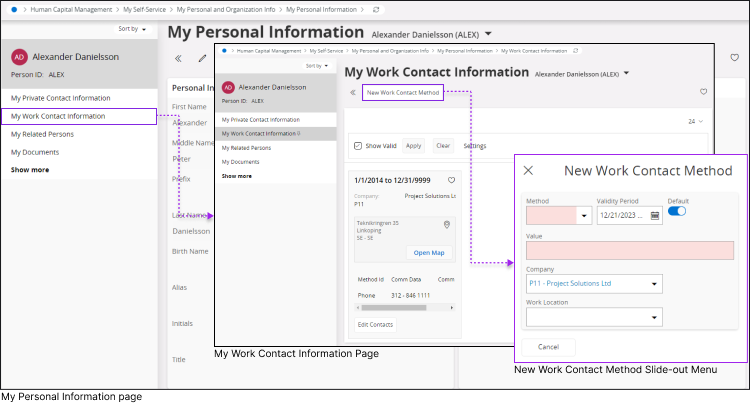
Once you go to My Personal Information page click on the My Work Contact Information title on the Record Selector Panel.
 |
|
Adding your Personal Documents
Once you go to My Personal Information page click on the My Documents title on the Record Selector Panel to access My Documents Page.
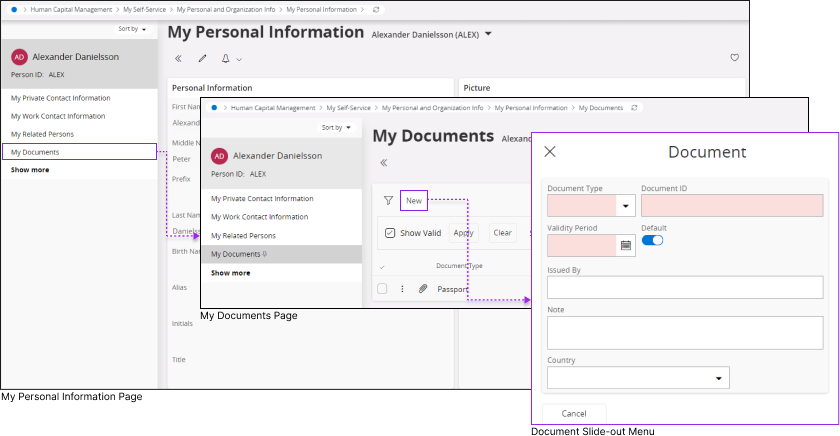
 |
|
 |
Click the Attach button to access the attach options |
 |
|
Upon clicking the Attachment button, you'll see all the available attachment options for the placeholder you created. Choose your desired option by clicking the button in the newly opened Documents tab.
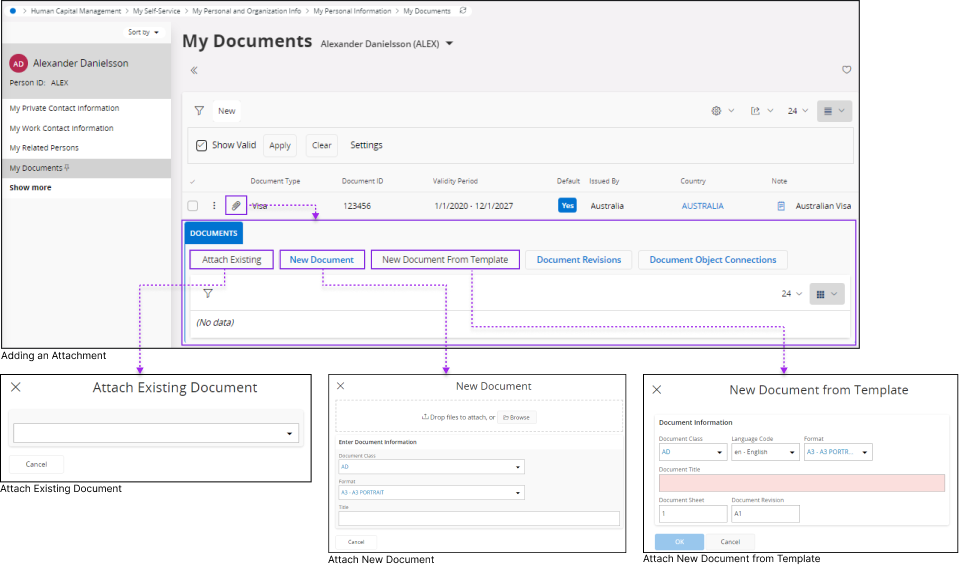
Follow the instructions in each slide-out menu that corresponds to the option you selected to attach your document, based on your desired category.
 |
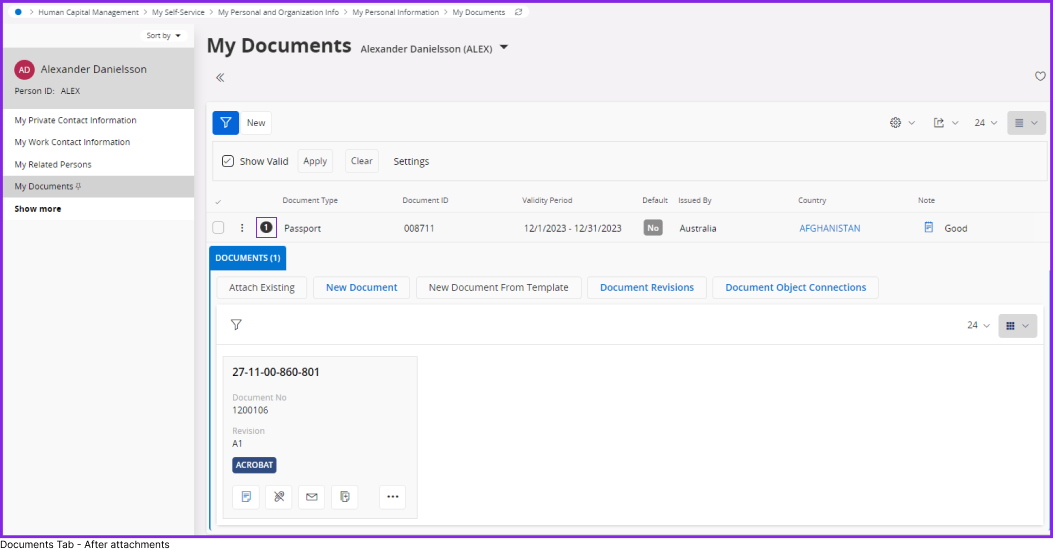
Once you successfully attach a document to the document placeholder, attachment icon will be changed into a numeric value to show the number of attachments under that place holder. You can access the documents tab to view your attachment by clicking this numeric icon. |