Bookmarks
You can bookmark your favorite IFS Cloud pages using the bookmark option. All your bookmarks are accessible under the Bookmarks section, located under the Bookmark icon in the Navigation Bar on the left side of your IFS Cloud screen.

 |
Expand / Collapse Bookmarks |
|
The Bookmarks Panel can be expanded or collapsed using the Panel icon located at the top of the Navigation Bar. When expanded, bookmark names are displayed, and the icon dynamically changes to indicate the collapse state.
Bookmarks offer quick and convenient access to frequently used IFS Cloud pages, external web pages, tools, and files. Users can personalize their workspace by creating bookmarks that are stored within their user profile.
When creating a bookmark, a variety of icons and color options are available to help users easily recognize and differentiate their saved links. Clicking on a bookmark immediately opens the associated page or resource.
Note: Bookmarks are user-specific and do not affect other users' views or settings.
|
|
Add / Manage Bookmarks
There are number of icons & colors available to choose from when creating a bookmark, which makes it easy for you to identify the bookmark. By clicking on a bookmark, you open the page linked to it. As a user you can create your own bookmarks, these are personal and stored in your user profile.
Add Bookmarks
 |
To add a new bookmark :
- Navigate to the desired IFS Cloud page
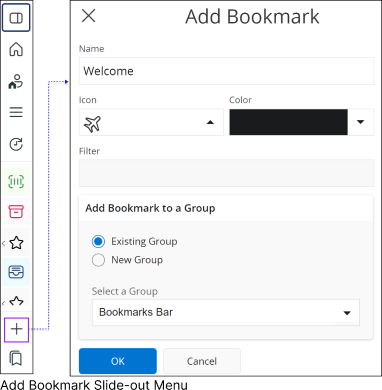
- Click the Add Bookmarks icon and follow the instructions given below
|
 |
|
This will open the Add Bookmark slide-out panel, which includes several fields to customize the bookmark’s properties, such as its name, icon, color, and target page.
 |
Add a name to the new bookmark by adding content in the Name input field. |
 |
Add a new icon to the bookmark by selecting a new icon from the Icon drop down menu. |
 |
If you have applied any filters to the page, those filters will be displayed in the filter section. |
 |
Add a new display color for the bookmark by picking a color from the Color drop down menu. |
|
Add Bookmarks to a Group
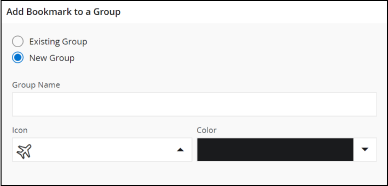
In IFS Cloud Web, you have the option to organize your bookmarks into groups. You can create a new group when adding a bookmark, or you can add the bookmark to an already existing group using the Add Bookmark to a Group section.
|
Add Bookmark to an Existing Group
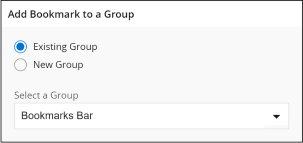 |
In order to add a bookmark to an existing group, select Existing Group radio button in the Add Bookmark to a Group section. |
 |
Select an available group from the Select a Group
drop down menu.
Note: Default selection would be Bookmarks Bar |

 |
- Click OK button to apply the changes
- Click Cancel button to cancel adding a bookmark
|
|
Add Bookmark to a New Group
|
Manage Bookmarks
 |
To edit existing bookmarks or bookmark groups, click the Manage Bookmarks button located at the bottom of the Navigator Menu, and choose one of the following two options.
|
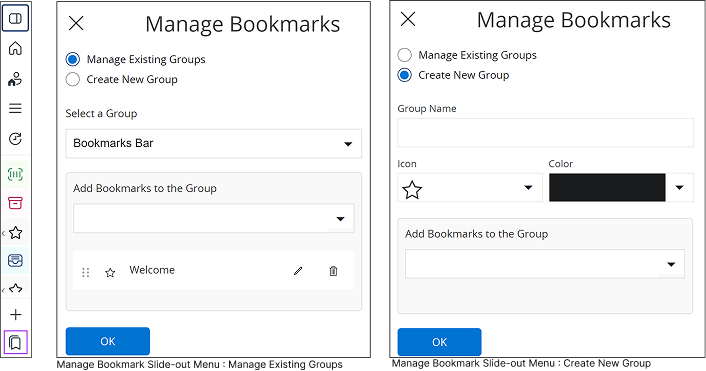 ` ` |
- Manage Existing Group : If you wish to modify an already-existing bookmark group, click the
Manage Existing Group radio button and follow the steps provided below.
- Create New Group : If you wish to create a new bookmark group, click the
Create New Group radio button and follow the steps provided below.
|
|
Manage Existing Group
 |
Go to Select a Group section and select a bookmark group from the drop-down menu (Bookmarks Bar is selected by default). |
 |
Go to Add Bookmarks to the Group
section and click on the drop-down menu to view all the created
bookmarks and add them to the selected group.
|
| Manage Bookmarks In The Group |

 |
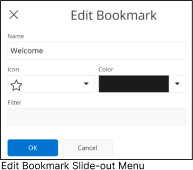
You can modify your existing bookmarks in the group by clicking the
Edit button next to any bookmark shown in the list. Once you click the Edit button you will be prompted with the
Edit Bookmark slide out menu
|
You can do the following modifications in Edit Bookmark Menu
: |
 |
|
Change the bookmark name
by modifying the content in the Name input field. |
|
Change the bookmark icon by selecting a new icon from the Icon drop down menu. |
|
Change the bookmark color by selecting a new color from the Color drop down menu. |
|

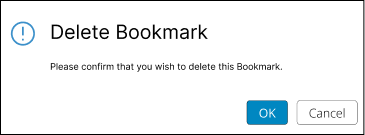 |
You can Delete a bookmark by clicking the Delete button next to the respective bookmark.
After clicking Delete button, you will receive a confirmation prompt in the form of a "Delete Bookmark" toast to confirm your actions.
|
|
Create New Group
|
Re-arrange Bookmark Order
 |
You can change the physical order of the bookmarks by dragging it Up or Down in the bookmark list
along the Navigation Bar.
Note : You are
not allowed to re-arrange the Bookmark order when you open up the
Bookmarks Panel
  |
You can use the up and down arrows in the Bookmarks
Panel to navigate through your existing bookmarks. |
|