|
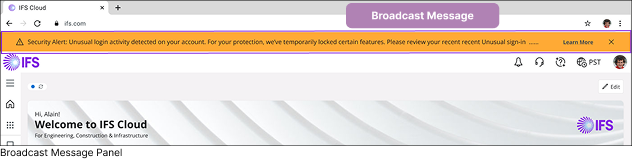
Broadcast messages in IFS Cloud are used to communicate important information to users across the application. These messages may be automatically generated by the system or manually created by application administrators. They are designed to inform users about a wide range of events, such as scheduled maintenance, organizational announcements, system notices, or upcoming activities.
Administrators have the ability to manually configure and schedule broadcast messages to ensure that all users receive timely and clear communication within the application. Once published, these messages appear prominently in the broadcast message panel, helping users stay informed and take appropriate action when necessary.
|
|
A |
 |
|
Hide Broadcast Messages |
|
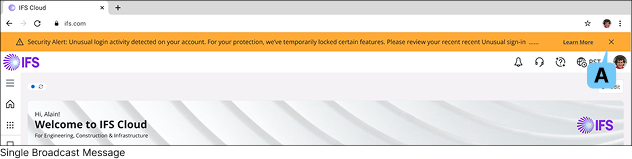
Click the Hide button located at the top-right corner of the broadcast message panel to dismiss all currently visible broadcast messages from the screen.
|
|
|
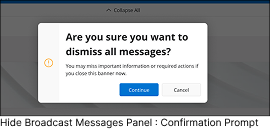
Once the Hide Broadcast Message (A) button is clicked, a confirmation dialog will appear prompting to verify the action.
To proceed with hiding the message, click Continue. Selecting Cancel will dismiss the dialog without making any changes.
|
|
|
A2 |
 |
|
Show Broadcast Messages |
|

|
|
Once the Broadcast Messages are hidden, Show broadcast message (A2) icon will appear on the Global Functions Bar, click the icon to restore broadcast message panel.
|
|
|
B |
 |
|
Show All |
|
If there are multiple broadcast messages, use the
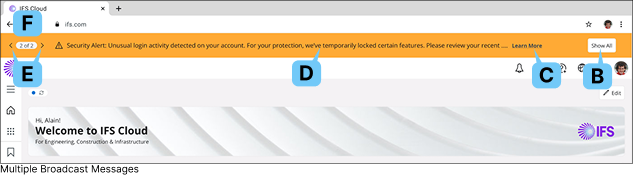
Show All(B) button to collapse all the broadcast messages in the cue.
|
|
B2 |
 |
|
Collapse All |
|
|
|
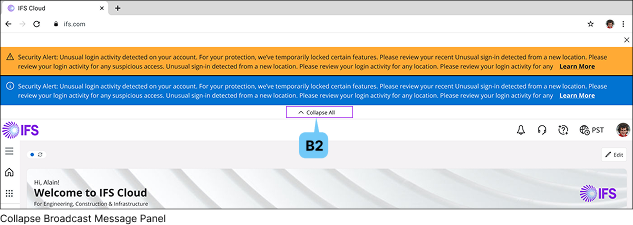
Once all broadcast messages are expanded and visible on the screen, users can click the
Collapse All (B2) button to condense the messages back into broadcast message panel.
|
|
|
C |
 |
|
Learn More |
|
Click the Learn More (C) button on the message to navigate to the linked page to gain a clearer understanding of the purpose behind the broadcast message.
|
|
D |
Broadcast Message Panel
|
|
The Broadcast Message Panel displays system messages based on their defined priority. Critical messages are presented first and are highlighted in orange, ensuring that urgent information receives immediate attention.
Once all critical messages are shown, informational messages, marked in blue, are displayed. This prioritization helps users quickly distinguish between message types and take appropriate action.
|
|
E |

 |
|
Move Among Messages |
|
When there are multiple broadcast messages Use the the Left or Right arrow buttons to view other available broadcast messages without expanding all messages on the screen at once, helping maintain a clean and focused interface.
|
|
F |
 |
|
Number of Broadcast Messages |
|
If there are multiple broadcast messages, the system displays the total number of messages in the queue and prioritizes the most critical ones first, according to the system configuration.
- Critical messages (highlighted in orange) are displayed before informational messages (shown in blue).
|
|