IFS.ai Copilot
IFS.ai Copilot is an interactive assistant designed to provide guidance if you are unfamiliar with how to perform your duties within the IFS Cloud Web platform.
Note: If you have any slide-out menus open, you won't be able to access IFS.ai Copilot. However, if you already have IFS.ai Copilot open within your IFS Cloud Web application and then access a slide-out menu, both IFS.ai Copilot and the slide-out menu will be displayed side by side for your convenience.
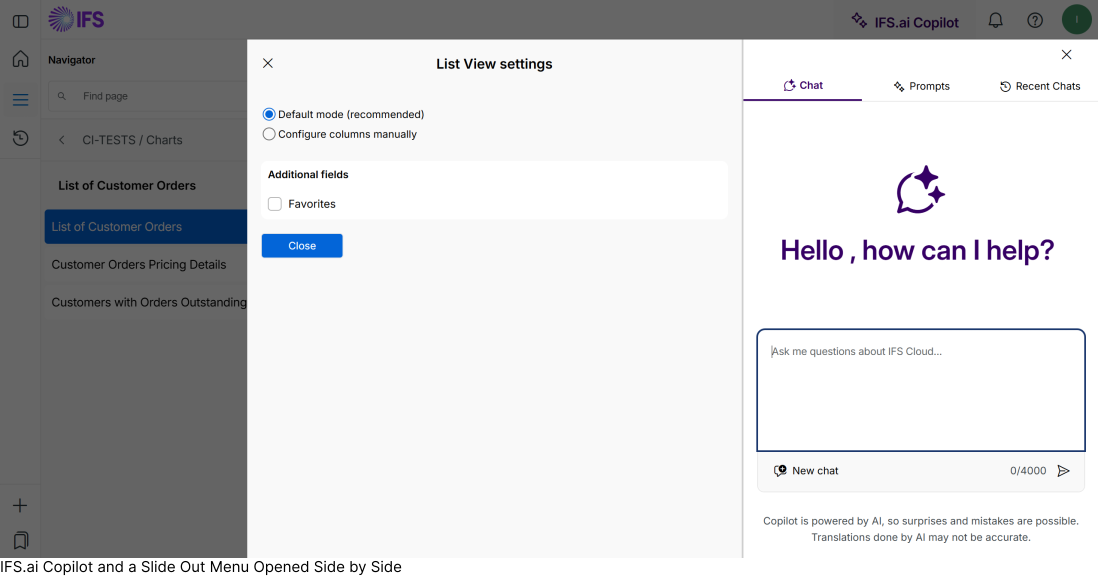
IFS.ai Copilot
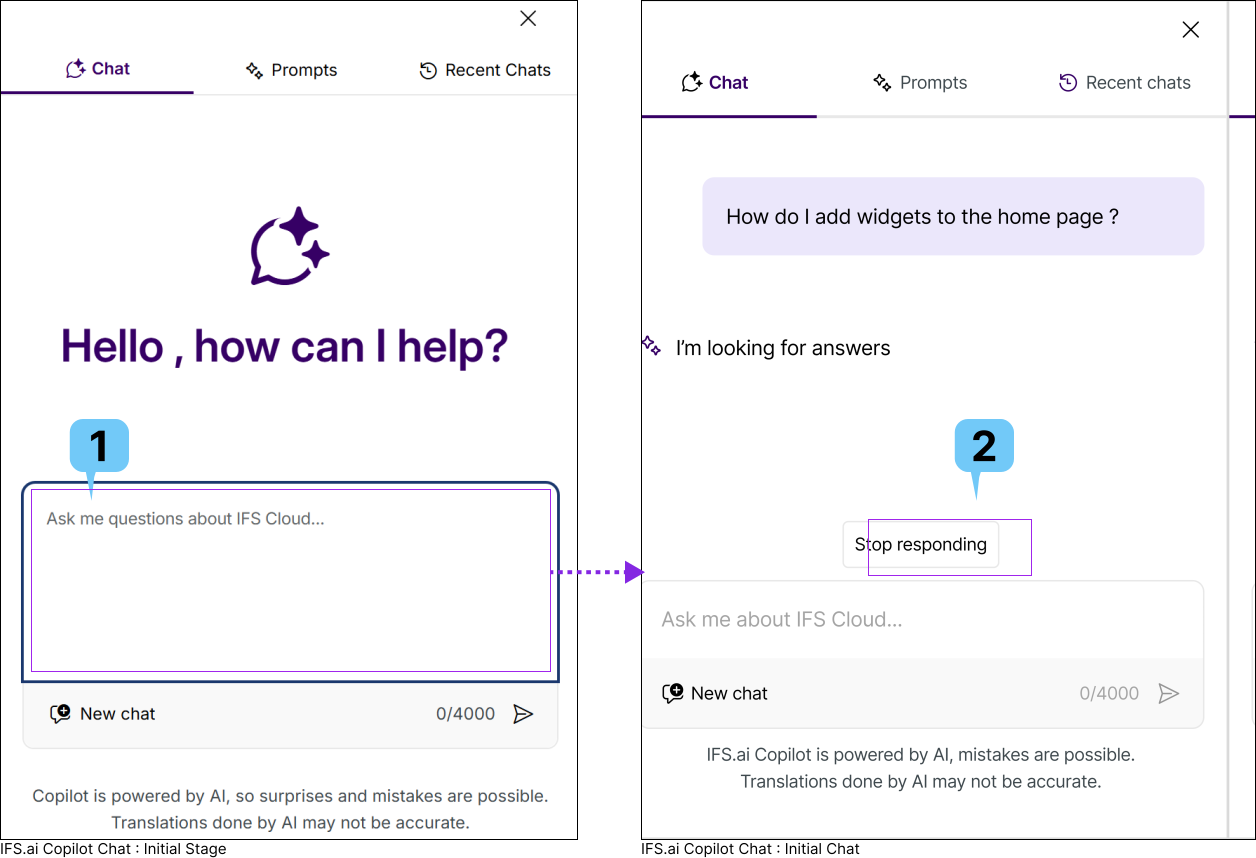
IFS.ai Copilot features a conversation interface powered by artificial intelligence (AI) to engage with users in a human-like manner. This AI chat system is engineered to comprehend natural language input, analyze information, and generate summarized responses compiled from the IFS documentation.
To begin, type your query directly into the Chat Interface (1). You can continue the conversation by asking follow-up questions, which helps refine and personalize the responses. The system maintains conversational context to a certain extent, allowing for more fluid interactions.
Where applicable, the responses may include clickable source references, enabling you to quickly access the original articles or pages for further reading.
If you wish to stop the Copilot’s response at any time, simply click the Stop Responding (2) button.
 | A : New Chat
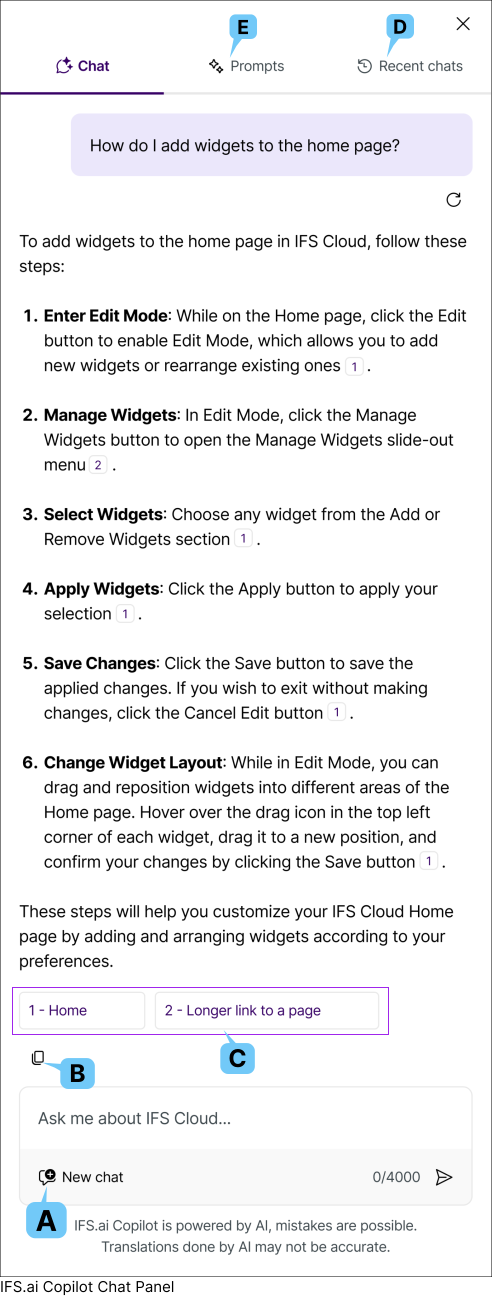
You can switch topics and initiate a new conversation with the chat interface by clicking the New Chat (A) button. When a new chat is initiated, the current conversation will be automatically moved to the Recent Chats (D) section. A fresh chat window will then open, allowing the user to begin a new interaction. |
B : Copy
You can copy your chat query or response using the Copy(B) option, which becomes available when you hover your mouse cursor over a chat balloon. | |
C : Hyper Link You can access any hyperlink referencing IFS Cloud documentation by clicking the links provided in the chat response. Each link will be numbered according to its order in the chat response. Once you hover over a hyper link Copy(B) button will be available for you to copy the hyperlink if necessary | |
D : Recent Chat
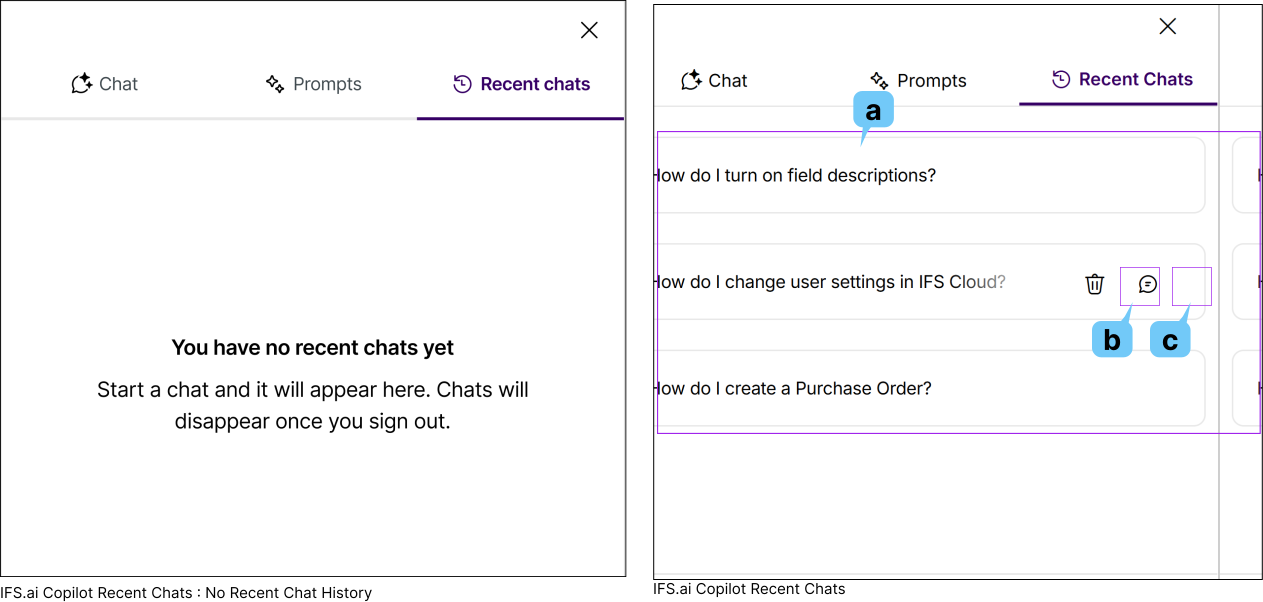
You can access previous conversations with the chat interface during your current IFS Cloud Web session by clicking the Recent Chats(D) button. This will open up a recent chat window containing all your previous chats. Please Note: The chat interface retains chat records only for the duration of your current IFS Cloud Web session. Once you log out of the application, all saved conversations will be erased.
a : Recent Chat Tile To open a recent chat, click on the appropriate Recent Chat Tile (a) available within the Recent chats tab b : Delete Recent Chat
To delete a recent chat entry, hover over the desired chat tile in the Recent Chats tab. The Delete (b) button will appear—click it to remove the chat from your list. c : View Conversation
To view a conversation, click the View Conversation (c) button. or click the Recent Chat Tile (a). |





E : Prompts Tab
A Prompt is the question or instruction given to IFS.ai Copilot. The quality and accuracy of the responses generated by IFS.ai Copilot are directly influenced by the clarity and precision of the prompt. Well-crafted prompts lead to more accurate and high-quality outputs.
To access the prompts, select the Prompts (E) tab at the top bar of IFS.ai Copilot window.
How to Use a Prompt
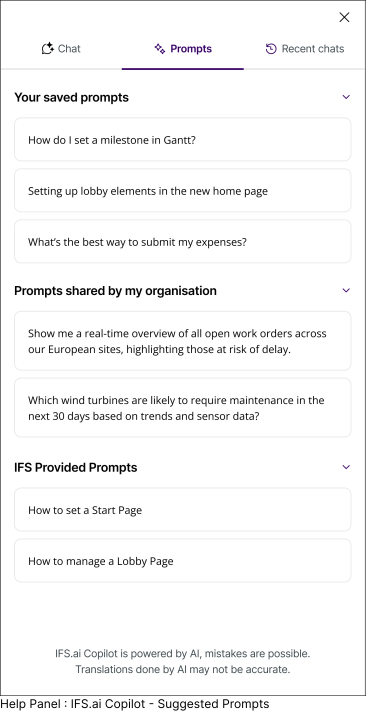
IFS.ai Copilot allows you to use prompts in a contextual manner. This means that different IFS Cloud pages will offer different sets of prompts relevant to the specific page you are on. The available list of prompts within the IFS.ai Copilot will automatically adjust based on the page, providing you with tailored options. There are four prompt types, those are :
My Saved Prompts : Prompt saved by you for future use
Prompts Shared by My Organization : Prompt saved by your organization for you to use
IFS Provided Prompts : Prompts provided by default from IFS
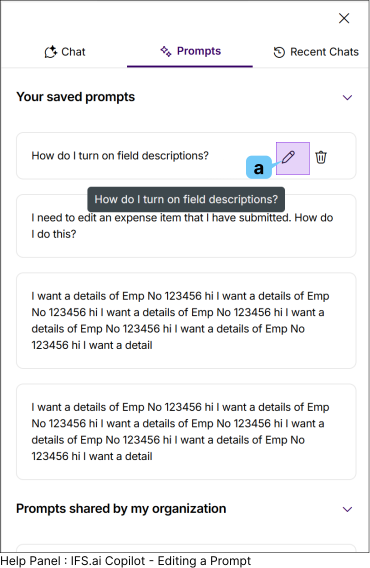
To use any of these prompts, simply click on a prompt, and it will be inserted into the chat, where IFS.ai Copilot will generate a response.
To edit a prompt before using it:

- Hover your mouse over the desired prompt to reveal the three-dot menu, which will offer additional options.
- Click the Edit (a) button.
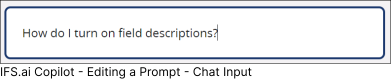
- The prompt will then appear in the chat input section in an editable mode.
- Make any necessary changes directly in the chat input before submitting the prompt.
How to Save / Add a Prompt
There are several methods you could use to add a prompt in IFS Cloud:
1. Using IFS.ai Copilot
You can enter your prompt in the Chat Input Section (a) of IFS.ai Copilot, and it will generate a response based on your input. Once your prompt is added, you can perform the following actions by hovering your mouse over the prompt in the chat window:
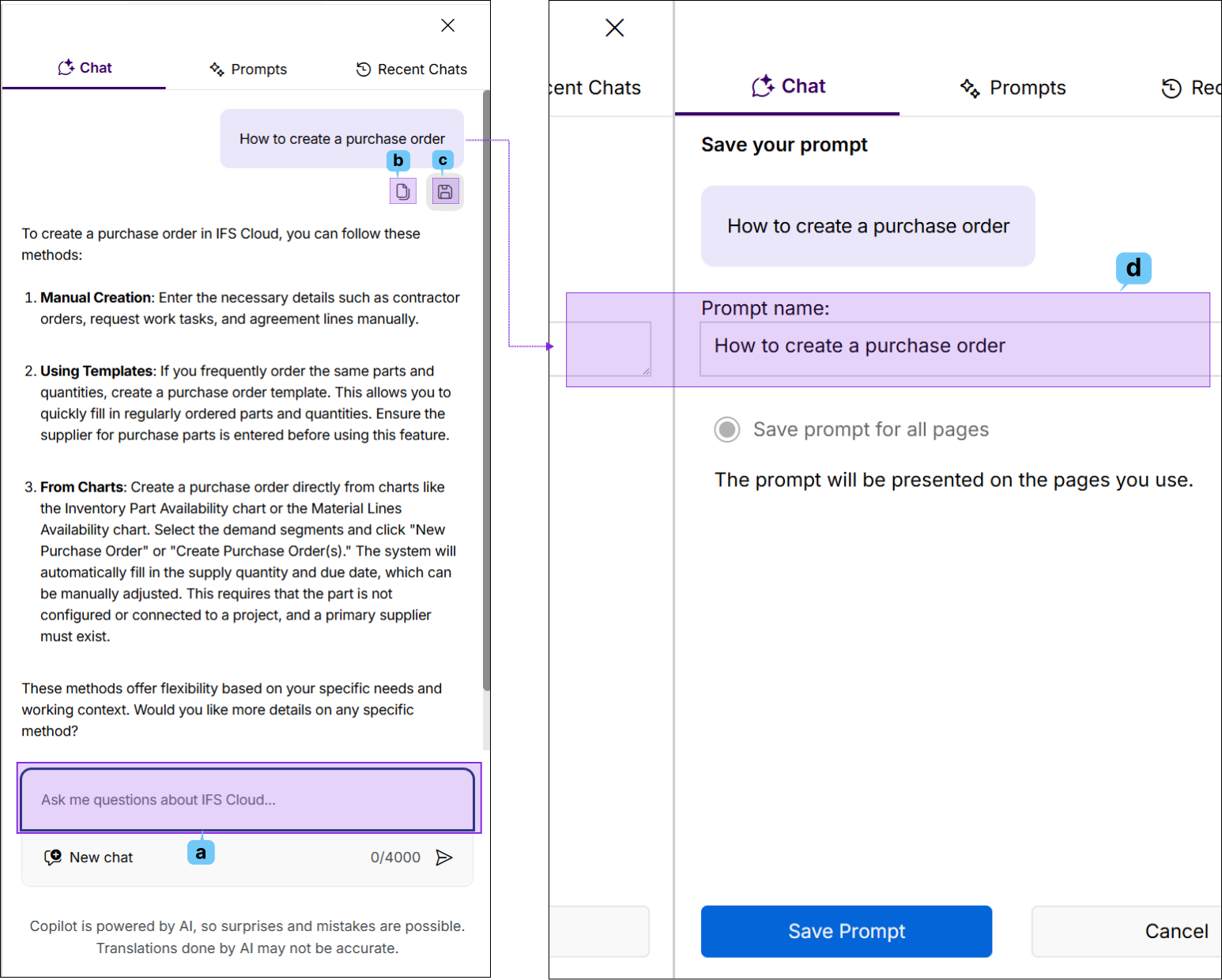
Copy(b) your Prompt by clicking the copy button.

Save(c) your Prompt by clicking the save button.

Clicking the save button will open a simple interface where you can choose to save the prompt either for the current page or as a universal prompt.
You can also add a description—a shorter or simpler version of the prompt—in the Suggest Name(d) field to make it easier to identify later.
Please Note: The prompt you created will display this description on the prompt tile which would allow you to easily identify the appropriate prompt
Once you've finalized your choices, click the Save button to confirm. A notification will appear, confirming that the prompt has been saved, and you will be returned to the main Copilot view.
2. Using My Copilots Prompts pages
To save and manage your custom prompts, navigate to My Administration > My Copilot Prompts.
- To make your prompts available across all IFS Cloud pages when using IFS.ai Copilot, add them to the My Universal Prompts page.
- To limit a prompt to a specific page, add it to the appropriate section under My Page Prompts.
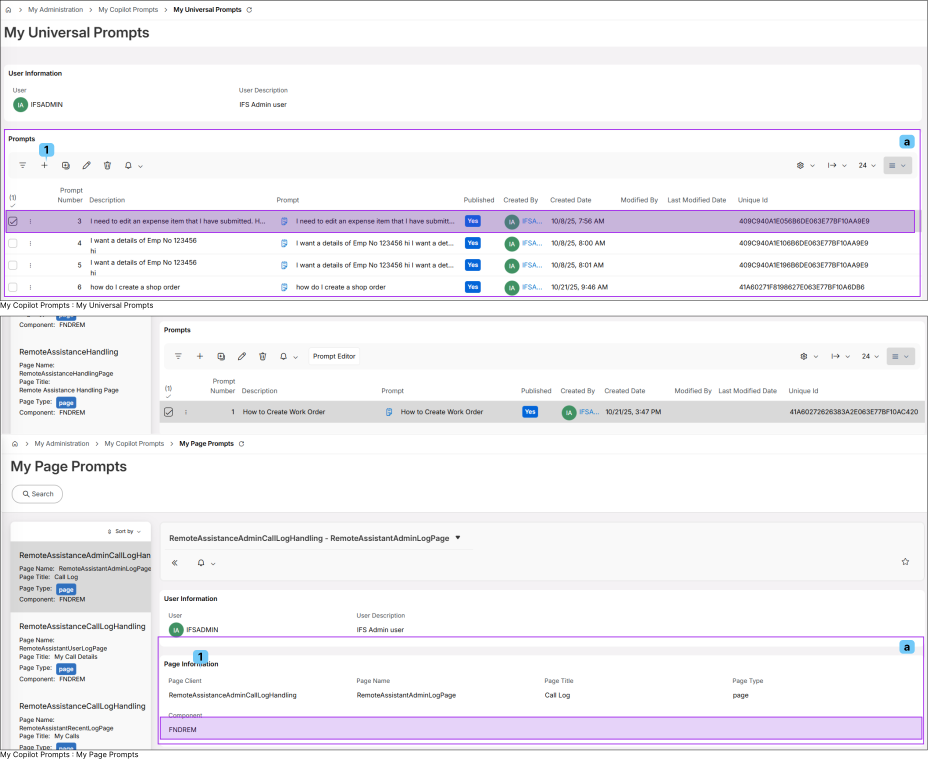
Please note that the process for adding prompts to either of these pages is the same.
- Go to the Prompts(a) section of My Universal Prompts page or My Page Prompts page in IFS cloud
- Select a page tile from the Record Selector in My Page Prompts page and go to the Prompts(a) section.
- Click the Add (1) icon to add a new prompt, this will open up a new row for you to add a universal prompt or a page prompt in the Prompts (a) section
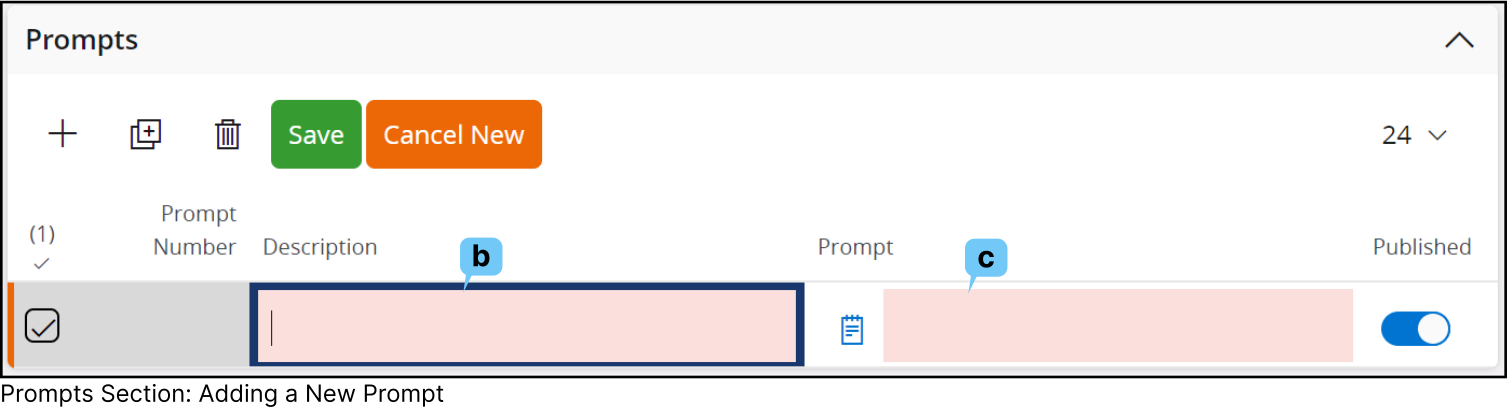
- Enter a description in the Description (b) field.
- Input the prompt content in the Prompt (c) field.
- Use the Published (d) toggle to select whether to publish or un-publish the prompt.
- Click Save to save your prompt, or click Cancel New to discard your entry.