Login to the System
When accessing IFS Cloud, you will first be directed to the IFS Cloud Landing Page. From this page, select the appropriate IFS Cloud interface (Example : IFS Cloud, IFS Cloud B2B, IFS Maintenix) to proceed with signing in.
Tip: If you are unsure which interface to choose, contact your system administrator or refer to your organization's internal guidelines.

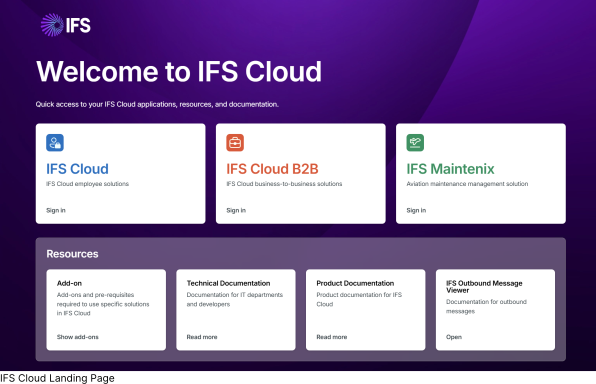
All client requests to IFS Cloud will require authentication. User credential validation can be performed through few methods:
- External Identity Provider
- Default Identity Provider (Basic Authentication)
External Identity Provider
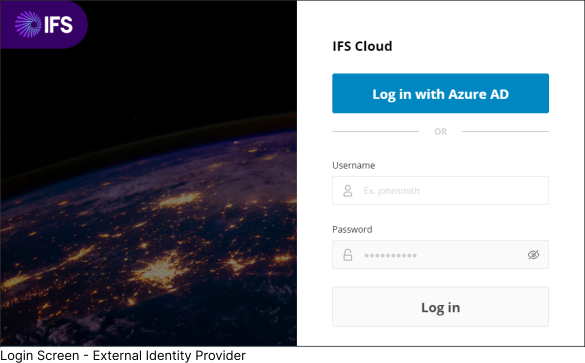
If your organization uses an external ID provider service like Azure AD, AWS Cognito, Google Identity Platform, etc., administrators can link that service to IFS Cloud Web. Which will then give you an option in the login window to Log in with <External ID Provider Name>.
- Click the Log In With <External ID Provider Name> button to access IFS Cloud Web.
Example: Log in With Azure AD.
Note: You will only see the option to log in using an External ID Provider in the login window, if your organization has connected IFS Cloud Web with that specific External ID Provider.Basic Authentication
You can also login to the application using Basic Authentication by providing your Username and Password.
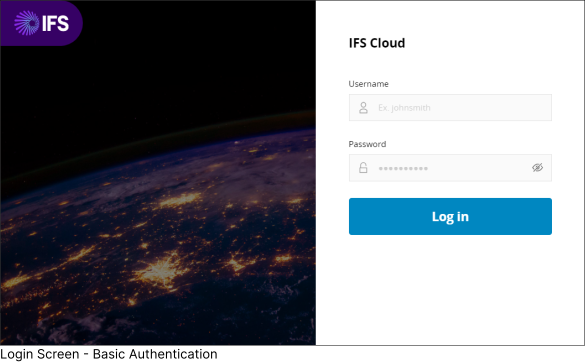
- Type in your Username and Password, and click the Log in button to enter the system.
In addition, IFS Cloud Web enforces a uniform role-based security model across the entire application. This model ensures that only authorized employees have access. Authorization can be performed by function (what can I do?) and data (what ranges of data may I see?).
To learn more about First Time Login, go to: Log Into IFS Cloud Web > First Time Login page.