Schedule Assistance-Task View
Introduction
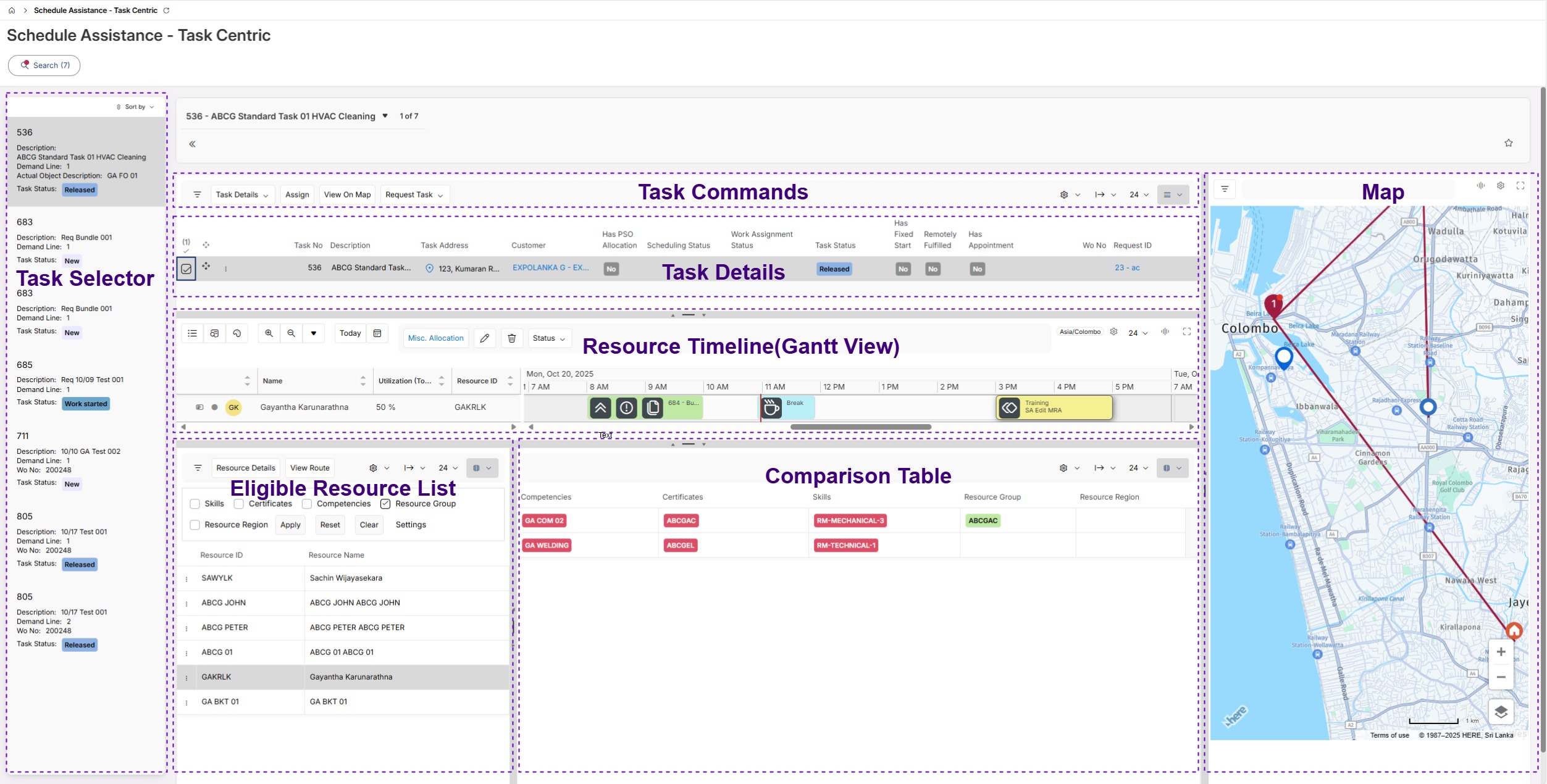
The Schedule Assistance – Task View page helps planners and dispatchers efficiently assign unassigned tasks to eligible resources.
This view enables you to:
- Select an unassigned Task from the Task List (left panel).
- View eligible Resources based on the Task’s required Skills, Regions, and Resource Groups.
- Compare Resource-Task compatibility with a color-coded comparison table.
- Review Resource availability and existing allocations in a timeline (Gantt chart).
- Assign Tasks via drag & drop or the Assign Dialog.
- View the Resource’s route on a map.
Left Panel – Task Selector
The Task Selector displays the list of unassigned Tasks.
When you select a Task:
- Task Details are displayed in the top section of the page.
- All the Resources that are eligible for the Task are loaded to the Resource List.
- Attributes like required Skills, Regions, and Resource Groups etc., are shown in the Comparison table - Compare with Task.
Tasks can be assigned either through the Assign Dialog or by dragging & dropping directly onto the resource timeline (Gantt).
Note: Once a Task is assigned, it remains visible in the Task Selector (left panel) until the page is reloaded.
Comparison Table – Compare with Task
The information in this table updates dynamically when a Resource is selected.
A color-coded system is used to highlight matches and mismatches:
- Green: The Resource’s component exists in the Task requirements.
- Red: The Resource’s component is missing from the Task requirements.
Resource List
Once a Task is selected, all eligible resources are loaded to the Resource List. By default, Resources are filtered based on the Task’s Skills, Certificates, Competencies, Regions, and Resource Groups. But you have the flexibility to adjust filter combinations or remove filters entirely. The Resource List is updated dynamically according to the filter changes you make.
Resource Timeline (Gantt View)
When you select a Resource in the Resource List, their timeline is displayed, showing the current availability and scheduled Tasks.
Simultaneously, the comparison table is updated with matches/mismatches of the Task requirements with Resource attributes.
This view supports all Gantt controls like drag & drop, moving, and resizing work assignments. Resource Cards and Work Assignment Cards are also available to provide additional details or control options.
Map Panel
You can use the View Route function to view the Resource’s route for the current day. Also, you can use the View on Map function to view the Tasks’ location on the Map.
Navigation
The Schedule Assistance can be accessed directly from the Dispatch Console, allowing seamless navigation.
Additionally, Task navigations are available for the selected Task, allowing you to navigate to the relevant Task pages from the Schedule Assistance.