Using Notes
On certain IFS Cloud record pages, you can add notes to specific records.
This allows you to input extra information related to that particular record.
| Add Note |
|
 |
|
If the information field allows adding a note, you will notice a notepad icon next to the field. Click on this icon to view the notes linked to that specific record.
|
 |
|
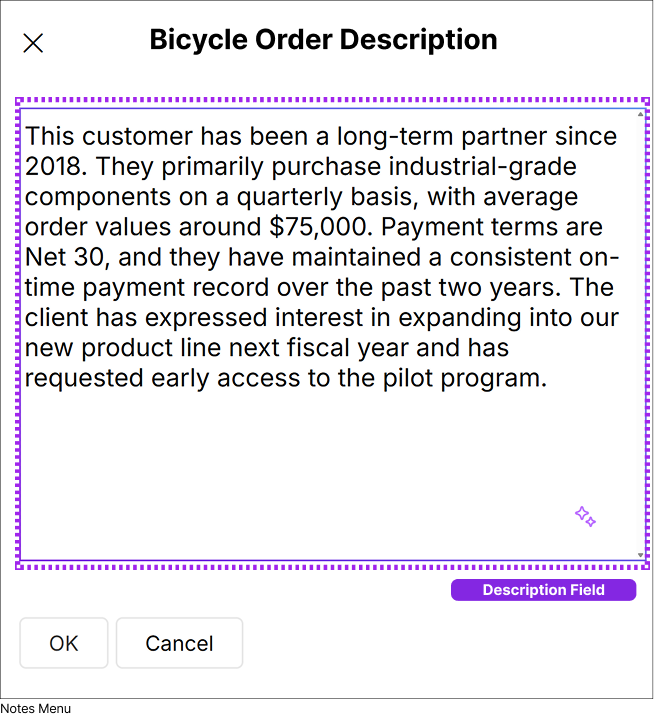
Clicking the Icon will open up a slide out menu with the note. You can add any description to the Note Description Field and click
the OK button to save your input.
|
| Using Smart Editor for Notes |
|
 |
|
Smart editor capability allows you to modify your content within a note field by using AI to refine grammar, enhance vocabulary, and improve clarity, making your content more polished, structured, and professional.
|
|
 |
|
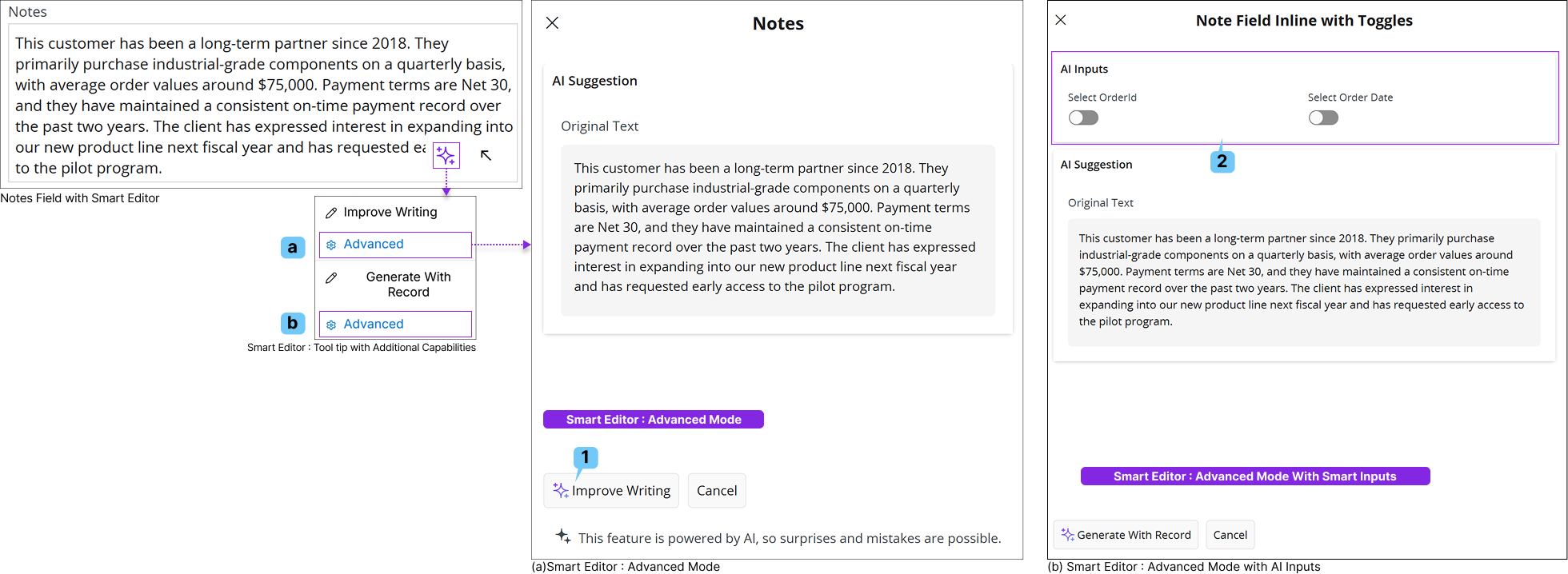
Note Fields with Smart Editor enabled display an AI icon in the bottom right corner, providing quick access to smart editing features.
- The AI functionality becomes available only after you have added content to the Notes field.
- If the Notes field is empty, the AI button will remain inactive.
- Once you enter text into the field, you can click the AI button to open a tool tip with the available AI actions.
|
 |
 |
|
Improve Writing helps you enhance the content entered in the Notes field, making it more professional, grammatically correct, appealing. |
 |
|
Advanced Mode allows you to make more detailed modifications to the content entered in the Notes field. The available options within Advanced Mode may vary depending on the underlying page configuration and the product area. However, the way you interact with these options remains the same. |
1. Improve Writing in Advanced mode |
2. Smart Inputs (AI Inputs) |
 |
|
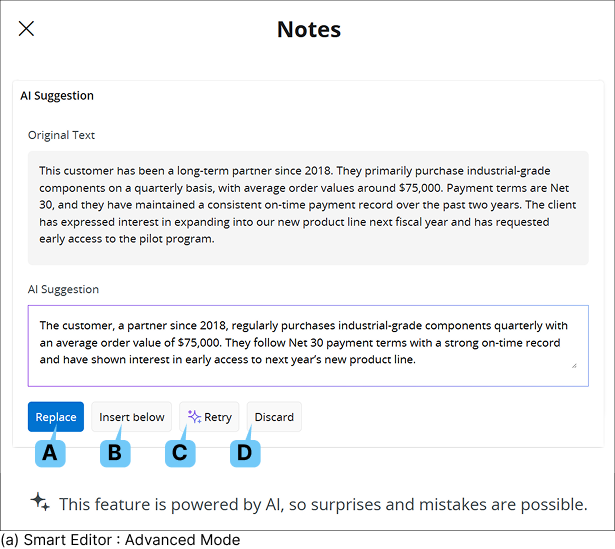
Improve Writing helps you enhance the content entered in the Notes field, making it more professional, grammatically correct and appealing. |
 |
|
 |
(A) Replace Button
When you use the Improve Writing functionality, the AI-generated version of your text appears separately in the AI Suggestions section. To apply the AI suggestion, click Replace, and your original content will be updated with the AI-generated version. |
 |
(B) Insert Below
Use this option to insert the AI-generated content directly below the text you have entered in the Notes field. |
 |
(C) Retry Button
Use the Retry option to generate a new version of the AI content. |
 |
(D) Discard
Button
Use the Discard option to remove the AI-generated content. |
|
|
 |
|
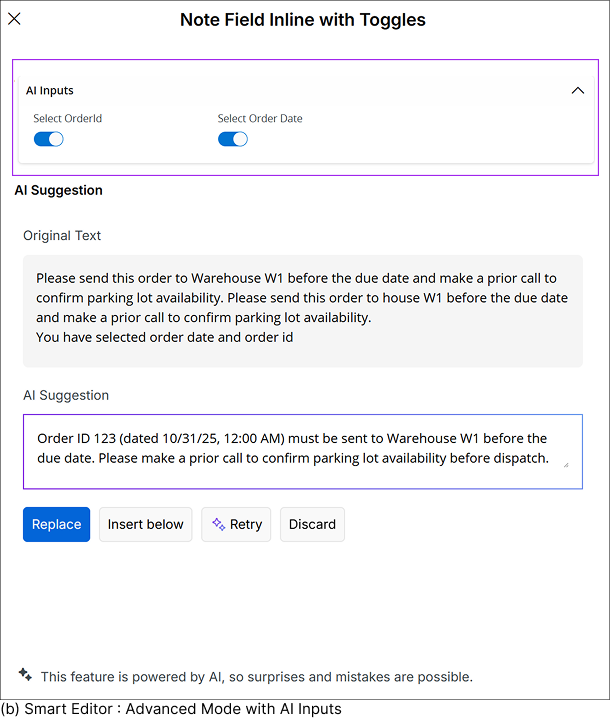
Depending on the IFS Cloud page and the product type you are using, the AI support provided in the background may vary. As a result, different Smart Inputs (also known as AI inputs) may be available in the Smart Editor.
These inputs allow you to intelligently insert preconfigured data, defined by your administrator, into the Notes field, eliminating the need to memorize values and making it easier to generate input quickly.
To use this feature, select the Smart Inputs you want to include in your Notes context and click the Generate with Record button to create the AI suggestion.
Note :The availability of Smart Inputs and the way they generate content can differ depending on the configuration and the AI recipe defined by the administrator. |
 |
|
|
|
|
|
|
|