Workflow Configuration for Technicians (Mobile Clients and Technician Portals)
Overview
Workflow Configuration in IFS Cloud defines how work is executed and controlled for technicians working in service and maintenance scenarios, in both mobile client and technician portals.
Workflows are used to guide technicians through predefined execution processes by controlling actions, validations, data requirements, and state transitions during work execution. The same workflow definition applies consistently across all supported technician user interfaces.
Workflow configuration is managed in the IFS Cloud Web client under Mobile Maintenance / Workflow Configuration and Technician Portals/Workflow Configuration. Only workflow configurations with Active status are considered.
Workflow configuration enables organizations to control and standardize how work is performed by technicians by:
- Defining the sequence of execution activities through Configured Request/Work Task Configuration Types
- Controlling which actions are available at different stages of work
- Enforcing data completeness and validation rules
- Ensuring required information is captured before work can progress or be completed
- Supporting consistent execution across similar types of work
The following sections explain how workflow configurations are configured, guide work execution and control actions.
- Configuration Types Sub Types, and Applicability
- Client Applicability
- Applying Workflow Configurations
- Workflow Actions
- Workflow Actions for Request and Configured Request Task Configurations
- Workflow Actions for Work Task and Configured Work Task Configurations
- Workflow Actions for Resource Configurations
- Mandatory Integrations
- Workflow Configuration Evaluation on Work Tasks and Request Tasks
- Workflow Actions Supported in Technician Portals
- Workflow Related Administration Settings in Service Execution Portal
Configuration Types Sub Types, and Applicability
The Configuration Type determines which processes, features, and actions are available for
configuration. Configuration Types, together with Configuration Sub Types, allow
each task type or sub‑process to have its own tailored workflow behavior.
This enables workflows to be customized per execution context without affecting other processes.
Technician‑Oriented Configuration Types
The Configured Request Task and Configured Work Task configuration types are
specifically designed to support technician workflows. These configurations guide technicians through structured
execution flows using predefined actions and steps.
Other configuration types primarily provide the ability to restrict or enable features and actions available to
users through workflow actions, rather than guiding execution.
Configured workflows are currently supported only in mobile clients.
A configured workflow:
- Guides users through a predefined sequence of actions
- Uses a process indicator to show progress
- Allows navigation between steps using Previous and Next actions
The table below provides an overview of the supported workflow configurations and their sub‑types. Detailed information is available in the corresponding sections that follow.
| Configuration Type | Configuration Sub Types and Applicability |
| Request Task |
|
| Configured Request Task |
|
| Work Task |
|
| Configured Work Task |
|
| Person Resource | Not applicable |
| Object | Not applicable |
Client Applicability
If a workflow configuration is applicable to both Mobile Clients and Technician Portals, the Used In field can be enabled for the relevant configuration types.
To identify which workflow configuration has been applied to a specific task, refer to the Configuration Applied field on the Work Details page in the mobile or Technician Portal clients.
The following limitations apply:
- Configured Request Task and Configured Work Task configurations are supported only in the Mobile Work Order solution.
- Request Task and Work Task configurations with the Bundle Task sub type are supported only in the Mobile Work Order solution.
- Technician portals currently support only a limited set of features and workflow actions. Refer to Workflow Actions Supported in Technician Portals for more details.
- All active workflow configurations are synchronized to IFS Mobile Clients through batch synchronization.
Workflow Configuration Evaluation in Mobile Clients
Workflow configurations are evaluated and applied to tasks in the following situations:
- When a new task is downloaded to the mobile client (this also applies during initial mobile client initialization)
- When a new task is created in the mobile client
- When a task attribute used as a workflow filter is updated in the mobile client. (for example, when the Object ID is changed)
- In Addition , to mobile‑initiated changes, the following updates made in the back office are synchronized to
mobile clients through batch synchronization and may trigger workflow re‑evaluation:
- Changes to Work Tasks or Request Tasks
- Changes to Work Assignments
- Updates to the filter Conditions of a Workflow Configuration
- Updates to the Workflow Actions of a Workflow Configuration
Applying Workflow Configurations
To define when a workflow configuration should be applied, selection criteria are defined on the Apply To tab.
- The available filter parameters depend on the selected Configuration Type
- A workflow is applied only when all defined filter criteria are met
Examples include:
- A specific Object Type
- A defined Priority
- Other task or execution attributes
Weight and Configuration Selection
When multiple workflow configurations are valid for the same execution context, the Weight determines which configuration is applied.
- The configuration with the highest weight takes precedence
- Weight is applicable only for the following Configuration Types :
- Request Task
- Work Task
- Configured Request Task
- Configured Work Task
Workflow Triggers
Workflow triggers are defined on the Apply To tab. The available trigger attributes depend on the Configuration Type and determine when a workflow configuration is applied..
Standard Filters
By default, all specified standard filters are evaluated together using an AND condition to determine whether a workflow configuration is applicable..
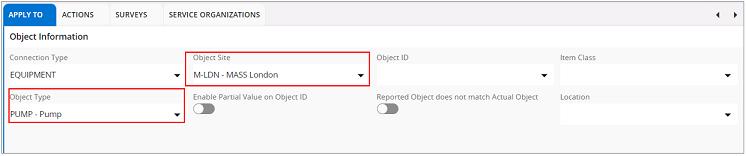
The example above reads:
|
If |
Some attributes—such as Work Type, Activity Type, and similar fields—support multi‑selection. When multiple values are selected for the same attribute, they are evaluated using an OR Condition.
Example with Multi‑Select Attributes :
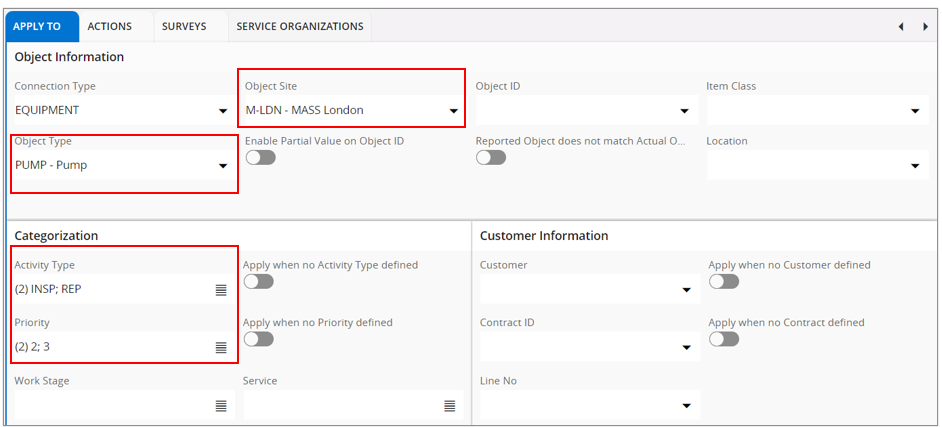
The example above reads:
|
If |
Special Filter Options
- Enable Partial Value on Object ID: This applies to Tasks where the Object ID value is contained within the Actual Object ID. In this case, the comparison uses “contains” logic instead of an exact match.
- Reported Object does not match Actual Object: This option applies to tasks where the Reported Object ID differs from the Actual Object ID.
Null Filters (Activate when No Value Defined)
Null filters allow conditions to be evaluated when a specific field does not have a value defined on the task.
Standard filters, by contrast, apply only when a value is present.
Null filters can be combined with standard filters and are available for the following fields:
- Activity Type
- Work Type
- Priority
- Customer
- Contract ID
- Work Stage
Example :
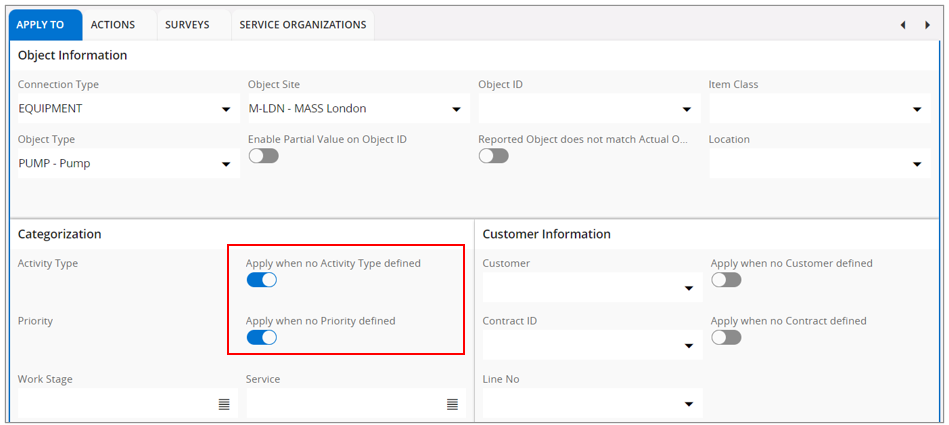
The example above reads:
|
If |
Work Assignment Filters
When multiple technicians are assigned to the same task, the same workflow configuration is applied to all
assignments by default.
If certain workflow actions or surveys should be available only to the Task Leader or excluding
the task leader, this can be controlled using the Exclude Task Leader setting.
If the same workflow must apply to both the task leader and other assignees—but with different behavior—the following approach can be used:
- Define two workflow configurations with identical filter criteria
- Assign different Weight values
- Configure different Exclude Task Leader settings
This allows different workflow actions to be enabled based on assignment role.
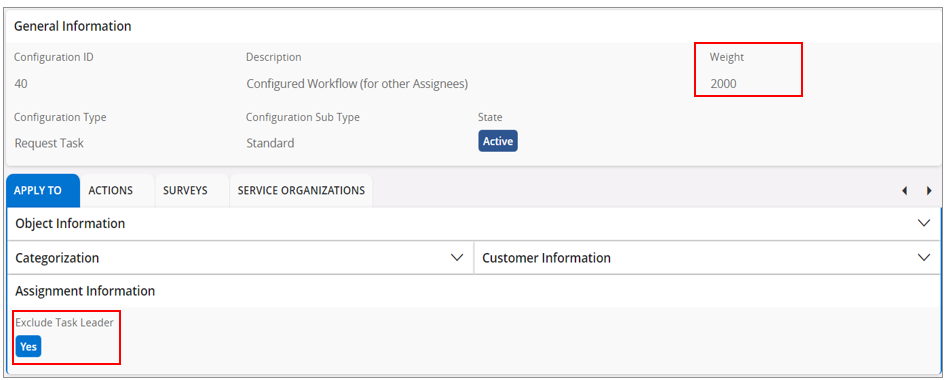
Example Setup :
In this scenario, actions such as Report In could be enabled for the Task Leader but not for other assignees.
Configuration for Task Leader:
- Exclude Task Leader = FALSE
- Configuration must have a lower Weight
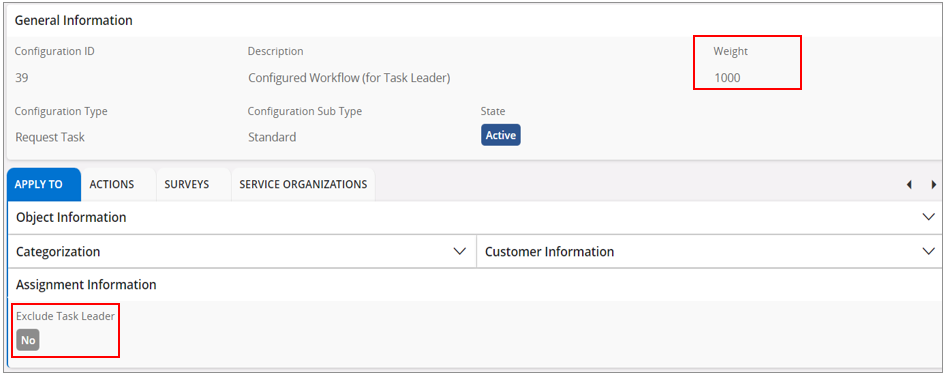
Configuration for Other Assignees:
- Exclude Task Leader =TRUE
- Configuration must have a higher Weight
Workflow Actions
Each Workflow Action enables a specific feature or action available to users during execution.
The valid workflow actions depend on the selected Configuration Type and are described in the
following sections:
- Workflow Actions for Request and Configured Request Task Configurations
- Workflow Actions for Work Task and Configured Work Task Configurations
- Workflow Actions for Resource Configurations
Mandatory Integrations
The Integrations feature in the mobile app enables technicians to launch connected applications with full contextual data, complete required actions, and return validated results directly back into MWO. Configuration settings for enforcing and validating these mandatory integration steps can be managed in the Mandatory Integrations tab.
For more details, see About Integrations.
Workflow Configuration Evaluation on Work Tasks and Request Tasks
Configuration Type - Request Task
The Request Task Configuration Type is used to define workflows for Request tasks.
The configuration is triggered when a Request Task meets the filter criteria defined in the Apply
To tab. Filters are not applicable for Request Bundle Tasks. Instead, workflow
configurations are matched to Request Bundle tasks using the Service Organizations
tab.
On the Actions tab, administrators can enable or disable task-related actions and define mandatory actions that must be completed before progressing.
For detailed information about available actions, refer to Workflow Actions for Request and Configured Request Task Configurations .
Relevant surveys can be associated with a Request Task configuration. The Workflow Type defined
on the survey determines when it is presented to the user.
For example, if a survey with Workflow Type = Work Start is added on the
Surveys tab, the survey is automatically launched when the user selects the Work
Start action.
Supported Configuration Sub Types
The following Sub Configuration Types are supported.
- Standard : Applies to standard Request Tasks.
- Bundle Task: Provides functionality similar to the Standard configuration, but applies to Bundle Tasks. The same Workflow Configuration is applied to both Bundle Task and on all connected tasks.
- New or Additional Work: Used to define Surveys that are triggered when creating a new Request, a new Service (Scope ), or an additional Request Work Task within an existing Scope. Surveys used here must be defined with Workflow Type = New Work or Workflow Type = New Task.
Use the Service Organizations tab to define the Service Organizations for which the workflow is applicable. Defining a Service Delivery Unit is optional.
Configuration Type - Configured Request Task
The Configured Request Task configurations type extends the capabilities of Request Task Configuration by allowing administrators to define a fixed sequence of actions in the Actions Flow tab. This ensures users follow the same execution pattern and are guided through the relevant steps consistently.
Additional configuration options in the Actions Flow :
Depending on the selected Action, additional configuration options may be available in the Actions Flow tab.
Surveys
The Surveys field in the Actions Flow is enabled for
status changes and the EForms action . These surveys must be defined with Workflow
Type = Configured Workflow and first registered on the
Surveys tab.
Survey Termination
The Survey Termination field allows a user to alter or terminate the
workflow based through a termination question.
If no terminating action is defined, the workflow continues as normal.
Supported Termination actions include :
- Cancel: Navigates to the Assignment Cancellation assistant.
- Incomplete: Navigates to the Assignment Incomplete assistant.
- Report In: Navigates to the Reporting assistant.
- Abort Action: Cancels the defined state event and remains on the Work Detail page.
Assortment
For material‑related actions on the Actions Flow tab, assortments can be used to limit the parts available to the user.
- One or more assortments can be defined in the Assortment field
- When an assortment is specified, only parts included in that assortment are available for the corresponding action
Integrations
The Integration field is enabled for the Integrations action .
- Only integrations with Screen = Work Task can be selected
- Defining integrations here limits the available integration entries in mobile clients.
Action Flow Options
The following additional actions can be included as steps in an action flow. When added, each action
automatically opens the corresponding page or assistant during task execution.
- CONNECTED_TASKS_LIST : Available for bundle tasks and displays a list of tasks connected to the Request bundle.
- PAYMENT_LINES, : Supports contractor‑specific payment reporting. This action is ignored if used on non‑contracted tasks..
Workflow Actions for Request Task and Configured Request Task Configurations
The following Workflow Actions are available on the Actions tab when using
Request Task and Configured Request Task Configuration Types. By default, all
actions are enabled.
Administrators can disable actions that are not required. To enforce that technicians perform specific actions, the
Mandatory option can be enabled for those actions.
| Action | Description |
| Allow editing of the Work Details page | Enables editing of the Work Details page, if disabled the complete page will be read only. |
| Multiple Work Assignments | If disabled, this restricts changing the status of a work assignment to OnRoute, Work Started, Waiting at Location, or Pending Completion, if another work assignment with the same Workflow Configuration is already in Work Started, Waiting at Location, or Pending Completion status. |
| Connected Work Assignments | Shows connected work assignments to a work task. |
| Keep Work Assignment after completion | Enables the assistant page with Keep and Remove options, allowing the work assignment to remain on the device until it is ready to be returned. |
| Auto Time | Enables Automatic Time Reporting (Travel and Work). |
| Return Travel Time | Enables Return Travel action when completing an assignment, which automatically creates a time report for the travel. |
| Surveys | Enables eForms action on assignment if at least one survey with Workflow Type - Work Assignment is connected to the workflow configuration applied. If this is set as mandatory, all eForms with Workflow Type - Work Assignment should be answered before completing the work assignment. |
| Debrief | Enables Debrief action. |
| Service Report | Enables viewing the Service Report from Work Assignments. |
| Attachments | Enables adding and viewing attachments. |
| Events | Enables Events action. This allows viewing Work Assignment and Task events and adding manual events. |
| Tools and Facilities | Enables Tools action to plan, view, or report tool/equipment used. |
| Update Assignment Information | Enables the action to update Assignment Information. |
| Time | Enables Time action to add, view, or edit time reports. |
| Task Steps | Enables Steps action to view, process, or add task steps |
| Service Book | Enables Service Book action in the Service app. |
| Service Notes | Enables viewing and adding Service Notes in the dynamic workflow (not applicable to bundle tasks). |
| Returns | Enables Returns action to view returned parts or plan parts to return. |
| Task Measurements | Enables the possibility to view and capture measurements on the work task object. If this is set mandatory (note that the Mandatory option will not be supported in the Technician portal), the mobile user gets an alert message asking whether the measurements have been captured when completing the work assignment. |
| Task Step Measurements | Enables the possibility to view and capture measurements on the work task step objects. If this is set mandatory (note that the Mandatory option will not be supported in the Technician portal), the mobile user gets an alert message asking whether the measurements have been captured when completing the work assignment. |
| Materials | Enables Materials action. If this is set as mandatory, at least one part should be issued before completing the work assignment. |
| Expenses | Enables Expenses action to report expenses. |
| Cancel | Enables Cancel action. |
| Allow Travel | Enables Travel action. |
| Allow Pending Completion | Enables Pending Completion action on assignments in Started status. |
| Allow Re-Start from Pending Completion | Enables Start command on the assignments in Pending Completion status. |
| Allow Pause | Enables Pause Travel action assignments in On Route status or Pause action on assignments in Started Status. |
| Waiting at Location | Enables Waiting at Location Action after travel started. |
| Incomplete | Enables Incomplete action. |
| Allow Accept | Enables Accept action. When disabled, the work task is automatically accepted from Assigned status. |
| Engineer Signature | Enables capturing engineer signature in the workflow. If this is set as mandatory, the fields Executed Signed By, and Executed Signature should be filled in before completing the work assignment. |
| Report In Task Wizard | Enables Report In assistant. If disabled, the assignment will be directly set to Completed on completion. If this is set as mandatory, the fields Fault Type, Cause, Performed Action, and Fault Class should be filled in to proceed with the wizard. |
| Mobile Report Before Customer Signature | Enables viewing Service Report or Work Report before adding the customer's signature. |
| Customer Signature | Enables capturing the customer's signature in the workflow. If this is set as mandatory, the fields Customer Signed By and Customer Signature should be filled in before completing the work assignment. |
| Mobile Report After Engineer Signature | Enables viewing Service Report or Work Report after adding the engineer's signature. |
| New Task | Enables Additional Work action. |
| Restrict Follow-On Work Actions On Incompletion | When this action is enabled, you, as the user, are not presented with options for creating follow on work
when setting a work assignment to Incomplete. When this action is disabled, you are allowed to create follow-on work to continue with the remaining work. While disabled, you have the Assign to Me and Needs to be planned options available to you. |
| New Request Scope | Enables creating New Request Scope. |
| Issue Materials |
Enables the following actions. |
| Issue All Reserved Materials | Enables Issue All Reserved action. This issues all reserved material on a Work Task. |
| Scan And Issue | Enables Scan and Issue action for Material. |
| Plan Materials | Enables adding new material demands on Work Tasks. |
| Direct Issue Materials | Enables Quick Issue -Stock , Quick Issue - Spares, and Quick Issue - Project actions to enable direct issue of parts |
| Allow Future Return Travel | Enables Add Return Travel action while completing an assignment. This allows reporting future time for return travel. |
| Unreserve Materials | Enables Handle Unused Parts action on reserved material. Parts that were not used for the job can be unreserved , moved to own stock, or to a central warehouse depending on the location reserved. |
| Allow Excluding Warranty for Parts | Allows the option to exclude warranty coverage for a specific part within a warranty work. |
| Add Highlight to Dispatcher | Enables Highlight to Dispatcher action on Work Assignment to draw the attention of a Dispatcher to a specific Work Assignment. |
| Update Expected Arrival Time | Enables Update Expected Arrival Time action for a Work Assignment. |
| AI Generated Summary of Completed Work | Enables the Summary of Work to Be Done by default when no workflow configuration is applied, and allow it to be disabled once a workflow configuration is applied. |
| AI Generated Summary of Work to be Done | Enables the Summary of Completed Work by default when no workflow configuration is applied, and allow it to be disabled once a workflow configuration is applied. |
| Suggested Knowledge Articles | Enables the Suggested Knowledge Article action to view suggested related Knowledge Articles. |
| Sales Handling | Enables Sales Handling action. It controls the visibility of the Sales Handling action in Request Tasks and in connected tasks within a Request Bundle Task. In a configured workflow, the Sales Handling action can be added as a step in the action flow for a configured Request Task. In a configured bundle task, it is necessary to navigate to the connected task to view or add sales connected to that task. |
| Disable Material and Return Codes | Disables adding or modifying material and return codes in part issue and part returns assistants. |
| Disable Automatic Report Attachment | Disables automatic attachment of service/work reports to work tasks at the work complete stage. |
Configuration Type - Work Task
The Work Task Configuration Type is used to define workflows for Work Order tasks.
The configuration is triggered when a Work Task meets the filter criteria defined in the Apply
To tab. Filters are not applicable for Work Order Bundle Tasks. Instead,
workflow configurations are matched to Bundle tasks using the Sites tab.
On the Actions tab, administrators can enable or disable task-related actions and define mandatory actions that must be completed before progressing.
For detailed information about available actions, refer to Workflow Actions for Work Task and Configured Work Task Configurations.
Relevant surveys can be associated with a Work Task configuration. The Workflow Type defined on
the survey determines when it is presented to the user.
For example, if a survey with Workflow Type = Work Start is added on the
Surveys tab, the survey is automatically launched when the user selects the Work
Start action.
Supported Configuration Sub Types
The following Sub Configuration Types are supported.
- Standard : Applies to standard Work Order Tasks.
- Bundle Task: Provides functionality similar to the Standard configuration, but applies to Bundle Tasks. The same Workflow Configuration is applied to both Bundle Task and on all connected tasks.
- New or Additional Work: Used to define Surveys that are triggered when creating a new work order, or an additional work task on an existing work order. Surveys used here must be defined with Workflow Type = New Work or Workflow Type = New Task.
Use the Sites tab to define the task sites for which the workflow is applicable. Defining a Maintenance Organization is optional.
Configuration Type - Configured Work Task
The Configured Work Task configurations type extends the capabilities of Work Task Configuration by allowing administrators to define a fixed sequence of actions in the Actions Flow tab. This ensures users follow the same execution pattern and are guided through the relevant steps consistently.
Additional configuration options in the Actions Flow :
Depending on the selected Action, additional configuration options may be available in the Actions Flow tab.
Surveys
The Surveys field in the Actions Flow is enabled for
status changes and the EForms action . These surveys must be defined with Workflow
Type = Configured Workflow and first registered on the
Surveys tab.
Survey Termination
The Survey Termination field allows a user to alter or terminate the
workflow based through a termination question.
If no terminating action is defined, the workflow continues as normal.
Supported Termination actions include :
- Cancel: Navigates to the Assignment Cancellation assistant.
- Incomplete: Navigates to the Assignment Incomplete assistant.
- Report In: Navigates to the Reporting assistant.
- Abort Action: Cancels the defined state event and remains on the Work Detail page.
Assortment
For material‑related actions on the Actions Flow tab, assortments can be used to limit the parts available to the user.
- One or more assortments can be defined in the Assortment field
- When an assortment is specified, only parts included in that assortment are available for the corresponding action
Integrations
The Integration field is enabled for the Integrations action .
- Only integrations with Screen = Work Task can be selected
- Defining integrations here limits the available integration entries in mobile clients.
Action Flow Options
The following additional actions can be included as steps in an action flow. When added, each action
automatically opens the corresponding page or assistant during task execution.
- CONNECTED_TASKS_LIST : Available for bundle tasks and displays a list of tasks connected to the Work Order bundle.
Workflow Actions for Work Task and Configured Work Task Configurations
The following Workflow Actions are available on the Actions tab when using
Work Task and Configured Work Task Configuration Types. By default, all actions
are enabled.
Administrators can disable actions that are not required. To enforce that technicians perform specific actions, the
Mandatory option can be enabled for those actions.
| Action | Description |
| Allow editing of the Work Details page | Enables editing of the Work Details page, if disabled the complete page will be read only. |
| Multiple Work Assignments | If disabled, this restricts changing the status of a Work assignment to OnRoute, Work Started, Waiting at Location, or Pending Completion, if another work assignment with the same Workflow Configuration is already in Work Started, Waiting at Location, or Pending Completion status. |
| Connected Work Assignments | Shows connected work assignments to a work task. |
| Keep Work Assignment after completion | Enables the assistant page with Keep and Remove options, allowing the work assignment to remain on the device until it is ready to be returned. |
| Auto Time | Enables Automatic Time Reporting (Travel and Work). |
| Return Travel Time | Enables Return Travel action when completing an assignment, which automatically creates a time report for the travel. |
| Surveys | Enables eForms action on assignment if at least one survey with Workflow Type - Work Assignment is connected to the workflow configuration applied. If this is set as mandatory, all eForms with Workflow Type - Work Assignment should be answered before completing the work assignment. |
| Debrief | Enables Debrief action. |
| Work Report | Enables viewing the Work Report from Work Assignments. |
| Attachments | Enables adding and viewing attachments. If this is set as Mandatory, there has to be at least one attachment linked to the task before completing the work assignment. |
| Events | Enables Events action. This allows viewing Work Assignment and Task events and adding manual events. |
| Work Order | Enables Work Order action to view Work Order information. |
| Tools and Facilities | Enables Tools action to plan, view, or report tool/equipment used. |
| Update Assignment Information | Enables the action to update Assignment Information. |
| Time | Enables Time action to add, view, or edit time reports. |
| Task Steps | Enables Steps action to view, process, or add task steps. |
| Log Book | Enables Log Book action in the Maintenance app. |
| Returns | Enables Returns action to view returned parts, or plan parts to return. |
| Purchase Request | Enables Purchase Requisitions action. |
| Task Measurements | Enables the possibility to view and capture measurements on the work task object. If this is set mandatory, the mobile user gets an alert message asking whether the measurements have been captured when completing the work assignment. |
| Task Step Measurements | Enables the possibility to view and capture measurements on the work task step objects. If this is set mandatory, the mobile user gets an alert message asking whether the measurements have been captured when completing the work assignment. |
| Materials | Enables Materials action. If this is set as mandatory, at least one part should be issued before completing the work assignment. |
| Expenses | Enables Expenses action to report expenses. |
| Cancel | Enables Cancel action. |
| Allow Travel | Enables Travel action. |
| Allow Pending Completion | Enables Pending Completion action on assignments in Started status. |
| Allow Re-Start from Pending Completion | Enables Start command on the assignments in Pending Completion status. |
| Allow Pause | Enables Pause Travel action assignments in On Route status, or Pause action on assignments in Started Status. |
| Allow Handover | Valid only for Maintenance Tech Portal. |
| Waiting at Location | Enables Waiting at Location Action after travel started. |
| Incomplete | Enables Incomplete action. |
| Allow Accept | Enables Accept action. When disabled, the work task is automatically accepted from Assigned status. |
| Engineer Signature | Enables capturing the engineer's signature in the workflow. If this is set as mandatory, the fields Executed Signed By and Executed Signature should be filled in before completing the work assignment. |
| Report In Task Wizard | Enables Report In assistant. If disabled, the assignment will be directly set to Completed on completion. If this is set as mandatory, the fields Fault Type, Cause, Performed Action and Fault Class should be filled in to proceed with the wizard. |
| Mobile Report Before Customer Signature | Enables viewing Service Report, or Work Report before adding the customer's signature. |
| Customer Signature | Enables capturing the customer's signature in the workflow. If this is set as mandatory, the fields Customer Signed By and Customer Signature should be filled in before completing the work assignment. |
| Mobile Report After Engineer Signature | Enables viewing Service Report or Work Report after adding the engineer's signature. |
| New Task | Enables Additional Work action. |
| Restrict Follow-On Work Actions On Incompletion | When this action is enabled, you, as the user, are not presented with options for creating follow on work
when setting a work assignment to Incomplete... When this action is disabled, you are allowed to create follow-on work to continue with the remaining work. While disabled, you have the Assign to Me and Needs to be Planned options available to you. |
| New Work Order | Enables creating New Work Order |
| Issue Materials | Enables the following actions: - Issueaction under Required Material, and Reserved Material. - Receive and Issue action under Receive Reserved Parts. - Actions Issue All Reserved , Scan and Issue and Quick Issue (Spares and Stock) are not affected. When setting this action to Not Used, user gets a prompt to set Actions Issue All Reserved Material, Scan and Issue, and Direct Issue Material also to Not Used. |
| Issue All Reserved Materials | Enables Issue All Reserved action. This issues all reserved material on a Work Task. |
| Scan And Issue | Enables Scan and Issue action for Material. |
| Plan Materials | Enables adding new material demands on Work Tasks. |
| Direct Issue Materials | Enables Quick Issue -Stock, Quick Issue - Spares and Quick Issue - Project actions to enable direct issue of parts. |
| Allow Future Return Travel | Enables Add Return Travel action while completing an assignment. This allows reporting future time for return travel. |
| Add Highlight to Dispatcher | Enables Highlight to Dispatcher action on Work Assignment to draw the attention of a Dispatcher to a specific Work Assignment. |
| Update Expected Arrival Time | Enables Update Expected Arrival Time action for a Work Assignment.. |
| Disable Automatic Report Attachment | Disables automatic attachment of service/work reports to work tasks at the work complete stage. |
Person Resource Configurations
The Person Resource configuration type is used to enable relevant actions for a defined
set of resources and to associate surveys with those resources.
Surveys added on the Surveys tab must be defined with Workflow Type =
Person Resource.
Use the Access tab to specify the selection criteria for applicable resources:
- Criteria defined under Service Resource apply to resources engaged in service work
- Criteria defined under Maintenance Resource apply to resources engaged in maintenance work
Applicable resources can be defined in the following ways:
- Service Resources : By Company, Service Organization , Delivery Unit or Individually
- Maintenance Resources : By Site, Maintenance Organization or Individually
The associated surveys are displayed to users under the EForms on the mobile client home page. Person Configurations are currently not supported in Technician Portals.
Workflow Actions for Resource Configurations
The following Workflow Actions are available on the Actions tab when using the Person Resource Configuration Type . Actions that are not required can be disabled.
| Action | Description |
| Allow Add New Work Order / Service Request | Enables New Work action from the Home page, Objects, Work Assignments, and Task Steps in mobile client. |
| Allow Create / Update Map Positions | Enables action Create Map Position or Update Map Position on tasks and objects. |
| Allow Create/View Request Quotations | Enables New Request Quotations, and Request Quotations tiles in the Home screen and the actions on the Objects page. This allows creating new Request Quotations, and view Request quotations created by the technician. |
| Allow Find Part | Enables Find Part action on the Material header, and on the Required Materials card view only when the part stock in the van is limited or not available. |
| Allow Meter Change | Enables Meter Change action on objects with test points and parameters defined. |
| Allow Meter Rollover | Enables Meter Rollover action on objects with test points and parameters defined. |
| Allow report none Absences categories in Misc. Allocations | Enables the user to report a Misc. Allocation Category with the property Absence set to No. |
| Allow Pool Work | Enables Pool Work tile in Home Screen so that tasks can be accepted from the pool. |
| Allow Receive Reserved Parts | Enables Receive Reserved Parts action. |
| Allow Handover of Parts from My Stock | Enables Move to Main Warehouse action on My Stock. This allows moving unreserved parts to the main (central) warehouse directly. |
| Allow Release Service Quotation | Enables Release and Return action on Service Quotations. |
| Allow Return of Unreserved Parts from Service Location | Enables Return from Service Location action in Material. This allows returning unused parts left in the service location. |
| Allow Service Sales | Enables processing the option Plan a scope for reviewing and showing Scope Review menu item. |
| Allow Stock Move Add Transport Tasks | Enables Add Transport Tasks action in Move Stock. |
| Allow Stock Move Incoming Stock | Enables actions on Incoming Stock- In Transit and Incoming Sock - Direct in Stock Move. |
| Allow Stock Move Planned Incoming Transport Tasks | Enables action Planned Incoming Transport Tasks. |
| Allow Stock Move Unplanned Incoming Stock | Enables action Unplanned Incoming Stock in Move Stock. |
| Allow Stock Move Unplanned Outgoing Stock | Enables action Unplanned Outgoing Stock in Move Stock. |
| Enforce Acknowledgement on Stock Count Submit | Enables toggle for acknowledgment when confirming counted part lines. The technician has to acknowledge that the counted part quantities are accurate before he can confirm. |
| Enforce Part Validation | If enabled, Part Numbers are validated on return. |
| Ignore Shift Start Validation | Disregards validation to enforce user to sign in for the shift before starting work. |
| Allow Set Attention | Enables action Set Attention On/Off from the main menu to send an alert to the Dispatcher(s). |
| Do not Pause Assignments when Break Starts | If enabled, mobile users are not required to pause ongoing assignments when the shift break starts. |
Object Configurations
The Object configuration type is used to enable access to surveys for specific objects.
Use the Filters tab to define the selection criteria for the applicable objects.
Relevant eForms can then be associated on the Surveys tab.
Surveys used for object configurations must be defined with Workflow Type = Object Information.
Mobile users can manually launch these surveys from the object using the EForms
action.
Workflow Actions Supported in Technician Portals
The following task related workflow actions are supported in Technician Portals. Enabled actions are indicated with Yes.
| Workflow Action | Service Execution Portal | Service Technician Portal | Maintenance Technician Portal |
| Update Assignment Information | Yes | No | No |
| Multiple Work Assignments | No. Refer to Note 1. | Yes | Yes |
| Connected Work Assignments | No | Yes | Yes |
| Allow Editing of Work Details Page | Yes | Yes | Yes |
| Restrict Follow-On Work Actions On Incompletion | Yes | Yes | Yes |
| Auto Time | Yes | Yes | Yes |
| Return Travel Time | Yes | Yes | Yes |
| Surveys | Yes | Yes | Yes |
| Attachments | No | Yes | Yes |
| Tools and Facilities | No | Yes | Yes |
| AI-Generated Summary of Work to Be Done | Yes | No | No |
| Time | Yes | Yes | Yes |
| Task Step Measurements | No | Yes | Yes |
| Task Steps | Yes | Yes | Yes |
| Task Measurements | No | Yes | Yes |
| Service Notes | Yes | N/A | N/A |
| Returns | Yes | Yes | Yes |
| Purchase Request | N/A | Yes | Yes |
| Materials | Yes | Yes | Yes |
| Expenses | Yes | Yes | Yes |
| Debrief | No | Yes | Yes |
| Waiting at Location | Yes | Yes | Yes |
| Allow Pause | Yes | Yes | Yes |
| Incomplete | Yes | Yes | Yes |
| Cancel | Yes | Yes | Yes |
| Allow Pending Completion | Yes | Yes | Yes |
| Allow Re-Start from Pending Completion | Yes | Yes | Yes |
| Allow Travel | Yes | Yes | Yes |
| Allow Handover | N/A | N/A | Yes |
| Allow Future Return Travel | Yes | No | No |
| Customer Signature | Yes | Yes | Yes |
| Report In Task Wizard | Yes | Yes | Yes |
| Engineer Signature | Yes | Yes | Yes |
| Issue All Reserved Materials | Yes | No | No |
| Issue Materials | Yes | Yes | Yes |
| Plan Materials | Yes | Yes | Yes |
| Direct Issue Materials | Yes | Yes | Yes |
| New Task | No | Yes | Yes |
| New Work Order | N/A | Yes | Yes |
Workflow Related Administration Settings in Service Execution Portal
The Allow Multiple Work Assignments workflow action is not evaluated in Service Execution Portal and is therefore ignored. A Service Execution Portal Administration Settings page is available in the navigator to control this behavior.
| Parameter Name | Description | Default Value |
| Allow Multiple Work Assignments | Determines whether a user can work on multiple work assignments simultaneously in the Service Execution
Portal. TRUE : Allows the user to work on multiple work assignments at the same time without restrictions. FALSE : Prevents the user from changing a work assignment to On Route, Work Started, Waiting at Location, or Pending Completion if another work assignment for the same user is already in Work Started, Waiting at Location, or Pending Completion status. |
TRUE |