Manufacturing Scheduling and Optimization (MSO)
Manufacturing Scheduling and Optimization (MSO) is a solution designed to generate finite production
schedules by optimizing the use of manufacturing resource constraints. It enables efficient execution of shop floor
activities by aligning production with business objectives. The primary users of MSO are inventory
part planners, while shop floor employees, such as production supervisors and machine operators, refer to the
generated schedules to guide execution. The production schedule defines the sequence of manufacturing
activities, and MSO ensures this sequence is optimized to meet organizational goals.
MSO leverages the IFS PSO (Planning, Scheduling, and Optimization) engine to generate schedules. It
considers a wide range of parameters, including:
- Part-specific setup time constraints
- Resource sharing capabilities (machines and labor)
- Shop order priorities
- Resource working calendars
- Maintenance-related work schedules, and many more.
Production planners can configure the desired optimization quality and maximum scheduling
time per site during MSO dataset activation. These settings enable MSO to balance performance with scheduling
precision. MSO supports both Make-to-Stock and Just-in-Time (JIT) production models within a
single scheduling run. It can optimize schedules in either direction as defined by the shop order.
MSO is highly configurable and can be fine-tuned using MSO advanced parameters to meet specific
business goals, such as minimizing late orders, reducing average tardiness, or improving earliness, etc.
MSO creates finite schedules based on the manufacturing and shop order scheduling related data. Therefore, it is
essential to set data that affects the shop order schedule before using MSO.
- Need Date on Shop Order page: MSO considers this input as the
first of the two main time constraints for a shop order. Scheduling after this date means the shop order does not
meet the external demand requirement and is therefore, considered as tardy. One of the main objectives of MSO is
to create a finite schedule that minimize the number of tardy shop orders.
- Earliest Start Date on Shop Order page: MSO considers this input
as the second of the two main time constraints for a shop order. This is a hard time constraint, and MSO does not
schedule a shop order before this date. For shop orders with a passed Earliest Start Date, MSO
considers the current time as the Earliest start time.
- Scheduling Direction on Shop Order page: MSO considers this input
to determine the expected best time bucket to schedule a shop order and its operations relative to its
Earliest Start Date and Need Date. A shop order with the scheduling direction
" Backward" is expected to be scheduled just before its Need Date. A Shop Order with a
"Forward" scheduling direction is expected to be scheduled just after its
Earliest start time.
- Priority Category on Shop Order page: MSO uses this input as the
user-defined priority for a shop order over the others. If two identical shop orders are competing for the same
time bucket, MSO prioritizes the shop order with the highest priority category. MSO priority score, as defined in
shop order priorities, is used to decide the level of priority when scheduling respective demand
fulfillments.
MSO Scheduling Service Configuration
Configure MSO Advanced Parameters (For modification by PSO/MSO SMEs only)
MSO is highly configurable and can be fine-tuned to support a wide range of business objectives, such as
minimizing the number of late orders, reducing average tardiness, or improving earliness. Subject matter experts
(SMEs) can use the MSO Advanced Parameters page to create templates with refined
parameter values. Once created, these templates can be activated and connected to the relevant sites. The refined
parameters in the connected template then influence the scheduling behavior at each site. Site connections are
managed on the Advanced Settings tab on the Finite Scheduling Basic
Data page.
A standard template is provided out of the box, pre-configured with validated and tested parameters to ensure
reliable performance across typical scheduling scenarios. This standard template is automatically assigned when a
site is set up for MSO. It is strongly advised to use this standard template and its default values unless a
specific business requirement justifies a customized scheduling approach.
On the MSO Advanced Parameters page, the MSO Model tab
contains key parameters used to generate optimized production schedules in MSO. The PSO Profile
tab contains PSO-specific parameters defined within the MSO profile, which directly impact the behavior and
efficiency of the scheduling and optimization processes.
For more information, see the activity Configure MSO Advanced
Parameters.
Set-up Finite Scheduling Basic Data
To run MSO on a site, it must be set up on the Finite Scheduling Basic Data page. The
required settings must be configured, and the dataset must be activated. The user who initially activates the
dataset is considered its owner. After activation, only the dataset owner and users with admin privileges can
activate, deactivate, or delete the dataset. The sections below describe each group of settings in detail.
Scheduling Mode Settings
The settings related to scheduling mode are:
-
Mode: Controls how the finite scheduling of shop orders is triggered. If set to
Manual, scheduling is performed only when a planner explicitly requests it. If set to
Automatic, scheduling is performed automatically whenever required, for example when a new
shop order is created. For more information, see the section MSO Scheduling
Modes.
- Time Horizon (Days): The scheduling window that defines how far into the future the
scheduling service can schedule shop order operations. It begins on the system date and continues for the
specified number of days into the future.
- Scheduling Start Time (Hours): The number of hours from the current time after which shop
order operations are allowed to be scheduled.
- Generate Scheduling Information: If this option is enabled, the scheduling service updates
the relevant information and the reasons behind the generated schedule. This information is then displayed in the
MSO Scheduling Information field for the affected shop order operations.
Scheduling Server Configuration Settings
The settings related to scheduling service configuration are:
- Configuration ID: The specific scheduling optimization configuration to be used. This must
be defined by the system administrator after the MSO scheduling service has been set up. The configuration
contains information about the PSO server installation. Platform services users should select the IFS.ai‑based
configuration.
- Schedule Acceptance Quality: The schedule acceptance quality is one of two stop criteria
that determine when the scheduling service should stop searching for further optimizations and return a schedule.
In manual mode, the scheduling service returns the schedule as soon as either the schedule acceptance quality or
the other stop criterion is reached. In automatic mode, the same applies, but the scheduling service continues
optimizing in the background and may return an improved schedule later.
The schedule quality can range from 0 to 100 and increases as the scheduling service searches for optimized
schedules. 0 means the schedule is not ready and 100 means the scheduling service has explored a lot of options
and cannot improve the schedule further. Although additional improvements are still possible, they are unlikely
for small schedules. Selecting an acceptable value such as 80 or 90 can be wise, as the scheduling service may
return a “good enough” schedule reasonably fast.
- Generate the Schedule within (Min): The setting is the second stop criteria that determine
when the scheduling service should stop searching for further optimizations and return a schedule. It specifies
the amount of time, in minutes, that the scheduling service is allowed to spend optimizing. When the scheduling
service has been searching for an optimized schedule for longer than this limit, or the other stop criterion is
reached, a schedule is returned.
Scheduling Rules Settings
Scheduling rules are hard constraints that the scheduling service follows while generating the scheduling
result. Unlike optimization goals, such as aiming to complete the operations on a shop order before the need date,
these rules are strictly followed.
The settings related to scheduling rules are:
- Use Connected Project Activity Dates for Scheduling: If this option is enabled, the
scheduling service will consider the project activity early start and project activity late finish time range as
the valid schedulable time period for shop order operations connected to project activities.
- Adjust Schedule after Operation Report: If this option is enabled, the scheduling service
reschedules operations on started shop orders when they occur after an operation for which a quantity has been
reported. If operations are reported out of sequence, the highest‑sequenced reported operation is treated as the
cutoff point. All subsequent operations are rescheduled accordingly, while earlier operations remain
unchanged.
Note: Regardless of this setting, whenever a quantity is reported on an operation, the scheduling service will
recalculate the remaining time based on the quantity yet to be reported.
- Include Operation Blocks: If this option is enabled, the scheduling service will consider
operation blocks as hard constraints. Settings related to each operation block can be configured in the
Finite Scheduling Configuration section on the Operation
Block page. In automatic mode, each change that is made in this section will be applied
immediately. In manual mode it will be possible to execute a selective scheduling for each operation block.
- Allow Shared Person Assignments: MSO is not typically designed to allow a single shop order
operation’s machine, labor, or tool assignment to be shared among multiple resources. However, when this
option is enabled, the scheduling service permits labor work to be shared sequentially among multiple persons
within the same labor class, based on their availability. Workers with the same skill set can contribute to the
same operation one after the other, which can help reduce the overall operation lead time. This feature is
particularly useful when work is carried out across multiple shifts.
Example: Consider a labor operation that requires eight hours to complete with a crew size of one. If Alain and
Alex belong to the same labor class, and Alain works the morning shift (8:00 AM–12:00 PM) while Alex works
the afternoon shift (1:00 PM–5:00 PM), both can be assigned to the same operation. Alain can start the
task, and Alex can finish it, allowing the operation to be completed within a single day rather than across two
days.
Note: If a shop order operation has already been partially reported, MSO will assign the same resource who
reported it to complete the remaining portion.
Note: The maximum number of persons who are allowed to share the work is limited by the Max Shared Person
Assignments per Operation, which is set to 3 by default.
- Start Parallel Operations Simultaneously: If this option is enabled, the scheduling service
will schedule a parallel shop order operation to start at the same time as its preceding non-parallel operation.
If simultaneous scheduling is not possible, the operations will be unscheduled. If this option is disabled, the
scheduling service instead follows the standard scheduling logic for parallel operations. In this mode, parallel
operations are still considered for concurrent scheduling with the preceding non-parallel operation, but the
scheduling service retains the flexibility to schedule them sequentially if necessary to meet other scheduling
rules and optimization goals.
Optimization Goals Settings
Optimization goals are soft constraints that the scheduling service considers when generating the scheduling
result. The scheduling service is not required to follow these goals strictly. Instead, they serve as targets that
the scheduling engine attempts to achieve while strictly adhering to standard scheduling aspects and scheduling
rules.
The settings related to optimization goals are:
-
Use Setup Matrices for Scheduling: If this option is enabled, the scheduling service considers
setup matrices relevant for operations on shop orders with need dates within the selection window given the
Selection Window setting. For more information, see the activity Specify Optimization Goals.
Limitation: MSO schedules the first operation on a work center using a setup matrix without a setup time.
Furthermore, if an operation for a part without a characteristic in the setup matrix is scheduled between
operations for parts with characteristics, the setup for the next operation with a characteristic is based on
the transition from the previously scheduled operation that had a characteristic in the setup matrix.
- Selection Window: When Use Setup Matrices for Scheduling is enabled, the
scheduling service considers setup matrices for operations on shop orders whose need dates fall within this
selection window. The window starts on the system date and extends the specified number of days into the
future.
- Extend or Shrink Orders when Modifying Time Allocations: This option is only available in
automatic mode. If it is enabled, the scheduling service retains the existing start time of a released, reserved
or started shop order whenever changes occur that increase or decrease its processing time. Such changes include
modifications to the lot size, efficiency factor, or any other parameter that affects the current
finite‑scheduled time allocation. In these situations, the scheduling service will attempt to extend or shrink
the shop order’s operations starting from the original finite‑scheduled start time. If that start time has
already passed, it will be adjusted to the current system time.
Note: If the scheduling service cannot extend the shop order due to other commitments for the required resource,
firm shop orders may become unscheduled. When this happens, the affected orders must be manually managed or
rescheduled by the user.
- Compress Shop Order Lead Time: The compress shop order lead time feature is designed for
users who aim to minimize the number of Work in Progress (WIP) items on the shop floor while maintaining a fixed
maximum slack time. If this option is enabled, the user can configure the compress shop order lead time related
settings in the Compress Shop Order Lead Time Settings section on the
Advanced Settings tab. It will be possible to define maximum slack times and
compression levels that the scheduling service will consider in order to minimize the time between operations
within the same shop order, shop orders with DOP relationships, shop orders with project relationships and/or
shop orders with batch balance relationships.
The Maximum Slack value is entered in hours, but the list of values also displays the equivalent
number of days. Any positive number of hours can be entered, depending on business needs. It will be considered
in a 24/7 context and act as a hard constraint when limiting slack time between shop order operations. As a
result, operations may become unscheduled if suitable calendar availability or resource capacity does not exist
within the allowed slack window, without any accompanying message appearing in the MSO Scheduling
Information field.
The Compress Level defines how aggressively the scheduling service reduces WIP intervals. The
default value is Standard, but it can be changed to Low or
High depending on specific business requirements.
Note: This feature also supports compression for shop order operations with operation overlap. In these cases,
the maximum slack is calculated from the earliest possible start time of the succeeding operation, following the
partial completion of the preceding operation. Therefore, if operation overlap is frequently used in routings,
ensure that the maximum slack value is defined with an appropriate offset, considering both the maximum WIP time
reduction and the operation overlap time.
Note: This feature may influence the general optimization behavior in MSO. Short maximum slack values may lead to
shop order operations becoming unscheduled.
Limitation: Parallel shop order operations are not considered for optimization in a compressed manner.
Constraint Exemptions Settings
MSO is designed to consider work centers, labor classes, and tools as scheduling constraints when generating the
scheduling output, and to schedule shop orders of all types. However, it is possible to exempt labor, tools and/or
specific shop orders types when these are not necessary to consider.
The settings related to constraint exemptions are:
- Exempt Labor: If this option is enabled, the scheduling service will not consider any
labor-related data during the scheduling process. This means labor will not be treated as a scheduling
constraint.
Note: If this option is enabled, operations that have only labor time and no machine time will remain untouched.
If such operations exist, enabling this setting is not recommended.
- Exempt Tools: If this option is enabled, the scheduling service will not consider any
tool-related data during the scheduling process. This means tools will not be treated as a scheduling
constraint.
- Exempt Shop Order Types: The scheduling service will exclude shop orders of the selected
types from being scheduled.
Note: When scheduling is performed for a subset of shop orders, these constraint exemptions settings defined at
the site level can be overridden. This allows the exemptions to be tailored to the specific needs of each
subset.
Scheduling Controls Settings
The settings related to scheduling controls are:
- MSO Advanced Parameters Template: The active MSO advanced parameters template that is
connected to the site. The parameters defined in this template will impact the scheduling behavior for the site.
It is strongly advised to use the standard template 0, with default values, unless there is a specific
business need that requires a customized scheduling approach. The standard template is connected by default.
- Future Orders Selection Window (Days): Defines the selection window that determines which
future shop orders to be sent to the scheduling service. Future shop orders with need dates up to the specified
number of days after the current date and time will be included. The default value is the same as the
Time Horizon (Days).
- Past Orders Selection Window (Days): Defines the selection window that determines which past
shop orders to be sent to the scheduling service. Past shop orders with need dates up to the specified number of
days before the current date and time will be included. The default value is 0.
- Grace Scheduling Period (Days): Defines the time period following a shop order's need
date during which the order, although technically tardy, is still considered acceptable for scheduling and
completion without significant penalty or disruption to overall production or business goals. The default value
is the lower of 14 days or one-seventh of the Time Horizon (Days).
- Tardy Scheduling Period (Days): Defines the time period following a shop order's need
date during which its scheduling feasibility is still evaluated. After this period, the scheduling service will
no longer attempt to schedule the specific order, and it will remain unscheduled. The default value is the lowest
of 30 days or five-seventh of the Time Horizon (Days).
- Max Shared Person Assignments per Operation: Controls the maximum number of different person
assignments within the same individual labor class that are permitted for the setup and run parts of an operation
when Allow Shared Person Assignments is enabled. Together with the crew size, this value
determines the total number of persons that can be assigned. The limit is calculated as: Max shared person
assignments per operation × Crew size.
Note: The assignments for the setup part and the run part are done independently of each other.
Note: This value is 3 by default.
Allow Reassignment when Drag and Drop in Smart Manufacturing Planning Board Settings
The settings related to allow reassignment when drag in drop in smart manufacturing planning board are:
- Work Center Resource: If this option is enabled, the scheduling service is allowed to freely
change which specific work center resource is assigned to a shop order operation when it is rescheduled by
dragging and dropping a labor or tool related activity on the Smart Manufacturing Planning Board -
Resources or Smart Manufacturing Planning Board - Operations page.
- Person: If this option is enabled, the scheduling service is allowed to freely change which
specific person is assigned to a shop order operation when it is rescheduled by dragging and dropping a machine
or tool related activity on the Smart Manufacturing Planning Board - Resources or
Smart Manufacturing Planning Board - Operations page.
- Tool: If this option is enabled, the scheduling service is allowed to freely change which
individual tool/equipment is assigned to a shop order operation when it is rescheduled by dragging and dropping a
machine or labor related activity on the Smart Manufacturing Planning Board - Resources
or Smart Manufacturing Planning Board - Operations page.
MSO provides two distinct scheduling modes to support different operational
needs: manual and automatic.
Manual Scheduling Mode
When a site is configured for manual scheduling mode, finite scheduling at the site is performed only when a
planner explicitly requests it. This means a planner must manually initiate the scheduling process to generate an
up-to-date finite shop order schedule. The following scheduling approaches are possible:
- Full site scheduling: Finite scheduling is triggered across the whole site. For more information, see the
activity Finite Schedule Shop Orders.
- Subset scheduling: Finite scheduling is triggered for a filtered subset of shop orders. This approach could
be useful when scheduling the full site at once places too high load on the system and there are groups of
resources at the site that can operate independently of each other. Non-related constraints at the same site
are not considered. Some of the filter criteria that can be applied include shop order related attributes such as
planner, work center and department, as well as order structure related attributes such as DOP header and
project. The subset includes shop orders that match the selected filter criteria, as well as any shop orders that
share at least a finite work center or a finite/infinite labor class with any shop order in the subset. For more
information, see the activity Schedule Subset of Shop Orders.
Note: This approach is recommended only for manufacturers who are having fully independent production orders
within a single manufacturing facility. Subset schedule helps to create a valid finite schedule using the least
amount of resources in the finite scheduling engine, saving time and unnecessary finite schedule actions.
However, if there is any interconnection in the selected subset to some other activity/resource in the
superset, the resulting finite schedule may be incorrect.
- Selective scheduling: Finite scheduling is triggered for one or several specific shop orders. For more
information, see the activity Selective Finite Schedule
Shop Orders.
- Operation block scheduling: Finite scheduling is triggered for operations in an operation block. As result,
operations within the block, as well as other operations on affected shop orders, are scheduled. For more
information, see the activity Selective Operation Block with
MSO.
- Selective Optimization on Resources: Planners can selectively apply optimization constraints using
the Selective Optimization dialog, offering greater control over the scheduling
process.
Automatic Scheduling Mode
When a site is configured for automatic scheduling mode, finite scheduling is performed
automatically whenever required, for example when a new shop order is created. In this mode, the scheduling process
cannot be triggered manually.
Below are key aspects of automatic scheduling mode:
- Continuous Optimization: The system automatically schedules and maintains a finite schedule by continuously
adapting to changes in demand, supply, and shop‑floor conditions.
- Dynamic Rescheduling: The schedule is updated in real time in response to changes during both the
demand‑creation and demand‑fulfillment stages, ensuring it remains accurate and up to date.
- Threshold-Based Completion: The system evaluates whether the current scheduling result meets predefined
waiting‑time or acceptance‑quality thresholds. If these thresholds are met, the result is returned
immediately.
- Ongoing Refinement: The scheduling engine continues searching for an improved solution until the best
possible outcome is reached, unless halted by the planner or restricted by system settings.
Limitation: Automatic scheduling mode is not available for users on the IFS.ai-based
platform services.
Automatic Schedule Generation
This is the time interval to trigger and adjust the schedule based on site time
automatically, even if no changes are detected in even in MSO Automatic mode.
This can be registered as a new database task schedule on Send Scheduling Optimization
Dataset updates method for the specific Dataset ID named as 'MFG_site name_Static' or 'MFG_site
name_Reactive'. From this database task, advanced users can add a live schedule update interval for MSO
dataset. The PSO recommended values are 59 minutes interval for MSO Automatic and Daily 11.59PM for MSO Manual
mode.
- Automatic Schedule changes transferring interval in MSO Automatic Mode
A number of users can update any manufacturing-related data on a manufacturing site at any
moment. The automatic mode of MSO collects all these change-related transactions to send them to the scheduling
server as a bulk. After a certain time interval, MSO transfers this bulk information to the server. This can be
described as the time interval it takes to collect change transactions before transferring that information to the
scheduling server. This is given in the 'Start Interval' column on the Scheduling Optimization
Configuration page, as a common field applicable for all scheduling optimization configurations. The
default value is 10 seconds. This can be changed based on the functional requirement, considering the change
adaption speed requirement in a specific manufacturing organization.
Platform Services IFS.ai Based PSO Configuration (This is not applicable for on-prem or cloud installed PSO
configuration Users)
The IFS.ai based PSO configuration is only possible to use for sites with manual mode.
IFS.ai configuration users get the benefit of consumption based payment mechanism even in MSO finite
scheduling solution. Therefore, users must have a number of dedicated tokens on hand to do a finite schedule or to
do a simulation in MSO. IFS.ai tokens will be consumed automatically based on the use of each service.
Below given pages are dedicated for IFS.ai based MSO/PSO configuration users. These pages are accessible from
the navigation commands on Finite Scheduling Basic Data page as and directly from the
navigator.
- Scheduling Optimization Jobs: This page shows a list of scheduling optimization
jobs performed on IFS.ai configuration. During the scheduling optimization job execution, the Status
Detail field will show the latest status of the scheduling action.
- Scheduling Optimization Job Validations: This page shows a log of errors/warnings
that appeared when scheduling on IFS.ai configuration.
Finite Scheduling with MSO
Shop Order Status
MSO is designed to re-schedule Planned status shop orders without any preference for the existing
schedule time frame. All planned shop orders are considered as non-firm orders which are not confirmed by the demand
source so they can be rescheduled within the scheduling window. Shop order header level Status is
considered as key aspect when filtering orders for rescheduling.
- Planned – MSO will reschedule the order in each Full site or Selective schedule
request.
- Released/Reserved –Firm Planned Orders in MSO. They will not be touched in each Full site schedule
request. In Manual scheduling mode of MSO, these orders can be rescheduled by enabling the check given on the
Finite Schedule Shop Orders assistant. And can be selectively scheduled using
Finite Schedule button on shop order header.
- Started – Orders in WIP. All operations in started shop orders will be maintained in their original
scheduled locations. If adjust schedule after the operation report is enabled, unreported operations will be
adjusted further.
- Closed/Cancelled – These orders will not be considered for MSO.
- Parked - These orders will not be considered for MSO. But if include in workload calculations is enabled that
will be considered and block if there are any allocated resources.
Note: On the Site page Manufacturing Sub menu, the
Create Shop Orders in Planned Status toggle must be enabled in an MSO scheduling site.
Scheduling Direction
MSO supports both Make-to-Stock and Just-in-Time (JIT) production models within a single
scheduling run. It can optimize schedules in either direction as defined by the shop order. MSO will always focus on
the scheduling direction given in the shop order header level. In case there is a mismatch in between the shop order
header and shop order operation, Operation level scheduling direction information also will be replaced by shop order
header level scheduling direction information.
In forward scheduling, the user expects to start production and execute the demand fulfillment promptly. Forward
scheduling is scheduling the first operation as soon as possible, followed by the second operation right after the
completion of the first one, and so on until the final operation. With capacity constraint scheduling, forward
scheduling means selecting the earliest possible timing as soon as materials and resources are available. Forward
scheduling ensures that the schedule is realistic with respect to all constraints. It's important to note that
forward scheduling doesn't guarantee the completion of scheduled orders within the stipulated timeframe. It might
also lead to unnecessary early starts.
In this direction, the MSO schedule gives the highest opportunity for setting the EPST (Earliest Possible Start
Time) of shop order operations. If the EPST has already passed at the time of schedule generation, then the priority
is given to the current time to schedule those orders as early as possible.
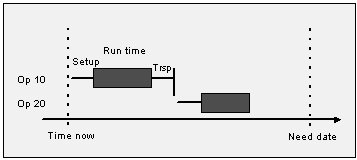
Figure 1 - Forward scheduling starts from the current date or EPST with the first
operation
In backward scheduling, the user expects to start production and execute the demand fulfillment as late as
possible. This is also called Just in Time (JIT) manufacturing. Backward scheduling is based on the Need Date. The
work must be completed before a certain date and time. To ensure that the work is scheduled prior to that date and
time, the last task ending on the Need Date is scheduled first, then you can proceed with the second to last, and so
on, until reaching the first operation. Backward scheduling ensures the timely completion of the order and avoids
starting the order too early. This approach is most commonly used in food, dairy manufacturing or similar industries
where the finished product has an expiration date.
In this direction, the MSO schedule gives the highest opportunity for the LPST (Latest Possible Start Time) of
shop order operations. If the LPST has already passed at the time of scheduling execution, the shop order to which
that particular operation belongs must become tardy. Therefore, those shop orders may not get the primary opportunity
over the other future need-dated orders.
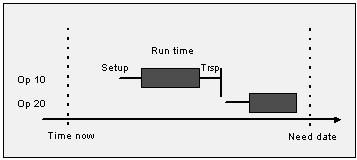
Figure 2 - Backward scheduling starts from the Need Date of the last operation
However, for past due shop orders, the user can give some higher opportunity in the schedule, by enabling the
Prioritize Past Due Shop Orders option under the Optimization Goals on the Finite Scheduling
Basic Data page. This feature gives a higher opportunity to schedule based on the Lateness of past-due
shop orders.
The manual scheduling option is not allowed for MSO sites. In case an operation is set as manual scheduling in
operation level that also will be replaced with shop order header level scheduling direction with the finite
scheduling action.
Scheduling Statuses
The Scheduling Status column is given in the shop order Operations overview to
show existing scheduling status of each shop order operation. MSO Scheduling Information column is
also enabled there to provide some extended information about the latest schedule action done by MSO.
- Infinite Scheduled – Shop Order Operation is Infinite scheduled by Shop Order Infinite
Scheduler.
- Finite Scheduled - Shop Order Operation is Finite scheduled by MSO.
- Pending – Shop Order Operation reschedule request has been sent to MSO scheduling service and waiting for
a response.
- Fixed – Entire Shop Order Operation or a part of it has been manually fixed by a user into a specific
resource and time bucket using the Smart Manufacturing Planning Board.
- Unscheduled – Shop Order Operation has not been assigned for any resource due to an unavoidable
circumstance.
Shop Order Priorities
Priority category in shop order is the key input to define the priority of shop orders when scheduling in MSO. In
Shop Order Priorities Overview, the user can define MSO Priority Score for each
priority category. This priority score value can be defined as a number ranging from 0 to 10 based on business
requirements. Shop orders with higher scores receive higher scheduling priority and push towards the EPST, or the
Need Date based on the respective scheduling direction for each shop order. On the other hand, shop orders with lower
scores receive less scheduling priority.
The Standard or medium priority score is set at 5. If there is no priority category defined in Shop
Order, it is considered as MSO priority score 5 and gets a similar opportunity when
scheduling.
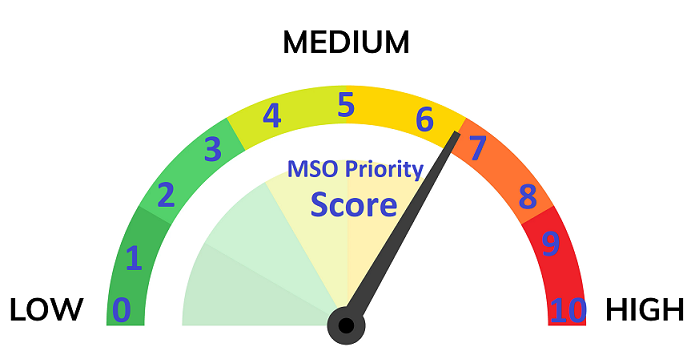
Figure 3 - MSO Priority Scores
Intraday Planning
MSO seamlessly integrates with the IFS Intraday Planning
concept. MSO will schedule the corresponding orders on the same day as the demand. For an optimum result, set the
Scheduling Horizon to a shorter time period on the Finite Scheduling Basic
Data page.
Machine & Labor Operations Scheduling
Machine Operations and Labor Operations are equally treated respectively when allocating resources in MSO.
Natively the MSO architecture considers both machine and labor operations with similar opportunities when
allocating shop order operations. If a certain shop order operation has both machine and labor hours defined, the
scheduling service considers it as a single booking that needs to be scheduled together, consuming the same time
frame.
If machine hours and labor hours are not equal in a shop order operation, then MSO always considers the operation
(i.e., machine or labor) that requires the largest hours load to set a base duration and allocate it in full capacity
(i.e., 100% capacity). The resource requiring the lower hours load allocates for the same duration at a partial
capacity (i.e., less than 100%) booking based on the Load difference. This approach is considered for both Setup
& Run operations and is calculated as separate transactions.
Example:
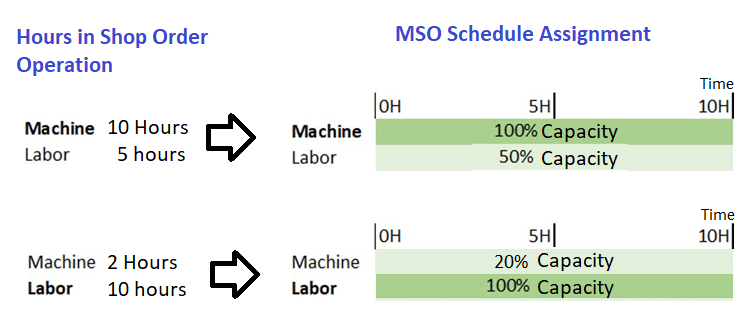
Figure 4 - Machine or Labor: Largest time consuming constraint centric scheduling
When alternative resources are available, e.g., two or more resources in a work center, the preference is given
based on the resource efficiency. If there is a requirement to load a single resource, the Preferred Resource column
can be set in the shop order operation. Otherwise, MSO provides the most suitable position in the timeline
and makes a schedule result using a combination of resources based on their availability in respective work time
calendars or HR schedules considering the scheduling direction given in the shop order.
Labor Crew Size: When booking with partial capacity due to different times in machine and labor or due to resource
share or due to crew sizes given with decimals, MSO will not consider the exact number given in crew size (i.e. Setup
crew size or Run crew size) to schedule the number of people. Instead, it will create the schedule considering the
least number of people required considering man hours per each operation neglecting the number of crew or crew size
given in the shop order operation.
If the Capacity Calculation Base of a labor class is set to Group, MSO uses the
information on the Group tab on the Manufacturing Labor Class
page to determine the capacity of the labor class. If the Capacity Calculation Base is set to
Individuals, MSO uses the information about the persons defined for the labor class on the
Persons tab. If Use HR Schedule is enabled for a person, MSO considers the
specific HR schedule for the person, including employee deviation days.
Limitations:
- The % in Group field on the Persons tab, which defines the
percentage of total work hours that a person is available for a specific labor class, is not considered by MSO.
Nevertheless, even if a person is assigned to multiple labor classes, MSO ensures that the person is not overloaded
at an overall level.
- The Utilization field on the Persons tab and the Group
Utilization (%) field on the Group tab are not considered by MSO.
Tools Consideration
When scheduling a shop order operation using a connected tool group, the required quantity of individual tools or
equipment within that tool group will be allocated for the entire duration of the operation, including both setup and
run time. The capacity of a tool group is determined by the calendar connected with the tool group, the individual
tools or equipment it contains, and their validity periods. Note that this also applies to tool groups where the
Capacity Calculation Base setting is set to Group. Calendars connected to an
individual tool or equipment on the Resource Details page are not taken into account.
MSO does not consider whether specific tools or equipment have already been assigned to a shop order operation. It
also does not update the assigned tools or equipment based on actual allocations during scheduling.
Furthermore, it does not consider scenarios in which a tool or equipment is already allocated to another object,
such as a work order task. As a result, MSO can allocate the same tool or equipment to a shop order operation during
the same time period in which it is already allocated to a work order task, even though the tool or equipment has
finite capacity.
MSO also does not consider any external setup or teardown time for a tool during the scheduling.
Schedule with Infinite Resources
Infinite work center resources are considered as a single resource with unlimited capacity.
If there are more than one infinite resource available to choose from (e.g., Infinite work center has 10 work
center resources available), then MSO gives priority to the primary resource when scheduling the operations. The
functional thinking on this approach is that if a particular resource has infinite capacity, then there is no use in
distributing loads on multiple infinite capacity machines. Using a single machine may help to reduce the carbon
footprint, energy, etc. This limited load distribution mechanism is natively supported in MSO when scheduling the
operations.
If there is a partial operation report being done, then the same reported resource is planned to do the remaining
part of the specific operation.
Infinite capacity persons and tools are also considered in similar design thinking, using this limited load
distribution mechanism.
Resource Share
Resource share given in the Resource Share column in Shop Order Operation is considered by MSO when scheduling.
This resource capacity share is applied to the resource capacity balance that results from the allocation of labor
& machine capacity as described in the section above on Machine & Labor Operations Scheduling.
In case Concurrent Operations are 'Not Allowed' in the Work Center's Operation Reporting Settings, MSO
will block the Resource share capability of specific work center.
Decimal values given in labor Setup & labor Run crew size columns are also considered to set partial capacity
booking during scheduling in MSO. This resource capacity share is applied to the resource capacity balance that
result from the allocation of labor & machine capacity as described in the Machine & Labor Operations
Scheduling section above.
Efficiencies
Efficiency given in shop order operations is considered when scheduling with MSO.
The operation efficiency affects only the run time, not the setup time. When the operation efficiency is set to
less than 100% (default value), the remaining run time for the machine and labor is increased. This results in an
increased value for the remaining manufacturing hours, which could affect the scheduled start and/or stop date of the
operation. When you change the operation efficiency, the change also affects the standard cost of the operation.
Changing the operation efficiency can be done on specific operations, if there are running-in periods for a while,
they temporarily affect the performance of the operation.
Efficiency given in work center resource is considered.
Resource efficiency affects both run time and setup time. If the resource efficiency is less than 100% (default
value), the operation is scheduled during a longer time period, because the set up and run time increase. Only
scheduling is affected (start and finish date on the operation), not remaining manufacturing hours. Changing resource
efficiency can be done if different machines (resources) operate in the same work center with different
capabilities.
Resource Validity Periods
MSO will consider validity periods given for all resource types. (i.e. Machine, Labor and Tools)
Preferred Resource
Preferred resource information is considered a preference when scheduling shop order operations.
Transport Time
Transport time is considered when scheduling with MSO scheduling service.
Parallel Operations
If two operations are parallel, it means that they can be done totally independently of each other. The MSO
scheduling logic tries to schedule them so that their output reaches the succeeding operation simultaneously.
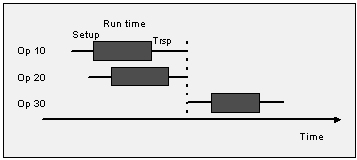
Figure 5 - Operations 10 and 20 are scheduled parallel
Operation Overlap
Operation Overlap is considered when scheduling with MSO scheduling service.
When both machine times and labor times are given in shop order operation, MSO will consider overlaps of machine
time and labor time individually and will consider the highest time consuming operation overlap percentage as common
percentage for both machine and labor times of a single shop order operation.
For more information, see about Operation Overlap.
Material Availability
A part's availability, or scheduled capacity, can be defined as one of the following:
- Infinite Capacity: The availability is considered as infinite without any limits, assuming the
part will always be available when needed.
- Finite Capacity: The availability is limited by available stock and open supplies and demands
within the purchasing or manufacturing lead time. Beyond this lead time, the availability is considered as
infinite.
- Always Finite Capacity: The availability is always considered as finite, meaning it is limited
by available stock and open supplies and demands, both within and beyond the purchasing or manufacturing lead
time.
Parts with infinite capacity do not constrain or interrupt the scheduling process within MSO.
A shop order operation that requires a part with finite capacity or always finite capacity can only be scheduled
by MSO when the required quantity of the part is available. The required quantity can be covered either by available
inventory or by supplies that become available. Supplies dated in the past are not considered. The difference between
parts with finite and always finite capacity is that, for finite capacity, the availability constraint applies only
within the purchasing or manufacturing lead time. For parts with always finite capacity, the availability is always
limited.
As MSO schedules, it records the quantity and the date and time at which the material is consumed and
produced.
Within the scheduling window, MSO can plan finite material supplies generated by shop orders for child or
semi‑assembled parts, and account for those supplies when scheduling shop orders that require them as materials. This
provides significant benefits for users who do not use complex order structures, such as DOP, while still allowing
finite material planning based on child and semi‑assemblies.
Limitation: MSO supports up to 4 decimal places and a maximum quantity of 214748.3647 units
for all stocks, demands and supplies, regardless of the unit of measure (UoM).
Note: It is not recommended to apply finite capacity or always finite capacity for all the
parts at a site. It should only be used for critical materials which have a real need of finite capacity
consideration.
Machine Maintenance
Obstructive maintenance tasks for manufacturing resource objects are considered when scheduling with the MSO
scheduling service. MSO considers the actual work task as a hard constraint that is booked for a defined time period
from Planned Start to Planned Finish in the work task. Remaining available time is used for the scheduling of shop
order operations.
Note: Maintenance Import is not a necessary work task to consider for MSO finite scheduling
since this directly refers to the work tasks from maintenance management. Manually created maintenance tasks such as
Resource Breaks are not considered for the MSO finite schedule.
Smart Manufacturing Planning Board
Smart Manufacturing Planning Board related default settings can be set from separate tab given in
Finite Scheduling Basic Data page.
For more information, see the about Smart Manufacturing
Planning Board.
Misc. Information
- MSO can handle operation durations starting from a minimum of 1 minute. Any duration less than 1 minute (60
seconds) will be automatically rounded up to 1 minute.
- Selective Optimization assistant is a limited feature available in the manual
scheduling mode of MSO. Similar to the Finite Scheduling Basic Data page, the scheduling
user can override optimization goals via the Optimization assistant given on the Resource Cards of
Visual Planning pages, as well as the Smart Manufacturing Planning Board -
Resources page.
- Assign Team/Employee dialog in shop order operations is disabled for MSO scheduling
sites. Thus, on the Shop Floor Workbench, 'My assigned
operations' are filtered based on assignments on the Finite Resource Assignments
overview when the MSO dataset is activated.
- All schedulable shop order operations that consist of labor and tools related activities may trigger the
Shop Order Infinite Scheduler, for modifications in all MSO considered columns, including labor
and tools.
i.e., Shop Order Infinite Scheduler is generally triggered only by changes
related to shop order operation machine related parameters. However, when MSO is activated, changes related to
Machine Resource share, Setup & Run Labor Class, Setup & Run Labor time, Setup & Run Labor crew size,
Setup & Run Labor qualification profile, Manufacturing Tools and the number of instances will also trigger the
Shop Order Infinite Scheduler to keep the shop order operation scheduling status up to date.