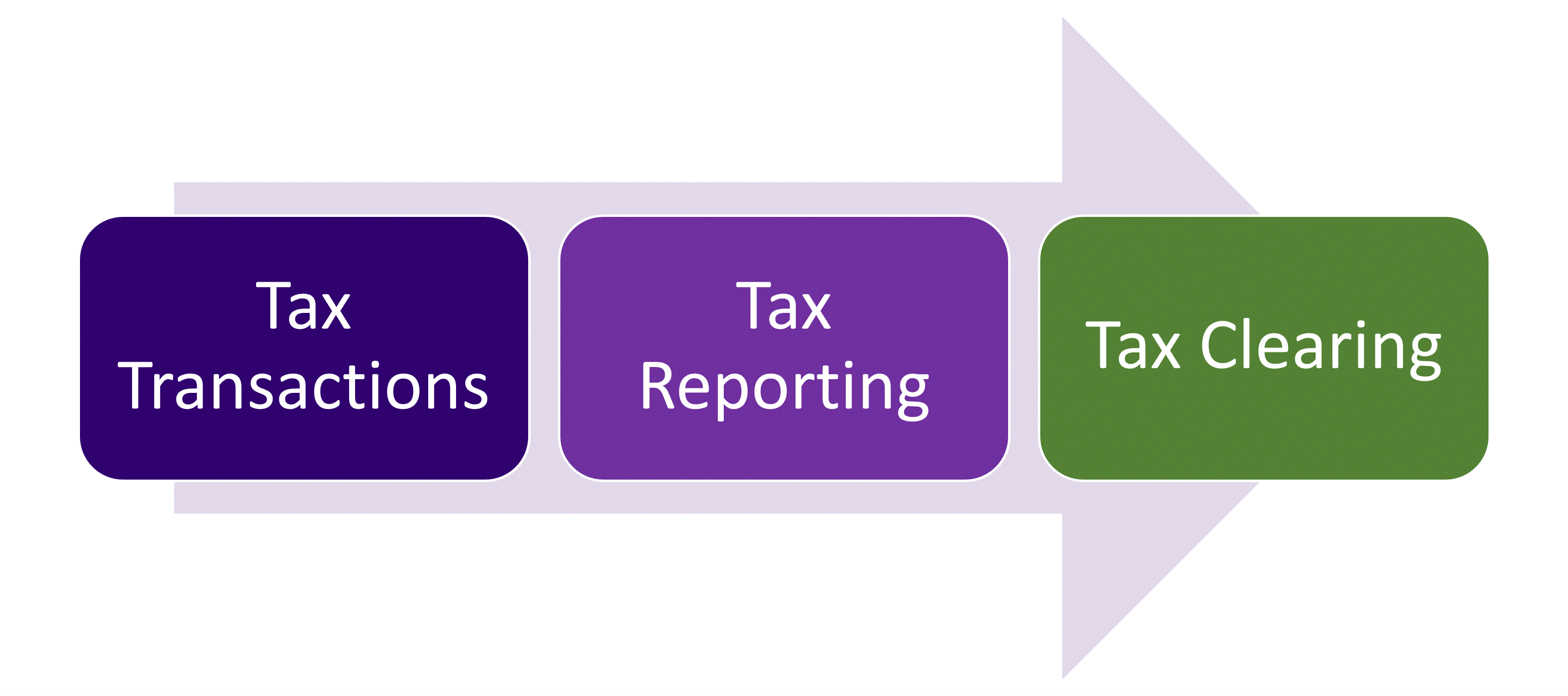
IFS Tax Reporting facilitates customers to record, assemble, scrutinize tax balances arising from transactions in corporations and report results to relevant government tax authorities. The IFS Application provides a wide range of features commonly known as the Tax Ledger, to handle taxation function based on the legal requirements applicable to different countries, via system defined Tax Templates which is made available based on the country of operation and the template utilized in company creation. The entire tax handling process can be preliminarily categorized as below.
Tax Transactions can be referred to as the input and process function of Tax Handling. This is the methodology by which tax code coupled transactions that are created in various business events in the form of invoices, voucher entries etc. in the system are processed to create Tax Transactions, readily available for Tax Reporting. Above mentioned processing of general business transactions is moulded and facilitated by predefined basic data and other tax relevant information fetched from the application, enhancing the value, relevance, and usability of general business transactions utilized in Tax Reporting.
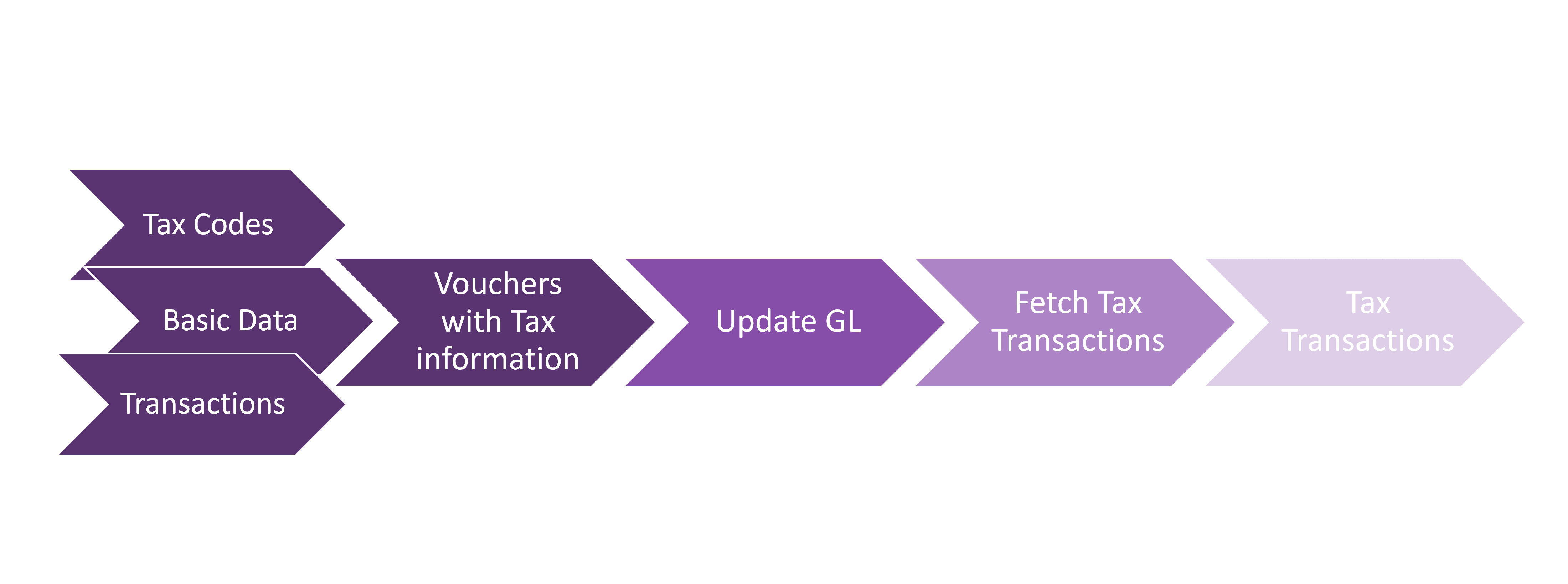
Tax Codes are records in the application that include the tax rates and other relevant details of applicable taxes for different transactions according to legal requirements of different countries. These tax codes are by default created at company creation based on the selected company template. If required, the tax codes can also manually be added with other relevant details. [Check Functionality to add Tax Codes]
Predominantly, utilized in different modules of IFS Applications , Tax codes act as the base for entering tax information to the application when entering business transactions with mandatory tax reporting requirements. Therefore, Tax Codes can be considered as the most fundamental element to initiate tax reporting process and without tax codes coupled with transactions and Tax Accounts, tax reporting will not be viable. Tax Codes can also be utilized as the base to create Tax Templates via Tax Template Field Mapping and alternatively, Tax Groups created based on Delivery Type or Income Type can be used as the base for Tax Template Field Mapping.
Tax books are used to arrange tax transactions into sub ledgers enabling the user to prepare reports for specific tax books at the point of creating tax reports. Tax books are entered in the Tax Books window in IFS/Accounting Rules. Although at least one tax book will be created by default, the user can add more than one tax book so that different types of tax transactions can be accumulated to separate sub ledgers/Tax books which will provide more control and flexibility in tax reporting.
The user can also define Tax codes applicable to the sub ledger, so that only tax transactions derived from the defined tax codes can be separately analysed and reported when creating Tax Reports. [Check Functionality to enter Tax Books] and [Check Functionality to enter Tax Codes Per Tax Book] for more insights on Tax Books.
The user also can specify a query and reporting structure for tax books via which information from several tax books can be aggregated and a hierarchical summation across tax books can be created at the point of tax reporting.
Tax Book - Use this tab to display, enter, and change the tax books included within a tax book structure. The tax books always compose the bottom level of a structure.
Levels - Use this tab to display, enter, or change tax book structure levels. Tax book structure levels can contain one or more nodes. (After you define the levels, you will define the nodes on the Nodes tab.)
Nodes - Use this tab window to display, enter, and change the nodes within a tax book structure. Each node resides at a specific level within the tax book structure. A level can have one or more nodes.
View Structure - Use this tab to view a tree graphic of the tax book structure. Each object within the tree represents either a node or a tax book value. You can use drag and drop functionality within this tab to move an object to another level or to move tax books to another node. When you make changes to the tree graphic, the system automatically updates the appropriate values in the Levels, Nodes, and Tax Books tabs of Tax Book Structure window. You also can use cut and paste operations to move the objects within the tree structure. (You cannot use the copy operation because you cannot duplicate nodes or code part values within the structure). [Check Functionality to enter Tax Book Structures]
Tax grouping is an option in the application that will enable the user to group a set of tax codes under one umbrella, which can be utilized in tax report creation and many other functionalities. Tax Groups can be created based on Delivery type (distinguish between different types of trade) or Income type (distinguish between different types of income). [Check functionality to enter Tax Group]
Similar to Tax groups, that groups tax codes, this window groups tax accounts defined in Accounts window as Tax Accounts. [Check Functionality to enter Tax Account group]
Tax series ID is set to transactions to enhance the detailing on tax reporting via creation of specific and separate tax series numbers for different types of tax transactions in the system. The user can create tax series IDs to separately identify types of tax transactions followed by setting up Tax Number Series under each tax series ID, to create automatic numbering for the transactions that fall under the defined Tax series ID categories. [Check Functionality to enter Tax Series ID and [Check Functionality to enter Tax Number Series]
Similar to creating Tax number series for Tax transactions under Tax Series, Tax report document series is used to create a number series for Tax documents (Tax reports printed via printing definitive report). This will result in a unique document series identity and a number for each combination of payment date, supplier and the type of tax withholding a supplier uses, ultimately enabling detailed tax withholding information in tax reports. [Check Functionality to enter Tax Document Series]
Tax Ledger Parameters window is utilized to set the settings on how tax transactions should be handled in Tax Ledger. The below aspects are handled.
Specify whether tax transactions with a False status should be deleted.
Define the output file directory to store tax report files.
Specify whether the system should allow the tax number, tax liability date, tax code, delivery type, income type and the legal identity of a tax transaction to be changed once it has been fetched to the tax ledger.
Specify the method to be used when calculating the tax base when the deductible percentage of the tax amount is less than 100 (Original, Reduced or cost)
Specify whether the cancelled invoices should be included in tax proposals.
Specify whether is possible to delete tax transactions from a correction proposal of correction type Replacement.
[Check Functionality to enter Tax Ledger Parameters]
The rules that determine the dates on which the customer invoices, supplier invoices and the payments of a company become liable for tax can be set in Tax Liability Date Control window.
It is also possible to define exceptions if different rules have to be followed for different tax codes. The tax liability date for the tax transactions fetched into the tax ledger will be determined based on the rules specified in Tax Liability Date Control window. [Check Functionality to enter Tax liability date control]
When it is required to report the tax accumulated throughout a period in the vouchers recorded, first, the user must update the General Ledger using the Update GL Vouchers window. Tax information from each voucher row containing a tax account will be thereby transferred to the General Ledger.
As the voucher row does not hold all information necessary for tax reporting there's the Fetch Tax Ledger Info function which will complete the tax transaction and make it ready for reporting. This function should be executed after each GL update to fetch the relevant other information to the entry.
Once the tax transactions are updated to GL and fetched to tax ledger, the tax transactions applicable for the desired period can be viewed via the Tax Transactions window. These are the main tax information which will be fetched into the tax reports at the point of creating Tax Proposals.
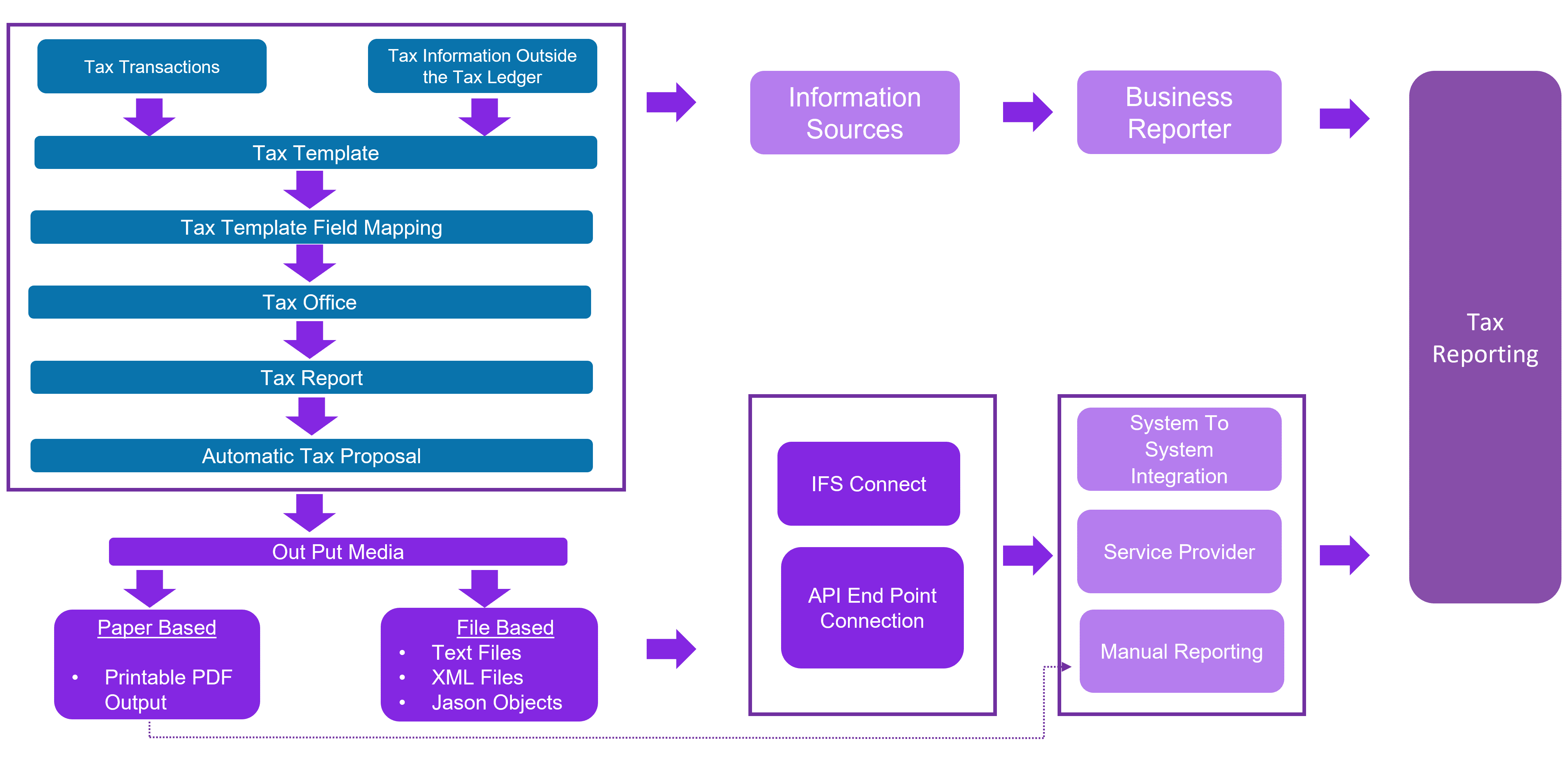
Tax Authorities of countries have different country specific legal requirements for preparation and presentation of tax figures and associated information for which, companies are expected to adhere to. Facilitating this requirement, IFS provides, different Tax Templates, predefined so that the client can support and adjust to said dynamic legal requirements without having to undergo vast changes in their system and operations. These predefined Tax Templates are made available based on the country the company operates in.
The Tax Templates are system-defined (The System Defined check box in Tax Templates window will be selected if a tax a template is system-defined), and the user is not permitted to change information in these tax templates as they are created as per the guidelines of the tax authorities. However, a user-defined tax template can be created by copying an existing tax template and saving it in the system with a different tax template ID, which will enable the user to customize information accordingly. All the information in the new tax template will be the same as that of the original tax template at the time of creation.
Once the new tax template is created, there are some modifications that enable the user to customize the tax template. They are as follows,
To modify general information of a Tax Template, visible in the Tax Template window, the user can use the edit option, available in the user defined Tax Template created. The changes available in this juncture, involves specifying whether field control or column control is used and the extent to which they are used, specifying the output media, entering the tax direction, Specifying the mode of output media (Paper/File), connecting external file type and file template, defining XML layout id and tax report layout id etc. Moreover, there are no of options available at this stage to determine which tabs to be enabled for tax report based on the template.
By connecting External File Types and External File Templates to a Tax Template, the user can control and organize the fields according to the required output.
If the user wishes to modify the grouping criteria, sorting orders, allowed correction proposal types, reference templates, the allowed types of date/period ranges of the tax template, sequence numbering and rounding methods the Basic Specific Information command can be utilized.
If the user wishes to add or modify fields of the existing template which should be made available to be selected for tax reports created based on the tax template, the Tax Template Field Control Basic window can be utilized. There are several template field types available to configure the fields of a tax template like,
Automatic
Constant
Manual
Calculated
Conditional
Other Report
Information
The template fields can be configured to structure the information of a tax report based on the legal requirement on how the tax transactions are summarized and visualized.
Moreover, the user can connect External File Types and External File Templates to Tax Templates to control the fields and externally add information to tax Ledger. [More details on Tax Templates]
When the tax template is defined, its template fields need to be connected with tax transactions. This relationship can be specified by mapping Tax Codes or Subgroups based on delivery types or income types to fields via Tax Template field Control window.
The user can copy the report field control from another company. Alternatively, user can copy all the template fields of the selected tax template from the Tax Template field Control Basic window and manually select the subgroups/tax codes to be connected to the relevant template columns. [Check functionality to enter Tax Field Control]
There are different tax bodies governing different types of taxes in a country. The user can use tax office interface to register said tax offices in the system and are able to determine attributes such as address, language, country, company, address, communication methods, tax report relevant for said tax offices. This information entered under Tax office will be displayed in the tax output created from the Tax Report relevant to the said tax office. [Check Functionality to enter Tax Office and other information]
Utilizing the predefined tax templates discussed above, the user must create a tax report in the Tax Reports window. This tax report acts as the base for final tax report created for Tax reporting purposes in Automatic tax proposal window and fetches the tax transactions considering the Tax codes, Tax groups defined in creating the tax report.
There are number of options available to be selected for a given tax report based on the connected tax template. The number of tabs available to filter the tax transactions that will be selected for the tax proposal created with the tax report.
The correct reporting currency base should be defined for the tax report in order to determine in which currency the tax amounts should be depicted in the tax report. The tax amounts can be based on accounting currency, parallel currency or any other user defined currency as per the legal requirement of tax reporting.
In order to create the final tax report as per the desired or statutory format predefined in the Tax template utilized, the user must create an automatic tax proposal for the period for which tax is reported using the tax report created above in Tax Report. The system fetches the tax information included in the tax transactions of the tax ledger as well as some additional tax transaction related details out of the tax ledger into the tax proposal in the process of creating a tax proposal.
The user can ensure the accuracy of the transactions fetched before acknowledging the report created in the View Tax Amounts and Tax Proposal Details windows.
The user can get an overview of the tax report that will be printed for the selected tax proposal via Template Field Presentation. It also provides a drill down capability in visualizing how a particular tax amount is made of by grouping the underneath tax transactions in Tax Template Field Control Value analysis.
To print the tax report or create an output file in the predetermined format to be sent to the Tax Office, select Print Preliminary Report, and proceed accordingly. For internal use and analysis, the user can print Invoice and Voucher based tax reports as well. (Print Proposal – Voucher Info. and Invoice Info.)
IFS applications are supported to handle different types of output options for Tax Reporting, which is made available for different tax templates, according to the legal requirement. The method of output creation enabled for the tax Template can be viewed in the Tax Templates window under field Output media. Moreover, some Tax Templates can have combinations of above output media as per legal requirements. The options that are currently available in IFS application are as follows.
Paper: The output created via Print Preliminary/Definitive Report option is a printable PDF file and aligns to format predetermined as per legal authorities in System defined Templates or custom designed by client in a user defined Template.
File: The output created via Print Preliminary Report option is a Text, XML or Jason output file as per the legal requirements of countries. The File will be automatically downloaded to the user PC or will be saved in an FTP Location via IFS Connect which can be configured via routing rules window.
Information Sources: The information Sources provides a business-oriented view of information available in IFS Applications by hiding the underlying, often complex, data structures and offering an interface optimized for reporting and analysis and makes information access much easier compared to connecting directly to IFS Applications database.
IFS Tax Ledger offers the below information sources in business reporter.
Tax Ledger Transaction
Tax Ledger Proposal Transaction
Refer IFS Online Documentation (ifsworld.com) to get an overview of delivered Information Sources.
Manual Reporting: The User can manually report tax figures visible in the above tax output to tax authorities. This can be manually entering figures or manually uploading text or XML files to government portals.
Third Party Reporting: IFS applications are prepared to integrate with external service providers using API connections. This facilitates users to outsource their tax reporting functions to external service providers. The Integration for the Generic Tax Template – S103 to transfer Tax information to external specialized companies for outsourced tax handling is one of the said examples.
Refer IFS Connect for Integrating Generic Tax Output with Service Provider REST Endpoints – Technical Documentation For IFS Cloud for steps to setup the FTP location.
System to System Integration: IFS applications allow users to directly link their system to government authorities enhancing the efficiency of the Tax reporting process and enabling the Corporates to report taxes directly to the Tax Authorities.
Discussed above is the Tax Reporting process in Core applications. Also note that there are other Tax Reporting methods that are Country Specific, and those tax Reporting processes does not use Tax Ledger/Tax Transactions functionality discussed. The user can refer to IFS Product Documentation and access Country Specific Documentation upon requirement to get an understanding on said country specific Tax Reporting Methods.
Tax Reconciliation allows the user to conduct in detail analysis on tax transactions and to compare the transactions in tax ledger with general ledger. Two report options are available in ‘Order Report’ window for above purpose, and they are as follows.
Order Tax Reconciliation per Tax Code: This report allows the user to view or print a report that shows, for each tax code, the tax percentage and all voucher rows that were booked with that tax code during the order period. For each voucher, the report shows the voucher type, number, and date; and the tax base amount. It also shows the booked and calculated tax, and the difference between these amounts.
Order Tax Reconciliation per Account: This report allows the user to view or print a report that shows, for each account, the debit and credit balances of all taxable transactions, along with the tax codes. [More details on Tax Reconciliation]
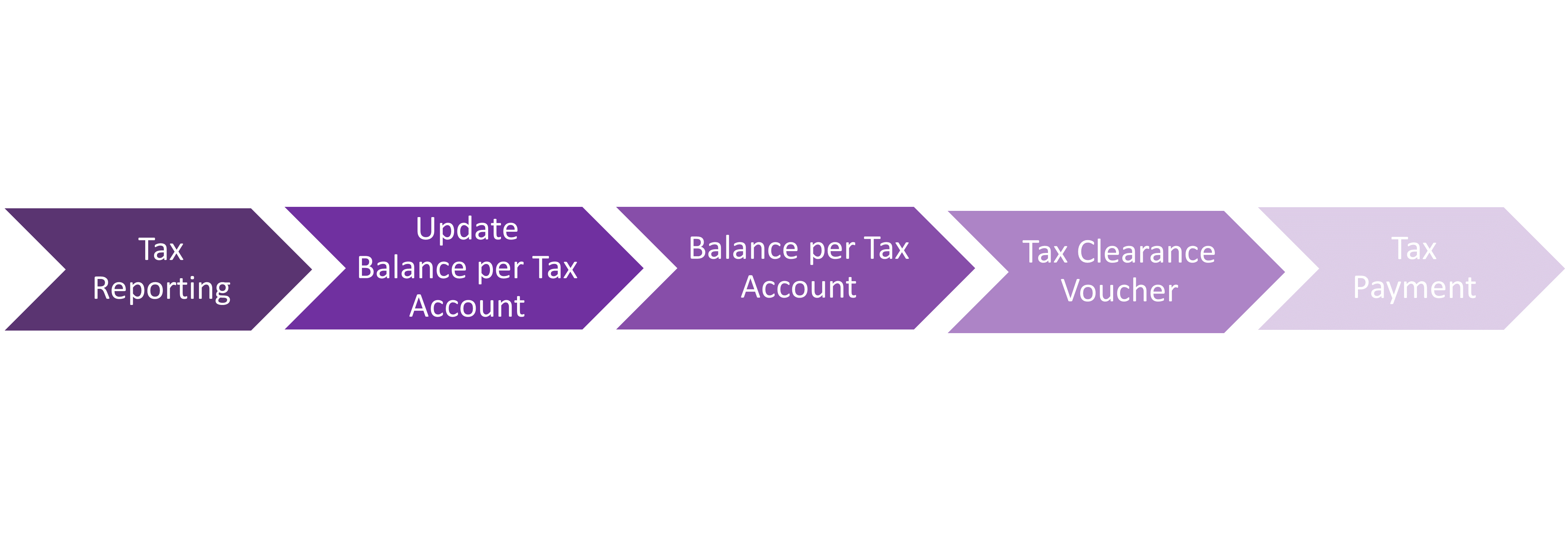
By performing this function, all the tax transactions will be grouped based on different grouping attributes (Grouping attributes are the columns displayed in the Balance per Tax Account page; Accounting Year, Accounting Period, Tax Account, Tax Amount etc.) and they will be stored in a separate data table.
Data for both Balance per Tax Account and New Tax Clearance Voucher pages will be retrieved from that separate data table.
The period-vise balances of all the Tax Accounts defined in the chart of accounts, which are automatically calculated based on the tax transactions and tax reporting of the company can be viewed and analysed in the Balance Per Tax Account window.
As a prerequisite, user must have updated Balance per Tax Account Info using the Update Balance per Tax Account process before querying this page.
If any tax transaction balance fetched into the tax ledger requires to be cleared and moved to be clearance account for the purpose of making a tax payment, Tax Clearance process can be utilized.
For this, the user must create a voucher to clear the tax account balances via the New Tax Clearance Voucher page. Before that, user must have updated Balance per Tax Account Info using the Update Balance per Tax Account process. In creating the voucher, the user will be able to determine whether the Amount To Clear will be based on the Tax Amount or Reported Tax by setting the Tax Clearance Base accordingly. Once the parameters in the header level is entered, the available summarized tax transactions fulfilling the parameters will appear in the table below from which, the user must determine whether to include or not in the Tax Clearance Voucher. [Check Functionality to enter Tax Clearance voucher]
Created Tax clearance vouchers can be viewed in ‘Tax Clearance analysis’ window and rollback option for the voucher and ability to create payments for the created voucher is available in the same window. If the user requires to make a non-supplier payment for the created Voucher, Create Non-Supplier Payment command is available in Tax Clearance Analysis window directing the user to non-supplier payment window.[More details on Tax Clearing]. Alternatively, based on the tax clearance details, Mixed Payment window can also be used to create tax payments.