Manufacturing Scheduling and Optimization (MSO) Simulation
With Manufacturing Scheduling and Optimization (MSO) simulation, manufacturers can perform what-if scenario analysis to understand the advantages and disadvantages of different infrastructure configurations. Schedules generated for simulated production scenarios can be compared with the schedule for the actual production scenario, as well as with each other.
The primary users of MSO simulation are the manufacturing planners and production managers. By analyzing simulation scenarios, they can make informed business decisions based on the most productive infrastructure and identify required modifications by understanding bottlenecks on the shop floor compared to actual constraints and resources. As a result, stakeholders across the manufacturing facility can benefit from higher productivity and improved feasibility in modified shop floor situations created based on MSO simulation scenarios. Shop floor employees, such as production supervisors and machine operators, also benefit indirectly from a more balanced work environment with a manageable workload. In addition, customers benefit from improved on-time order fulfillment achieved through manufacturers using MSO simulation.
For a simulation scenario, it is possible to control which work center resources, persons, person groups and tool instances are included in or excluded from the scenario. Resources can be modified, added or deleted.
The statistical analysis and comparisons available on the Simulation Scenario Analysis page help users compare the simulated production scenarios with the actual production scenario using different key performance indicators (KPIs).
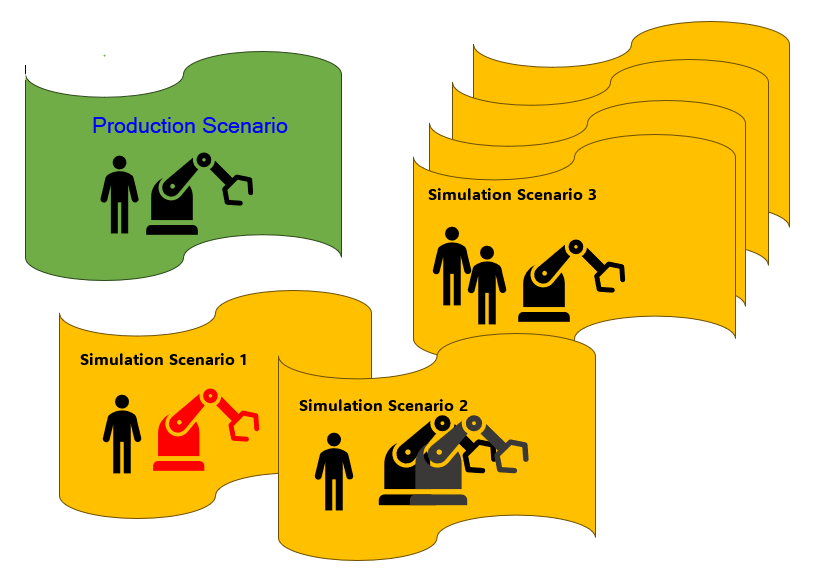
Figure 1 - MSO Simulation Scenarios
Setup Simulation Scenario
Before a simulation scenario can be created for a site, the site must have been configured for MSO on the Finite Scheduling Basic Data page. However, it is not necessary to activate the dataset for the site since each simulation scenario will have an own dataset. It is also not mandatory to create a finite schedule for the actual production scenario on the site.
On the Simulation Scenario page, a new simulation scenario can be setup for a site. By default, the minimum schedule acceptance quality and the amount of time, in minutes, that the scheduling service is allowed to spend optimizing are set according to the values defined for the site on the Finite Scheduling Basic Data page. However, these values can be adjusted by editing the Schedule Acceptance Quality and Generate Schedule within (Min) fields in the Dataset Parameters section for each specific simulation scenario. In the Dataset Parameters section, also the Dataset ID and Scheduled Date Time are shown.
The scheduling rules and scheduling goals applied in the scheduling scenario will be the same as defined for the site on the Finite Scheduling Basic Data page, as these represent the business-specific parameters for the site. For example, they determine whether operations blocks and setup matrices are considered during scheduling.
Exception: The Assign Shop Order Operations to Tools/Equipment setting defined on the Finite Scheduling Basic Data page is not applicable. When a shop order operation that requires a manufacturing tool group is scheduled in a simulation scenario, the scheduling engine uses the individual tools/equipment defined on the Tools Instances tab.
The work center resources, persons, person groups and tool instances that will be used in the simulation scenario are defined on the Work Center Resources, Persons, Person Groups and Tool Instances tabs. By default, existing work center resources, persons, person groups and tool instances are added. Whether they are included in or excluded from the scenario is controlled through the Included setting. Existing resources can also be modified by updating the Finite Capacity setting, adjusting their validity periods, or, if required, deleting them from the simulation scenario. In addition, hypothetical new work center resources, persons, person groups and tool instances can be defined for use in the simulation scenario. By clicking Reset All Modifications, modifications made to the existing resources are reverted. This does not affect resources that were added manually.
Note: Only work center resources, persons, person groups and tool instances required on shop orders of type Manufacturing with status Planned, Released, Reserved or Started are included by default. Other resources or constraints that are not used in production but required to consider for the scenario can be added manually.
Note: It is not possible to edit the calendar of the work center resources, persons, person groups and tool instances. When a new resource, person, person group or tool instance is added, the site manufacturing calendar is assigned by default.
When the setup of a simulation scenario is complete, its dataset is activated by clicking Activate Dataset. The user activating the dataset is set as the Scenario Owner. Only this user can edit or delete the dataset associated with the simulation scenario, similar to how datasets defined on the Finite Scheduling Basic Data page are managed.
Schedule Simulation Scenario
On the Simulation Scenario page, a simulated finite schedule can be generated for a simulation scenario with an activated dataset by clicking Schedule Scenario. The Latest Scheduled Start Time in the header section is updated with the start date and time of the scheduling window for the simulated schedule, taken into account the Scheduling Start Time (Hours) defined on the Finite Scheduling Basic Data page. The first time a finite schedule is generated for a simulation scenario, also the Not Scheduled badge is replaced by a Scheduled badge.
When a simulated finite schedule has been generated, the Scheduled Date Time is updated. The results can then be analyzed on the Simulation Scenario Analysis page as well as on the Simulation Resource Assignments page.