CRM Access
The CRM Access control is designed to work in addition to company and site access controls. It is limited to objects that are particularly relevant to sales representatives, such as business opportunities, activities and leads. Its primary purpose is to allow organizations to prevent users from viewing records owned by other users. Note that it is not a completely comprehensive customer access filter.
The CRM Access determines whether a user is allowed to view, insert, update or delete a CRM record. If you have view access to a Business Opportunity, you can view all information available in the Business Opportunity page, including the header and the tabs.
CRM Access is configured through a combination of filters and user groups. A filter controls access to one or more objects in the application, such as customers and business activities. Users are connected to one or more groups, and groups are connected to one or more filters. The privileges granted to a user depend on the privileges defined for the group within a particular filter. Read, Insert, Update, Delete, and Share are the privileges that can be granted per filter.
Privileges
The level of access to a record is determined by privileges. A representative always has read access to their own records. For each filter, the main representative and other representatives can be granted additional privileges. Users in the same access group as the record representative can be assigned a different level of access than the representatives themselves.
Available privileges (access levels for a group) are:
- Read – View record
- Insert – Create a new record
- Update – Modify and save a record
- Delete – Delete a record
- Share – Grant access to other users. See the Share Records section below.
- Child Insert – Insert a related child record, such as an invoice
- Child Update – Update a related child record
- Child Delete – Delete a related child record
The privileges are configured through a combination of access filters and access group. Representatives who
belong to an access group can, if configured, share access to records with other members of the same group. For
example, members of a group might be granted read access to customer records and both read and update access to
sales quotations.
A representative can be configured to share access to their records with other members of the access group or keep
their records private. This makes it possible for one representative to share access to their accounts with the
group, while another representative can access accounts shared by the group without sharing access to their own
accounts.
How access is shared, which privileges are shared, and with whom they are shared is configured on the CRM Access Group page.
Access basics
CRM Access is based on representatives. A user who is a representative for a record has access to that record.
Other users who belong to the same access group as the representative can also be granted access to the record. The
access control only applies to users who are included in one or more access groups. Users who do not belong to a
group are not affected by CRM access restrictions.
There are several ways to gain access to a record:
- Filter admin: For each filter, one or more administrators can be defined. As an administrator you have access to all records covered by that filter. The users who should be administrators, and the privileges they should have are defined on the CRM Access Filter page. For example, a user who should have access to all customers must be listed on the Admin tab of the customer filter.
- Record representative: The representative responsible for a specific record has access to that record according to the settings for the access filter associated with that record type. The main representative can have different privileges from other representatives assigned to the same record. For example, all representatives may be granted read and update access, while the main representative is also allowed to delete the record. The privileges for the main representative and other representatives are configured per object (for example customer) on the CRM Access Filter page.
- Access Group member: If the record representative belongs to an access group, other members may be granted access to the record according to the privileges configured in the group.
- Shared Access: Access can also be granted by sharing a specific record with a representative or an access group. To share a record, click Access in the page header and then click Access Details. On the Shared tab you add a representative or an access group and select the privileges to share.
- Records without representative: If a filter is configured to include records without representatives, all representatives will have full access to those records. This setting is configured per object on the CRM Access Filter page.
Example of a group member getting access from a customer representative:
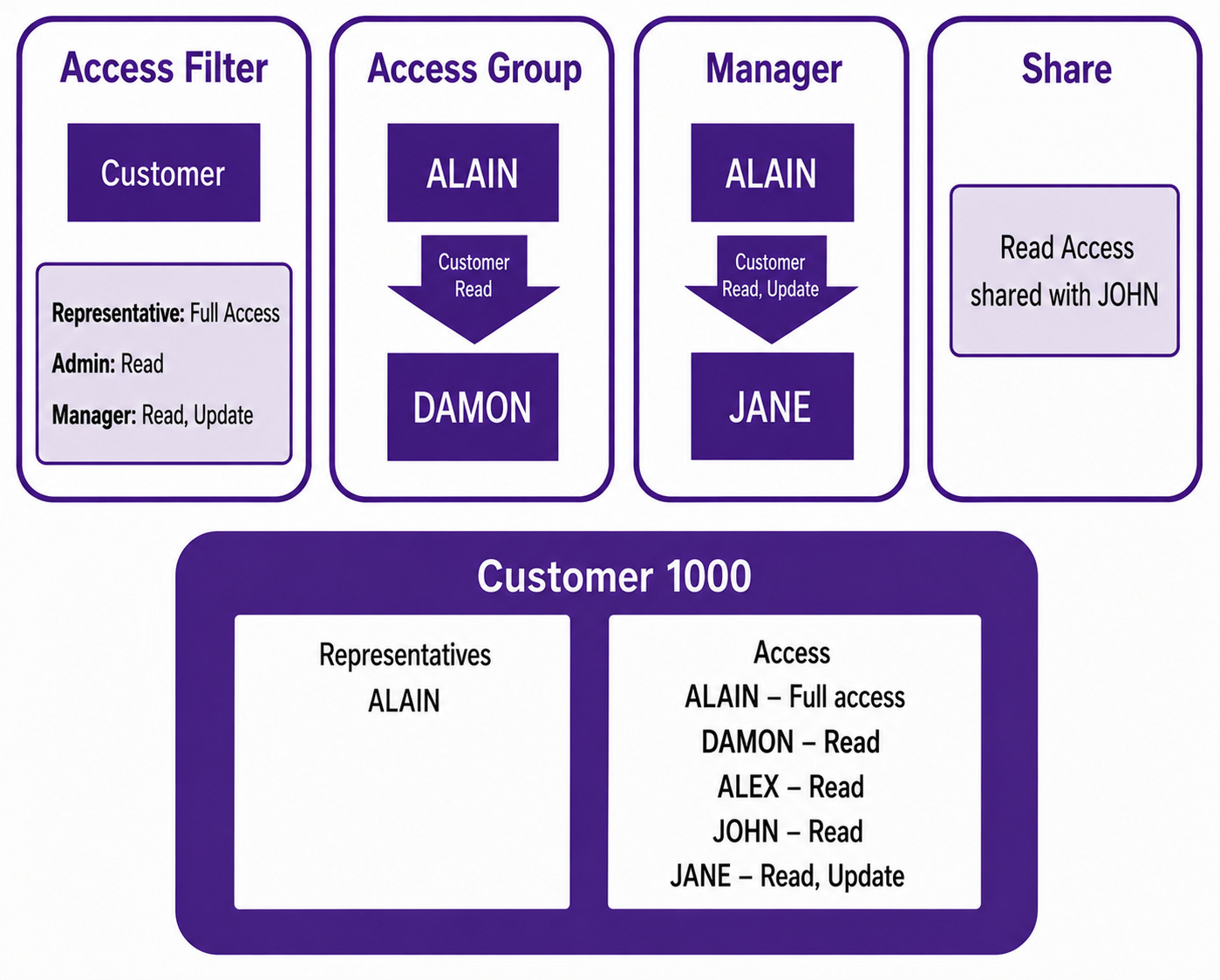
User ALAIN is a representative for a customer and shares Read access with members of an access group through the CRM Access Group page. Group member DAMON can then view the customer's information.
Representative ALAIN has access to customer 1000 through being assigned as a representative, according to the privileges in the customer access filter. ALAIN belongs to the same access group as DAMON and is configured to share customer records with group members using the Read privilege. As a result, DAMON can view customer 1000 but cannot update, delete, or share the record.
ALEX is defined as an admin on the Customer filter with read privilege and therefore has read access to the customer.
ALAIN has also shared the customer record directly with JOHN and granted read access.
Filter basics
An access filter defines a subset of records for a specific object. The records available to a representative are determined by the representatives assigned on those records. CRM Access includes filters for the following objects:
- Account (Customer filter)
- Account Contact (Customer Contact filter)
- Business Activity
- Lead (Business Lead filter)
- Business Opportunity
- Sales Quotation
- Customer Order
- Marketing Campaign
- Business Mail
- CRM Business Object
- Customer Agreement
For objects that contain representative information, the filter displays records for which the user is assigned as a representative or belongs to the same access group as a representative who shares access.
For objects that do not have representatives, such as customer address, the access is inherited from the parent object. In this case, customer address is inherited from the customer. If the user has Update access to the customer, the user can create, modify, and delete customer addresses.
There is an important distinction between child objects that "belong to" a parent object and child objects that "relate to" a parent object. In the example above, customer address belongs to a customer and the access level is determined by the Update privilege on the parent customer record. Other examples of child objects that belong to a parent object include customer order information and sales quotation lines for a sales quotation. An invoice, on the other hand, is an object that relates to a customer. Using the customer object as an example, the general rule is that information available on the Customer page belongs to a customer, while other records, such as customer agreements, relate to the customer. The access level for related child objects can be configured separately. The configuration applies to all child objects that relate to the parent object. Privileges that control access to related child objects are Child Insert, Child Update and Child Delete.
Examples of the difference between "belong to" and "relate to":
- Business lead contacts and addresses belong to business lead - access is controlled by the Update privilege for business lead
- Marketing campaign actions belong to a marketing campaign - access is controlled by the Update privilege for marketing campaign
- Customer order lines belong to a customer order - access is controlled by the Update privilege for customer order
- Invoices relates to a customer - access is controlled by the child privileges for customer
- Price queries relates to a customer - access is controlled by the child privileges for customer
Filter Status
A CRM Access filter can have the following statuses:
- On: The filter is active. Privileges are assigned to users according to the settings defined in the CRM access groups and filter.
- Off: The filter is inactive. All users have full access to all records.
- Inherit: The filter inherits privileges from the parent record. For example, the Business Activity filter can be configured to inherit privileges from the Customer filter.
Filter inherit
Instead of defining a separate access level for a filter, you can configure the filter to inherit privileges from its parent filter. For example, a representative can have the same access to a business opportunity as they have to the parent customer. Parent filters are Customer, Business Lead, Business Mail, CRM Business Object, and Marketing Campaign. They cannot inherit access since they are top-level parent objects. Customer Contact, Sales Quotation, Customer Order, Business Opportunity, Customer Agreement, and Business Activity can be configured to inherit privileges. When a filter is configured to inherit privileges, all settings defined on that filter are ignored and access is determined entirely by the parent filter.
Admin users
An access filter is used to restrict users to a subset of records. However, specific user can bypass these restrictions by being designated as administrators for the filter. An admin can access records even if the user is a member of an access group but not a representative for the record.
Admin users are defined per access filter. They have access to all records covered by the filter, but the level of access can vary. For example, one admin user may have full access to all customer records while another administrator may be granted only read access.
Manager access
Manager Access extends the CRM Access functionality by allowing one or more representatives in a CRM Access Group to be designated as managers. Managers can be granted different privileges than other members of the access group. This allows sales representatives to share records with their manager without automatically sharing them with other team members.
The Manager Privileges field on the CRM Access Filter page allows you to define the privileges a manager receives when a member of the same access group is a representative for a record. For example, a manager can be granted Read and Update access to a business opportunity owned by a member of the manager's access group.
Record share
In addition to access based on record representatives, it is possible to manually share a specific record with other representatives. A representative who has the Share privilege for a record can grant another representative Read, Update, Delete and/or Share privileges for that record.
It is also possible to share a record with an entire access group.
Note: When a record is shared with a representative or access group that does not have access to the parent record (for example, a Customer), a message is displayed. The message allows the user to grant Read access to the parent record and continue with the sharing process.
Access tabs
For objects with representatives you can click Access in the page header and then click Access Details to see all users who have access to the record. The Access command is only visible when the access filter is enabled for the object.
The subtabs display the representatives and access groups that have access to the record and whether the record has been shared with additional representatives. The All subtab contains a complete list of representatives who have access to the record and the privileges assigned to each user.
Access to attached documents
Note that attached documents are controlled by the document management security. To ensure that users who have access to a business opportunity also have the same access rights for the attached documents, you can specify Business Opportunity as an object that grants documents access on the Object Types for Access Control page. When a document is connected to the opportunity, the opportunity can control access to the document. To activate this functionality, default access levels must be configured on the Default Object Access Levels page. For an object to control document access, a function (e.g. Get_Document_Access) must be implemented in the object's API. Standard functions are available for Business Opportunity, Business Activity, Business Mail and CRM Business Object.