The Administration Service
The Scheduling Administration Service is a windows service to provide housekeeping functions on the system and scheduling databases and monitor all system components for errors and computer resource usage.
Warning
The scheduling system may fail at some point if this service is not running and not configured correctly to remove old data files and maintain the database.
Setting Parameters
The parameters for the Scheduling Administration Service can be set from the Scheduling Workbench under the Administration workspace. From the Application drop list select 'Scheduling Administration Service'.
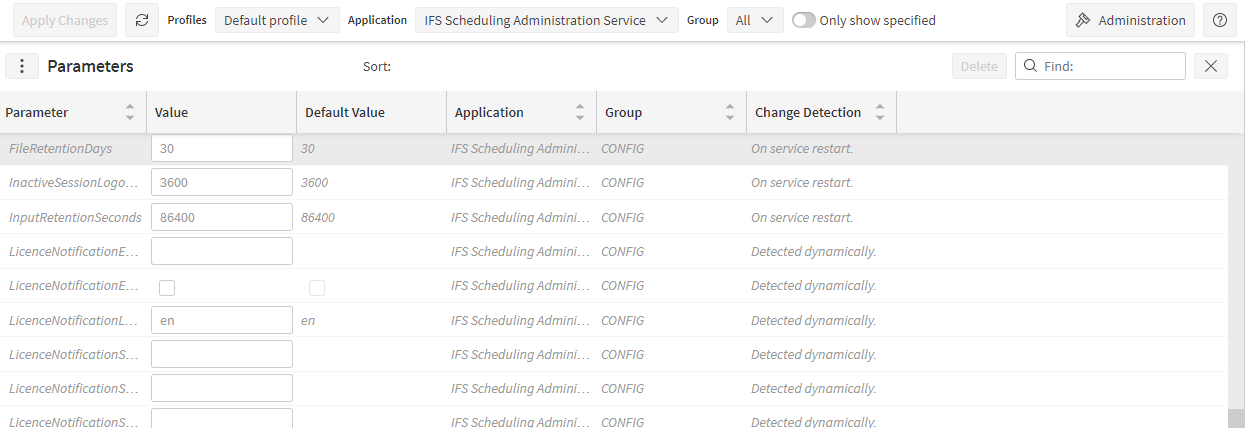
Double click on the value you wish to update and change the values.
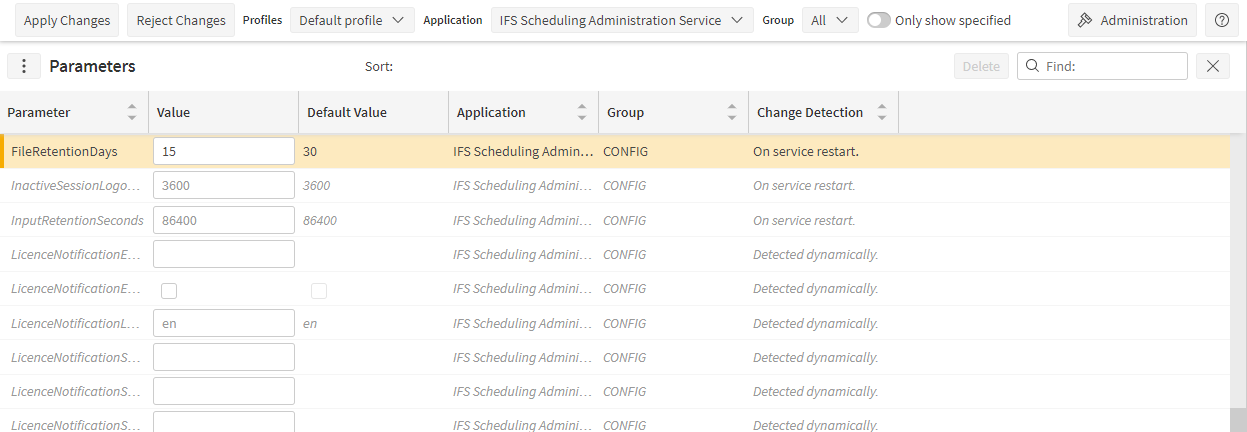
After changing parameters, restart the Scheduling Administration Service and verify it has started correctly and there are no errors in the event log for this service.
System Database Maintenance
The Scheduling Administration Service provides the following functionality:
Remove old data from the System_Event table
All data which appears in service event logs is also copied to the System_Event table. After a period of time (default 1 day) this data will be deleted. The parameter SystemEventRetentionSeconds controls how long system event data is retained for.
Remove old data from the Application_Instance_Status table
When monitoring applications the Scheduling Administration Service places usage data into the Application_Instance_Status table. After a period of time (default 2 hours) this data will be deleted. The parameter ApplicationInstanceStatusRetentionSeconds controls how long the data is retained for.
Remove old System_Status rows
The administration service will log system status updates into the System_Status table on a regular basis (see the relevant section later in this guide). After a period of time (default 1 day) this data will be deleted. The parameter SystemStatusRetentionSeconds controls how long system event data is retained for.
Scheduling Database Maintenance
The Scheduling Administration Service provides the following functionality:
Remove old input and output rows from the database
When a new initial load happens for a dataset the old data for that dataset is deleted as a background activity. When a new complete plan is generated for a dataset the old plan data is deleted for that dataset. The parameters InputRetentionSeconds and OutputRetentionSeconds control how long to keep the old data before it is deleted.
Warning
It is important that data is not retained within the database for a prolonged period of time and the Scheduling Administration service is functioning correctly. If the database grows to a large size for a dataset the performance of the system will degrade.
Automatic reload
The Scheduling Administration Service is able to trigger a new initial load input to be created automatically on a daily basis, keeping only the relevant information from the existing data in the dataset. In order to enable the admin service parameter 'AutoReload' must be switched on.
In addition the Scheduling Administration Service will only do this for a dataset if the data contains a Source_Data record of type 'SCHEDULING' with an associated Source_Data_Parameter named 'source_extraction_method' and set to the value 'AUTOMATIC'.
With these settings in place the Scheduling Administration Service will prompt a new load once per day for the dataset in question, at the time determined by the parameter 'AutoReloadTimeOfDay' (default midnight). It does this by sending a new initial load input to the Schedule Input Manager, and requesting a 'FULL' source extraction be carried out. See the Scheduling Schema Guide for Details (Source_Data section).
Deleting old files
Directories and file mask can be specified using the parameters DeleteFolderList, DeleteFileMask and FileRetentionDays to clear down specified folders. e.g.
DeleteFileMask  =   "*.xml",
    DeleteFolderList    =   "C:\IFS\Scheduling\Input History".
You can specify more than one file path by separating the paths with a comma.
The Scheduling Administration Service can also delete files from a folder plus any sub folders of that folder. This is particularly useful if input history is written to separate dataset folders (via the parameter 'InputHistoryUseDatasetSubfolders'). To request this simply include a * at the end of the folder path, e.g. 'C:\IFS\Scheduling\Input History*'.
Session Monitoring
The Scheduling Administration Service will monitor the sessions logged in the scheduling system database, and end sessions that have not been active for a period of time. There are 3 administration service parameters related to this:
- InactiveSessionLogoutSeconds determines how long a session must have been inactive for before it is ended. This defaults to 1 hour.
- SessionRetentionSeconds determines how long the session information will be retained in the database after the session has been ended. This defaults to 1 week.
- CheckForEventsSeconds determines how often the administration service will check for sessions that should be ended or deleted, along with other checks not related to sessions. This defaults to 10 minutes.
Note
Please note that a session is only considered inactive if there is no activity registered against the session, including background activity. This is primarily intended to detect when a user closes their browser without explicitly logging out of the Scheduling Workbench. If a user has the Scheduling Workbench open there will often be background requests being made to the server which will keep the session alive, even if the user is not actively using the Workbench at the time.
Service Monitoring
The Scheduling Administration Service will carry out basic monitoring of all other components to ensure that the services are up and running. It does this by regularly pinging each component. If any component repeatedly fails to respond to the ping request it will be unregistered from the system database. The number of repeated failures that triggers this is determined by the parameter 'UnregisterApplicationOnFailCount', and defaults to 3 times.
Required Service Check
The Scheduling Administration Service (ADM) will also perform a check that compares the active services across all roles with the required active services for each role, if they do not match an event will be logged by the ADM service, providing information about the instance and application type. For a Multi-Role Azure deployment this will be enabled by default. For an Standard, on-premises install the parameter "CheckRequiredServices" will need to be set to true. The frequency of the Required Services check can be configured using the parameter "CheckRequiredServicesFrequency" (the default value is 10 minutes). Changing a parameter will require the Administration Service to be restarted. An additional check is performed to determine if all expected instances of a role have been deployed. If not, an event will be logged providing information about the role and its instance count.
Note
For a Standard, on-premises install, Roles will need to be configured for the Required Services check to work. Please consult the Installation Guide for details of how to configure Server Resiliency for an on-premise install.
Note
During periods when Server Resilience is active this will cause errors to be logged stating that the service is down. Note that Server Resilience is intended to be a back-up mechanism that is used to cover minor downtimes and/or transient faults in a system (e.g. a VM rebooting or applying updates). Therefore, the errors raised by the Required Services check that may occur during a period where Server Resilience is in effect should be transient - if they persist this is an indication that the system is at fault and requires further investigation.
Automated Service Restart
The Scheduling Administration Service can also attempt to automatically restart any services that fail to respond to ping requests. To enable this behaviour the parameter 'AutoRestartServices' must be switched on.
In addition the Scheduling Service Manager must be installed on every server where the scheduling services are located. The Scheduling Administration Service will notify the Scheduling Service Manager of any services which have failed to communicate with it and the Scheduling Service Manager will attempt a restart of those services on the same server.
Advanced Monitoring
The Scheduling Administration Service is also capable of polling components for statistics about their usage (application instance status information). If you wish to enable this for a specific application you must request this with a broadcast.
The 'Admin Monitoring Setup.xml' file included in the setup files within the release package can be used to set up this monitoring. Simply send this to the Schedule Input Manager after installing the software. The broadcasts in this file will only add application instance status information to the database and will not broadcast it externally. However the data can be adapted to also enable this, or a similar file created as follows:
System Status
The Scheduling Administration Service will update the system status each time it checks for new applications, which is based on the parameter CheckForNewApplicationsSeconds (default 20 seconds). The parameter 'SystemStatusEventWindow' determines the window over which events should be recorded, before the current time (default 10 minutes).
The status update includes information about warning and error events logged by the system, and about the results of the latest system test, if applicable. See the 'System Test' section for details on this functionality. The full details of what is included in the system status is shown below:
- id: a unique increasing id.
- date_time: the current date and time when the status update occurred.
- total_dse_capability: the total capability of all DSEs running on the system.
- total_live_footprint: the total footprint of all scheduling datasets running live on the system.
- total_waiting_footprint: the total footprint of all scheduling datasets in waiting state on the system.
- admin_application_instance_id: the instance id for the Scheduling Administration Service generating the broadcast.
- alert_level: a summary alert level for the system - one of OK, WARNING or ERROR.
- total_warnings: the total number of warning events generated over the recording window.
- total_errors: the total number of error events generated over the recording window.
- system_test_time: the time that the last system test completed, or null if no system tests have been run.
- system_test_successful: a true/false value indicating if the last system test run was successful.
- system_test_time_taken: The total time taken for the last system test run.
- system_test_time_taken_dse: the time taken internally by the DSE to generate a plan for the last system test run.
- system_test_query_duration: the time taken to query the schedule query manager for the plan during the last system test run.
Note
The total DSE capability is taken from the individual capabilities of the DSE instances multiplied by the 'LoadBalancingWaitingOverloadFactor'. This is to allow for direct comparison between the DSE capability and the total dataset footprints.
Note
Please note that the overall time taken for the system test can vary quite significantly. This is because the components running against the system will only check for new datasets on an occasional basis (by default every 30 seconds). Longer delays would therefore not necessarily indicate an issue with the system.
System Status Broadcasts
To get an external broadcast (email, web service call, file etc.) when an application stops responding you must specify your own broadcast. To do this you need to create your own xml file with three required entities as follows: (Input_Reference, Broadcast and Broadcast_Parameter).
- Input Reference: The Scheduling Administration Service has its own dataset for setting up broadcasts, so the dataset_id should be set to SCHED_ADMIN. In addition, a valid datetime and id must be provided.
- Broadcast: A broadcast row must be provided for each separate broadcast that is required. This must contain an id, and the plan_type should be set to 'ADMIN'. The broadcast_type_id should be set to the required option (see the Scheduling Schema guide for details of options available).
- Broadcast Parameter: Each broadcast entity must have the required parameters specified for the broadcast type selected (see the Scheduling Schema guide for details). In addition, a number of further parameters can be specified to control how and when broadcasts are sent, for example the number of failed ping attempts required to trigger a notification. Details of all admin-specific parameters are given in the table below. On each Broadcast Parameter the broadcast_id, parameter_name and parameter_value must all be specified.
| Parameter Name | Description | Notes |
|---|---|---|
| application_type_id | This is used to specify a particular application type that should be monitored (e.g. SIM for the Schedule Input Manager) | If this is not specified then all applications will be monitored. Use the value 'NONE' if advanced application monitoring is not required. |
| check_in_expired_time | Amount of time to have expired since application last checked in before broadcast is sent. | |
| system_event_option | Sets when the Scheduling Administration Service should broadcast system event information. | See notes below for the different allowed values and their meaning. If no system event information is required the parameter can be left out. |
| heartbeat_rate | How often to send a heartbeat System_Status record in seconds. | Optional - if not specified then no heartbeat broadcasts will be sent |
Note
The parameter failed_attempt_count in the broadcast request should always be, at most, the value of the parameter 'UnregisterApplicationOnFailCount' to ensure a broadcast is always sent.
Note
The parameter system_event_option takes the following values:
- ALL: the Scheduling Administration Service will send the broadcast whenever new events are found.
- WARNING: the Scheduling Administration Service will send the broadcast whenever new events of severity warning or error are found.
- ERROR: the Scheduling Administration Service will send the broadcast whenever new error level events are found.
- AUTO: the Scheduling Administration Service will automatically decide if there are events which should be broadcast.
- SUMMARY: no system events will be broadcast, but the number of recent errors and warnings will be included in the system status in the heartbeat broadcast.
Each broadcast sent will include a System_Status row, as detailed above.
In addition, if the broadcast is sent because a service is not responding then the broadcast will also include the most recent application_status rows for the failing application instance. Alternatively, if the broadcast is sent due to system event conditions, then all recent system events will be included in the broadcast. The heartbeat broadcast will only contain a single system status row.
The following XML sample will request that the Scheduling Administration Service broadcast a file in any of the circumstances listed below:
- Another service fails to respond to a ping twice in succession.
- An application writes an error event to the system database.
- 5 minutes have passed since the last 'heartbeat' broadcast.
To enable this the sample XML should be sent as input to the system (e.g. drop the file in C:\IFS\Scheduling\Input).
<?xml version="1.0" standalone="yes"?>
    <dsScheduleData xmlns="http://360Scheduling.com/Schema/dsScheduleData.xsd">

    <Input_Reference>
        <datetime>2008-01-01T00:00:00+00:00</datetime>
        <id>ADMIN_BROADCASTS</id>
        <input_type>LOAD</input_type>
        <dataset_id>SCHED_ADMIN</dataset_id>
    </Input_Reference>

    <Broadcast>
        <id>ADM_File_Broadcast</id>
        <broadcast_type_id>FILE</broadcast_type_id>
        <description>Admin File Broadcast</description>
        <plan_type>ADMIN</plan_type>
    </Broadcast>

    <Broadcast_Parameter>
        <broadcast_id>ADM_File_Broadcast</broadcast_id>
        <parameter_name>file_path</parameter_name>
        <parameter_value>C:\IFS\Scheduling\Administration</parameter_value>
    </Broadcast_Parameter>
    <Broadcast_Parameter>
        <broadcast_id>ADM_File_Broadcast</broadcast_id>
        <parameter_name>failed_attempt_count</parameter_name>
        <parameter_value>2</parameter_value>
    </Broadcast_Parameter>
    <Broadcast_Parameter>
        <broadcast_id>ADM_File_Broadcast</broadcast_id>
        <parameter_name>system_event_option</parameter_name>
        <parameter_value>ERROR</parameter_value>
    </Broadcast_Parameter>
    <Broadcast_Parameter>
        <broadcast_id>ADM_File_Broadcast</broadcast_id>
        <parameter_name>heartbeat_rate</parameter_name>
        <parameter_value>300</parameter_value>
    </Broadcast_Parameter>

    </dsScheduleData>
System Test
The Scheduling Administration Service is also capable of running an 'end-to-end' system test on a regular basis, to check that all core components are functioning correctly. The test involves submitting a small test dataset and requiring the DSE to generate a schedule for this dataset. In summary the test will carry out the following checks:
- Check that data can be sent into the system via the Schedule Input Manager.
- Check that the system can produce a schedule for a basic dataset via the Dynamic Scheduling Engine
- Check that appointment offers can be generated via the Appointment Booking Engine
- Check that dispatch suggestions can be made by the Schedule Dispatch Service
- Checking that travel analysis details can be generated by the Travel Analysis Service
- Checking that a plan can be retrieved from the Schedule Query Manager
- Checking that broadcasts can be retrieved from the Schedule Broadcast Manager
An information message is logged on successful completion of the test, and error messages are logged if any part of the test fails.
In addition, the System Status updates will reflect the result of the most recent system test.
This functionality is not switched on by default, but can be switched on via the parameter 'RunSystemTest' - a restart of the Administration Service will be required for the parameter change to take effect. It is also possible to configure how the test is run. A full list of relevant parameters is included below:
| Parameter Name | Description | Default |
|---|---|---|
| RunSystemTest | Determines whether to run system tests. | No / False |
| RunSystemTestSeconds | The frequency with which the test is run. | 3600 (1 hour) |
| SystemTestDatasetId | The dataset id to run the system test under. | SystemSmokeTest |
| SystemTestTimeLimit | The maximum time to allow for the system test to complete. | 2 minutes |
| SystemTestAllocationTypes | The plan allocation types to expect output for - see the Scheduling Schema Guide, Broadcast section, for details of allocation_type values. | All Types = 27, i.e. 1 (DSE Plan) + 2 (Appointment Offers) + 8 (Dispatch Suggestions) + 16 (Travel Detail) |
Note
Note that the system test will always be run under the default system organisation.
Note
By default the test will expect output from the Dynamic Scheduling Engine, Appointment Booking Engine, Schedule Dispatch Service and Travel Analysis Service. If any of these services aren't in use the parameter 'SystemTestAllocationTypes' should be updated to reflect this. For example, if the Scheduling Travel Analyser is not installed then the value of SystemTestAllocationTypes should be set to 11 (= DSE + Appointment Offers + Dispatch Suggestions).
Note
If the Schedule Distribution Service is being used, the test will also verify that this is functioning correctly since it is required to produce a schedule.
Organisation Deletion
The Scheduling Administration Service will delete child organisations that have been marked for deletion. The deletion will commence for any organisation that has been marked for deletion once a grace period has elapsed. This grace period is controlled by the parameter 'DeleteOrganisationGracePeriod' and defaults to 1 hour.
All data associated with the organisation will be removed from all databases, culminating in the system database data and finally the organisation itself. The deletion process will be logged in the system event log, including any failures, and the organisation will only be deleted once all data has been successfully removed.
The 'CheckForEventsSeconds' parameter determines how frequently the Scheduling Administration Service will check for organisations that are ready for deletion.
Licence Email Notifications
The Scheduling Administration Service can be configured to perform a periodic check of the licence key for each tenant within the PSO system and send email notifications if any tenant exceeds their licence limits. The following parameters are relevant to configuring licence email notifications:
| Parameter Name | Description | Default |
|---|---|---|
| CheckLicenceFrequency | Frequency of licence key checks. Note: this is controlled by the Default organisation. | Hourly |
| LicenceNotificationEmails | Whether, or not, licence email notifications should be sent. | False |
| LicenceNotificationEmailAddresses | A comma-separated list of email addresses that licence notifications should be sent to. | Empty |
| LicenceNotificationSMTPHost | SMTP host for the licence notifications. | Empty |
| LicenceNotificationSMTPAddress | Email address to use as the sender of email notifications. | Empty |
| LicenceNotificationSMTPName | Name to use as the sender of email notifications. | Empty |
| LicenceNotificationSMTPUserId | User id for email notifications if credentials are required by the SMTP server. | Empty |
| LicenceNotificationSMTPPassword | Password for email notifications if credentials are required by the SMTP server. | Empty |
| LicenceNotificationLanguageId | Language to use. | Empty |
Note
All parameters, with the exception of "CheckLicenceFrequency", relate to a specific organisation, i.e. each tenant configures their own respective email notification details.
Note
Licence notifications will be sent as soon as usage exceeds the limit of the licence key. PSO will not lock usage immediately; a grace buffer is included. However, excessive overflow of a licence key will result in usage being blocked. Therefore, we strongly recommend that once a notification is received action should be taken to avoid any unwanted downtimes due to licence breaches.