Appendix: Troubleshooting
Detailed below are some common issues that may occur during installation, and their likely causes and solutions.
Event Log Errors
The table below lists commonly seen event log errors and their likely causes.
| Error | Likely Causes |
|---|---|
| License not valid for this machine. | The licence file has not been submitted - see the section 'Licence Installation'. OR The licence does not contain the server MAC address - a licence update will be required. |
| Failed to connect to Scheduling Database. | The connection string used may be incorrect - test the connection in the Scheduling Installer. |
| Failed to select from {X}: table or view does not exist. | This suggests that some or all of the database create scripts have not been run. |
HTM problems
DSE not using the HTM
After a new HTM has been installed and you send data to the DSE to produce a schedule, you may notice that the DSE is not using the HTM. Either because the travels look too short (if the HTM is not used, the DSE will use straight line travel), or you have noticed suspicious events in the DSE event log:
- Travel (HTM) Database connection failure - using StraightLine. Please ensure the service is configured to point to the correct database.
- Travel (HTM) Database not configured - using StraightLine. Please ensure that the service has been configured correctly to be used by the DSE.
This doesn't necessarily mean that there is something wrong with the HTM database itself. The warnings will usually mean that the HTM database hasn't been configured correctly to be used by the DSE. Common issues are:
The HTM database connection string in the DSE config is incorrect. Make sure the connection string is pointing to the correct HTM database and that the connection string is valid and restart the DSE.
Warning
When pointing the DSE to a Sql Azure HTM database, make sure you use the full database name as the value for the data source field in the connection string of the DSE config, e.g.:
connectionString="data source=tcp:"server_name".database.windows.net,1433;
Incorrect matrix id has been set in the parameters for the dataset/profile. E.g. if you are using a GB HTM and the 'HierarchicalDatabaseMatrixId' parameter is set to 'US' instead of 'GB'. Set the'HierarchicalDatabaseMatrixId' parameter to the correct matrix id and restart the DSE.
- The 'TravelCalculationOption' parameter is set to 'StraightLine'. Set it to 'HierarchicalTravelMatrix' and restart the DSE.
No snaps (bad locations)
After a new HTM has been installed and you send data to the DSE to produce a schedule, you may get a warning in the event logs of the form:
No snap found in matrix {2} hierarchy {0} tile {3} for location {1}. Location may be outside the bounds of the matrix or nowhere near the road network.
These errors will typically be followed by:
Travel not found from: {0} to: {1} distance(m): {2} time(s): {3} snaps: {4},
which are a consequence of the 'no snap found' errors. This is most likely due to bad data, i.e. incorrect locations in relation to the rest of the data. We would suggest that any incorrect locations are removed or fixed and resend the data. If you think that the 'no snap found' warnings are not due to bad locations, please contact IFS support.
Incorrect locations may include:
- Locations in the middle of the sea
- Locations outside the bounds of the matrix
- Locations inside the bounds but in the middle of nowhere, e.g. in the middle of a nature reserve with no roads anywhere near in order to snap to.
DSE too slow to produce an initial plan
You may find that if your dataset is using the HTM to produce a plan, it is taking a lot longer to produce an initial plan (after a LOAD input) than it would using StraightLine travel or a previously installed HTM. This may be due to the fact that the new HTM database doesn't have the required indices in place. The HTM database has clustered indices (primary keys) and non-clustered indices which increase its speed and performance significantly, especially for large HTM databases (e.g. US HTM).
Check that the indices are in place (see 'Installing the Hierarchical Travel Matrix' and 'Post-HTM-Installation checks' sections above).
Unsure whether the HTM installation was successful
There are a number of ways to check whether the HTM installation was successful. Ultimately, the best way is to point the DSE to the HTM database and wait for it to produce a plan using this HTM. Have a look at the schedule and check that the travels between activities make sense and that no errors and warnings are produced in the DSE event log. However, there are some checks that we provide to check whether the HTM was installed successfully (see 'Post-HTM-Installation checks' sections above)
Populate.bat or Add.bat failures
A common error while running these scripts is time-outs. Once the data is loaded using the Populate.bat script, the script may report a communication link error (see screen shot below). This is a transaction time-out error.
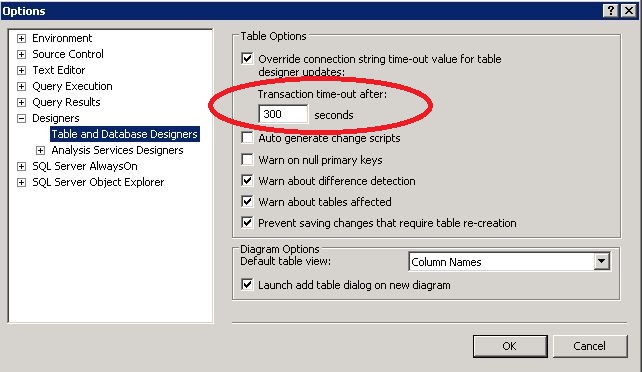
The time-out can be increased in Sql Server Management Studio settings. In the SSMS you are using to connect to the Sql Azure database, go to Tools->Options. Expand the Designers option. Change the 'Transaction time-out after' option to 300 seconds (defaults to 30 seconds). See screen shot below. You can now run the Indices.bat script, which will drop any non-clustered indexes already built and build them again. Alternatively, you can run 'Hierarchical Travel Drop Indices.sql' and 'Hierarchical Travel Create Indices.sql' successively.

Another common error is that the scripts fail due to insufficient disk space. Before you start running the scripts check that the disk on which the .csv files and the database are has sufficient space. See table in 'Installing the Hierarchical Travel Matrix' section for details.
Oracle issues
Error when manually running the Scheduling Database Create Script
It is possible that an internal Oracle error may occur when manually running the Scheduling Database Create Script. The error reported is as follows: '00603. 00000 - "ORACLE server session terminated by fatal error"'. This causes the remainder of the script to fail with an error: 'SQL Error: No more data to read from socket'.
If this error occurs, please run the following statement:
ALTER SESSION SET PLSCOPE_SETTINGS = 'IDENTIFIERS:NONE';
Then re-run the create script, and it should now run without error.