Exporting System Data
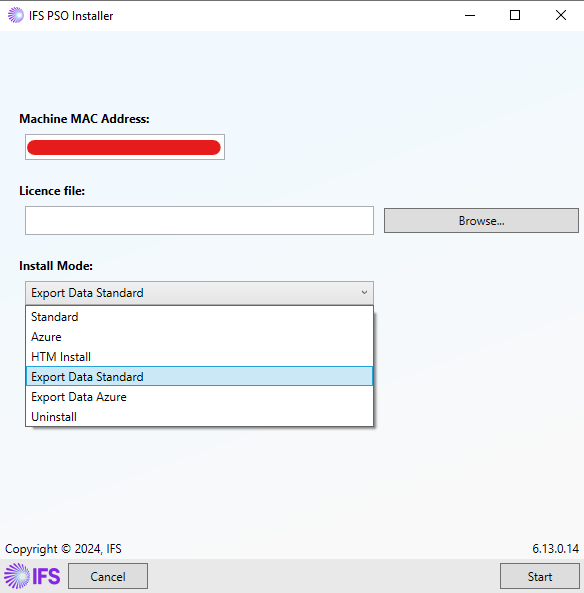
To export database data, select either "Export Data Standard" or "Export Data Azure" Install Mode on the initial installer screen for on-premises or Azure data exports, respectively.
Reviewing the License Details
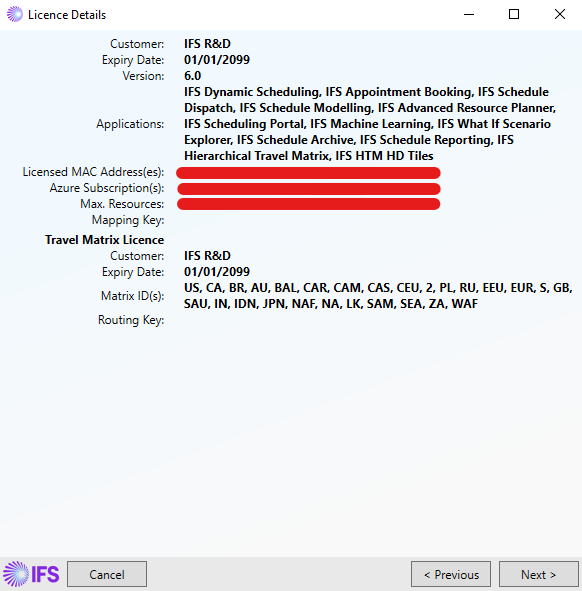
The License Details screen then displays the current license details and modules installed.
Selecting the Databases to Extract Data From
Export Data Standard
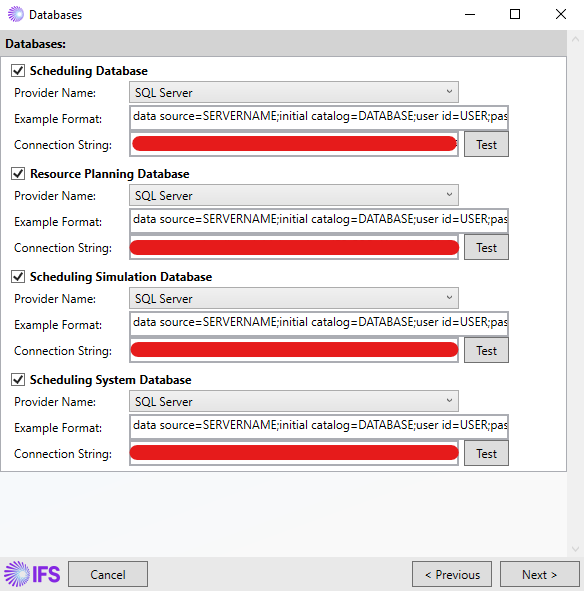
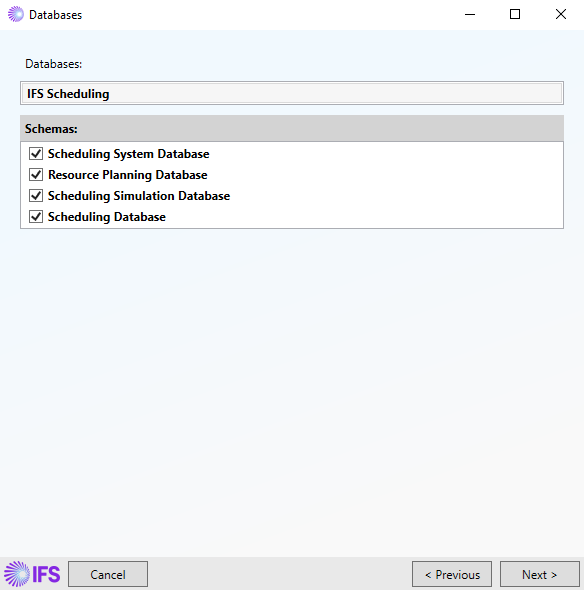
The Databases screen is used to select the databases you wish to export data from. Select the databases you wish to export data from and then click 'Next'.
Export Data Azure
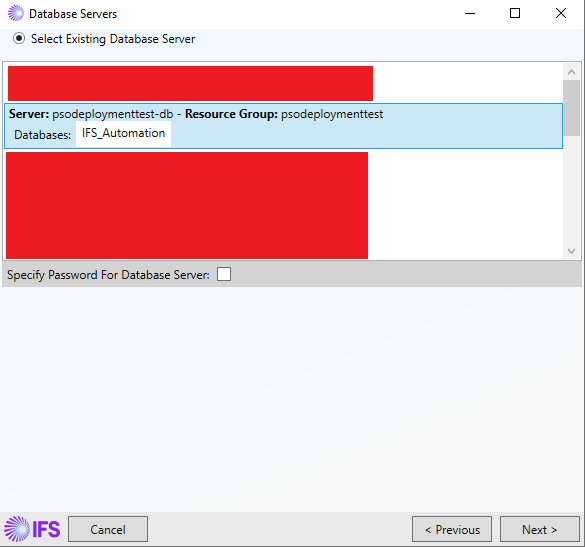
The Database Servers is used to select the database server associated with the Azure deployment you want to export data from. Select the server you wish to export data from and click 'Next'.
In the Databases screen you can then select the databases you want to export. You will then be presented with a list of available schemas in the selected database. Select the ones you wish to export and then click 'Next'.
Selecting the Export Location for the Extracted Data
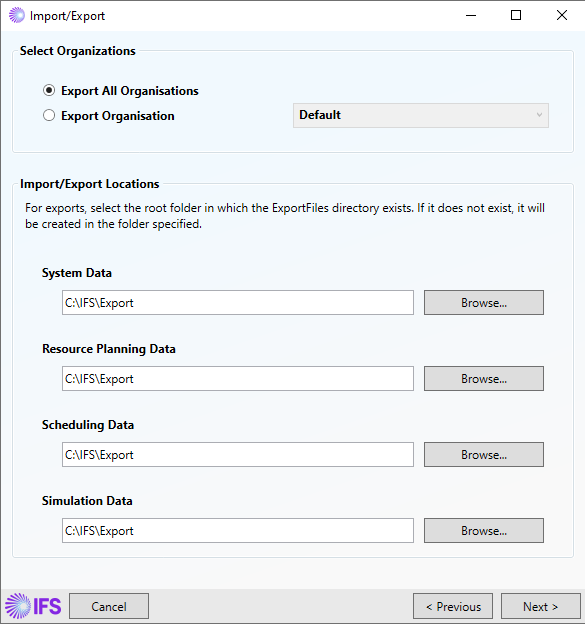
The Import/Export screen allows the export location of System, Resource Planning, Scheduling and Simulation data to be set.
Before exporting data, if organisations have been setup, the 'Select Organizations' section at the top of the screen will display and allow you to select whether to export the data for all organisations, or just for a single organisation.
When exporting data, a recommended export location will initially be selected, though any location can be chosen. Within the selected folder, a folder structure will be created (if it does not already exist), with an 'ExportFiles' folder.
Within this folder, we will create the following folders:
- 'ResourcePlanningFiles' for any resource planning data. This data will save as a .xml file
- 'SchedulingFiles' for any scheduling data. This data will save as a .xml file. The following types of datasets are valid: dormant, paused and running
- 'SimulationFiles' for any simulation data. This data will save as a .sim file
- 'SystemFiles' for any scheduling system data. This data will save as a .xml file. Any saved schedules will also be saved to a folder called 'ScheduleData' located within this
This data can then be reviewed, or imported when installing a blank database. See the Standard Software Installation - Import/Export section for more details on this.
Note
It is only possible to export data this way from systems on version 5.8 or later. For systems on 5.7 or earlier, please use the export options in the workbench.
Note
When upgrading from 5.9 to 6.0 or later, parameters of type masked will now need to be encrypted. For systems on 6.2 and earlier masked parameters will not be imported unless a 'System_Version' (see Scheduling Schema) is provided in the export. The system version should be from the system where the parameters were exported.