Pre-requisites
Default Ports
The following ports are used by default to allow the services to communicate with each other when necessary. In particular the administration service will use these ports when monitoring the other services.
| Application Type | Port |
|---|---|
| ABE | 1365 |
| SBM | 1364 |
| DST | 1369 |
| GWY | 8744 |
| SIM | 1368 |
| MON | 1370 |
| SQM | 8733 |
| TRA | 1374 |
| RPL | 1375 |
| SML | 1376 |
| SMM | 8746 |
| INF | 8747 |
| INF Python Service | 8748 |
| MLS | 8749 |
| MLS Python Service | 8750 |
| PSW | 80/443 (HTTP/HTTPS) |
| SRG | 80/443 (HTTP/HTTPS) |
On-premises Installations
For on-premises installations the port details in the above table can be modified if necessary after install by changing parameter settings using the Scheduling Workbench Administration workspace. Each service will have a parameter named 'Port' which is originally set to the default value shown here.
Warning
Please note that some firewalls and virus checkers may block traffic using these ports by default, which will stop the IFS PSO services from working correctly. Please ensure that the services have free access to use all required ports.
Azure Installations
For Azure installations the ports are fixed by the IFS PSO Installer and the setup of the internal firewall between VMs is automatically configured, therefore simplifying the installation for the user. When connecting to, or integrating with, a PSO Azure system the only ports that you need to be concerned with are those for the SRG, GWY and PSW. For the SRG and PSW, this will typically be port 443 if using HTTPS (which we strongly recommend) or port 80 if using HTTP. For the GWY, this will be port 8744. Note that these are the ports that you will need to open in any external approved list (i.e. maintained externally to the IFS PSO Installer) that is set up for your PSO Azure installation. Note also that by default the IFS PSO Installer will open the required inbound ports when configuring the Network Security Group on the Virtual Network that hosts the PSO system in Azure. Further details of this can be found in the Azure Installation section.
Software Pre-requisites
This section details the software pre-requisites for installing and running IFS PSO software.
Database Tier
All IFS PSO services require a connection to a database. There are a number of database scripts that will need to be run as part of the installation.
The following types of database are supported:
| Database Type | Supported Versions | Operating System |
|---|---|---|
| Oracle | Oracle 23ai Oracle 19c Standard Edition 2 Oracle 19c Enterprise Edition | All Windows and Unix flavors supported by Oracle |
| SQL Server | SQL Server 2022 SQL Server 2019 | All Windows flavors supported by Microsoft |
| SQL Azure Database | SQL Azure | - |
| PostgreSQL | PostgreSQL 18 | All operating systems supported by PostgreSQL |
Middle Tier
The table below lists the software required for running IFS PSO services.
| Software | Supported Versions | Notes |
|---|---|---|
| Operating System | Windows Server 2022 Windows Server 2019 Windows Server 2016 | |
| .NET | .NET 10.0 | |
| IIS | IIS running ASP.NET with aspx extensions | This is only required on servers hosting a webservice component (Scheduling Workbench Server or Scheduling RESTful Gateway). |
Client Tier - HTML Client
Details of the software required to run the HTML version of the Scheduling Workbench client are given below.
| Operating System | Browser | Minimum Version |
|---|---|---|
| Windows | Google Chrome | Current and previous version |
| Windows | Microsoft Edge Chromium | Current and previous version |
| Mac | Safari | Current major version and previous minor version of the current major version |
Note
The minimum supported resolution is 1024x768, though for optimal results use 1920x1080.
Note
Internet Explorer is not supported for use with the HTML client.
IIS Configuration
The server(s) hosting the Scheduling Workbench and the Scheduling RESTful Gateway require IIS (Internet Information Services) to be installed on the server on which they will be installed. In the following sub-sections details are provided on how to install IIS.
Note
These changes will only need to be made before the Scheduling Workbench is installed for the first time. The installer will then set up any additional configuration required.
Enabling IIS on Windows Server
Open the server manager, select 'Manager' and then select 'Add Roles and Features'.
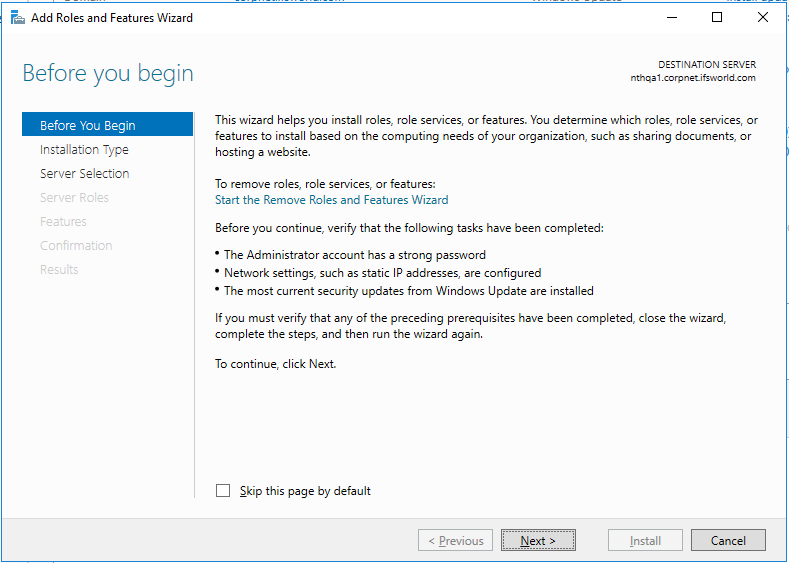
Select 'Role-based or feature-based installation' on Installation Type, and choose the relevant server from the server pool on server selection. This will take you to the 'Select Server Roles' screen.
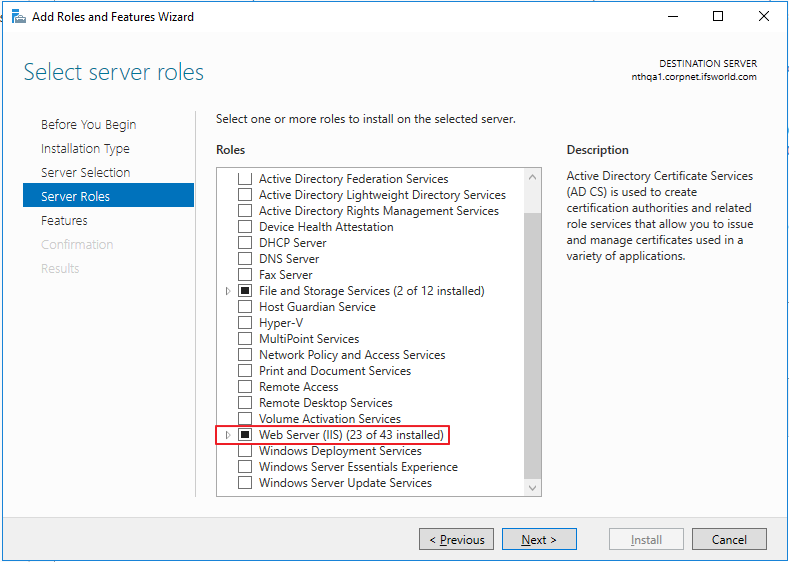
If no web server roles have previously been installed on the machine, you will need to select the option 'Web Server (IIS)' from the list of options. This will open a wizard to include other required management features. Click 'Add Features' to install these features.
Configuring IIS using the IFS PSO Installer
The IFS PSO Installer will automatically configure any required IIS settings when installing the Scheduling Workbench. Please consult the section 'Standard Software Installation' for further details.
Installing the PSO Software
Once IIS is configured correctly the Scheduling Workbench and/or Scheduling RESTful Gateway can be installed. See the instructions in the 'Standard Software Installation' section for details of how to do this.
Authentication
By default the Scheduling Workbench server is set not to use authentication when clients connect to it:

As a result it is necessary to enable anonymous authentication on the IFS Scheduling Workbench website in IIS. Dependant on company policy this option can be disabled at the default website.
It is also possible to use the Scheduling Workbench with Active Directory sign in. With this option the Scheduling Workbench configuration file will need to be amended to require Windows authentication, and windows authentication should be enabled in IIS. See the Scheduling Administration Guide for further details.
Using HTTPS
The steps outlined below will enable the Scheduling Workbench to be used over HTTPS.
Note
By default for on-premise installations, the HTTP protocol is enabled, and the HTTPS protocol is not. Customers should consider their own security requirements and make adjustments as necessary.
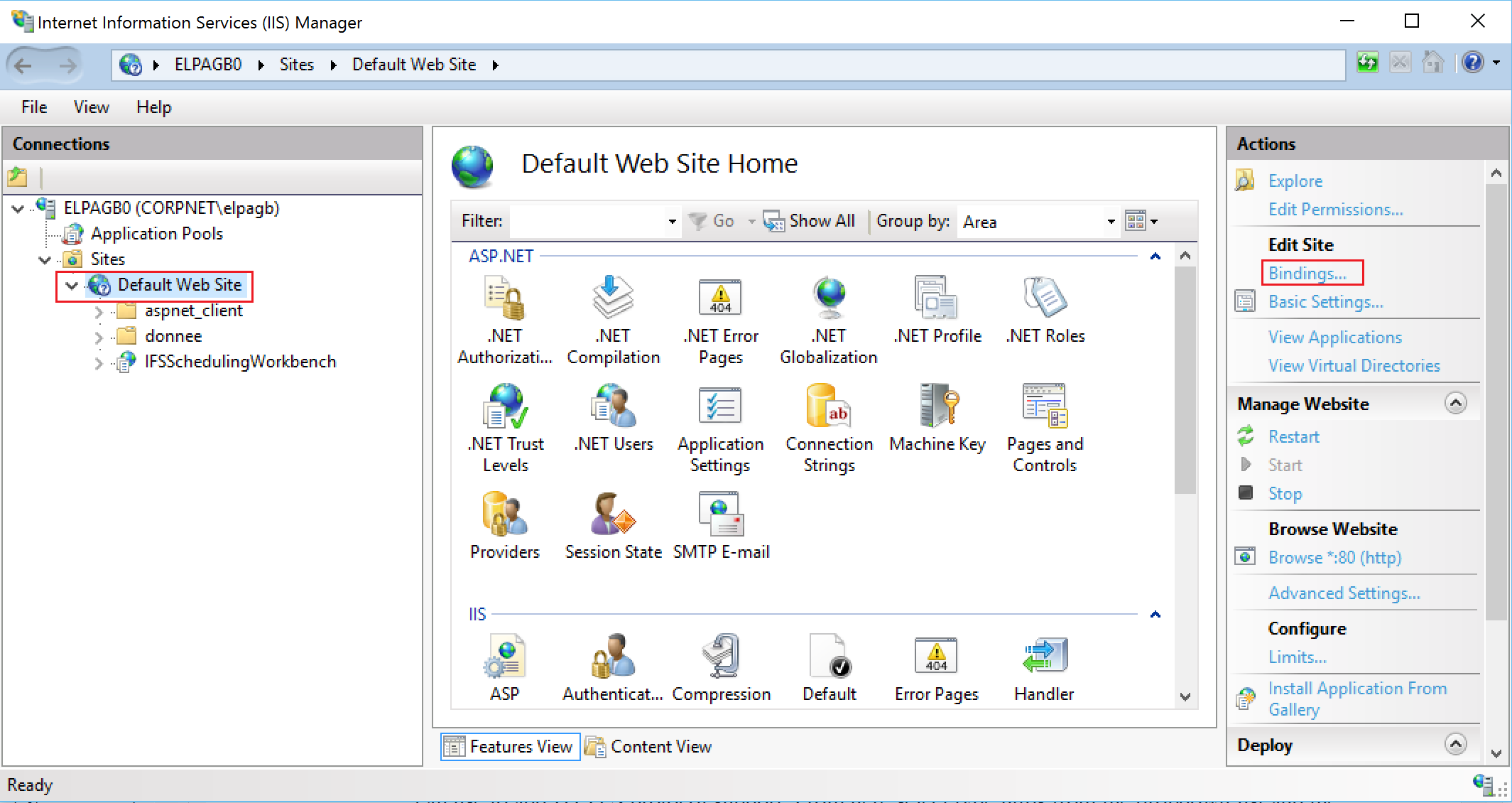
- From Computer Manager open IIS and select the website that the Scheduling Workbench is installed under, in the example below this is Default Web Site. Then click the Bindings link in the Actions pane on the right hand side of the screen:
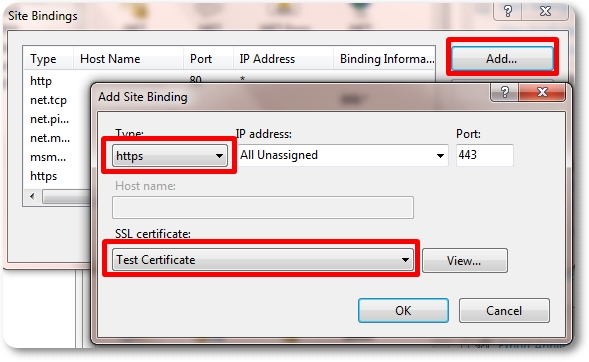
- To enable SSL for the site click the Add button. This will bring up an 'Add Site Binding' dialog that we can use to add HTTPS protocol support. From here select type https from the dropdown list and the name of a previously created SSL certificate and click OK. This indicates that we want to use that certificate when encrypting content over SSL:
- You can now access the Scheduling Workbench securely via https.
Note
If there are no SSL certificates listed or you don't know which one to choose seek advice from your System Administrator.
Installation From Linux
Limitations
Installations from Linux have the following limitations:
- Only command line installation is supported
- The standard, uninstall (standard), exportStandard and webInterface install modes are not supported
Supported Linux Distributions
The installer has been tested to work on the following Linux distributions. Other Linux distributions may be compatible but have not been tested by IFS.
| Distribution | Notes |
|---|---|
| Oracle Linux 8.3 | |
| RedHat Enterprise 8.2 | The icu package is required. This can be installed by running: sudo yum install icu |
| Ubuntu 20.01 |