Updating and Upgrading
After initial installation you will at times need to update your IFS PSO software. Note that the IFS PSO Installer can be used to perform all of the required update/upgrade actions for both local installations and Azure deployments - please consult the "Standard Software Installation" and "Azure Installation" sections for further details of performing updates/upgrades for local and Azure deployments, respectively. Details of the actions performed by the IFS PSO Installer may be found in an appendix.
Warning
Before updating a multi-server on-premise system it is expected that all services on all servers would be stopped. It is not possible for the installer to do this step automatically so this would have to be completed manually.
Note
The IFS PSO Installer will detect any existing software components and database connections. Based on the version of the existing databases, the IFS PSO Installer will determine which actions to perform (e.g. forced create, update, or upgrade). The Modules and Databases pages in the installer will be pre-populated with existing software and database connections details, respectively.
Warning
Please note that when upgrading from version 6.14 or earlier, there are changes made that impact the majority of tables in the database, and so the upgrade process is likely to take significantly longer than might usually be expected. This is especially the case on larger systems. Please allow appropriate time for the upgrade to proceed.
It is also highly recommended that the a database backup is taken before commencing with the upgrade.
Types of Release
There are 3 different types of release that make up the regular cycle of product releases. Each release has a unique four part version number, and each type of release results in a change to a different part of the version number.
- Major Releases. A major release results in an independent supported branch of the software. From version 6 onwards, a new major release will always result in a change to the first part of the version number.
- Feature Releases. A feature release adds new functionality and is signified by a change to either the second or third part of the version number. The second part (minor part) of the version number is updated approximately once every six months, while feature releases updating the third part of the version number are published on a more frequent cadence.
- Patch Releases. A patch release (e.g. 6.18.0.1 to 6.18.0.5) contains only fixes to issues found with the software, signified by a change to the fourth part of the version number. Patch releases are published when needed. Patch releases are always done against the latest feature release.
Warning
Please note that the version numbering system has changed from version 6. Previously, the first two parts of the version number together made up the major release version (e.g. versions 5.8 and 5.9 were separate major releases). Feature releases (or minor upgrades) were then signified by a change to the third part of the version number.
Note
When upgrading to a new product version, the type of upgrade will impact the steps that need to be performed. This is explained in detail below.
Note
As a precaution for on premise installations we advise backing up each database before making changes.
Major Release
Data Export
For an upgrade to a new major release version it is important to export data from the databases before the upgrade occurs, since this data will be lost when the database is recreated. The data can then be re-imported.
The Installer can be used to automatically export System data, Scheduling data and Resource Planning data. This allows the import/export of system parameters, workbench saved schedules and WISE Data, so it is not necessary to export this data manually. The export process will write the data to files, so it will not be lost if another action in the upgrade fails. Further information can be found in the Standard Software Installation - Import/Export section.
Note
Please note that the full update process does not need to be followed for the Schedule Archive database, provided the update is from version 5.8 or later. Upgrade scripts will always be provided in this case, and so the process for a minor upgrade can be followed instead.
Note
Please note that the installer does not export any data from the Scheduling Archive database, but since this database will not be recreated it should not be necessary to export and re-import this data.
Note
It is recommended that you use the Installer to automatically export your data, however you can manually export the System parameters and Resource Planning data before upgrading if you wish. The System parameters can be exported via the Administration workspace Import/Export tab on the Scheduling Workbench. For Resource Planning data, export the data for all datasets and rotas using the Administration tab in the Planning workspace. The System and Resource Planning data can be re-imported via the same tabs used to export once the upgrade is completed. When re-importing system parameters answer 'yes' to the licence option if prompted. Saved schedules can be exported from the Users tab in the Administration workspace, and imported using the same tab.
On Premise
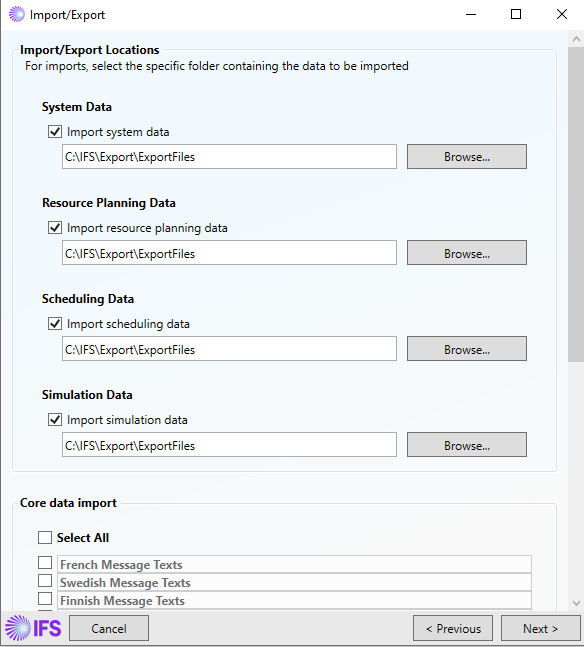
For an on premise install simply run the installer and follow through the instructions. When you reach the Import/Export screen as seen below, it is important that the 'Export and re-import' options are selected.
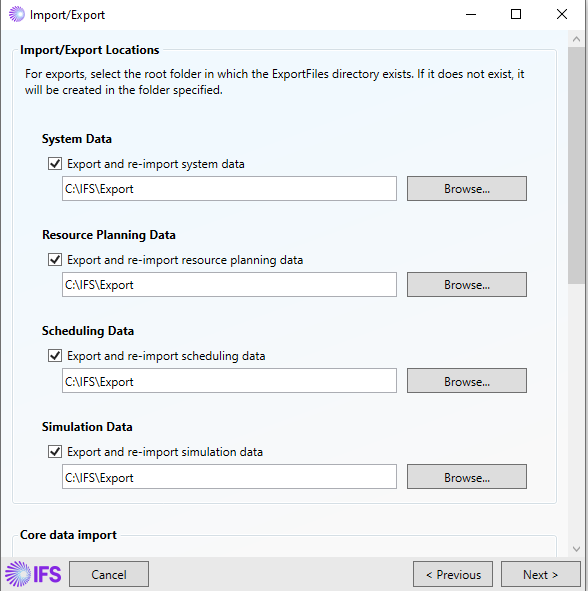
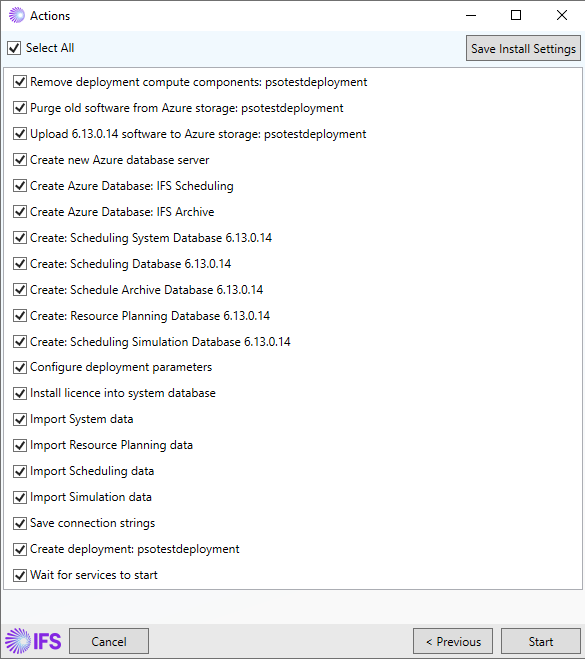
The actions page will then include export and import of the data. Once the installation has been successfully completed, login to the workbench to check that your data has been imported as expected.
Azure
This section will outline the steps required when upgrading to a new major release on an Azure deployment. Updating an Azure deployment involves uploading the newer software, plus any configuration changes, to Azure storage and then re-deploying the service. This in turn involves taking down the existing service running the old version of the software and deploying a new version, and also performing any required updates to the IFS PSO databases on the Sql Azure database server being used by the service.
As mentioned above it is important to export then re-import your data. This can be done automatically using the installer or manually for any Archive configuration data. It is important to note that this Azure update will create a brand new azure installation, so any data would need to be imported.
To update an existing Azure deployment to a newer version of the IFS PSO software select "Update Existing Service" on the Select Service Action page, then select the desired service from the list and click "Next" to continue.
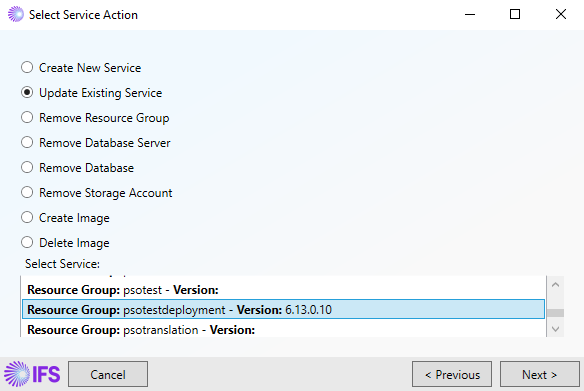
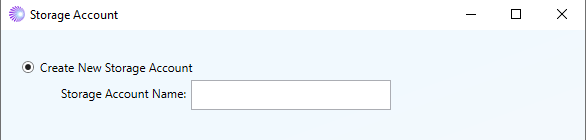
You will be required to create a new storage account. The main reason for this being that PSO 6.0 uses a different infrastructure to previous versions. Further information can be found in the Azure Installation - Migrating from PSO 5.9 (or earlier) to PSO 6 section.
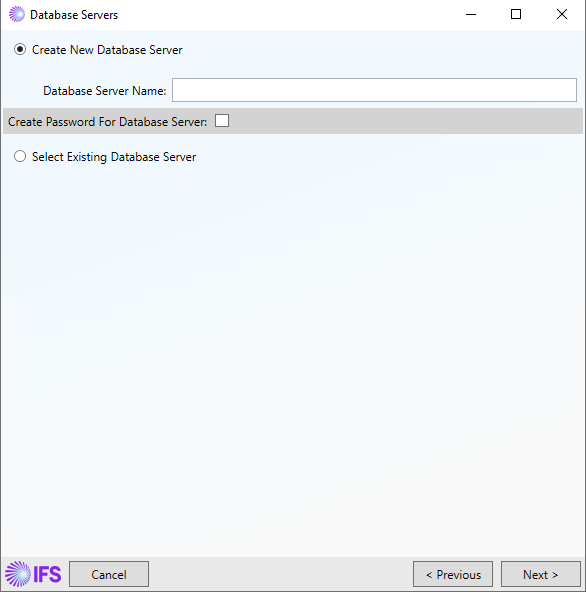
It is also recommended that you select 'Create New Database Server' to allow a new database server to be created.
Simply follow through the instructions and setup your deployment. When you reach the Import/Export screen as seen below, it is important that the 'Export and re-import' options are selected. Further information can be found in the Azure Installation section.
Once you have reached the end of the installation, the actions page will display as below once the installation is ready to update. Note that the actions include the import of the data and a fresh installation of the databases.
Once the installation has been successfully completed, login to the workbench to check that your data has been imported as expected. Archive configuration data can be re-imported via the Import/Export screen in the Data Capture workspace (Archive Database tab).
Feature Release
When upgrading to a new feature release (e.g. 6.17.0.5 to 6.18.0.1, or 6.18.0.5 to 6.18.1.0), upgrade scripts should be run to carry out any database structure changes. The installer will run these upgrade scripts automatically as part of the upgrade process. Further information can be found in the Standard Software Installation section.
Note
It is recommended that a database snapshot / backup is taken before the upgrade. This is to avoid potential data loss in the event of issues with the install.
Online updates are supported for Kubernetes deployments for version updates, provided that the update covers a single minor version only (e.g. 6.15 -> 6.16), and that neither the export or import functionality of the installer is used. During an online install the installer will keep the applications in the cluster running, allowing users to continue to use the system. Structural changes to the database are restricted to ensure that the existing software can still run during and after the database upgrade. Kubernetes will ensure the new application version is rolled out in a controlled manner.
Note
It is recommended that software updates and upgrades are performed out of hours even when online, to minimise risk and mitigate any potential issues. The moving of datasets between the old and new versions of the applications can cause brief periods of service degradation.
Patch Release
For an upgrade to a new patch release there will not be any changes to the database structure. In this case there will only be a change to the final part of the version number, e.g. 6.18.0.1 to 6.18.0.5. The only database changes are to update any static data in the database. These will be done by the IFS PSO Installer as part of the installation process.
Note
It is recommended that a database snapshot / backup is taken before the update. This is to avoid potential data loss in the event of issues with the install.
Patch downgrades are supported (e.g. 6.18.0.5 to 6.18.0.1). The installer will automatically detect the downgrade and perform the necessary actions to downgrade. This is unlike feature releases (e.g. 6.18.0.1 to 6.17.0.5 or 6.18.1.0 to 6.18.0.5) where the installer will re-create the database with data exported during the install.
Online updates are supported for Kubernetes deployments for all patch releases, provided that neither the export or import functionality of the installer is used. During an online install the installer will keep the applications in the cluster running allowing users to continue to use the system. Kubernetes will ensure the new application version is rolled out in a controlled manner.
Note
It is recommended that software updates and upgrades are performed out of hours even when online, to minimise risk and mitigate any potential issues. The moving of datasets between the old and new versions of the applications can cause brief periods of service degradation.
Rollback Process
In the case of a failed update, you can roll back to the previous version of PSO by restoring the database and running the previous version of the installer against it. Alternatively, you can install a new system and import the data that was exported during the update attempt.