PSO Workbench Enhancements
In the 6.1 release a number of new screens have been added to the new HTML5 Scheduling Workbench.
Below is a brief description of the pages added in this version.
Compare Screen
The Scheduling Workspace now includes a Compare screen, which can be used to compare resources and activities.
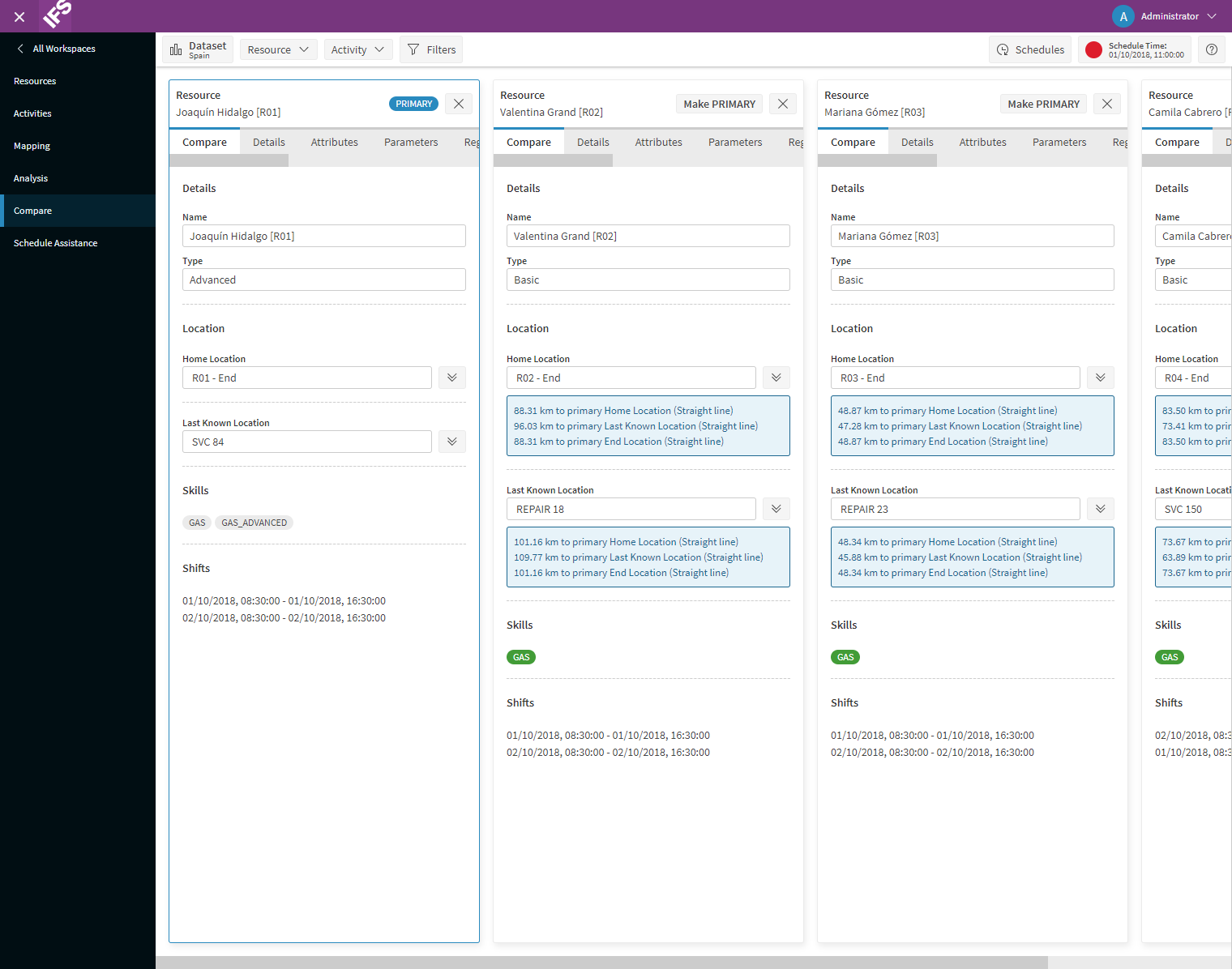
In the new Workbench, each comparison item shows the full resource or activity details, with an additional 'Compare' tab giving details of similarities and differences. For example, this would highlight if a resource was missing a skill required by an activity.
Administration Workspace
The following screens have been included in the Administration workspace:
- Applications
- Groups
- Lists
- Modelling Datasets
- Parameters
- Permissions
- Profiles
- Schedule Exceptions
- Scheduling Datasets
- Sessions
- Terminology
- Users
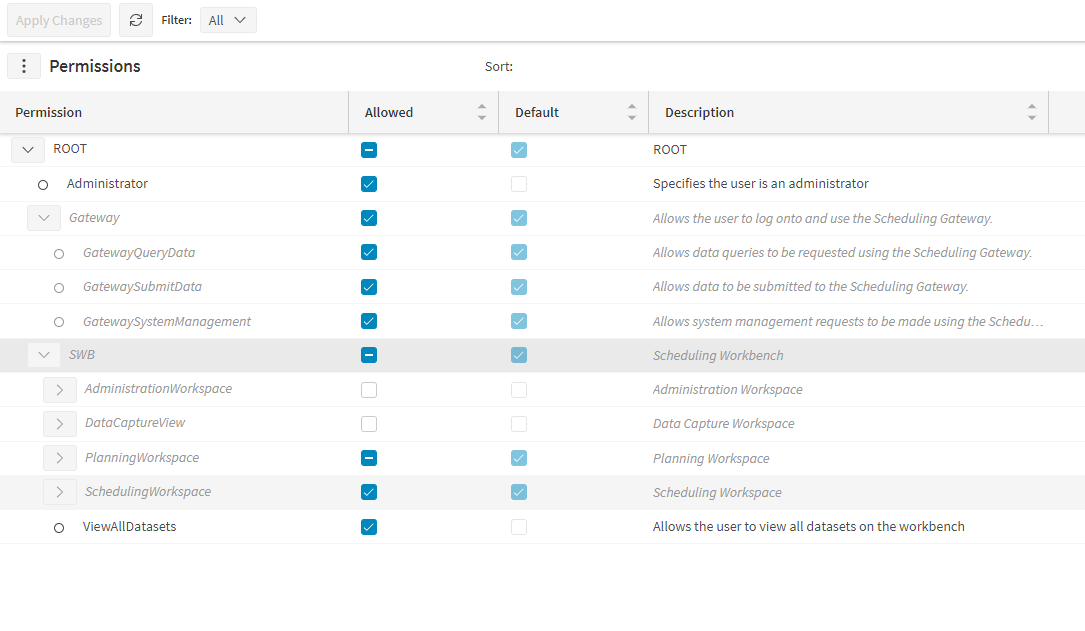
Each screen offers equivalent functionality to that offered by the Silverlight version.
Other Enhancements
In addition, the following enhancements have been made to the existing screens within the new workbench:
- Load and Save Events: It is now possible to save the events displayed on the events screen and to reload previously saved events.
- Historical Schedules: The user can now move forward and back in time easily when viewing historical schedules.
- Resource Planner Timeline: On the Resource Planner you can now drag on the timeline to select a period of time and carry actions within that period.
- Scroll to Selected Row: If a row in a data grid is selected when it is not currently visible then the grid will automatically be scrolled to bring the row into view.
- Auto Complete: When a user enters data relating to the schema (e.g. when setting the ActivityLabel parameter), they will be given auto-complete options to assist them.
Documentation and Support
The PSO Workbench User Guide includes details of all functionality, and these details are also available from within the workbench itself, via the context specific help.