Workbench Enhancements
For full details of these enhancements see the PSO Workbench User Guide.
Graphical Diagnostics
The Performance screen allows the user to view performance related metrics for the system. This screen allows the user to display data in both a tabular and graphical format.
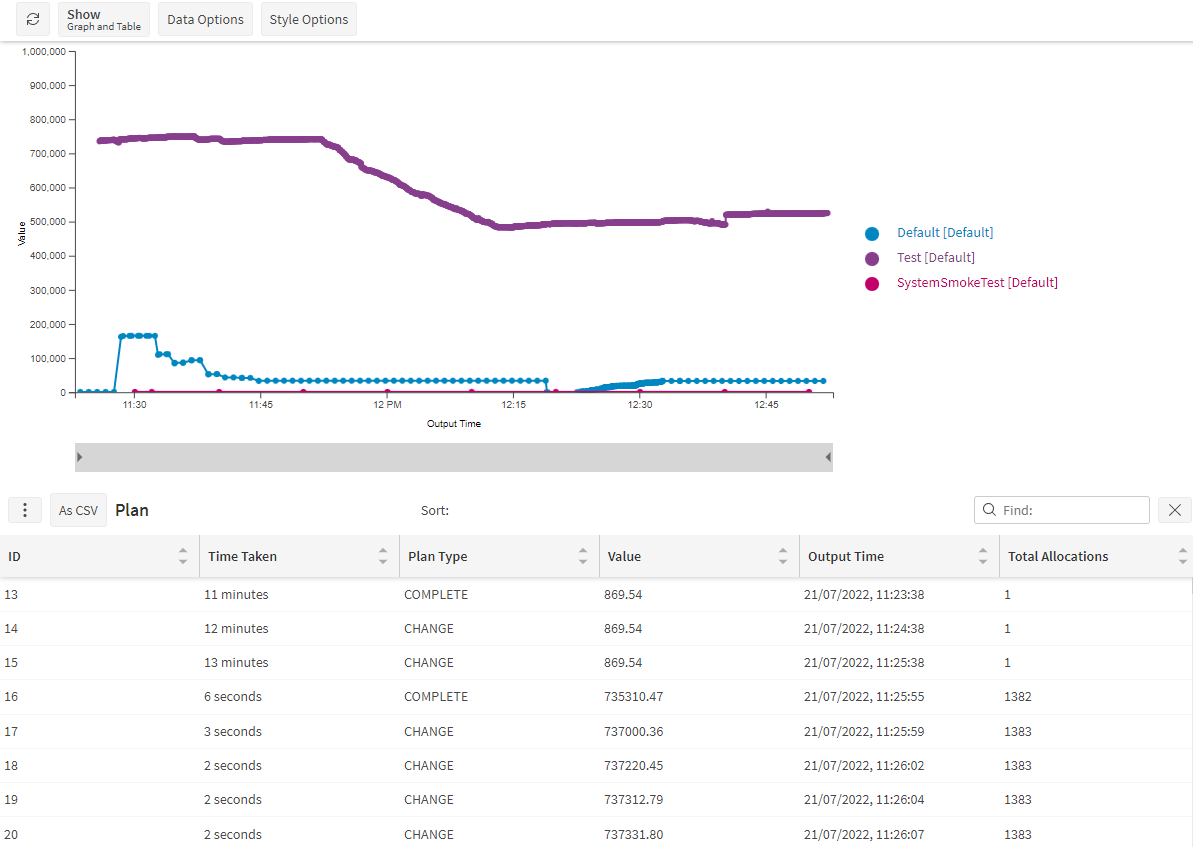
This screen has a Data Options panel, in which the user can select which metrics and the date range over which to view them. The currently supported metrics are as follows:
- Plan
- Appointment History
- Broadcast History
- Input Reference
- Schedule Data Usage
- System Status
There is also a Style Options panel which allows the user to change the data which is displayed in both the graph and table. The following options are available:
- Graph Type - Choose from Line Chart, Time Bands Average (bar chart) and Time Bands Sum (bar chart).
- Time Band Period - Choose from Daily, Hourly or every minute (does not apply to line charts).
- X Axis - Choose the column values for x-axis.
- Y Axis - Choose the column values for y-axis.
- Group By - Choose the column to group data by.
- Show Axis - show or hide the axis on the graph.
- Show Points - show or hide the points on the graph.
- A tree datagrid allowing the user to select which group by values to show or hide.
Improved Timezone Display
There are new features to make clearer which timezone is being used in the PSO Workbench.
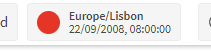
When the schedule is being displayed in a different timezone to the browser default, the current display timezone is shown in the traffic-light control.
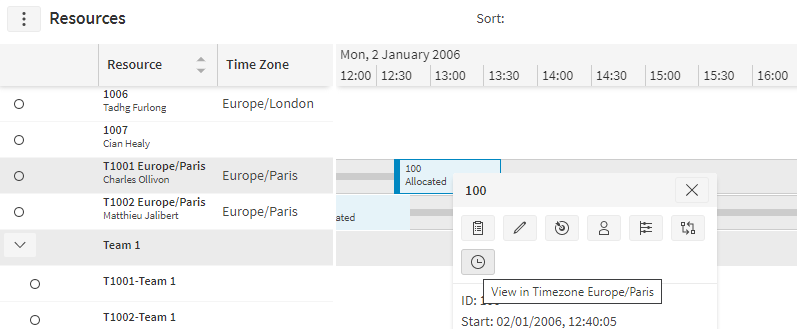
A resource can have their own home timezone, which can be displayed in a column in the Resources page. The resource will also be labelled with their timezone if it differs from the timezone you are currently viewing the schedule in.
When the resource's timezone differs from the current timezone in the UI, there is an option to switch to their timezone on the activity or resource pop-up menu.
The timezone is set to "Europe/London" in the example below.
ARP Location-Based Object Groups
This feature allows locations in the ARP to be filtered based on the group that a user belongs to.
There is a new ‘Groups’ child grid in the Locations screen in the Planning workspace. This allows the user to link one or more groups to a location, in order to limit which users can view that location. Only users in the specified groups will be able to view the location. Locations that are not in any group are visible to everyone.
Note
Note: ARP data can already be filtered based on resources. Any data that is related to a resource or resource type will be filtered based on the resource / resource type filters. Any data that is only related to location will be filtered based on the location filters.
Limited Access To Activities
If an activity that a user does not have access to is scheduled to a resource that the user does have access to, it is possible to restrict the information the user can view for the activity. This feature is controlled by a new permission ‘FilterShowFullAllocationDetails’.
If this permission is disabled, a user would see the following effects for an activity that they do not have full permission to view:
- The activity does not appear on the activity page, compare screen or schedule assist screen.
- The activity does appear on the Resource and Mapping pages, but with limited information and in a ‘partially filtered’ state.
- Activity details and tooltip information are reduced.
- The user can make manual changes to the status of the activity.
Workbench URL Parameters
The PSO Workbench URL can now contain additional parameters to initialise the application.
Supported parameters are:
- ?datasetId=MyData - to select a dataset called "MyData" (for example).
- ?localeCode=en-GB - to set the language to English (for example) after login.
These URL Parameters are supported in any page in the Scheduling and Planning Workspaces.
An example URL would be http://server/PSOWorkbench/Default/scheduling/resource?localeCode=sv&dataSetId=myData
Minor Enhancements
- To improve accessibility, the PSO Workbench has been updated to ensure that it is WCAG compliant. See the Accessibility Statement in the PSO Workbench User Guide for more details.
- Resource pools can now be configured in the Advanced Resource Planner.
- A permission has been added to control whether a user is able to create a provisional rota (PlanningARPCreateProvisionalRota).