Workbench Enhancements
For full details of these enhancements see the PSO Workbench User Guide.
Advanced Resource Planning Using Requirements
The Advanced Resource Planner now supports the use of requirements. This is a significant extension to the existing functionality to allow for complex rota planning. With this enhancement, users can now plan shifts to ensure that the correct combinations of skilled resources are working at any given time.
There are three basic concepts that underpin the new functionality: roles, positions and requirements.
A role is simply a combination of skills, and a resource is considered to satisfy a role is they possess all of the required skills.
Positions allow planners to specify that a resource is working in a given position when they are planned into the rota. Positions can optionally be linked to roles to enforce restrictions on which resources can work in that position. Resources can be attributed a default position to aid with searching for appropriate resources to fill a position.
Requirements are used to specify how many resources are needed at any given time in the rota. Requirements can be set globally, or against divisions or teams. The requirement can specify that resources either satisfy a given role, or are planned into a given position.
As an example, requirements could be used when creating teams of resources to ensure that there are at least two electricians in the team, at least one person is first aid trained, and that one resource is planned into the position of 'Team Leader'.
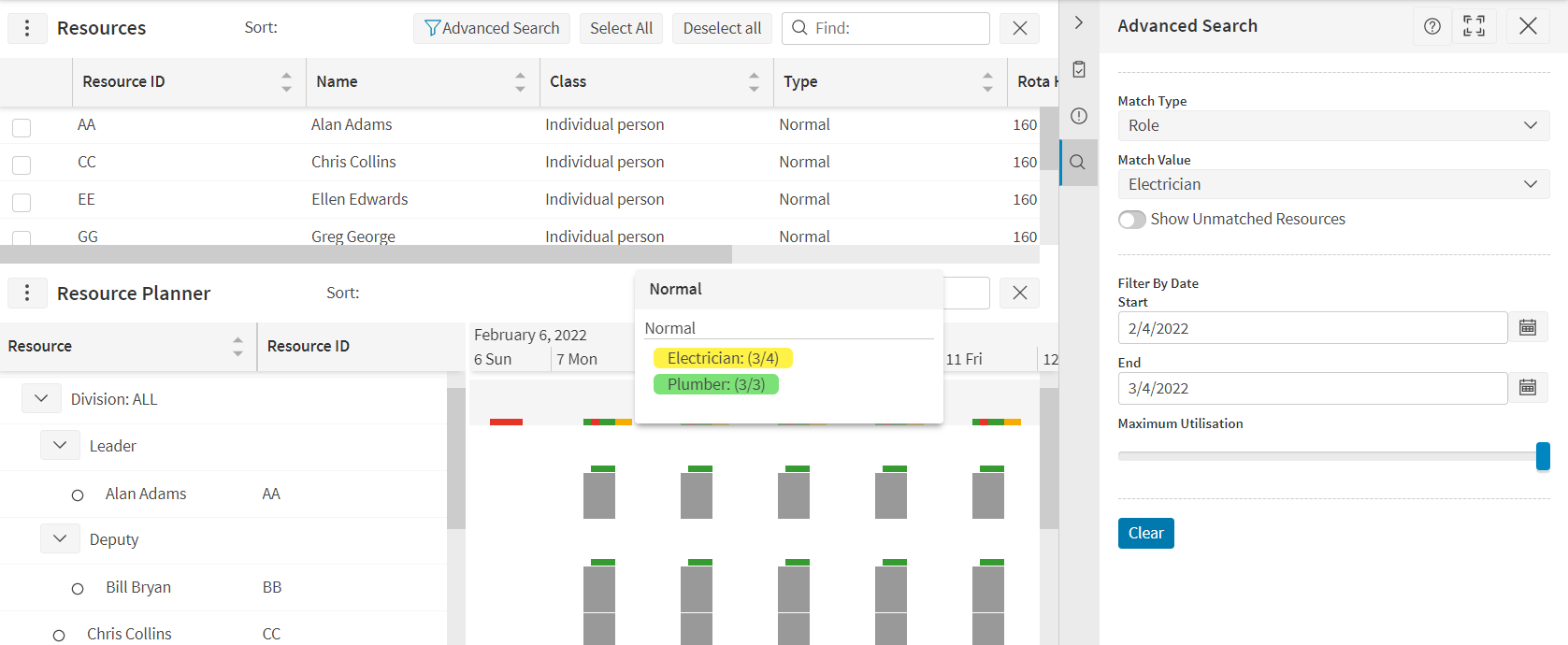
On the Resource Planner, alert bars will appear where requirements have been specified, to show the user whether requirements have or have not been met, based on the current rota. Each time the user updates the rota the alerts will be updated to reflect the change. Alerts are also displayed in an exceptions side panel.
There are several new column options available in the resource search grid. A 'utilisation' column will show where the resource has already been planned into the rota; this is coloured by membership category. The resource's default position can also be shown. Finally, there are three columns which show information based on the current role or position match criteria (see below): the alert status, satisfaction and availability.
An 'Advanced Search' panel can be used to show the planner which resources are possible matches for any outstanding requirements. This allows the user to match by skill, role or position, and to filter by date and utilisation. This filter can be triggered automatically by clicking on a requirement alert bar.
A 'Role Details' panel can also be displayed to show the planner how close a resource is to fulfilling a role, and which required skills are missing. If necessary (and with the required permissions), the planner can also choose to use 'Role Overrides' to manually assign a resource to a role they do not possess.
Manual Change Enhancements
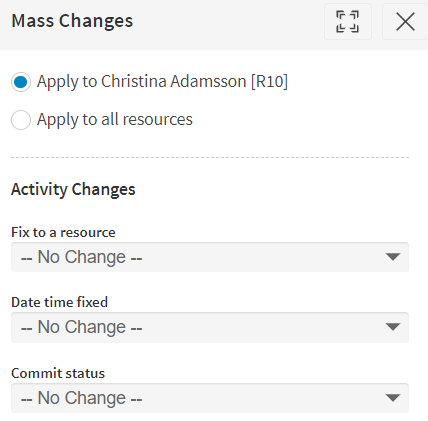
Improvements have been made to the resource mass changes functionality. This now includes the option to fix or unfix the resource (in addition to the existing date and time option). The status can also be set to any permitted committed status (including sent, downloaded and accepted).
It is now also possible to configure the system so that the status of an activity can be set back to a lower status without the need to first set it back to 'Schedulable'. There is a parameter to determine which status values can be used when manually changing an activity to a lower status.
Filtering Improvements
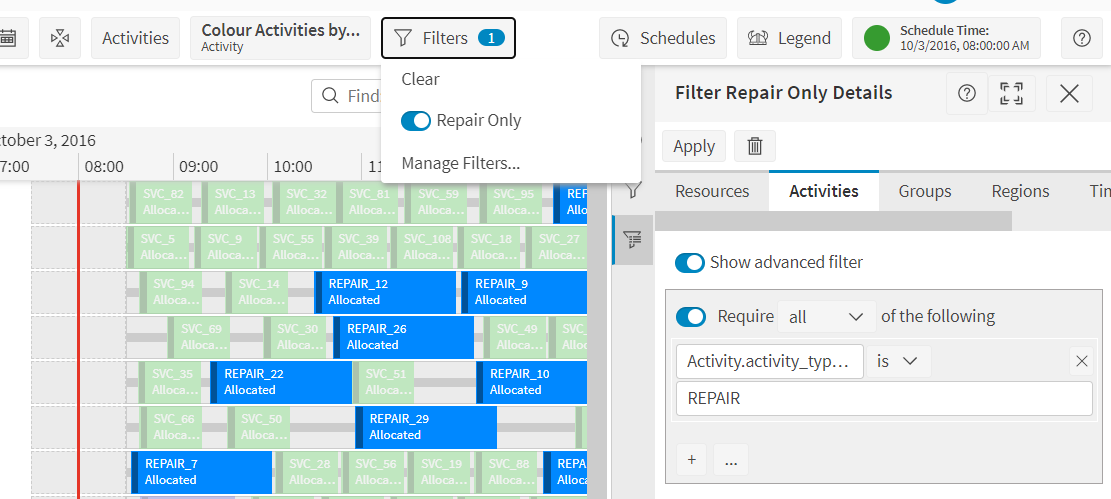
- When a filter is applied against activities, then on the resources Gantt any activities that don't satisfy the filter will appear 'ghosted out' instead of being hidden completely.
- The 'Advanced Resources' and 'Advanced Activities' filters can now be shared across different datasets. Only the basic resource and activity filtering and the region filtering cannot be shared directly, but these filters can now be copied from one dataset to another.
- The layout of the filter management and filter edit panels have been improved. The option to import filters from other users has been moved into the filter management panel.
Minor Enhancements
- GPS Fix Map Icon: The latest GPS fix point is now displayed on the map using a car icon.
- Positions in Teams: When specifying resources that belong to a team (via the Team_Resource table), it is now possible to specify the position that the resource occupies within the team. This is for display only. In the Advanced Resource Planner, position requirements can be linked to the team in order to plan resources into the required positions, and this will then be displayed in the scheduling dataset. A possible use for this would be to specify a team leader within the team.
- Parameterised Labels in Planning Workspace: New parameters have been added to allow users to customise how labels are displayed in the planning workspace. Customised labels are available for resources, locations, activity types, divisions, and several other entities.
- Filtering Options for System Events: System events can now be filtered by application type, dataset, application instance, and date range. For multi-tenant systems, the head organisation can also filter by account id.
- New Shift Template Options: In the planning workspace, it is now possible to specify shift costs and travel constraints against a shift template or shift template item. If specified, these will override the default value set against the resource or resource type.
- WISE import from CSV: Improvements have been made to the template for importing WISE resourcing from a .csv file. Please be aware that the previous format is now no longer supported.
- German Translations: If the chosen user language is set to German in the Scheduling Workbench, the online help documentation can also now be displayed in German. This is a beta feature - to turn on this functionality the parameter 'UseTranslatedHelpIfAvailable' should be set to true.