Quick Start Guide
Use this section to get started quickly. For a more detailed description of all the product areas, see the later chapters.
Accessing the Advanced Resource Planner
The Advanced Resource Planner is contained within the Scheduling Workbench. All functionality is found within the 'Planning' pages. See the PSO Workbench User Guide for details of accessing and logging into the application.
Datasets
A Dataset is an area, organisation or department that you wish to plan resources for. Typically there will be a single dataset for your entire organisation, but it may be that you wish to plan different parts of your organisation separately, in which case they may be created as separate datasets. Different datasets are entirely independent of each other, and know nothing about the existence or planning of resources in other datasets.
Note
When using multiple datasets, it is possible to transfer resources between datasets as an administration function. See later sections for details.
Data Management Screens
The data management screens allow for entering into the system all the available resources, their locations, divisions, possible shift patterns, skills, vehicle attributes etc. along with information about the number and types of resources required to meet the business needs of the organisation.
In all of these screens, any changes made will be made locally at first, and the changed rows will be highlighted in orange (and any invalid rows highlighted in red). These changes can then be applied to the data in the database by clicking the 'Apply Changes' button.
Once this information has been created, the planning of resources may begin in the Resource Planner screen. Of course, it is possible to make changes to the data and switch between these screens at any time, and they will update automatically to reflect the changes made in the other screen.
A brief description of each of the types of data follows. Many of these screens are to set up data to support dynamic scheduling, and are not directly related to resource planning. For more details, see the PSO Workbench User Guide.
Note
There are a large number of view and edit permissions relating to the data management screens, and also lists for column configuration. These can be used to set up each screen to show only the information required by a particular company or user, or to remove screens completely if they are not required. This can be configured in the Administration workspace, and the column lists can also be customised by individual users.
General Data Screens
| Data Type | Planning Data? | Description |
|---|---|---|
| Attributes | No | User-defined descriptions or values that can be attached to Resources or Divisions. |
| Custom Metrics | No | User-defined metrics for use when applying shift-based rules in scheduling. |
| Division Types | Yes | Division Types define different uses for Divisions. |
| Divisions | Yes | A division or department within an organisation, for which shifts and working times need to be planned. Divisions are arranged in a hierarchy. |
| Fuel Types | No | Defines the type of fuel used in the vehicle. |
| Icons | No | Defines icons for display against resources and/or activities. |
| Location Types | No | A description of a particular type of location. |
| Locations | No | A geographical location (used by resources). |
| Parts | No | Defines parts which are passed into the scheduling system. |
| Rules | Yes | Rules/laws about permitted working times e.g. minimum rest periods, maximum continuous working time, etc. |
| Rule Collections | Yes | Defines collections of rules to be linked to resources, resource types etc. |
| Skill Types | Yes | A grouping of particular skills, e.g. 'licences'. |
| Skills | Yes | A skill, competency or qualification that may be required to perform certain types of work. |
| Vehicle Class | No | Defines a class assigned to each vehicle. |
| Vehicle Model | No | Defines details of a vehicle model. |
| Vehicle Ownership Type | No | Defines ownership type of the vehicle. |
| Vehicles | Yes | Defines a vehicle which may be used by a resource during the shift. |
Resource Data Screens
| Data Type | Planning Data? | Description |
|---|---|---|
| Buckets | No | These are a special type of resource, usually used to represent an external contractor. |
| Capacities | No | The quantities and volumes of Parts that can be carried by a Resource or Resource Type. |
| Membership Categories | Yes | These are used to distinguish between different periods where a resource is planned into the rota. Note that the membership covers the entire planned period, not just the time where the resource has shifts. |
| Positions | Yes | These are assigned positions that a resource will work in within an organisation, division or team. |
| Requirements | Yes | These stipulate how many resources are required to be working at any given time, based on their position and/or the roles that they satisfy. |
| Resource Pool Sets | Yes | A Resource Pool Set defines a number of different groups of resources which may be used to schedule a set of activities linked in a "chain". Activities are linked into a chain using Activity Resource Pool Set. All activities in the chain must be scheduled to resources from a single Resource Pool, although any of the Resource Pools in this set may be chosen. |
| Resource Types | Yes | A grouping of particular staff types e.g. 'contractors'. |
| Resources | Yes | A member of staff for which work patterns (shifts) are going to be planned. |
| Roles | Yes | These are combinations of skills (including competencies and/or qualifications) that may be required to perform certain types of work. |
| Separation Models | No | These are used to plan separation between activities in the scheduling system. |
| Shift Categories | Yes | Defines a category for a shift, which rules can be created against (e.g. 'unsociable hours', 'hazardous'). |
| Shift Template Sets | Yes | A set of shift templates: used to specify which shift templates may be used by different resources. |
| Shift Templates | Yes | A standard pattern of shifts e.g. 'Four days on, four days off' |
| Teams | Yes | A group of people who commonly work together and thus can be planned as a group in order to make planning easier. |
| Travel Cost Models | No | These are used to fine tune resource travel costs in the scheduling system. |
| Unavailabilities | Yes | A period of time when a resource is not available for work for any reason. |
| Unavailability Categories | Yes | A reason for an unavailability e.g. 'holiday', 'sickness'. |
| Utilisation Template | No | They allow you to specify that some shifts will not be allowed to be completely full when scheduling. |
Activity Data Screens
The activity data screens are not directly related to resource planning, but instead contain data to support the scheduling system.
| Data Type | Description |
|---|---|
| Activity Modelling | Used to define modelling patterns for use in Cyclic Scheduling. |
| Activity Templates | Used to define repeatable activities, primarily for use in Cyclic Scheduling. |
| Activity Types | This is used to store type information for activities being sent for scheduling. |
| Appointment Templates | Templates for use with appointment booking. |
| Calendars | These are used as part of defining SLA requirements in the scheduling system. |
| Contracts | Contracts to be linked to activities or activity types. |
| Customers | Customers to be linked to activities or activity types. |
| Depot Transfer Settings | Define how parts can be transferred between depots in the scheduling system. |
| Operations | These are used in Operational Cyclic Scheduling. |
| Separation Groups | Used within the scheduling system alongside Separation Models. |
| SLA Templates | An SLA Template defines a set of SLA Types which are used as a group for a specified type of Activity. Activity Types link to them. |
| SLA Types | These can be used in combination with SLA Templates as described above, or referenced independently. For full details of SLA Types, see the Scheduling Schema Guide. |
| Slot Usage Rules | These are linked to appointment templates and used within the appointment booking process. |
| Transfer Rule Templates | These relate to depot transfers. |
| Usage Classes | These are used in Operational Cyclic Scheduling. |
| Usage Models | These are used in Operational Cyclic Scheduling. |
Dependencies
Data in the Data Management screens must be entered in a certain order. In addition some optional items require other data to be set up. This is summarised below:
| Data Type | Always required | May be required |
|---|---|---|
| Divisions | Division Types | |
| Positions | Roles | |
| Requirements | Roles, Positions | |
| Resources | Resource Types | Locations, Divisions, Skills, Rules, Shift Template Sets |
| Roles | Skills | |
| Rules | Shift Categories, Membership Categories | |
| Rule Collections | Rules | |
| Shift Template Sets | Shift Templates | |
| Shift Templates | Shift Categories | Utilisation Templates |
| Skills | Skill Types | |
| Teams | Resource Types | Locations, Divisions, Shift Template Sets |
| Unavailabilities | Unavailability Categories | Locations |
Object Group Filtering
The planning data can be filtered based on Resource, Resource Type and Locations. The corresponding data management screens allow for entering into the system, the group information based on which the filtering is done.
Resource based filtering
The Groups sub table in the lower section of the Resource screen in the Planning workspace, allow the user to link one or more groups to a resource, in order to limit which users can view that resource. Only users in the specified groups will be able to view the resource. Resources that aren't associated to any group are visible to all the users. To set up this feature, permission 'PlanningResourcesViewGroupsGridEdit' should be enabled for the user.
Alternatively, Resource based filtering can also be applied on all the resources belonging to a particular Resource Type. For this, permission 'PlanningResTypesViewGroupsGridEdit' should be enabled to limit viewing of the resource for specified groups based on Resource Type.
Resource based filtering is applied to those data which are linked to the Resource and/or a Resource Type.
Location based filtering
The Groups section in the Locations screen in the Planning workspace, allow the user to link one or more groups to a location, in order to limit which users can view that location. Only users in the specified groups will be able to view the location. Locations that aren't associated to any group are visible to all the users.
To set up this feature, permission 'PlanningLocationsViewGroupsGridEdit' should be enabled for the user. Location based filtering is appled to only those data which are directly linked to the Locations and are not linked to Resource and/or Resource Types.
Note
Resources and Locations are filtered independently. Meaning, data such as resources, resource types, resource pool etc, that are related to a resource or resource type will be filtered based on the resource and/or resource type filters.
Data such as location, location division, activity template, shift template, shift template item, that are only associated to a location and not to a resource/ resource type will be filtered based on the location filters.
Data such as resource, resource type, unavailability, pending unavailability, rota item, can refer to a location that the user does not have access to and hence location filter is not applied on such data. For Example, if the user has access to a resource but not resources' location, the resource screen shows resource row but displays 'No access' for the location in the location dropdown.

Resource Planning
The Resource Planner is where a user will spend most of their time. Resources' shifts are created and the progress of the planning is tracked using red and green bars.
When the Resource Planner is first used the main part of the screen will be empty, and the rota selector panel will be shown.
The Resource Planner screen allows the user to make changes to the rota within a private 'working set' rota. This means that all changes are stored in the database (so there is no danger of changes being lost), but the master rota is not updated until the user is happy with the changes made. Each dataset should have a single master rota. This will need to be created as a one-off task when the dataset is first created.
Once a master rota has been created, simply specify the date range that you wish to plan for and click 'Start Planning'. The main planning screen will then appear.
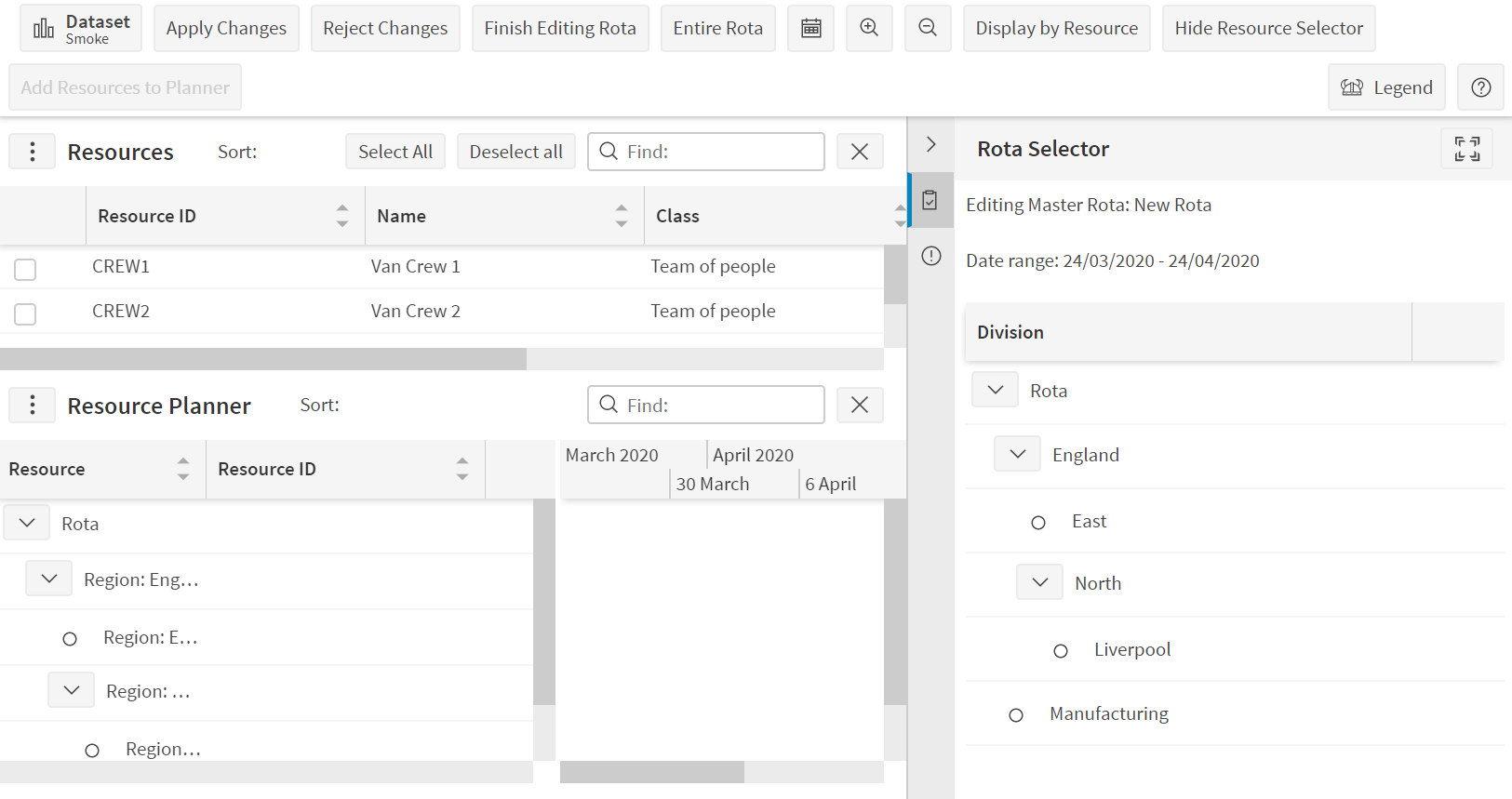
The planning screen is split into an upper and a lower section. The upper section shows the different resources that are available for planning, whilst the lower section (titled 'Resource Planner') shows the rota itself.
Using Divisions
A Division is a region or other logical grouping within your organisation. With a large workforce, it is often convenient to plan Resources' working time a Division at a time, possibly managed by different users.
Different Division Types may be defined in the Division Types section in Data Management. The example below assumes there is a Division Type called Region.
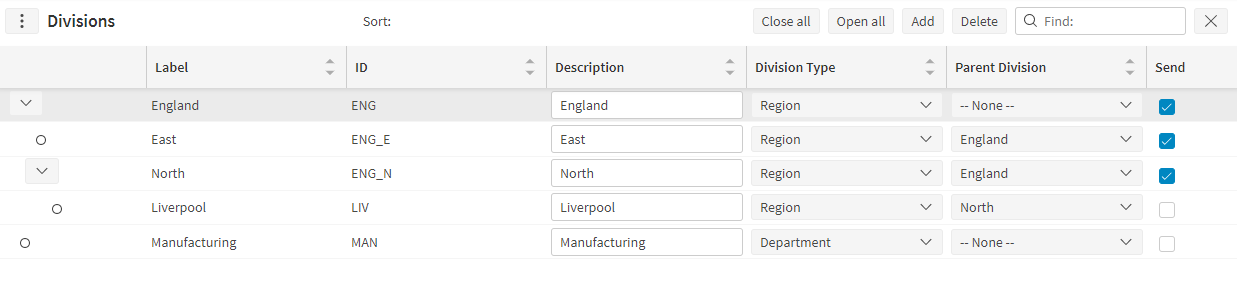
The example shows how divisions may be created within a hierarchy, e.g. East, North and Liverpool are all part of the England division.
Now resources may be planned to work in the different Divisions:
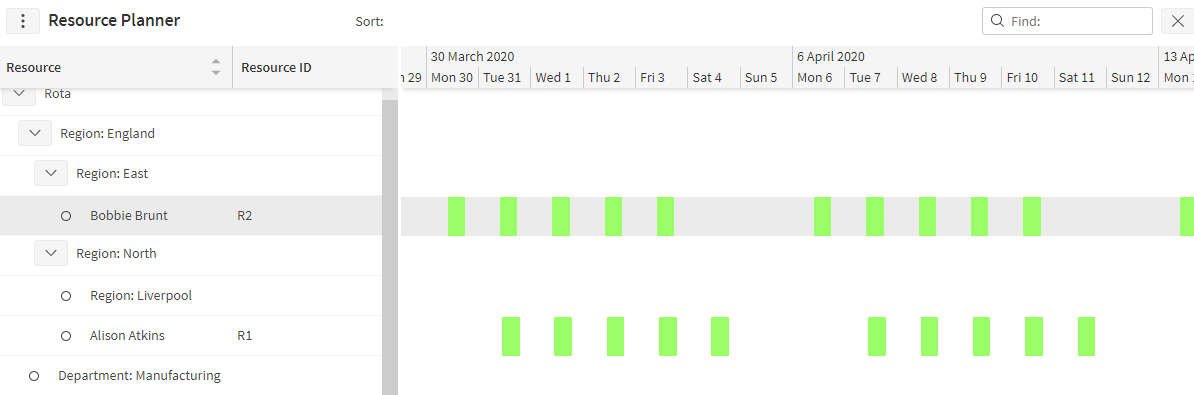
Resources may be assigned to a Division. This defines where they are allowed to work. A resource may only work in a Division if they are a member of that Division or a parent of that Division. So for example, assume that:
- Alison Atkins is in the division North
- Bobbie Brunt is in the division East
- Colin Cooper is in the division England
Then the following working patterns are allowed:
| Division | Who can work in it |
|---|---|
| England | Colin Cooper |
| East | Bobbie Brunt, Colin Cooper |
| North | Alison Atkins, Colin Cooper |
| Liverpool | Alison Atkins, Colin Cooper |
| Manufacturing | No one |
| Rota (no division) | Alison Atkins, Bobbie Brunt, Colin Cooper |
Note
For large datasets it is possible to plan the rota for selected divisions only. To enable this the permission 'ModellingARPDivisionSelector' should be set to true. A division selector will then be included in the rota selector panel.
Rota Membership
When a resource is planned into the rota, they are assigned both shifts and 'rota membership'. The idea here is that if a resource is assigned shifts for a week, then that resource is planned into the rota for the entire week, even though they are only actually working for set periods of time within that week. For example, the shifts might be Monday - Friday 9am-5pm, but the membership would be for the entire week (midnight on the first Monday to midnight the Monday after).
It is possible to associate categories to both shift (Shift Categories) and rota membership (Membership Categories). These can then be used when defining rules and requirements, as described later in this document. These can both be linked to Shift Templates, and will then be applied when generating shifts using these templates.
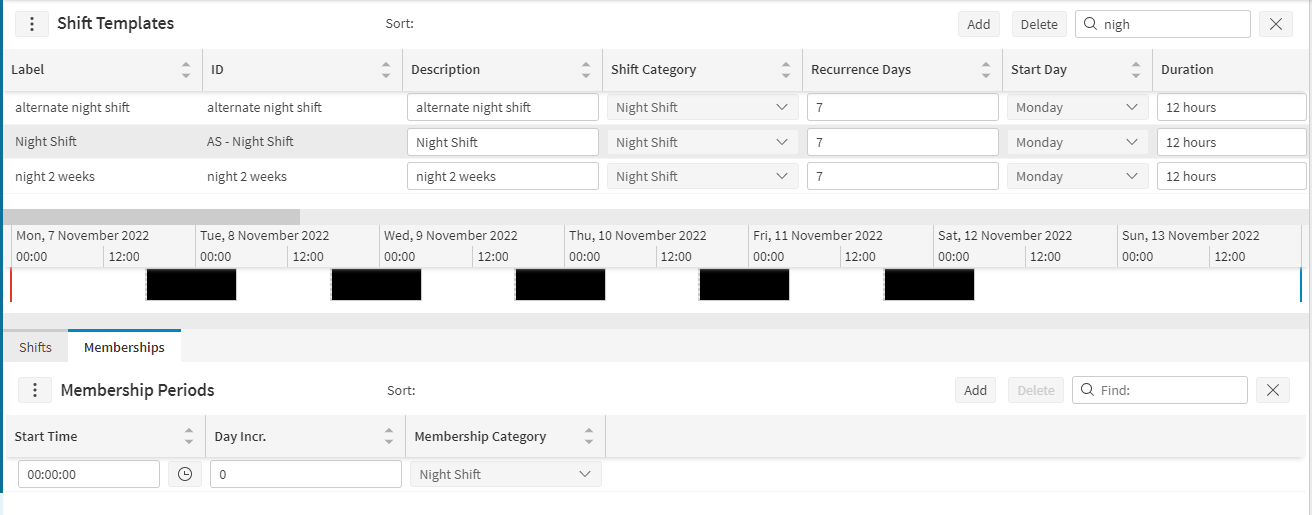
Typically to assign a membership category to a shift template, a single category can be set with no offset (day increment set to 0 and starting at midnight), as shown below. It is also possible to set the membership category to change part way through the template, which might be used for example in a 'one week on, one week off' template.
Background Shift Generation
It is possible to set up the advanced resource planner so that shifts are automatically generated as a background task. This is most appropriate where all resources tend to work the same set shift pattern, and rota generation is simply a case of continuing the existing pattern.
Note
The background shift generation is carried out by the Resource Planning Service. The feature can be enabled via the parameter 'ManageARPDataOptions'.
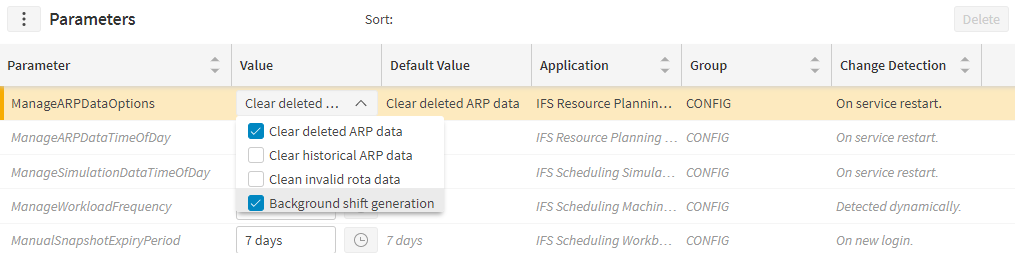
The parameter 'ManageARPDataTimeOfDay' determines the time of day that the background generation will take place, which defaults to 4am. By default the rota will be generated up to 28 days ahead but this can also be altered via the parameter 'BackgroundRotaGenerationDays'.
Note that the Resource Planning Service will need to be restarted for any parameter changes to take effect.
Shifts will only be background generated if it is clear which shift template and division should be used. In addition the shifts will only be generated for the full recurrence period of the shift template. As an example for a shift template with a weekly recurrence, the background shifts will be generated a week at a time, and by default at most 4 weeks into the future.
When generating shifts for a particular resource, the settings to use for this will be determined as follows:
- Shift Template:
- If shifts have previously been generated for the resource, then the last template used will be used again.
- Otherwise, if there is only one shift template then this will be the one that is used.
- Otherwise, if the resource is linked to a shift template set (either directly or via the resource type) and this set contains a single shift template, then this shift template will be used.
- Otherwise no background generation will take place.
- Division:
- If shifts have previously been generated for the resource, then the last division used will be used again (including no division).
- Otherwise, if there are no divisions linked to the resource then no division will be used.
- Otherwise, if there is only one division linked to the resource then this division will be used.
- Otherwise no background generation will take place.
- Teams: If the resource was previously planned into a team then the team membership will simply be extended.
Administration
The Administration panel is available from any of the data management screens for users with Administrator permission. From this panel it is possible to carry out the following tasks:
- Import and export data from the resource planner.
- Remove historical rota data.
- Transfer resources between datasets.
Further details can be found in the PSO Workbench User Guide.
The Resource Planner may be run stand-alone or integrated with the Dynamic Scheduling Engine (DSE).
In the latter case, data is created in exactly the same way as if the Resource Planner is stand-alone. However, when sending in XML files for the DSE, the 'Source_Data' element must be included, which refers to the Resource Planning Database that underlies the Resource Planner. This will ensure that all the data generated in the Resource Planner is passed in to the DSE.
The following data can be extracted:
- General data: Scheduling data that does not relate to a particular activity or resource will always be pulled through to the scheduling database. E.g. Activity Types, SLA Types, Regions, Skills, Parts, Appointment Templates.
- Resource Data: This is based on the rota items that overlap the scheduling period. Resources will only be included if they have rota items within the scheduling period and all other related data is pulled through as required.
- Activity Data: Locations and SLA information can also be included for activities.
Note
See the Interface Guide and Scheduling Schema Guide for further information.