Advanced Features
Using Linked Activities
Appointment requests can be made for activities with links to other activities, such as a pre-requisite or co-requisite link.
The Appointment Booking Engine will ensure that all linked activities can also be validly scheduled, taking into account any constraints directly related to those activities, plus the constraints specified by the link itself. The offer value returned will reflect the allocation of the entire group of activities.
Note
The appointment request must only relate to one of the activities. In the case of pre-requisites there will usually be a clear choice here - for example if an activity has a pre-requisite to pick up a part beforehand, then usually only the main activity will need to be appointment booked. In the case of co-requisites the request can be made against any of the co-requisite activities.
If the situation does arise where an appointment is needed for multiple activities that are linked to each other, then the appointments should be requested and accepted one at a time.
Note
When making the request, the activity plus any linked activities will need to have been included in the input data, and the link between should be specified in the data in the usual way, via the Activity_Group table.
Warning
Appointment booking of linked activities is considerably more complex than for single activities. As such there will be an increase in the time taken to process the requests, and it is more likely that offers cannot be made. Where possible it is recommended to avoid the use of linked activities when appointment booking. When appointment booking of linked activities is required the number of linked activities should be kept to a minimum, ideally just a single co-requisite or pre-requisite.
If a situation arises where more complex structures need to be appointment booked then RnD must be consulted as to the likelihood of successful operation and thorough testing performed to confirm that the ABE is making satisfactory offers.
Note
When appointment booking with linked activities it is recommended to use the non-blocking request option, as described elsewhere in this document.
Note
The parameter 'MaximumLinkedCallAttempts' is used within the Appointment Booking Engine to control how much processing is done in trying to allocate all linked calls successfully. Higher values may result in the engine being able to make offers for more slots, but it will also increase the time taken to process each offer. The default and recommended value for this parameter is 3.
Warning
Linked activities with a pre_co_req of ORDER_ONE_WAY or ORDER_TWO_WAY cannot be used with appointment booking. The use of appointment booking with suggested order activities is not supported.
Displacing Activities When Making Appointment Requests
In its default setting the ABE will not move allocated calls to check for availability when making appointment offers; this is by design to ensure that the ABE provides a response as quickly as possible.
However there may be scenarios where large numbers of allocated calls make it difficult for the ABE to provide an appointment offer which itself is not desirable when trying to make an appointment for a customer. The Appointment Booking Engine supports two methods for resolving this issue.
Basic Displacement
Basic displacement means that the appointment booking engine effectively ignores certain activities when making appointment offers. This is done based on the priority of the activity, and based on the database parameter MaxDisplaceableActivityPriority. The value of the parameter can be set via the Scheduling Workbench Administration Workspace.
The default value for this parameter is -1 which means that no activities will be removed before appointment booking is attempted; in other words the functionality is switched off.
Setting it to a different value (e.g. 2) will mean that activities of priority 1 and 2 will be removed before the ABE tries to suggest appointments.
In the example below the Scheduling Workbench is set to display the priority of the activity as its label so, as you can see, they are all priority 1:

By default if an appointment request is made for an activity where the availability is within this resource's shift then no offers would be returned; but if we set the value of MaxDisplaceableActivityPriority to 2 an offer will be returned as the activities in the shift are lower than priority 2.
Note
Activities will not be displaced if they are at a status of committed or greater or they are fixed to a time and resource.
If an appointment offer can be made for a given slot, the Appointment Booking Engine will then make an adjustment to the offer value based on the low priority activities that were in the route used to offer the appointment. If there are low priority activities nearby to the appointed activity then the offer value will be increased slightly to reflect this. The parameter 'MaximumVisitCostReliefProportion' (default 0.5) is used to control the extent of this increase, and can also be used to turn the functionality off by setting the value to 0.
Note
Please note that in any case no compensation is made for the possibility that some low priority activities may be unallocated as a result of offering the appointment. The assumption is that any displaced activities can simply be allocated elsewhere.
Selective Displacement
An alternative selective displacement option is also available, where displacement is only attempted if the activity being appointment specifies that it should be. This is based on the attribute 'maximum_displaceable_priority' which can be found on both the Activity and Activity_Type entities.
This type of displacement works differently to the basic displacement described above, in that the displaced activities are not ignored by the Appointment Booking Engine, but rather the engine will attempt to reallocate them elsewhere in the schedule. For example, it may be that the activity to be appointed requires a scarce skill. A resource with this skill may be nearby, but the current plan has them fully engaged on other work not requiring this skill. With selective displacement enabled the engine will attempt to move this work to other nearby resources so that the offer can still be made.
The process is threefold:
- The engine will first try to make an offer for the requested slot using the standard approach and without the use of displacement.
- If this fails then the engine will retry, this time removing any displaceable activities from routes.
- If this succeeds then the engine will attempt to reallocate any displaced activities elsewhere in the schedule.
Note
Please note that an offer can still be made even if some displaced activities were not able to be replaced elsewhere in the schedule (i.e. some activities may become unallocated). However this will be reflected in the offer value, and offers will only be made if there is an overall positive effect on the schedule score.
For example, if the activity to be appointed has value 1000, and a displaced activity has value 2000, then the offer would not be made unless the displaced activities could be reallocated elsewhere. However if the displaced activity had a value of 500 then the offer could still be made even if the displaced activity remained unallocated, but the offer value would be reduced by 500 to reflect this.
Distance Threshold
This attribute can be set on either the Appointment Request or on the Appointment Template entities to further restrict a resource to be considered for the appointment.
As an example, suppose a distance threshold of 5km is set on an appointment request. This would mean that a resource would not be considered when offering slots for the activity if the distance from their shift start location to the activity location exceeds 5km.
Note
A distance threshold can also be set against a Slot Usage Rule Set. See the section on Slot Usage Rules for details.
Route-Based Utilisation Constraints
There may be various reasons when appointment booking for wishing to avoid fully booking all resources. For example, this may be to allow time for resources to carry out reactive work. It may also be to offer a 'premium' service to certain customers where they are much more likely to get a booking in the near future.
The appointment booking process supports several techniques that can be used to cater for this.
Shift Utilisation Restrictions
The simplest method to hold back resource time is to specify a maximum utilisation. This can be set against a resource or against individual shifts, and has the effect of limiting the amount of shift time that the resource is expected to be utilised for. The utilisation is always calculated on a shift by shift basis.
For example, a utilisation of 80% on an 8 hour shift would mean that at least 1 hour 36 minutes of the resources time would need to be unplanned.
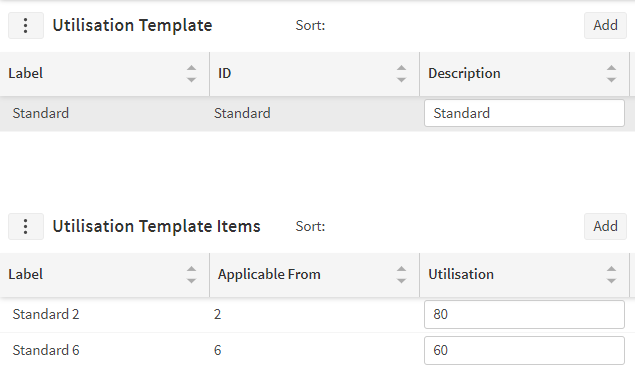
For customers using the Advanced Resource Planner, it is possible to set up a utilisation template so that shifts further into the future are more heavily restricted than those close to the current time. The example template below has no restriction on the first shift for a resource, a limit of 80% for the next 4 shifts, and a limit of 60% thereafter.
Utilisation Multiplier
When booking appointments it is possible to add a further restriction on the individual appointment request. This is set via the 'utilisation_multiplier' attribute on either the appointment request itself, or on the appointment template.
This acts as an additional multiplier on any shift that the appointment booking engine considers using for a given offer. If the shift already has a utilisation restriction, then the utilisation multiplier will be applied in addition to this (as the name suggests). For example, if the shift has a limit of 80% utilisation, and the utilisation multiplier is set to 50%, then the actual limit for this shift in order to make a valid offer will be 40% utilisation.
Slot-Based Usage Rules
One limitation of the route-based methods is that they always apply on an individual shift basis, and they also always apply to the entire shift. In some cases customers may wish to reserve resource time across a range of resources, and only during the times that the slot applies to. This can be achieved by using slot based usage rules.
Basic Setup
Slot based usage rules can be applied to either an individual appointment request, or to the appointment template, via the attribute 'slot_usage_rule_set_id'. This links to a set of slot usage rules, with restrictions based on how far into the future is the slot being requested. The rules themselves can either set a utilisation restriction, or specify a minimum amount of free time required, or both. Furthermore, a minimum start offset can be configured from either a specified base time (e.g. from the start of the current day), or from the current schedule time, to determine the slot start time at which the rule shall apply.
For example, suppose that the slot being considered is from 8am to 12pm, and the rules state a maximum utilisation of 80%. If there are 5 resources available at this time, then the restriction would require the resources to have total free time of at least 4 hours between 8am and 12pm. (This is the equivalent to one of the five resources being completely free.)
The utilisation check can be further refined by making use of the optional attributes 'slot_usage_window_start' and 'slot_usage_window_end' in the 'Appointment_Template_Item' schema. If provided, these values will be used as the start and end times for the slot usage utilisation check, regardless of the actual slot start and end times. If these value are not provided then the slot start and end times will be used.
This might be used for example to apply the utilisation check across the entire day where an appointment is being offered, even though the appointment itself is only for a half day window.
The slot usage rules can be applied against both the actual slot window and the slot usage window. To require this, the attributes ‘maximum_slot_utilisation’ and/or ‘minimum_slot_free_time’ should be set. These values will then apply to the slot window itself, while the ‘maximum_utilisation’ and/or ‘minimum_free_time’ will apply to the slot usage window.
Additionally, optional attribute 'appointment_base_datetime' in the 'Appointment_Request' entity can be used to achieve consistency in how the slot usage rules and minimum start offsets are applied throughout the day. Example, by setting it to midnight of the current day, the offset is applied from 12 AM instead of the schedule start time. If the attribute is not specified, the offset is applied from the current schedule time.
Note
Any restrictions specified will be applied independently of the shift based utilisation restrictions described previously. If a shift has a maximum utilisation of 80%, and there is also a slot based maximum utilisation of 80%, then the slot will only be offered if both conditions are satisfied. For example, if the slot is from 8am to 12pm, and there are 2 resources working from 8am to 4pm, then the slot would only be offered if:
- The shift used to make the offer had at least 1 hour 36 minutes of free time remaining.
- In total there is at least 1 hour 36 minutes of free time between 8am and 12pm across both resources.
Note
Slot usage rules are not supported for bucket or parallel resources. When checking if a bucket or parallel resource is suitable for an appointment offer, the slot usage limitation will be ignored.
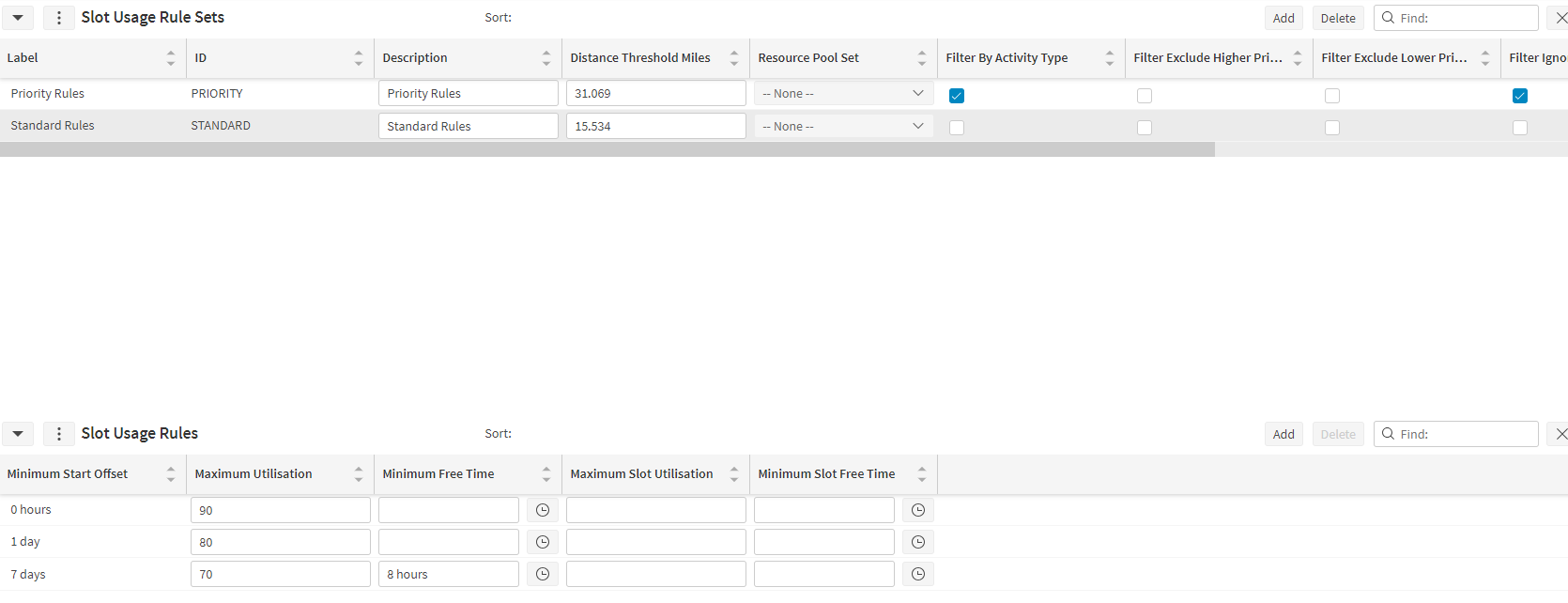
Customers using the advanced resource planner can set up slot based rules here, and link them to appointment templates.
Filtering Resources
The rule will only ever be applied to the period of a resource's shift matching the slot available times. By default, the rule will be applied across all valid resources for the activity being appointed (based on skills, regions, maximum travel time, and any other hard constraints).
In addition, a distance threshold may be set against the slot usage rule set. In this case a resource will only be considered for an appointment if the straight line distance from their shift start to the activity location is less than the threshold specified. Furthermore, when calculating the slot usage, only resources within the distance threshold will be considered.
If a resource_pool_set_id is set against the slot_usage_rule_set then the capacity rules will be applied to each resource pool in that set. The capacity of these resource pools is calculated using all of the pool's resources, regardless of the other hard constraints or distance thresholds applied. This option will also ensure appointment offers are only made for resources who are part of a valid pool.
Finally, there are options for how resource break time and private time should be handled. By default this will count as utilised time, but there is also the option to 'ignore' break and private time from the utilisation calculation, and for breaks there is a further option to 'exclude' the break time.
To clarify the difference between the 'ignore' and 'exclude' options, suppose we have a single resource with an 8 hour shift and a 1 hour break, and we calculate utilisation across the whole shift. The 'ignore' option means we treat the total available time as 7 hours, so if the resource is working for 5 hours excluding the break, then their utilisation will be 5 hours out of 7, or 71.4%. The 'exclude' option means the break time counts towards the total available time but not towards the utilised time, so the resource is utilised for 5 hours out of 8, or 67.5%. If neither option is set then the break counts as utilised time, so the resource would count as working for 6 hours out of 8, or 75%.
Note that when using the 'minimum free time' restriction there isn't any difference between ignored and included - this only impacts the 'maximum utilisation' restriction.
Filtering Activities
It is is also possible to filter which activities are included in the slot utilisation calculation. This can be used to limit the amount of work that can be booked for certain types of activity, perhaps to ensure space if left in the schedule for more urgent work.
There are two options here, to filter based on the activity type or based on the activity priority.
To enable filtering based on activity type, the option 'filter_by_activity_type' should be selected on the slot usage rule set. This will then filter the slot utilisation check to apply only to activities matching the activity type of the activity being appointed.
Alternatively (or in addition), filters can be applied based on the activity priority, to exclude either activities of a higher priority, or those of a lower priority, or both. For example, if the customer wishes to ensure 20% of available resource time is kept back for high priority work, then a slot usage rule can be set up with a maximum utilisation of 80% and the 'filter_exclude_higher_priority' option enabled.
If any activity is excluded due to filters when calculating the utilisation, then the travel in the route will be recalculated to reflect this activity not being in the route, but the visit times themselves will not be updated. The updated travel will be treated as taking place immediately prior to the next activity in the route. (For travel home it is calculated as ending when the existing travel home ends).
As an example, consider the following route:
Home (09:00) -> A (09:30-10:30) -> B (11:00-12:00) -> Break (12:00-13:00) -> C (13:30-14:30) -> Home (15:00)
Suppose activities B and D are excluded from the utilisation calculation, and that the travel time from A to C is 40 minutes. Then for the purposes of the utilisation calculation, the route would look like:
Home (09:00) -> A (9:30-10:30) -> Extra Travel (11:50-12:00) -> Break (12:00-13:00) -> C (13:30-14:30) -> Home (15:00)
The slot utilisation calculation would count as utilised any of this time that falls within the slot window. The same filtering would be applies across all applicable resources.
Note
Private activities and breaks will not be filtered based on activity type or activity priority.
Premium Bookings
Using a combination of the features described above it is possible to offer a premium appointment booking service. The suggested approach for this is to use a combination of Selective Displacement and Slot Based Usage Rules.
The slot based usage rules should be applied to any appointments that are not part of the premium service. This will ensure that in any given slot a percentage of time is reserved for premium bookings.
The selective displacement should then be used on the premium bookings themselves to allow these bookings to be able to displace other bookings if necessary to maximise the chance of an offer being returned. Note that selective displacement can result in other appointments becoming unallocated, so care should be taken with setting activity values and priorities to ensure the desired behaviour is produced.
Very High Frequency Appointment Booking
If high-frequency appointment booking is required non-blocking appointments should be used. Blocking appointments must be processed in sequential order to facilitate the blocking of subsequent appointments. Non-blocking appointments can be processed concurrently allowing for higher throughput. If high-frequency appointment booking is required and non-blocking appointments are not sufficient then the use of an appointment fallback profile should be considered.
Appointment Fallback Profile
A significant part of the time taken during the appointment booking process is calculating travel estimates using the HTM. If very high frequency appointment booking is required the system can be configured to not use the HTM during appointment booking and instead use straight line travels allowing faster response times.
Warning
This comes at the expense of the travel estimates not being as accurate, potentially causing the appointment to become unallocated after acceptance when the schedule will use the HTM calculation. We only recommend using this approach if the frequency of requests requires it.
This can be configured by setting an appointment booking fallback profile by setting the AppointmentFallbackProfileId parameter. When an appointment is being processed, the ABE will use the HTM calculation if it has already calculated it (e.g. from the DSE output or from previous requests) otherwise it will fall back to the specified profile for travel calculation. The HTM travel will then be calculated in the background making it available for subsequent requests.
It is important to always check the appointment summary after booking to determine if the appointment was successfully allocated, as the final allocation depends on the more accurate HTM calculation. If the appointment cannot be allocated after the HTM calculation, it may become unallocated even if the initial offer was successful.
The UseFallbackProfileForAppointmentSummary parameter can be used to control whether the appointment fallback profile is used for the appointment summary calculation. This defaults to false ensuring the appointment summary considers the HTM travel calculation when validating an appointment offer response.
Note
To compensate for the reduced accuracy of straight line travel durations the SpeedFactor parameter can be used to increase the duration of any travel calculations during the appointment booking process. This will increase the chance of there being room in the schedule when the appointment is accepted.
Appointment Fallback Profile Setup
- Add a Profile to be used when appointment booking. For example, one with an ID of "AppointmentFallbackProfile".
- Set the TravelCalculationOption to StraightLine in the newly created profile.
- Optionally set the SpeedFactor parameter in the newly created profile to compensate for different travel durations.
- Set the AppointmentFallbackProfileId parameter in the datasets profile (E.g. "DEFAULT") to the newly created profile (E.g. "AppointmentFallbackProfile").
Comparison
The below graphs show a comparison between appointment booking without a fallback profile and with a StraightLine travel fallback profile. The schedule included 10000 activities around Germany with an EUR v4 HTM. 1000 appointments were requested over the period each with 20 slots.
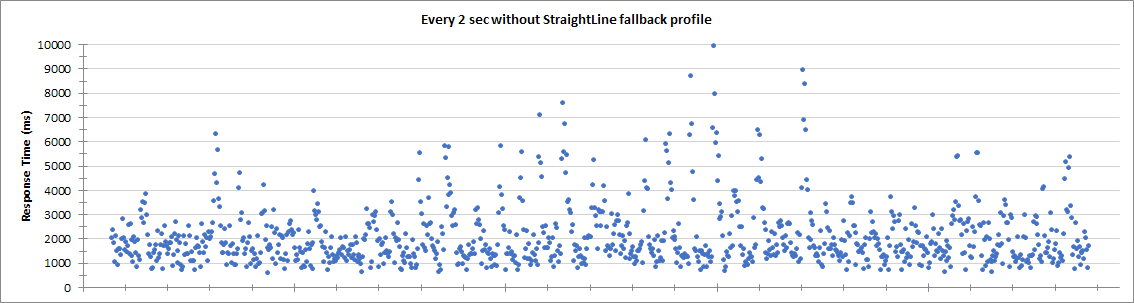
Without a fallback profile, the system can just about cope with 1 appointment requests every 2 seconds. Some of the requests are taking long periods. Increasing the frequency to 1 appointment requests every 1 second caused the system to be unable to cope and the requests timed out.
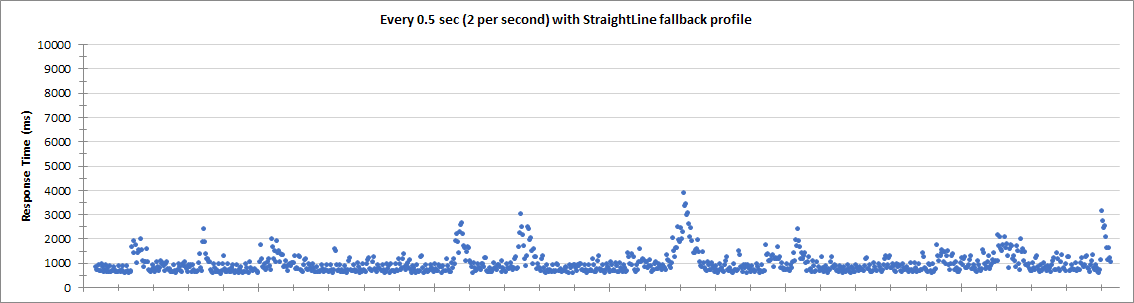
When a fallback profile is configured, the system is easily able to cope with 1 appointment request every 0.5 seconds (4 times faster than without). The appointment requests are also returned consistently sooner.
Overbooking
In some situations there may be a need to overbook appointments, either because a significant proportion of appointments are likely to be cancelled or because a significant proportion are likely to be 'No Shows'.
Overbooking Due To No Shows
In the scenario where you are using overbooking because you expect that sometimes resources will arrive to do work but then are not able to, i.e. 'No Shows', the recommended means of handling this is to adjust the activity duration.
Note
For example, if calls usually last 50 minutes but with 20% no shows which only take 5 minutes. So, 0.8 * 50 + 0.2 * 5 = 42 minutes expected duration.
Overbooking Due To Cancellations
In a scenario where we expect that appointments will be cancelled before the resource ever tries to visit, perhaps the day before for example, we should use bucket resources to hold the expected over-capacity. You can find further information on buckets in the 'Scheduling Concepts - Capacity Management' guide. The buckets will act as dummy resources for appointments to be booked into via the Appointment Booking Engine. All the usual restrictions will apply here, so resource preferences can be used to reduce the value of the activity when using a bucket resource and we can also have rules that can be set up to limit the use of bucket resources.
Note
For example, suppose we have 60 resources spread around England doing 10 appointments a day on average, but with 10% cancellations. That means on any given day we expect 6 cancellations. We might add bucket resources in London, Birmingham and Manchester, each with a 2-hour max travel, and rules to say they can only do 2 activities per day each. Also, a lower resource preference so they will only be used when the standard resources have full shifts.