Schedule Explainability
Schedule Explainability Service
The Schedule Explainability Service (SES) is used to help in understanding the Dynamic Scheduling Engine (DSE) and the decisions it has made. The service processes requests for an activity and will return a result that explains why any other possible position for the activity may have resulted in an invalid schedule. This can be used to help with identifying why an activity has not been allocated or why (if it had been allocated) it was not allocated to another resource.
Explanation requests can be created for an activity from the Explanations page in the Scheduling Workspace in the PSO Workbench. This page is also where the outcome of the explanation request can be viewed.
Once a request is received, the SES will take a copy of the live schedule. If the requested activity is allocated, it will deallocate it from the copy. It will then attempt to allocate the activity in every single position in the schedule and report on the success of each attempt. If the attempt creates an invalid schedule, the reason for this will be included in the results. If the attempt is valid, then the difference in the plan value from the original schedule from the DSE will be included in the results.
Note
The SES does not provide explanations for why a valid attempt had a lower plan value than the original schedule.

Using the above schedule as a simple example, if a request was made for a fourth activity (A4), then the SES would attempt to allocate the activity in three positions in the first shift (before A1, between A1 and A2, and after A2), and in two positions in the second shift (before and after A3).
If the request was made for A2, then two positions would be attempted in the first shift (before and after A1) and two positions would be attempted in the second shift (before and after A3).
Note
If an activity is not permitted to be scheduled to a resource, no shifts will be checked for the resource, but the reason why the resource is not allowed the activity would be returned. Similarly, if the activity cannot be scheduled to a particular shift, no positions in the shift will be checked.
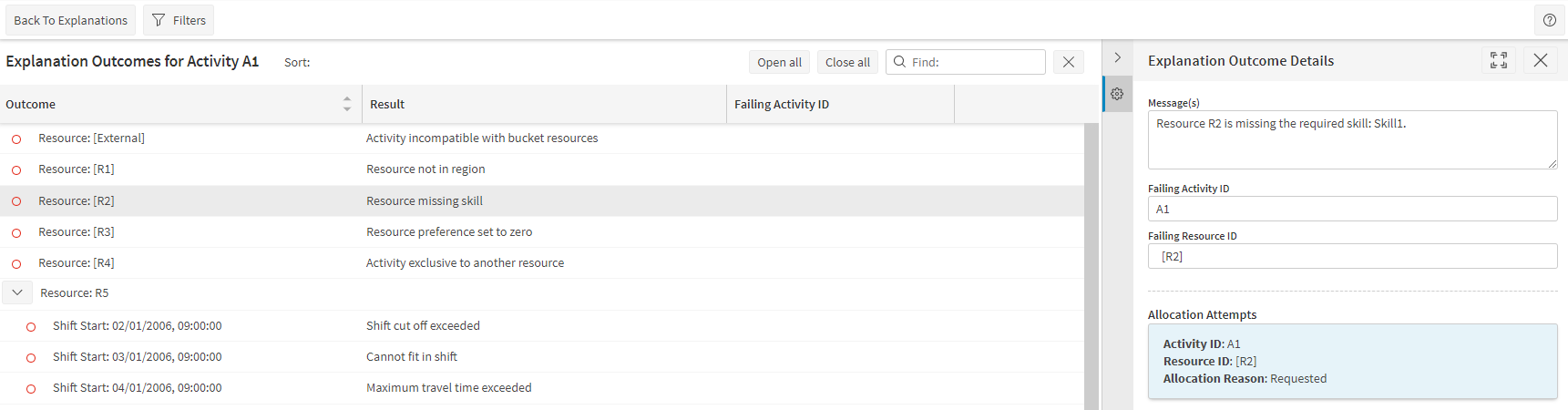
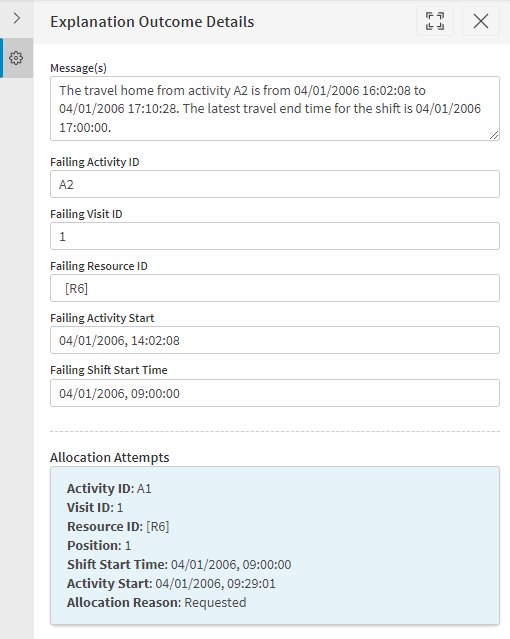
Further details for any attempt can be seen on this screen, with more detailed messages, information about the allocation time for the requested activity, and details about the allocation of the activity that caused the schedule to fail (which may not be the activity the request was made for).
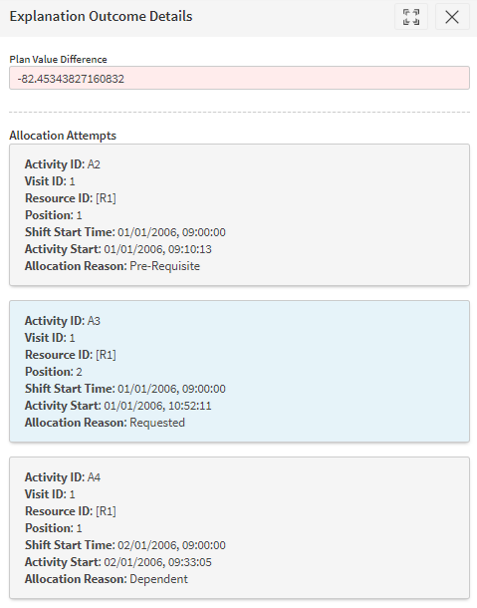
Any activities that are allocated along with the requested activity to produce a valid (or better) schedule will also be included in the results, with details of the allocation. Possible reasons for allocating extra activities include:
- Linked calls (pre-requisite, co-requisite, dependent, etc.)
- Depots
- Do on location activities with a hard constraint
- Activities in the same activity block
Linked Call Options
If an activity has linked calls, these may also need to be scheduled along with the requested activity. For each position in the schedule attempted for the requested activity, the SES can make multiple attempts to schedule its linked calls. The maximum number of attempts to make is controlled by the ‘Linked Call Attempts’ value.
The PSO Workbench offers three 'Linked Calls Reallocation Options'. These control whether any linked calls that have already been allocated should be left where they are or deallocated to be reallocated along with the requested activity.
The three options are:
- 'Reallocate all linked activities' will deallocate all previously allocated linked calls and attempt to reallocate them with the requested activity.
- ‘Reallocate linked activities where required’ will reallocate activities that depend on the requested activity (e.g. a dependent call, a co-requisite, etc.) but will not reallocate activities that do not depend on the requested activity (e.g. a pre-requisite).
- 'Do not reallocate linked activities' will leave all linked calls in their existing positions in the schedule.
Note
The SES will attempt to allocate any linked calls that are unallocated in the live schedule, regardless of these options. These options only affect whether to move the activities that are already allocated.
Note
These options do not only affect activities linked to the requested activity via an activity group. They can also affect activities with a do on location/locality hard constraint or a suggested order hard constraint, and they can reallocate other activities in the same activity block as the requested activity. For example, if there is a requirement that another activity at the same location as the requested activity is carried out in the same visit to the location, then this activity can also be reallocated with these options.
For more information about using this functionality from the PSO Workbench, please see the Explanations section in the Scheduling Workbench section of the PSO Workbench User Guide.