Travel Analyser
Travel Requests
We have already mentioned that a few of the Scheduling Services use the HTM to obtain travels for various purposes. It is possible to request for an individual travel time and distance via the Travel Analyser. An entity called 'Travel_Detail_Request' can be used to request for the travel infromation between two locations. The Travel Analyser will then produce a 'Travel_Detail' record with all the travel information needed.
This is particularly useful for users who want to find out what the travel time and distance is between two locations for scheduling reasons or simply while analysing a schedule.
The 'Travel_Detail_Request' allows the user to configure the travel detail or information to be returned. For example, a user can specify the locations either by latitude and longitude, or by existing locations within the input scheduling data.
Additionally, the user can specify the start time and day of the travel, in case the travel has a time weighting specified on it, or the profile to be applied to the travel (see section 'travel_time_profiles' in this guide). Finally, the user has the option to specify a speed factor to be applied to the travel the HTM returns.
The 'Travel_Detail' record the Travel Analyser produces is quite simple: it contains a link to the travel detail request ('travel_detail_request_id') and the travel time ('time') and travel distance ('distance').
Note
For more detail please see IFS Scheduling Schema Guide (sections in the Schema Entities: 'Travel_Detail_Request' and 'Travel_Detail').
Isochrones
Often a user may want to know how far a resource is allowed to travel within for example, half an hour. The furthest point a resource can travel to and from a certain location on the map depends on the speed the resource is travelling at and the road network (road speeds, restrictions etc). All furthest locations a resource can travel to on a map are wrapped within a polygon, which is called an isochrone, i.e. the sequence of points of equal travel time from a particular location.
An isochrone can be calculated from any resource home start location using the 'Isochrones' tab on the 'Mapping' page in the Scheduling Workspace.
Note
The Analysis tab is only available if all of the following prerequisites are satisfied:
- A map type has been set up to be used by the user.
- The Scheduling Travel Analyser is running and pointing to the correct HTM database in its config.
- The Scheduling Workbench client user has the required permissions to view Isochrones, e.g. 'IsochroneViewer' permission.
- The user is viewing a 'live' schedule, i.e. a schedule that has been produced by the DSE and not a saved, paused or historic schedule.
The isochrone calculation request and response process uses the entities 'Isochrone_Request' and 'Isochrone_Point'. For more detail please see 'IFS Scheduling Schema Guide'.
To view an isochrone on the Scheduling Workbench, you first have to choose which map type you wish to use.
The isochrones can be calculated and viewed on the 'Mapping' page. If you try to view this, you will probably not see it using the default settings and set up:
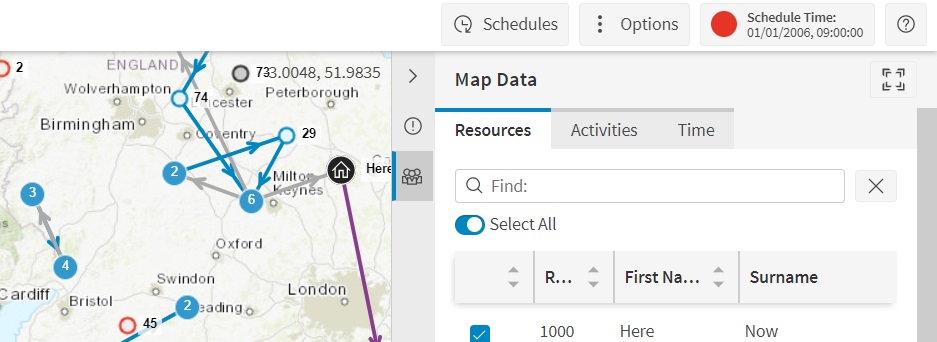
The isochrones tab will be missing as you can see in the previous screenshot, if the user is missing the 'IsochroneViewer' permission. The user would have to either change the permission or ask the Administrator to do so.
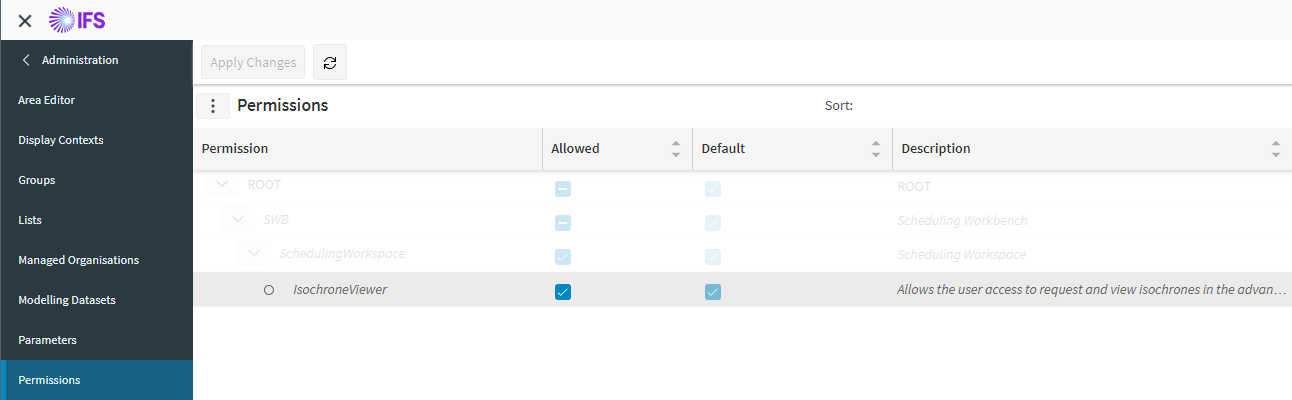
For a permission or parameter change to take effect the user must log off and log back onto the Scheduling Workbench.
Once the correct parameters and permissions are set up, the Isochrones tab will appear:
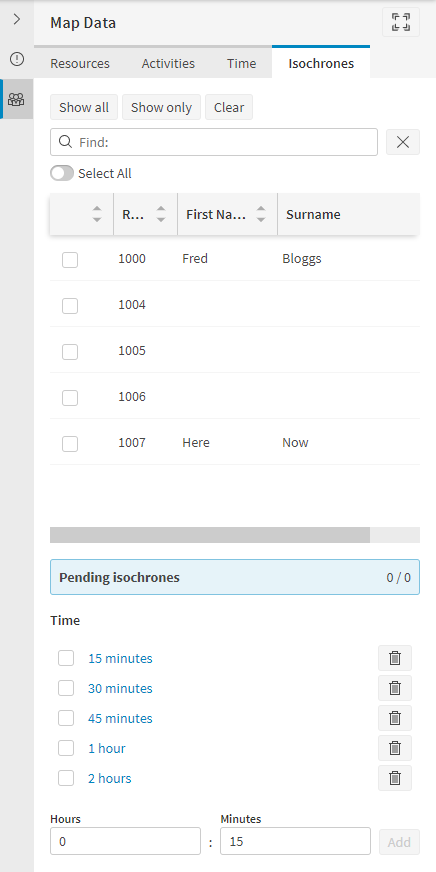
and you can start calculating isochrones by selecting one or more resources and one or more times:
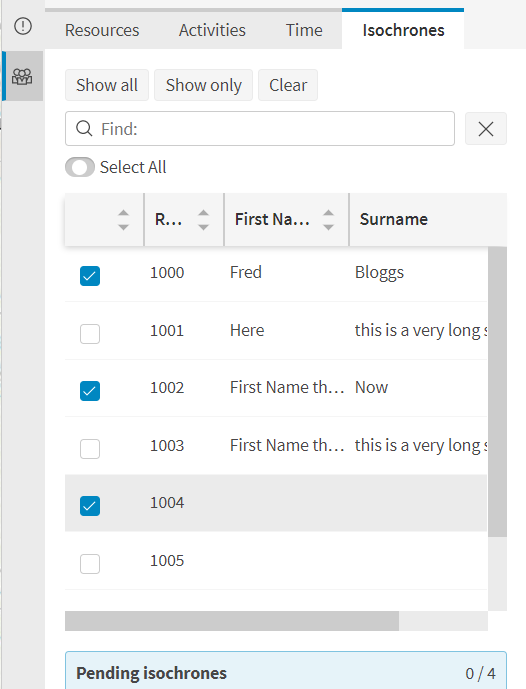
Using "Select All" isochrones can be calculated for all available resources in the schedule at once for each selected travel time.
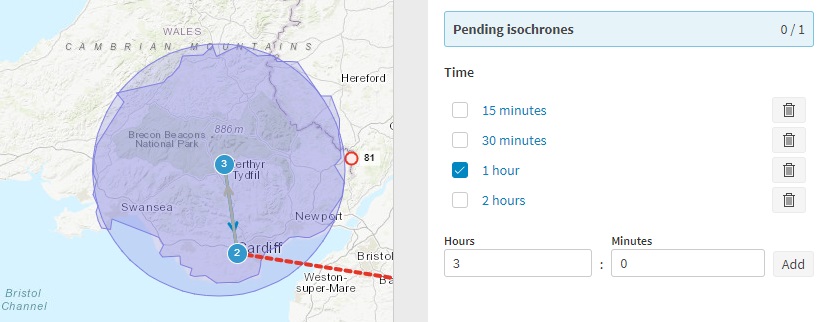
Once an isochrone has been selected to be calculated for a resource or an activity, a request is sent to the Travel Analyser to calculate the isochrone. Until the real isochrone is ready, a circular preview based on constant straight-line speed is shown, which can be used as a approximation to the true result. Once the Travel Analyser has finished calculating this, the preview will be replaced with the real isochrone:
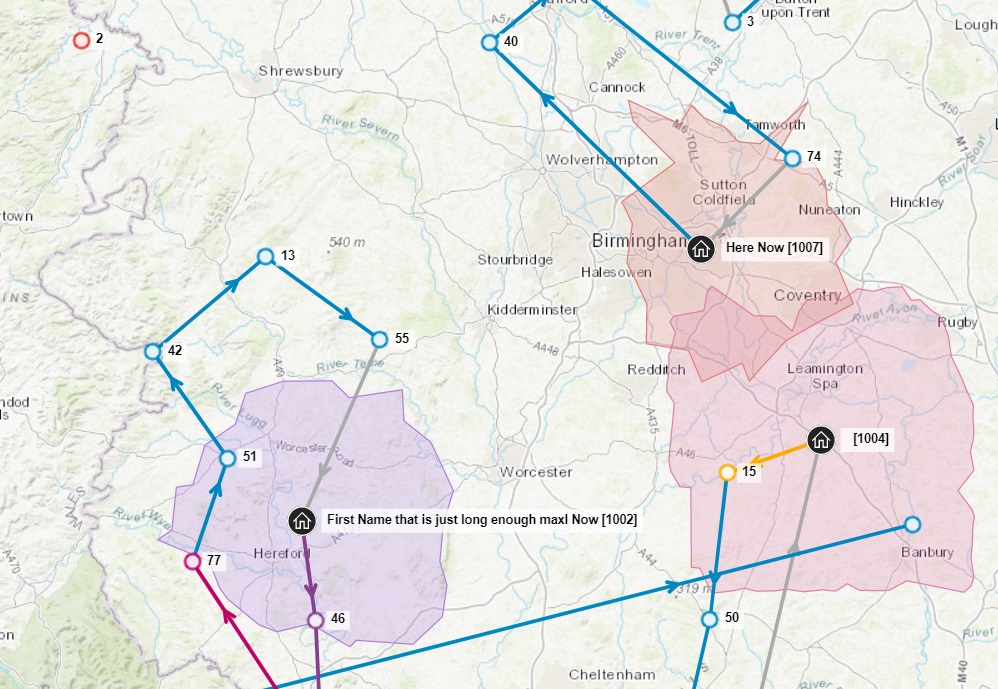
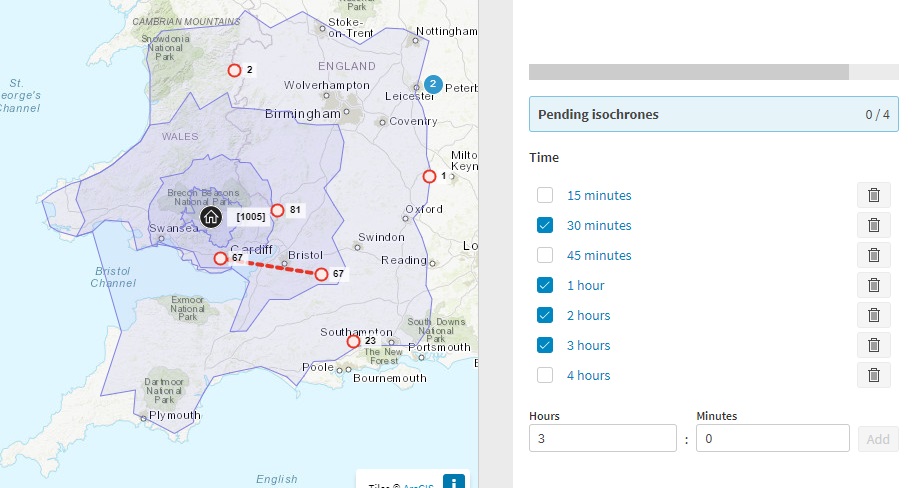
While the isochrones are being generated by the Travel Analyser, you will see a message about "pending isochrones":
Note
Some isochrones may take a while to be calculated depending on the size of the isochrone or the travel database connection.
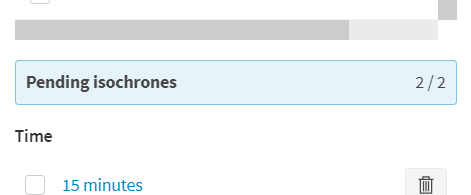
The Travel Analyser may be set up to use straight line calculations instead of the HTM and you will always see discs even when there are no pending isochrones. Setting up the Travel Analyser to use the HTM has two main steps:
- Pointing the Travel Analyser to the correct travel database that contains the HTM
- Choosing the HTM as a TravelCalculationOption and the matrix id of the geographic area the schedule is in.
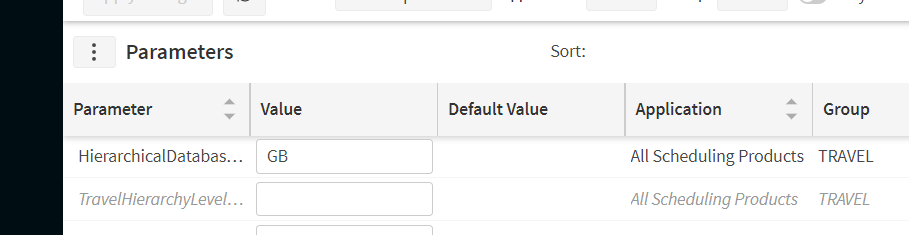
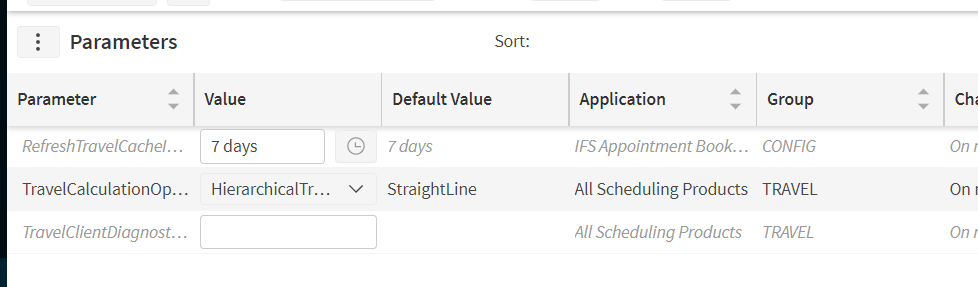
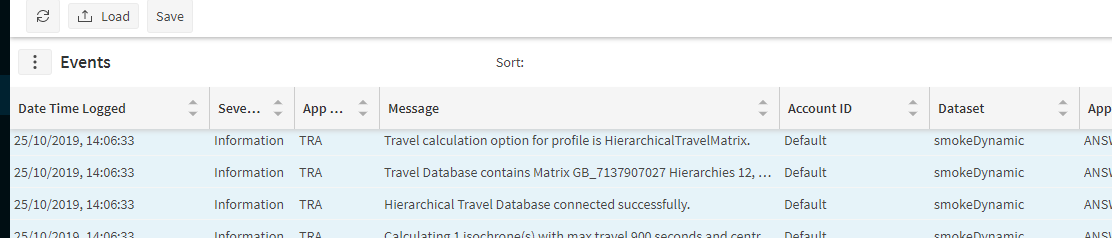
The Travel Analyser will then need to be restarted and will log the following events:
If database connection successful:
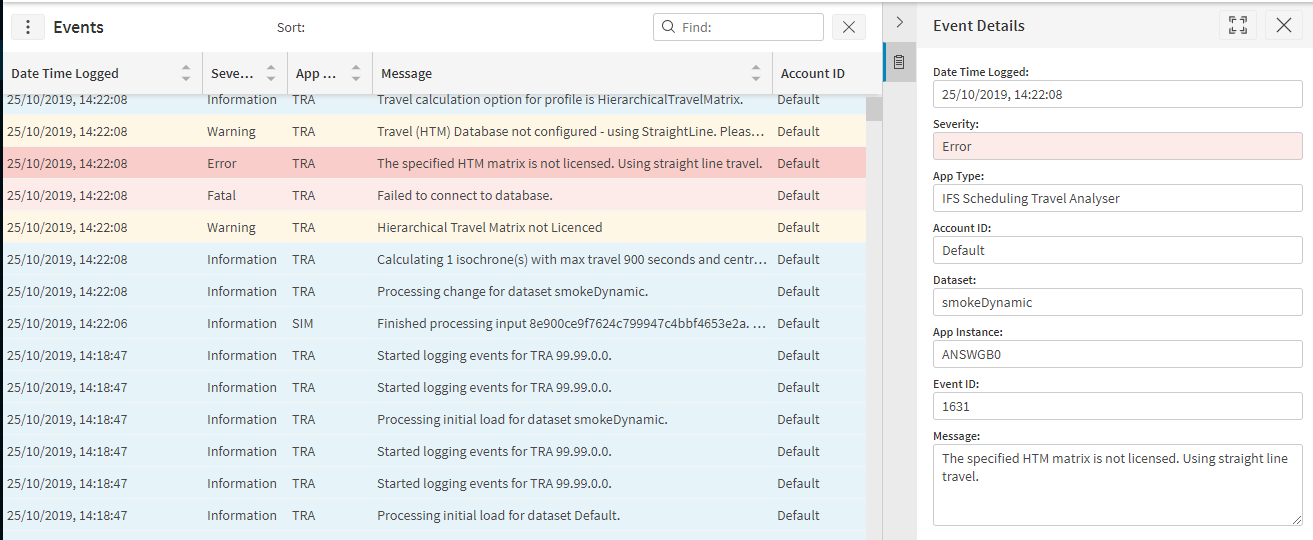
If database connection failed errors will show in the event log:
If HTM setup is successful the Travel Analyser will then start logging events as follows when isochrones are requested:
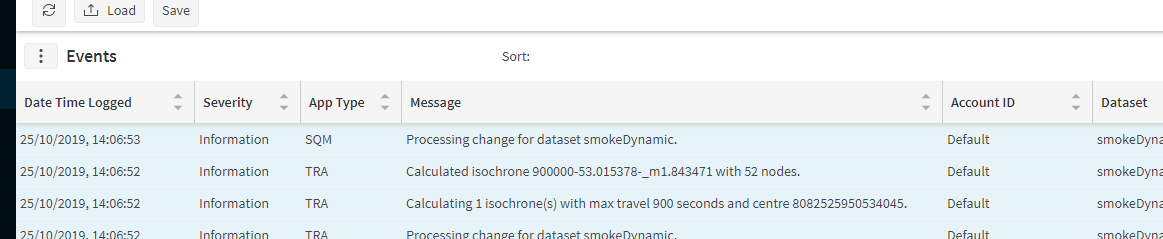
When we refer to event logging, we mean the events logged in the Administration workspace System tab, under 'Events'. These events are also available to view in the corresponding Windows Event logs for each Scheduling service.
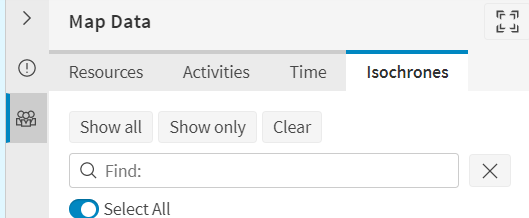
Isochrones are only offered for the resources that are shown in the map, (selected in the "Resources" tab). from the isochrones tab you can ask to show all resources with the "Show All" button you can ask that only the resources selected in the isochrones tab should be shown on the map with "Show Only" and you can clear all the isochrone selections with "Clear":
Multiple isochrones can be displayed all at once for different travel times. The shortest travel time will have the most 'dense' colour, while the longest travel time will be less 'dense' and typically larger in size:
The available isochrone times can be set throught the "IsochroneTravelTimes" parameter:

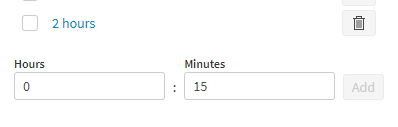
Different Isochrone times can be added or removed by setting the time, and pressing "Add" or by pressing the Delete button:
Note
The possible statuses of the isochrone calculation are:
- Calculating
- Complete
- RequestFailed
- CalculationFailed
- TimedOut
- Failed
If the isochrone calculation request has a status of any of the last 4 values, check the Travel Analyser events for more information or please contact an IFS consultant for further advice.
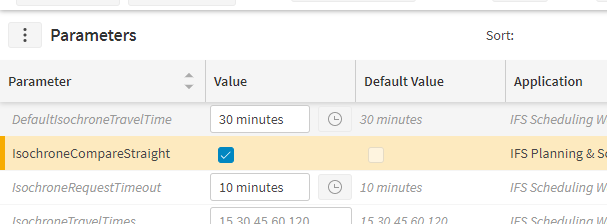
If the preview disc appears a significantly different size to the real isochrones it may be because the parameters "MaxSpeedMPS", "MinSpeedMPS", and RateOfSpeedIncrease" need to be adjusted. You can compare the preview and the real isochrones by checking "IsochroneCopmpareStraight" in the Parameters page :