Accessibility
Keyboard Navigation
Keyboard navigation is currently supported in the following areas:
- The main navigation panel.
- The top toolbar menu.
- When moving between tabs, including in data panels.
- When using data grids.
Main Navigator Panel
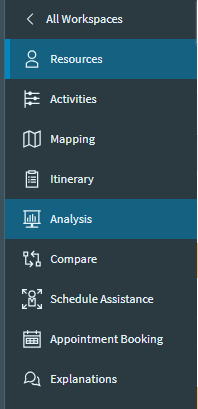
When focus is on the main navigator, up and down arrow keys will navigate through the menu items. Pressing enter, space or right arrow keys will activate the item. Pressing the Escape key and left arrow key will navigate up to the parent menu.
Toolbar Navigation

When focus is on the toolbar, left and right arrow keys will navigate through the toolbar menu items. Pressing enter or space will activate each menu item button. Pressing enter, space or down arrow key will open the dropdown list. Once the dropdown list opens, the user can navigate using up and down arrow keys or tab and shift tab on the list. Pressing enter or space will activate the selected list item from the dropdown. Once the dropdown list opens, pressing the Escape key will close the dropdown list and push the focus back to the button. Pressing enter or space will activate and deactivate the toggle buttons in the toolbar.
After pressing the toolbar button and if a data panel opens, focus will be passed into the data panel. Pressing the Escape key will close the data panel and set focus on the ‘Hide Tool Panel’ button if other data panels are open, and return to the top of the keyboard navigation list if there are no other data panels.
Tabs
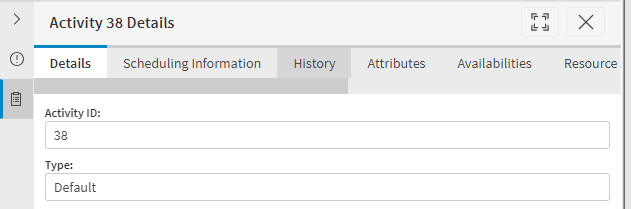
When focus is on a tab control, the up, down, left and right arrow keys will move the focus between tabs. Pressing enter will activate the selected tab.
Data Grids

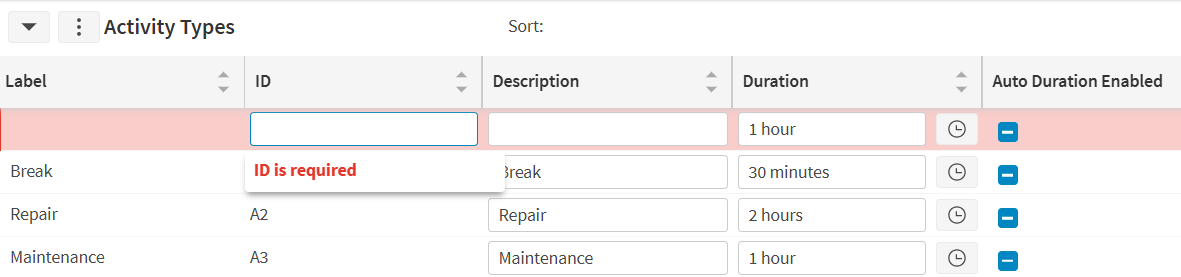
All data grids within the workbench support keyboard navigation. The tab key can be used to tab onto the data grid. This will initially highlight the data grid header, as shown below.

From here, the left and right arrow keys can be used to navigate between the column headers. The 'Enter' key can be used to add that column to the sort order for the data. Pressing Enter a second time will switch the sort direction, and a third time will turn off the sort. Alternatively, holding the control key while pressing the arrow up or down keys will set the sort order.
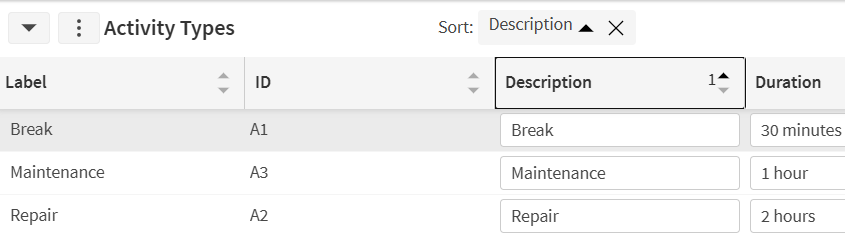
The order of the columns can also be changed. This is done by holding the control key while pressing the left and right arrows keys, to move the column one place to the left or right.
Finally, the width of the columns can be adjusted by holding the 'Alt' key while pressing the left and right arrow keys.
Pressing the 'Escape' key will return focus to the header row. From here, a tab key press will switch the focus to the data grid body.

When the focus is on the data grid body as a whole, pressing 'Enter', 'Space', or using the arrow keys will take focus into the data grid cells. From here the user can navigate between the cells as follows: using the arrow or tab keys. Pressing the tab key will take the user to the next editable cell. Shift and tab can be used to navigate to the previous editable cell. Page up and page down are also supported, along with 'Home'
- Arrow keys: move a single cell in the selected direction.
- Tab key: move to the next editable cell. Shift and tab can be used to navigate to the previous editable cell.
- Page Up and Page Down: scroll a page in the selected direction.
- Home: move to the start of the row (alternatively control plus left arrow). Holding control while pressing Home will move to the first cell in the grid.
- End: move to the end of the row (alternatively control plus right arrow). Holding control while pressing End will move to the final cell in the grid.
- Escape: return focus to the data grid as a whole, from where the Tab key can be used to switch focus off the data grid, and onto other components on the screen.
For any cells that are editable, pressing the 'Enter' key while focused on the cell will switch to editing that cell.
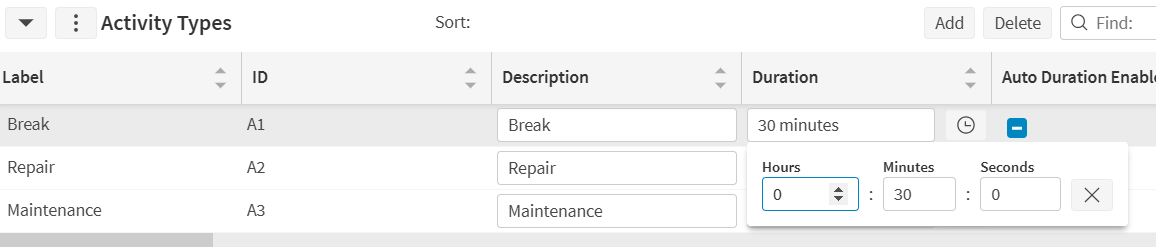
- For duration pickers and many other column types, pressing enter or space will open the popup edit control, and set focus to this control. Pressing enter or escape will return focus to the data grid.
- For select and multi select cells, pressing enter or space will open the popup. The arrow keys can be used to navigate the selection. Press enter to make a selection, or escape to return to navigate mode. For multi-select, shift and tab can be used to focus on the 'Select All' option, and the 'Find' box if this is shown.
- For text entry, pressing any letter or number key will immediately start to edit the selected cell. When editing, the escape and tab keys can be used to switch back to navigating the grid.
- For numeric cells, press enter to start editing, then either type a number or use the up and down arrow keys to change the value. Escape, tab or the left and right arrow keys will return to navigate mode.
- For checkboxes, pressing enter will toggle the value.
- For toggle or button column types, pressing enter will act as a button press.
- For the date time picker column type, pressing enter will open the picker. The date can be updated by typing a new date, or backspace will clear the date. Pressing enter on the calendar icon will open the calendar date picker. This calendar control supports arrow key navigation through the days. Page up and page down will change the month, while holding shift with page up and down will change the year. Press enter to select a date, or escape to close the calendar control. The time component can be updated via up/down arrows or typing a new value. Finally, enter or escape will close the popup and return focus to the data grid.
- For the colour picker column type, pressing enter or space will open the popup colour selector. Focus is initially on the 'Apply' button. Pressing shift and tab twice will switch focus to the hex colour input field. After updating the colour, pressing enter will apply the change. Press enter on the cancel button or press the escape key to return focus to the data grid without saving changes. Note that keyboard options are limited on the colour picker due to limitations in the third party control being used.
Finally, it is also possible to add rows to the grid using keyboard navigation, and to delete existing rows. Holding control while pressing 'Insert' will add a new rows, as long as this is permitted for the data grid. Holding control while pressing 'Delete' will delete the currently selected row. After adding a new row, focus will be on the first editable cell in that row.