Advanced application features
This chapter describes more advanced features that can be used across the application, in various work-spaces.
Label generator
Expressions and labels
PSO workbench allows the user to write expressions to evaluate against different entities. For example the simple example below will display the id of the resource for each row in the data grid, but expressions can be more complex, and are used in many parts of the application.
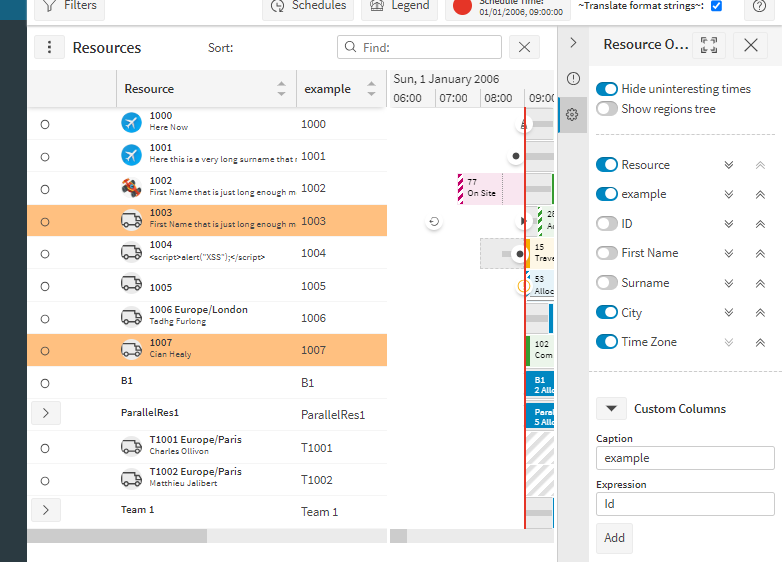
A number of expressions can be embedded in a text string to make a label. The expressions are placed inside curly brackets. For example when the PSO workbench is telling the user about a particular resource, it uses the "ResourceLabel" parameter to generate a text label for that resource.
Any supported expression for the entity can be used in a label format.
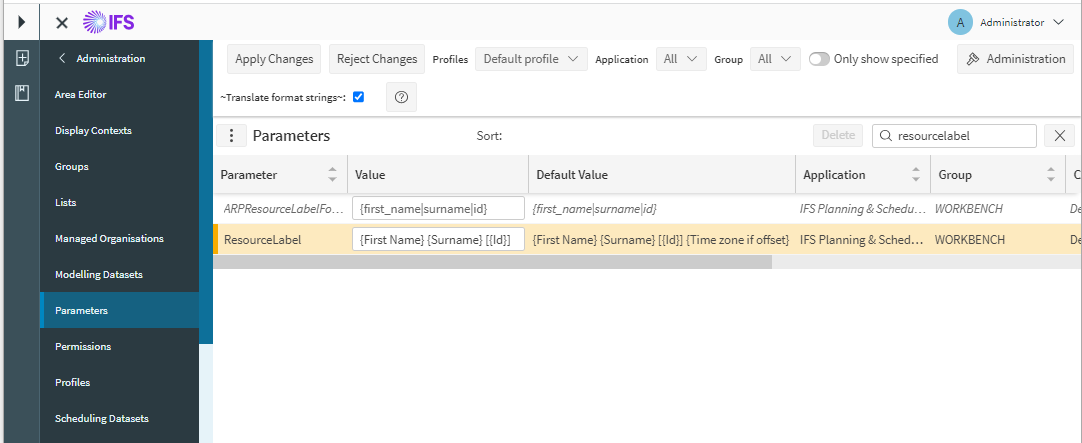
Note that each expression is in curly brackets { } any other text, including spaces and the square brackets [ ] will appear in the final label.
For example the resource with First name: "Charles", Surname: "Ollivon" and Id:"T1001" is shown as "Charles Ollivon [T1001]". This label format and others can be set by an administrator in the Administration - Organisation - Parameters page.
Examples of use
Advanced filters
The resource and activity pages support advanced filters. The advanced tab on the filter details can contain a tree of tests, with each one based on an expression. The example filter below will show resources with Max travel greater than 3 hours and Cost per hour less than or equal to 2.
"Max travel" and "Cost per hour" are supported expressions for a resource.
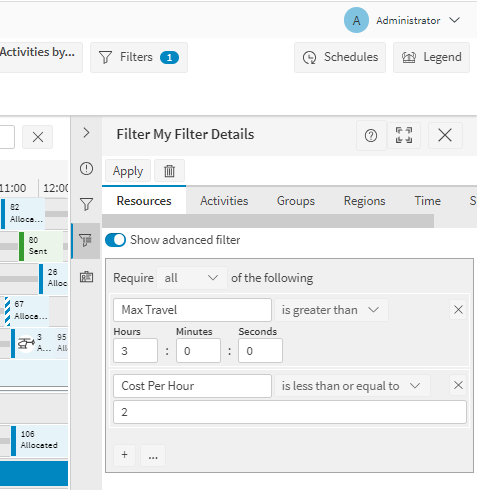
Any supported expression for the entity can be used as part of an advanced filter.
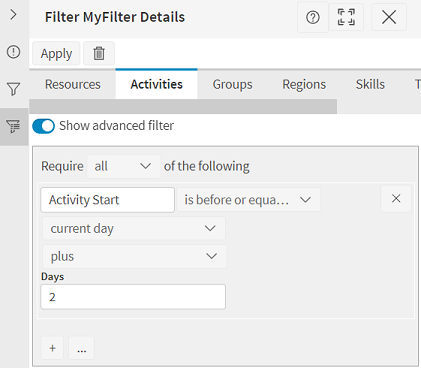
Users can have date time filters created in Resource and Activities tabs as following
- Exact day: Compares the start of day of the item being filtered and the start of day of the inputted day in the filter.
- Exact time: Compares the start of minute of the item being filtered and the start of minute of the inputted time in the filter.
- Current day: Compares the start of day of the item being filtered and the start of day of the current schedule ± the value specified in the timespan.
- Current time: Compares the start of second of the item being filtered and the start of second of the current schedule ± the value from the timespan.
Custom Columns
In the resources and activity pages custom columns can be created based on these expressions.
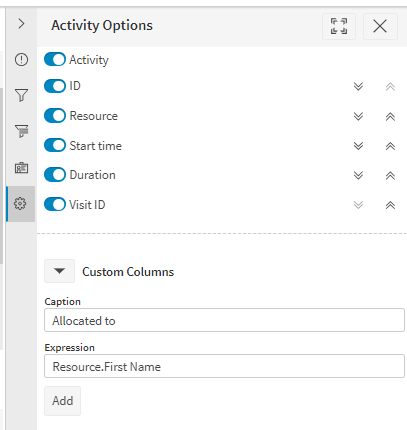
To do this click the ... symbol on the resource or activity Gantt, then open the "Custom Columns section in the options panel.
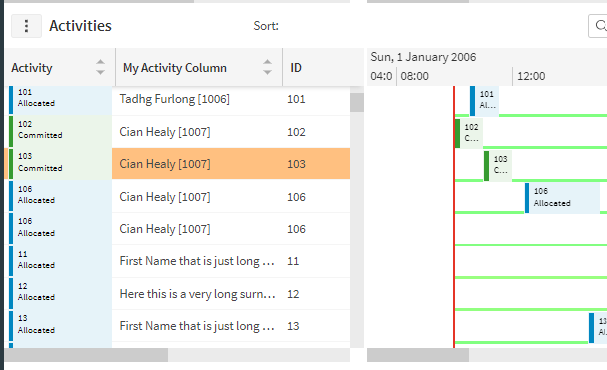
Enter a name for the new column and an expression to evaluate and display in the column. In this example, the custom column shows the first name of the resource that is allocated to this activity.
The result looks like this
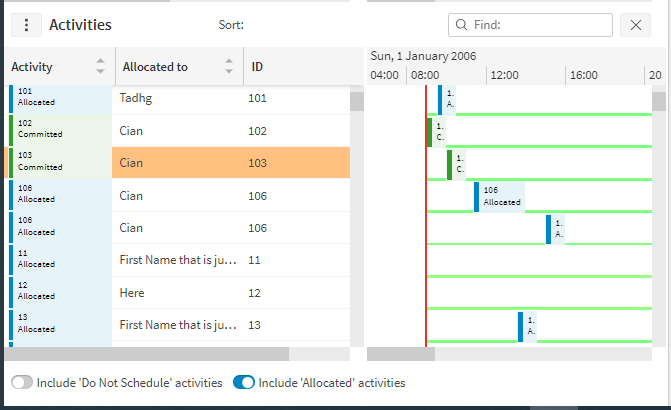
Any supported expression for the entity can be used in a custom column.
Application Configuration
There are many application parameters that use expressions or labels. and Many Lists use them. These are normally updated by administrators in the Administration - Organisation - Parameters page.
For most entities a label can be specified, and this controls how the entity will be shown to the user throughout the application.
Auto completion
Expressions can contain a wide range of elements, and the available elements depends on the context of the expression. If the expression is mis-spelled it will not work, but it is actually very easy to enter expressions because of the "auto-complete" feature.
As soon as the user starts editing an auto-complete field, a panel will open showing the possible supported elements that match the text already entered.
In the example below, the user is entering a resource label. They have opened the curly brackets for an expression then typed "co"
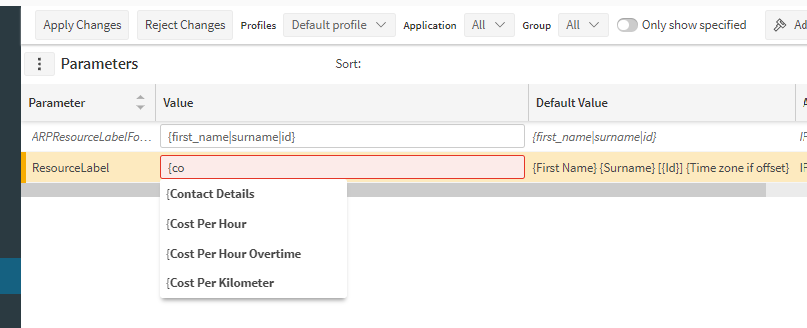
There are several options and the user clicks on "Contact Details" ...
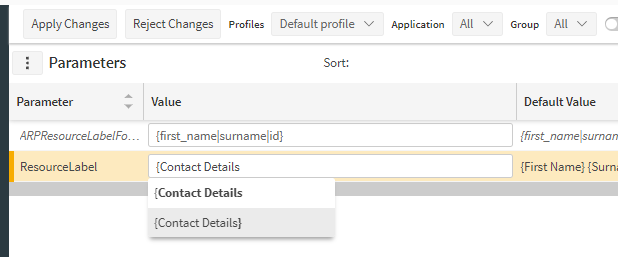
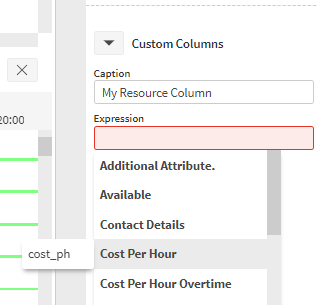
Some elements of the expressions are quite subtle, and these have an explanation which pops up as they are hovered over or selected with the keyboard.
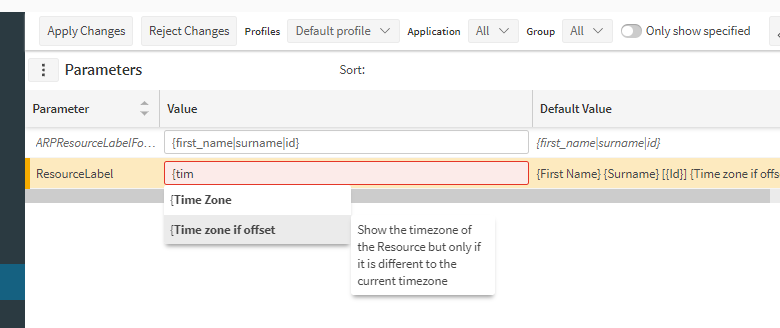
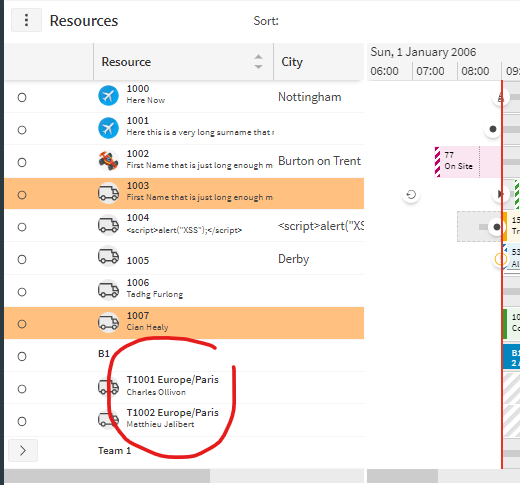
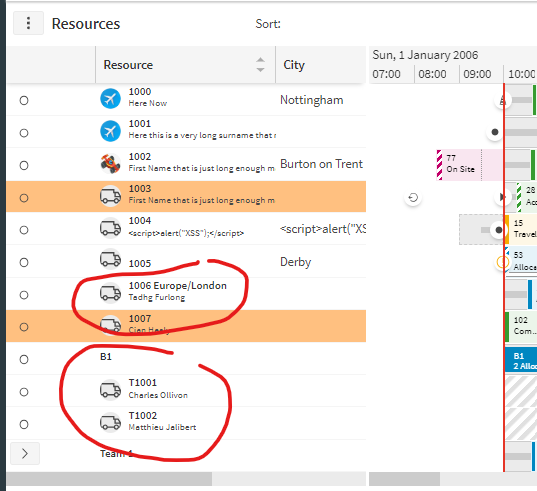
This expression will show the timezone of the resource, but only if it is different to the currently selected timezone of the user interface. This means we can see the list of resources without timezone, but see the timezone if it is different.
For example a user in the UK sees this...
But a user in France sees this...
Element Types
Properties
There are many elements that can form part of an expression. These can be discovered through the auto complete feature. The available elements are different depending on the context entity type of the expression.
For example, most entities support "Id" as an element, but only resource supports "First name"
An element can be a simple property of the entity, for example for a resource we have "Id", "First name", "Surname"
Links
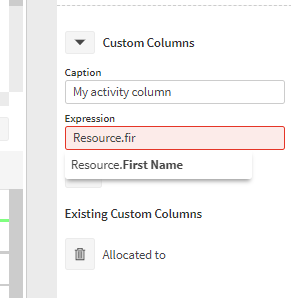
An element can also be a link to another object, for example for an allocated activity we have "Resource" which links to the allocated resource. Links usually end with "." which is the separator for entities.
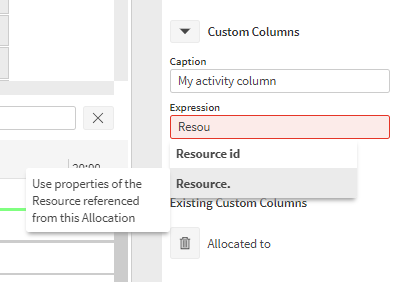
We can then specify elements of the linked resource for example
When an activity is allocated, there are two related entities. These are the activity, as defined by the customer, and the allocation created by the scheduling engine associating that activity with a resource for a single visit.
The expressions in the UI refer to the allocation (with elements like "Resource." and "Activity start" for the time the visit is allocated to start)
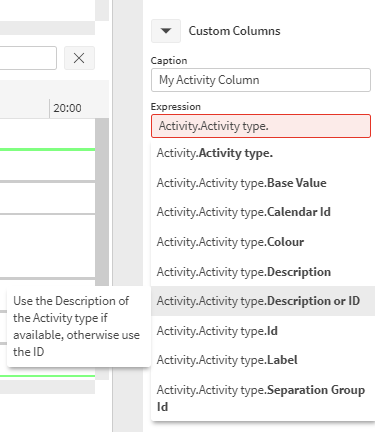
We can link to the activity itself with "Activity." and then access different elements like "Base Value"
Additional attributes
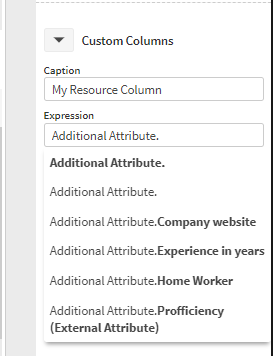
For a Resource, Activity or Location, the data may contain additional data for each entity apart from the normal properties. These can be accessed via the "Additional Attribute." feature.
Users should be aware that some elements including the Additional attributes are not normally loaded from the server until they are needed, for example viewing a resource details panel loads all the required elements for the specified resource.
If these elements are referenced in a label format or a filter or custom column, this will result in the element being loaded for all entities with the main schedule data. In some extreme cases this can result in the load being slower.
Functions
Entities can also support elements that do more complex processing. An example is the "Time zone if offset" described above.
"Description or Id" is another example, shown below with the explanation.
"Label" is a function that generates the default label for the referenced entity.
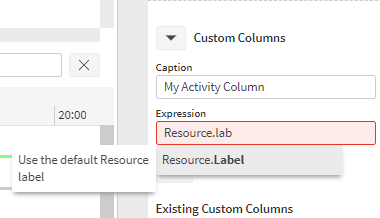
The example above creates an Activity column that displays the default label of the allocated resource, like this...
Translating expressions
These expressions, need to be available to users speaking any supported language. So they are translated when they are shown to the user or edited. In labels, the free text is not translated, only the embedded expressions inside the curly brackets.
They are stored in native form, so for example filters can be written by a user in one language and can be viewed and used by a user in another supported language.
if an element does not have a specific help message, then the native element is shown in the detail popup. This native element is the same in any language.
The translation feature can be turned off by the "TranslateLabelFormats" parameter.
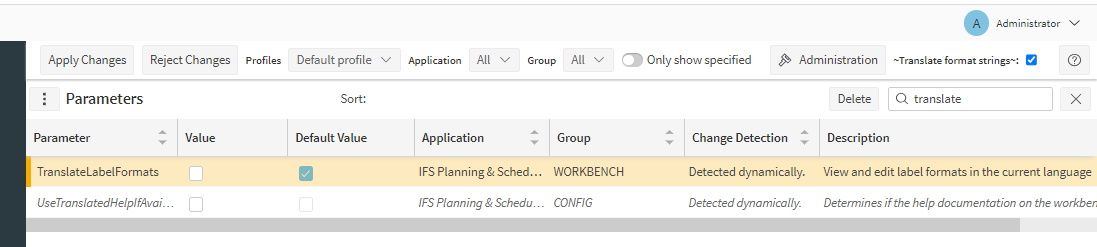
When translation is off the translated text may still be shown in the details popup.