Multi-screen Features
This allows the PSO workbench to be opened in multiple browser windows at the same time. The separate PSO child windows communicate and cooperate as a single user application.
Permissions for Multi-screen features
To use the multi-screen features you must have the "MultiScreen" permission in the "SWB" section. Under this permission is a separate permission for each supported page. You must also have the child permission for each page you want to use.
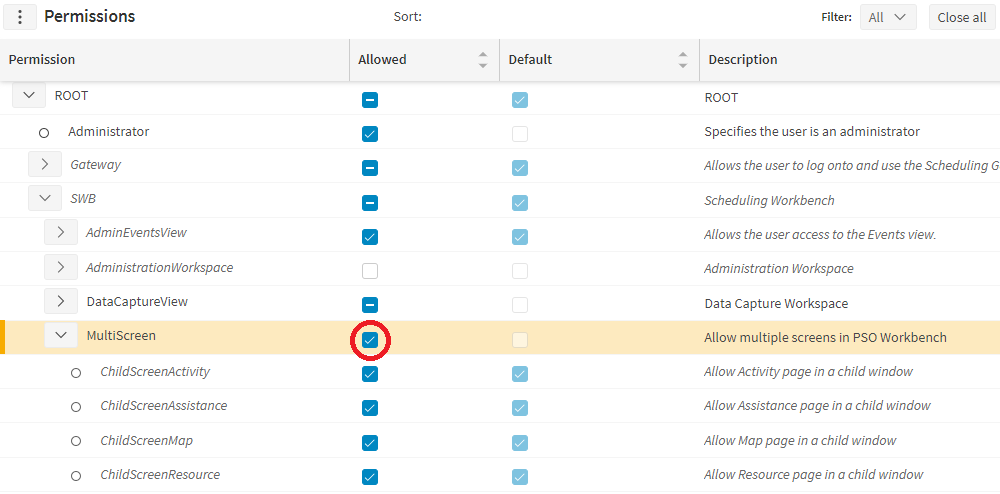
The following pages can be opened in multi-screen mode:
- Scheduling: Map
- Scheduling: Resource
- Scheduling: Activity
- Scheduling: Assistance
Configuring multi-screen
When permission is granted, there is a button in the top right corner next to the help button to open the multi-screen setup control.
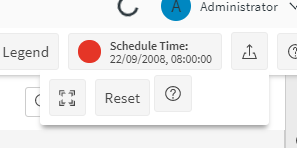
In the multi-screen setup control, the first button will Pop out to a separate window. This will open the current page in a new PSO child window as a new tab in your browser. You can pull this tab out and place it on your desktop, or if you have several monitors, on a different screen. (The exact behaviour may be dependant on the browser)
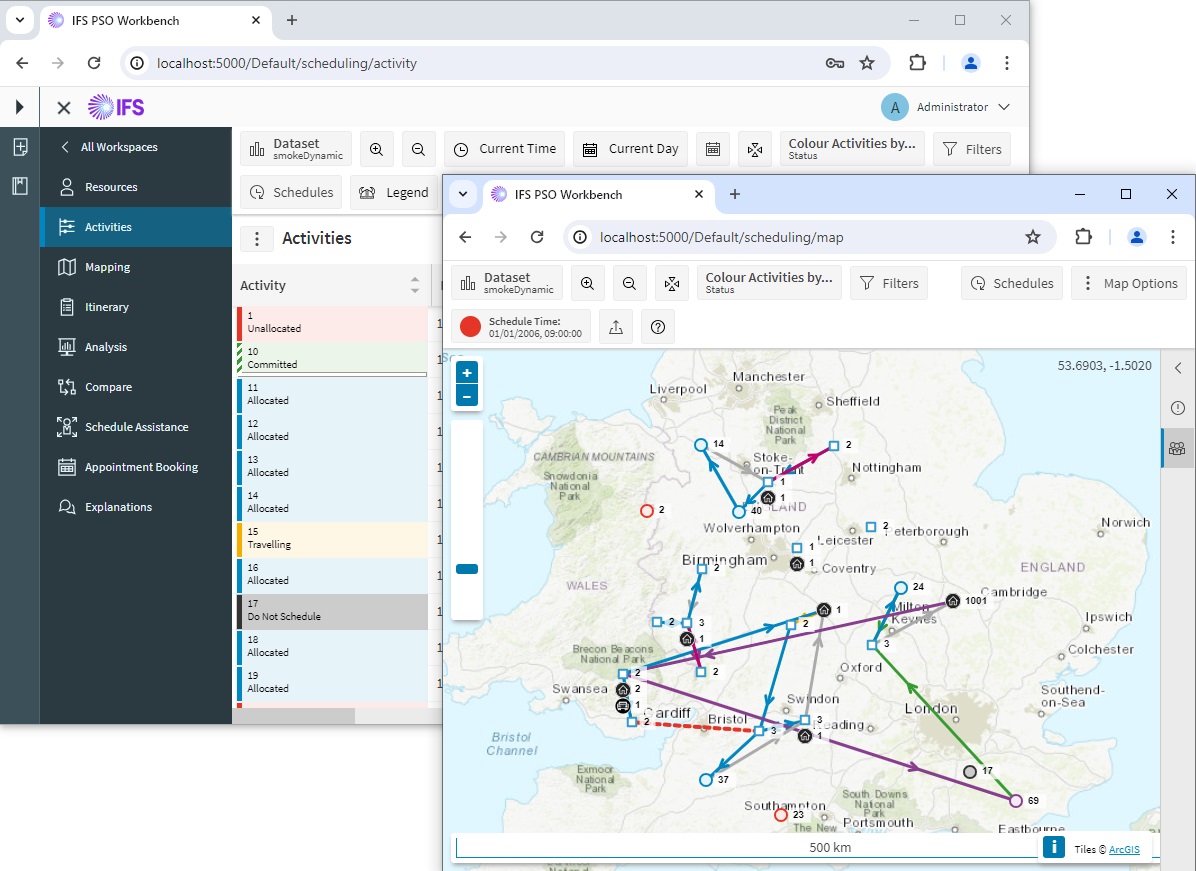
Note that the menu and the top bar are only present on the main host window. The PSO child windows have no menu and are locked to display only the child page. In a child window it is also not permitted to pop out the tools panel to full screen.
If a page has been popped out to a PSO child window, and then closed, whenever that page is reactivated by clicking on the navigate-to options in the context menu, the page will reopen in a PSO child window.
Clicking in the main menu will always open the page in the main menu even if it has been popped out as a PSO child.
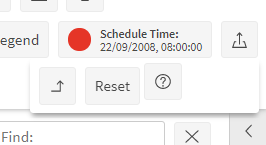
In a child window, the pop-out button will be replaced by a pop-in button. This will close the child window and update the configuration so that the page is configured to run in the main host window as normal.
The reset button in the multi-screen setup control will close all child windows, and reset all pages to appear in the main host window as normal.
The help button in the multi-screen setup control will open this documentation in the browser as online help.
Cooperation in Multi-screen features
The child windows can be placed on separate screens but still work together. Changing language, or timezone in the host or any PSO child, will update all windows.
Selecting a different data set in any window will cause all windows to switch to the specified data set.
There are navigation helper features in the context menu. These allow the user to click a button which will for example show this activity or resource on the map, resource, activity or assistance pages.
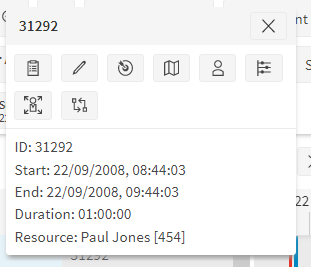
A new helper button in the context menu will focus on the activity or resource but does not navigate to a new page. In all these cases, when child windows are open, all the child windows will focus on the selected object.
If the user selects for example show on map, in the context menu of the host window, when the map page has been popped out, the host window will not navigate to the map page but if the popped out map was closed it will reopen.
When the main host window is closed, or the user logs off, all PSO child windows close, but the preference for pages in PSO child windows remains. When the application is reopened, or the user logs back on, the child windows will reopen.
Note
The Manual Changes and Manual Change History panels are maintained separately in each browser window. While you are editing, previewing, or waiting for a manual change to be applied, that work is shown only in the Manual Changes and Manual Change History panels of the window where it was started. Other windows do not show those panel entries, pending overlays, or preview styling. Once a manual change has been validated and applied, the updated schedule is delivered to all windows as part of the normal plan data update, so Gantt, map, and activity views in every window will reflect the change after the next refresh. To review or continue an in-progress manual change, use the panel in the same window where the change was made.
Future Features
Currently child windows do not respond to selecting historical datasets, simulation datasets, or imported data sets. If these features are used in a window, other windows will still display the current live plan.
Currently it is not possible to drag and drop between windows. This will be in a future version.