Scheduling - Compare
Compare View
The Compare view allows easy comparison between activities and resources by displaying their details side by side. On selecting this view you will be presented a page with a toolbar allowing you to select an activity or resource via a drop down list.
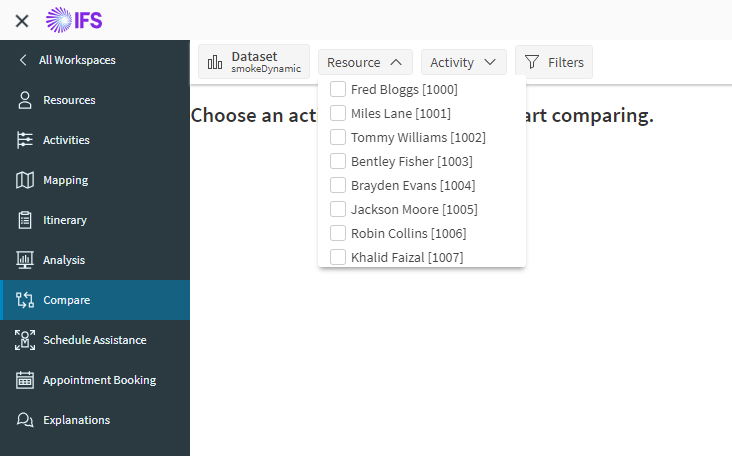
You can narrow down the list of objects by using the Find box. When you have selected your desired object (Activity or Resource) click the checkbox. The selected object will be displayed in the main Compare window as below:
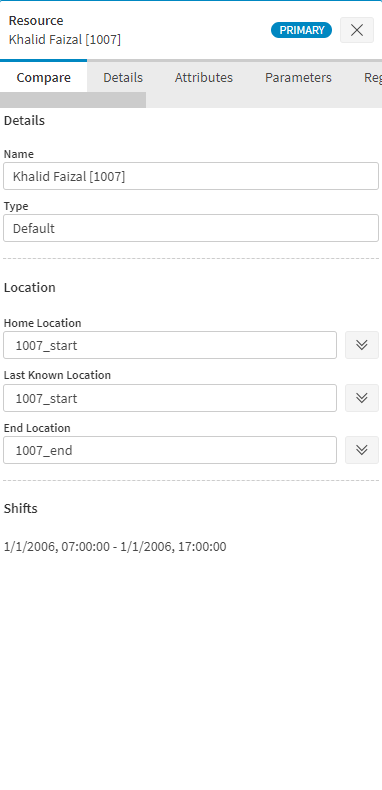
Key details from the Activity are displayed in an easy to read format and as you can see the 'Add object to compare' window is still visible allowing you to select another object to compare against. New objects to be compared will be displayed to the right of the last selected object. For example if three objects have been selected your display will look similar to the one below.
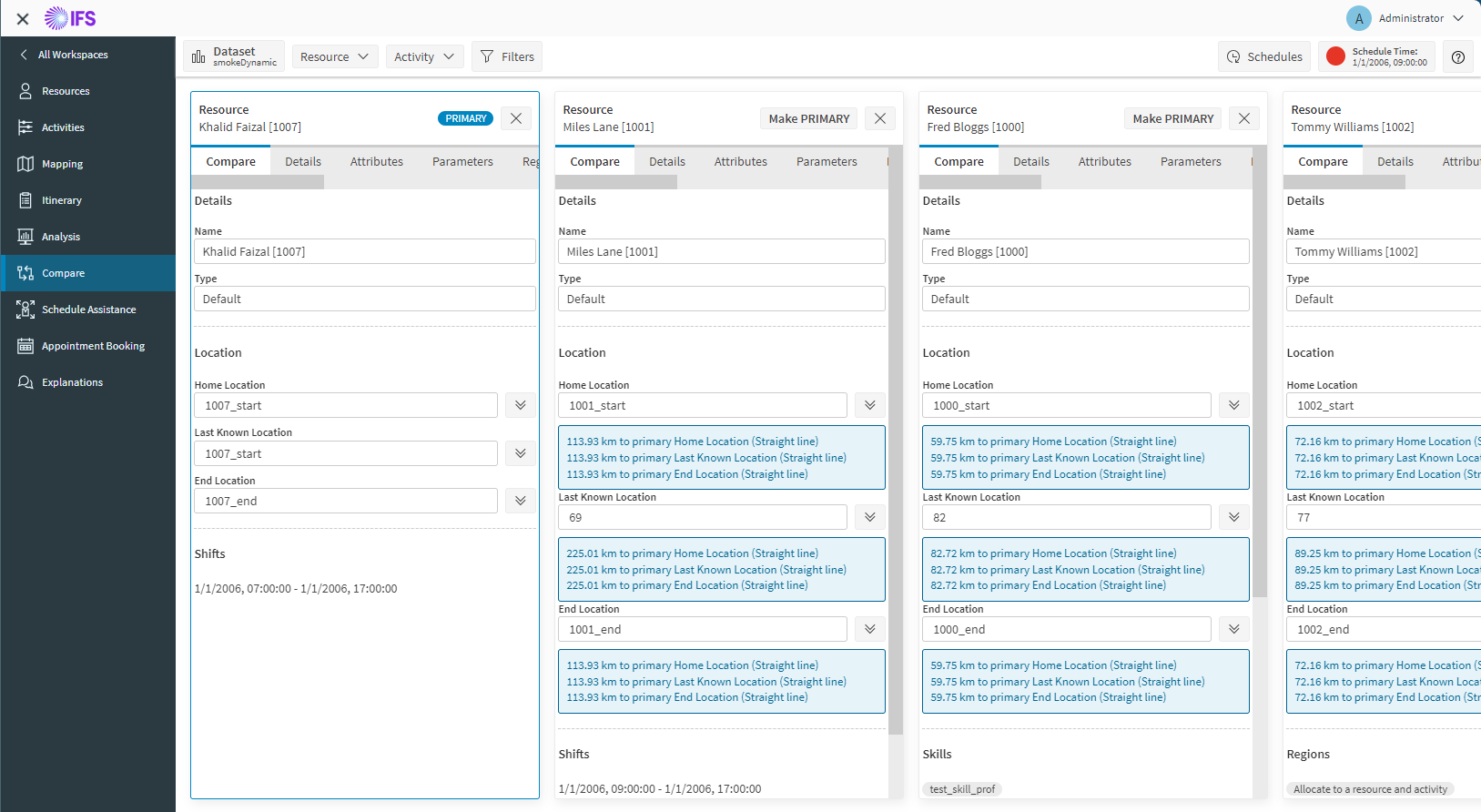
The compare view lists many of the constraints required by activities and shows where resources meet the required constraints or otherwise. The information shown is always in relation to the PRIMARY resource or activity.
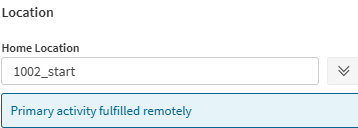
The distance displayed in blue is the straight line distance from this objects location to the location of the primary object. For an activity that can be fulfilled remotely, this will instead display a message to this effect.
Any object can be made the primary by clicking the 'Make PRIMARY' button at the top of the panel. The 'X' button will remove the object from the list of those being compared. It may be added again later if desired.
If there are too many objects to fit within the window you can use the scroll bar to find the object you wish to view.