Scheduling - Explanations
Explanations
The Explanations page is used to assist in understanding why the DSE has not scheduled an activity, or why it has chosen to schedule it where it has over any other potential position. From this page the user can make a request for a particular activity. The request will be processed by the Schedule Explainability Service (SES), which will return a result showing why the activity could not be scheduled in each position in the schedule, or if it could, how this affected the plan value.
Further details on the Schedule Explainability Service and how it processes explanation requests can be found in Scheduling Concepts - Constraints and Preferences.
Warning
Explanations can only be requested against an active dynamic scheduling dataset. It is not possible to make requests for activities in a static or paused dataset.
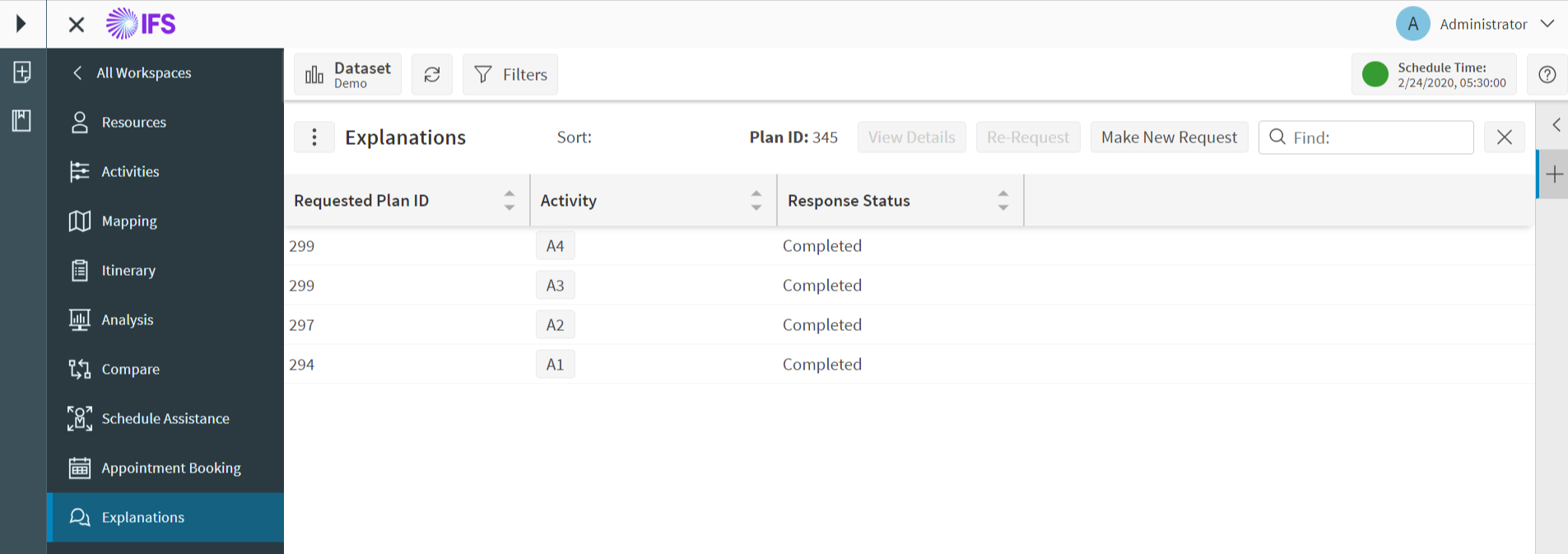
Requests that have been made for the currently selected dataset will be shown on this page, with their processing status. Only the latest request for each activity is shown here.
Each activity is displayed as a clickable button. Clicking on the button will open the activity detail panel for the relevant activity.
The latest plan id for the selected dataset is shown at the top of the page. This can be used as a comparison against the requested plan id on a previously processed request to see if the request was made against a significantly out-of-date schedule. The 'Re-Request' button can be used to resubmit a request with the same setting against the latest plan.
Selecting a request and then clicking the 'View Details' button will take you to the Explanation Outcome page to view the results of the request.
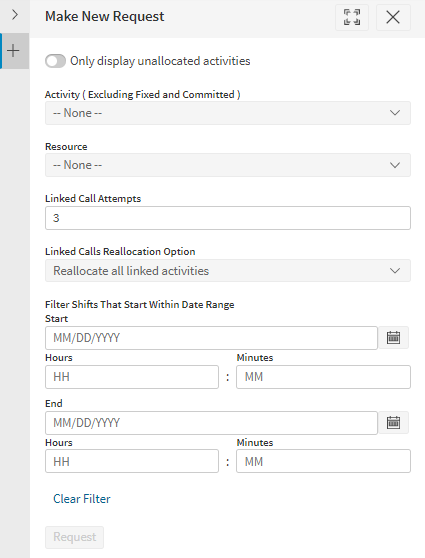
The 'Make New Request' button opens up a panel where the activity and settings for the request can be selected. Selection of the activity can be filtered to just show unallocated activities. Options for linked call handling can be specified as well.
From this panel you can also add filters to a request to restrict the Explainability Service to only check either a particular resource or to shifts whose start time lies within a time range. This can be done by selecting a resource from the dropdown and selecting a date range on the data panel. These parameters are optional and if no filtering is required then these can be left as empty default values.
Explanation Outcomes
The Explanation Outcomes page shows a tree view showing every position attempted in the schedule, grouped by resource and then by shift. If a resource was not permitted to carry out the activity then there will be no shifts attempted associated with it, and likewise there will be no positions for a shift if the shift was not suitable. The 'Result' column will show the reason for any failure at this position (or will indicate if the position was successful).
Note
Advanced filtering applies on this page, allowing you to filter the results shown by resource or by time.
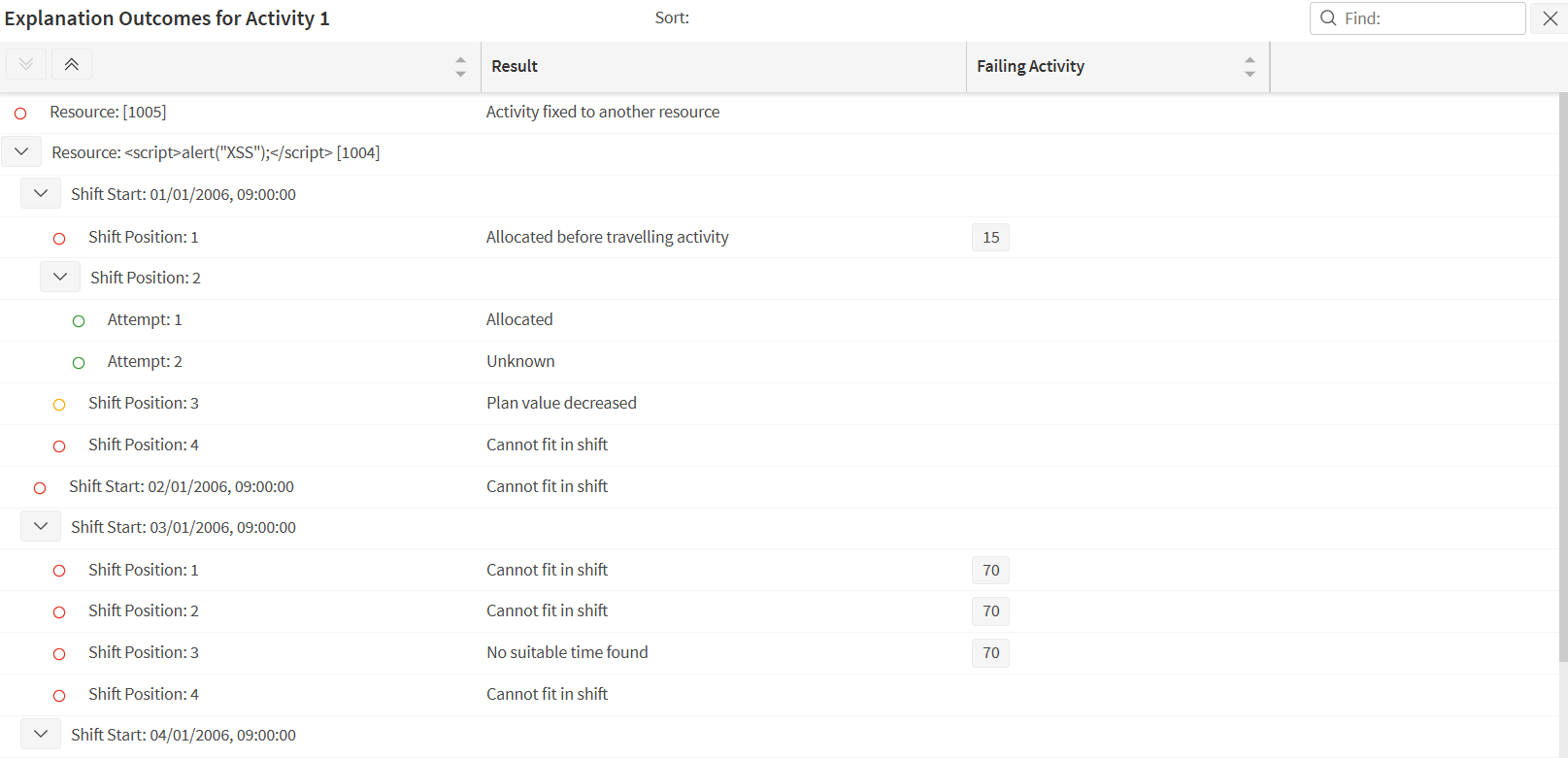
To see more details about a result you can click on the desired row in the tree view to open up the details panel.
The details panel will show details of the allocation (or allocations) attempted. There may be multiple allocations if the requested activity is split, or if further allocations were made as well as the requested activity - for example, a co-requisite activity or a depot visit. The activity or resource values in this panel are shown as clickable links. Clicking on the link will open the detail panel for the relevant activity or resource.
If the attempt was unsuccessful, the details of the activity that caused the schedule to fail will be shown here, along with more detailed messages about the failure reason.
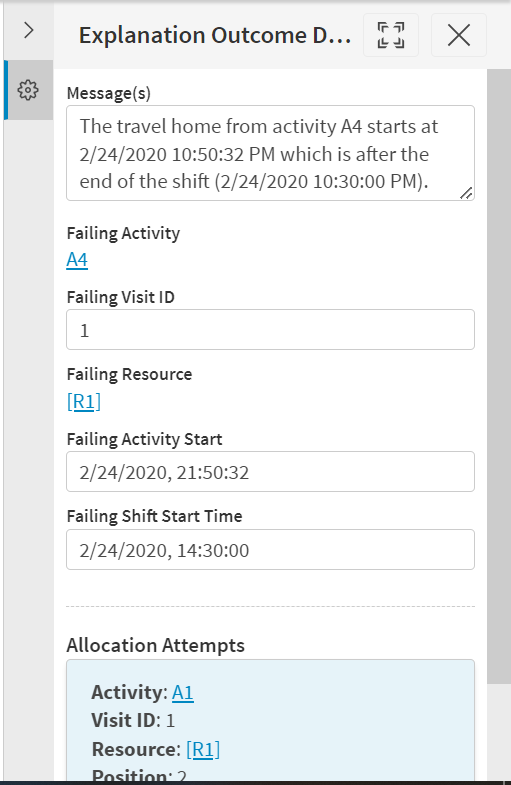
If the attempt was successful, the difference in plan value from the original schedule from the DSE will be shown in the details panel.
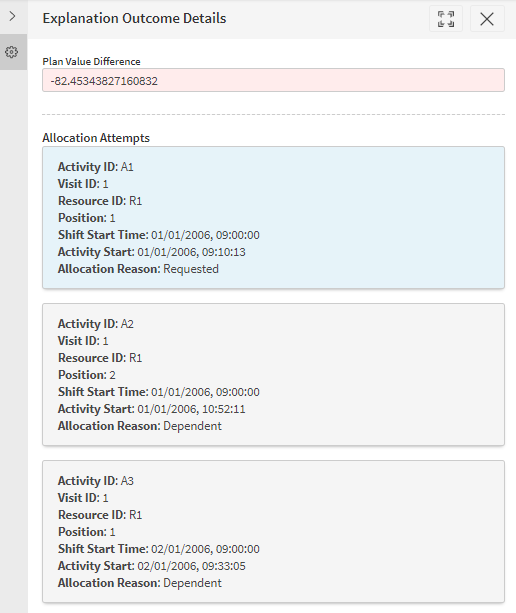
Explainability Navigation
Users can navigate to Explanations page in the following ways.
- Using the explanations button in the activity context menu. This button is available for CALL type activities that have not been committed.
- Using the explanations button in the exception item context menu.
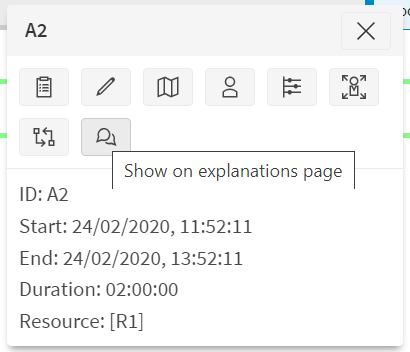
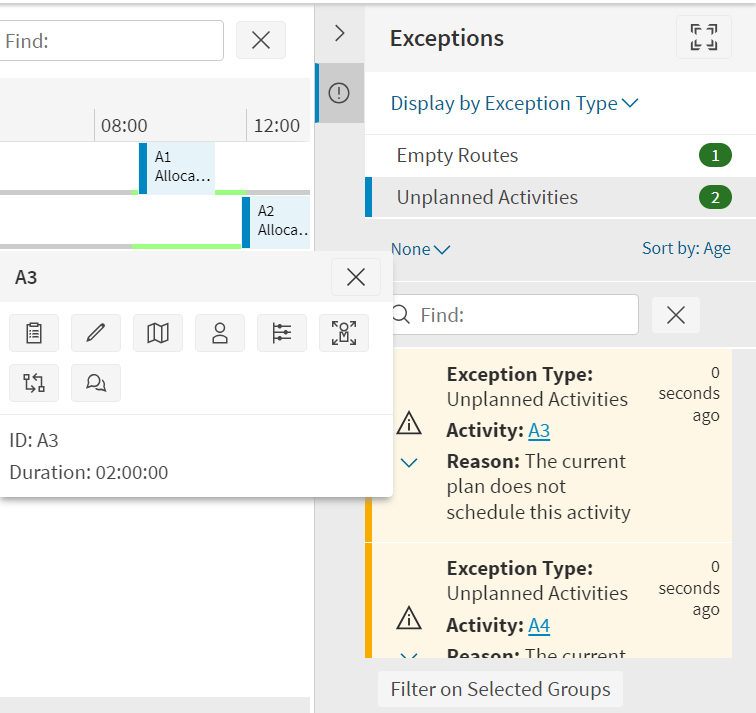
The user will see the Explanation Outcome page if the requested activity has an explanation result without resource or time filters applied. If no explanation has been generated for the activity, the user will see the 'Make New Request' panel focused on the selected activity.