Scheduling - Itinerary
Itinerary View
The Itinerary view is intended to provide an end resource user (i.e. a user who is also a resource in the schedule) with a view of their current workload. They can also perform basic actions such as logging on and progressing the status of an activity.
Note
The administration guide provides details of how to quickly set up an end resource user with appropriate permissions.
Note
The view can also be used by dispatchers if desired, to see the details of the work allocated to each resource. Note however that the screen is disabled by default for standard users.
Itinerary Cards
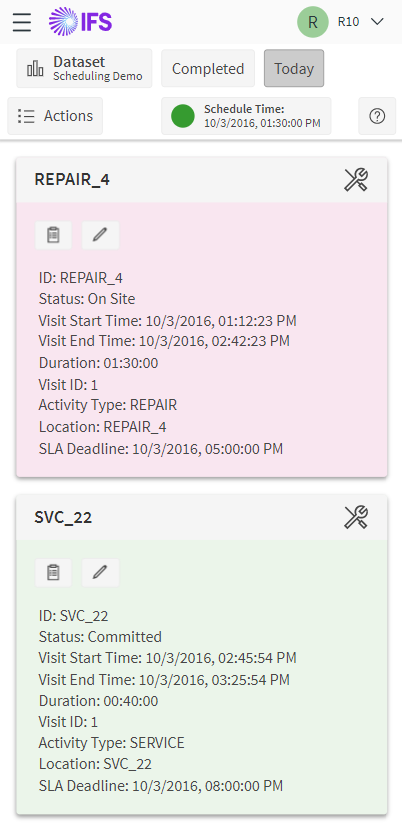
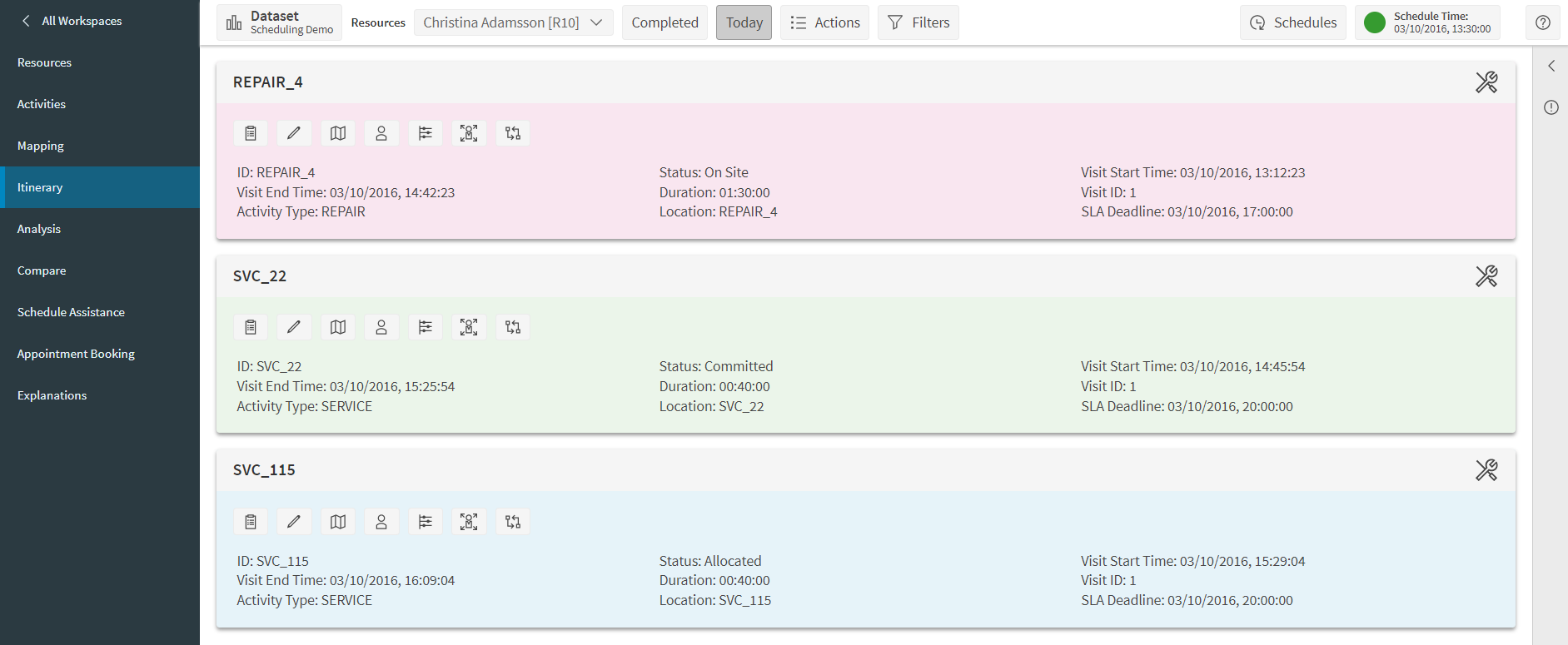
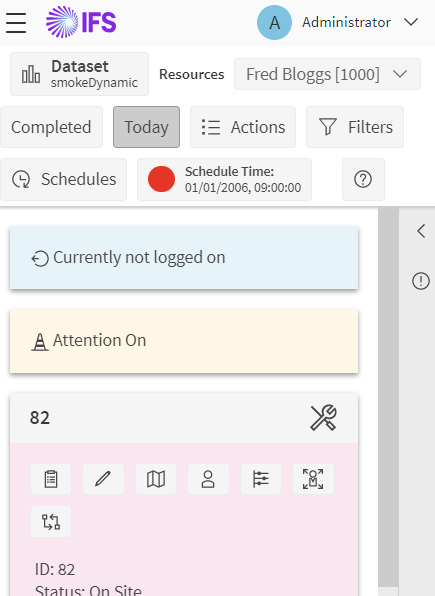
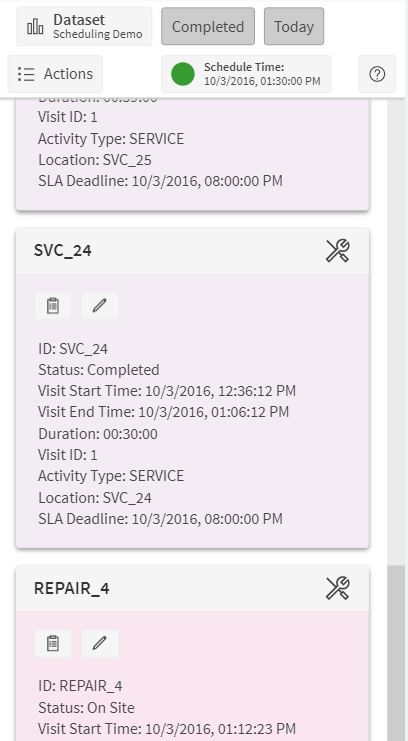
The main part of the page displays a series of cards containing details of the activities allocated to the resource. Each card consists of a row of buttons to allow actions to be taken, followed by text details of the allocation.
The buttons that appear will depend on the permissions attributed to the user. An end resource user is likely to see the following:

This will bring up the full details of the activity in a side panel.

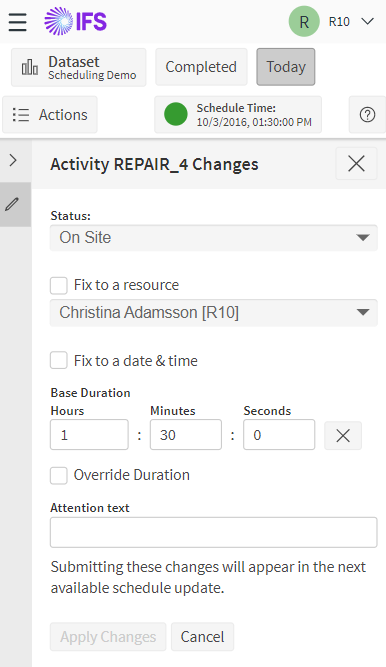
This will allow the user to make changes to the activity, such as changing the activity status.
Note
On smaller screen sizes the side panels will instead open full screen.
Note
The text details displayed on each card can be configured by an admin user. It is also possible to vary the details depending on the activity, via the use of display tags.
Banners
One or more banners may be displayed above the cards. A banner is shown for each of the following reasons:
- The resource is not currently logged on.
- The resource is requiring attention.
- The resource is currently on a break.
Menu Options
The top menu includes options for quickly filtering the data, and for taking resource related actions.
By default, the itinerary view will only show allocations that have not yet been completed, and only those for the current day.
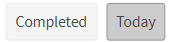
Selecting the 'Completed' option will mean the screen also displays completed allocations. De-selecting the 'Today' option will mean that the screen shows all allocated work for the resource.
Note
By default, an end resource user will only see work that is at status committed or higher.
Note
The 'Today' filter removes any activities that are scheduled in a shift that starts after today, plus any activities that are not in any shift (i.e. fixed outside shift time) and start after today.
The 'Actions' button allows for the display of resource details, and to take actions related to the resource.
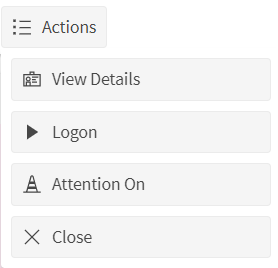
The precise actions available will depend on permissions and the current schedule, but may include the following:
- Log resource on or off. Logon is available provided there is a current shift for the resource to logon to. Once logged on, the logoff option will be available instead.
- Attention on or off. This alerts the dispatcher that there is some issue with this resource. 'Attention On' will turn this on, while 'Attention Off' will remove it.
- Start or finish a break. The start break option is available provided there is a current shift for the resource and there is at least one uncompleted scheduled break (either implicit or explicit) in this shift. Once a break is started, the option to finish the break will be available instead.
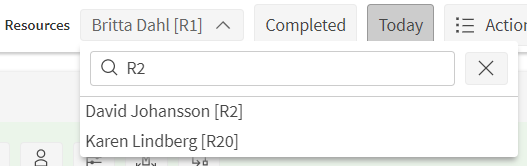
If the user is able to view work for multiple resources, then a resource picker will display in the top menu bar.