Cloning an Environment in LEC Environment Studio
The Environment Cloning feature allows users to create an exact copy of an existing IFS Cloud Use Place environment in another Use Place environment. By integrating this functionality into the Environment Studio of the Lifecycle Experience Center (LEC), users benefit from a seamless, self-service experience for environment cloning, reducing reliance on external tools like ServiceNow and improving workflow efficiency and transparency.
Note: Please note that to perform environment cloning, you must be on version 25R2 or higher. Both the source and target environments must be on the same release version, and their SU versions must either match or the target SU can be on a higher version.
Ensure you have Environment Studio Admin permission to work in the LEC Environment Studio. The Customer Admin of your organization must grant Environment Studio Admin permission via Admin Studio.
Navigation
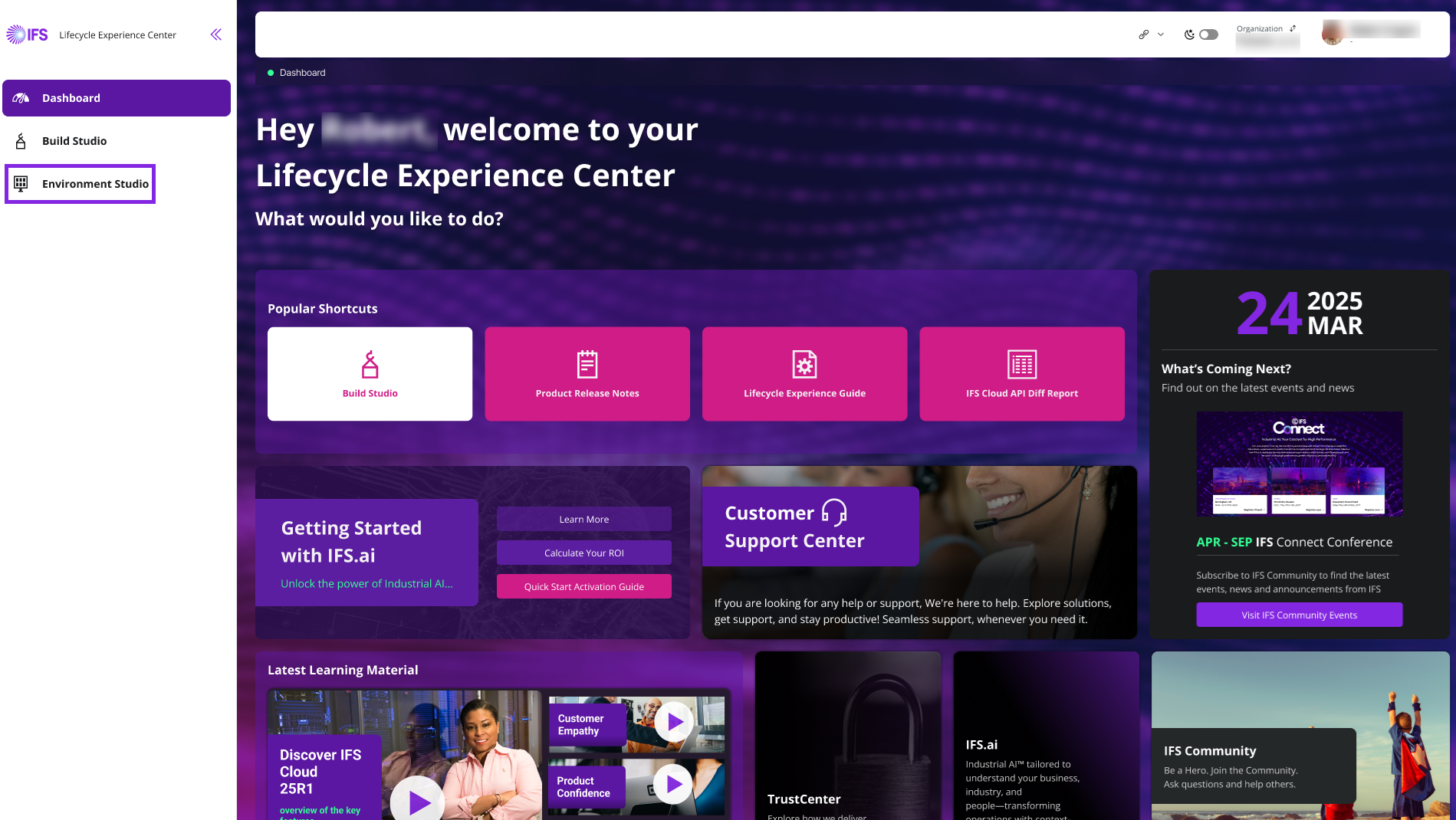
To begin with environment cloning, click Environment Studio from the Lifecycle Experience Center (LEC).
 |
|---|
| Figure 1 -Environment Studio in LEC |
Next, you see the landing page of the Environment Studio. Click Environment Studio again from the left sidebar. Then, under Activity Panel, click Clone Environment.
How to clone an Environment
Select Environment
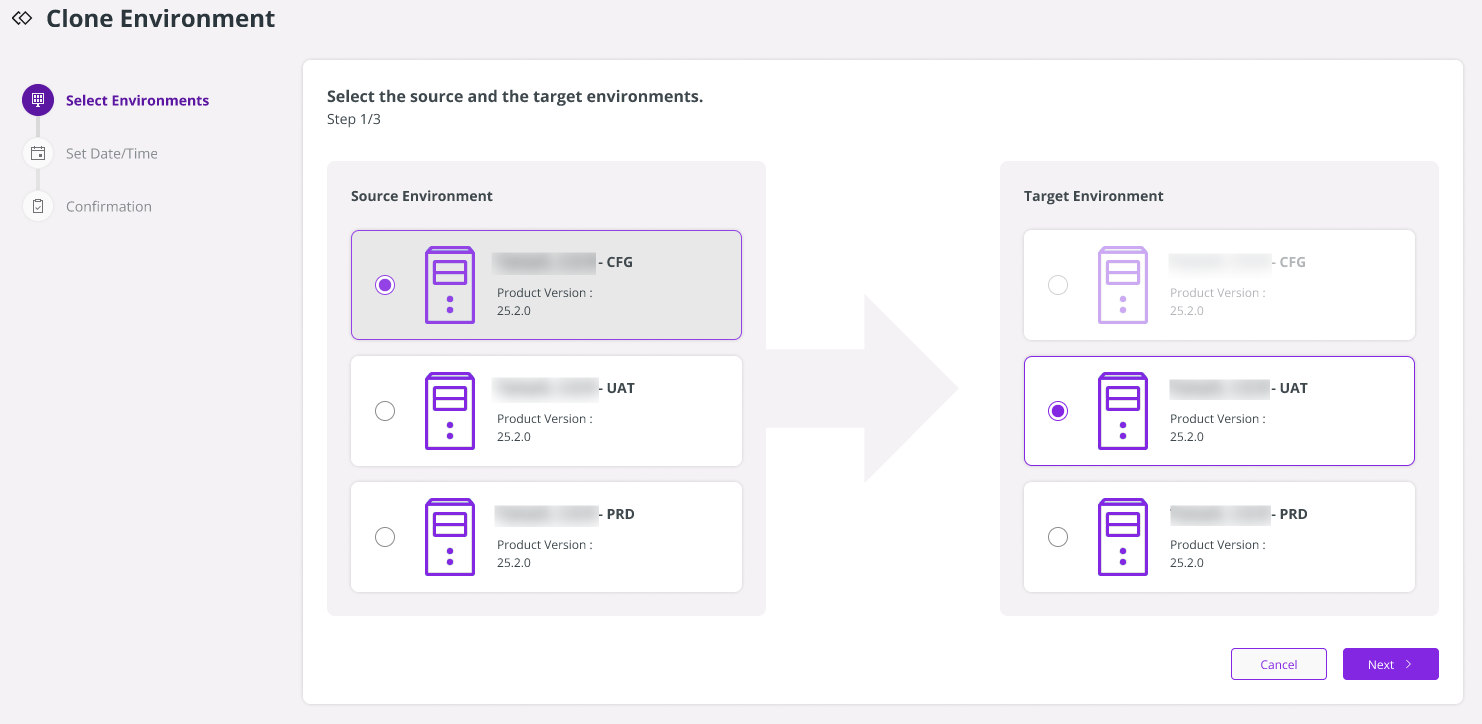
On the Clone Environment page, start by selecting the environments. First, choose the source environment that contains the environment data you want to copy. Then, select the target environment where the environment data will be cloned. Please make sure you select different environments for source and target, as they cannot be the same.
Note: If the target environment is the production environment, you can only schedule the cloning request through Environment Studio. The rest of the process will be carried out manually, and the user can check its status via the ServiceNow Ticket.
 |
|---|
| Figure 4 -Selecting the Source and Target Environment |
Click Next to proceed.
Set Date/ Time
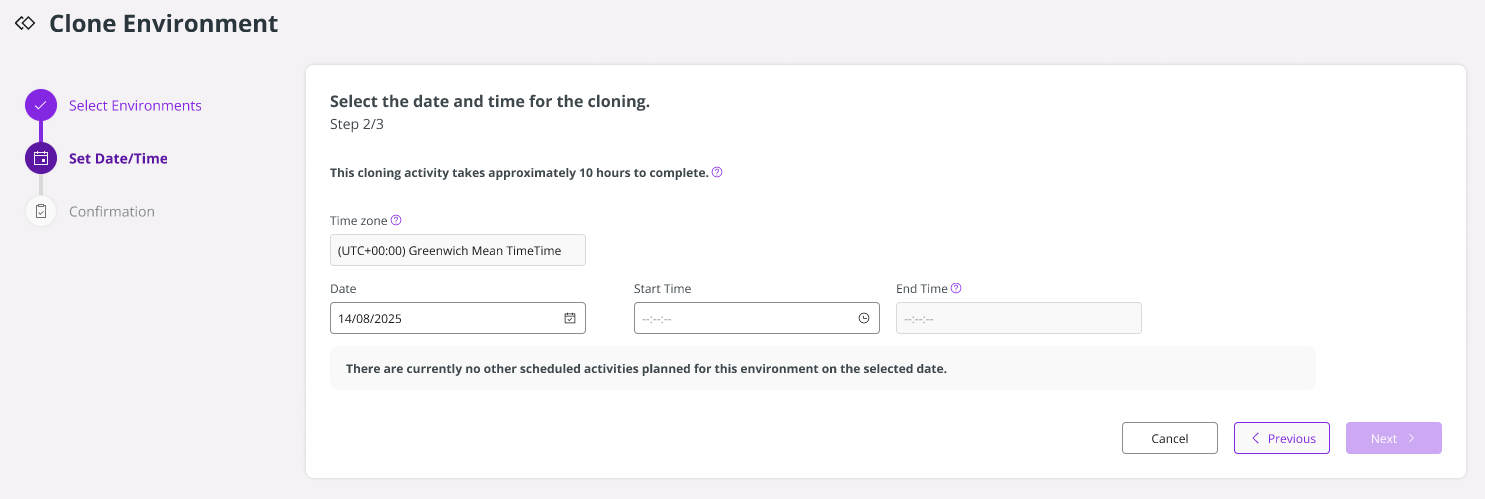
- Time Zone: The preferred time zone can be selected from the list.
- Date Picker: Click the calendar icon to select a date.
- Start Time: Set the start time for the cloning activity. Time is available in 30-minute intervals. Only available time slots are shown, based on all activities scheduled for both source and target environments on the selected day. The selected time slot must be continuous, from the Start Time to the End Time, with no other overlapping activities during the selected slot. You are only allowed to select slots outside the prebooked windows.
- End Time: Automatically fetched considering the start time and the approximate cloning time stated in the Set Date/Time panel.
 |
|---|
| Figure 5 -Setting Date/Time in Environment Cloning Page |
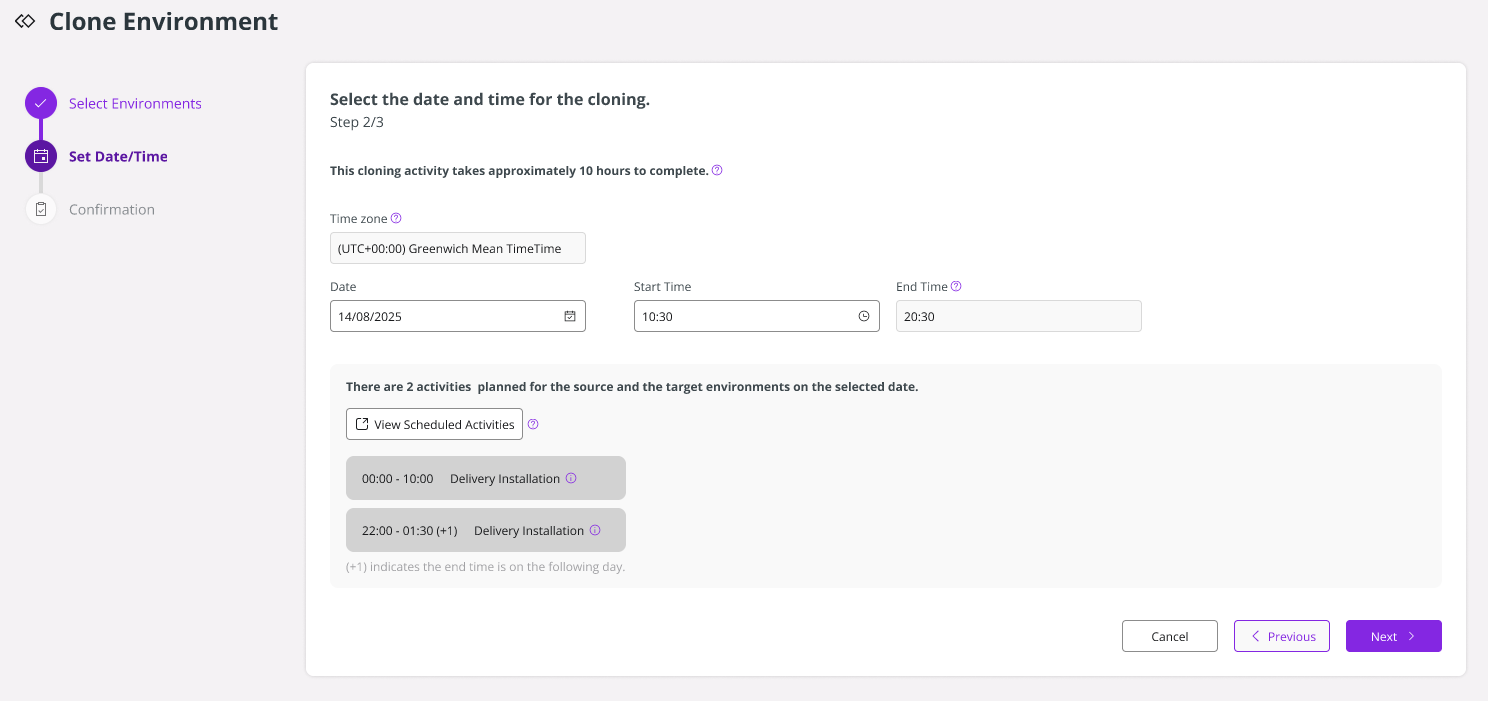
- If there are any delivery scheduling or environment cloning activities scheduled on the selected date, the panel would display them. If more information is required regarding the scheduled activities, click View Scheduled Activities.
 |
|---|
| Figure 6 -View Scheduled Activities button in Cloning Page |
- Note: Some activities may begin on the previous day and extend past midnight into the selected day. Some activities may begin at the end of the selected date and extend into the following day.
- If the selected slot is insufficient to carry out the activity due to the overlapping of another activity, it is recommended to select another slot.
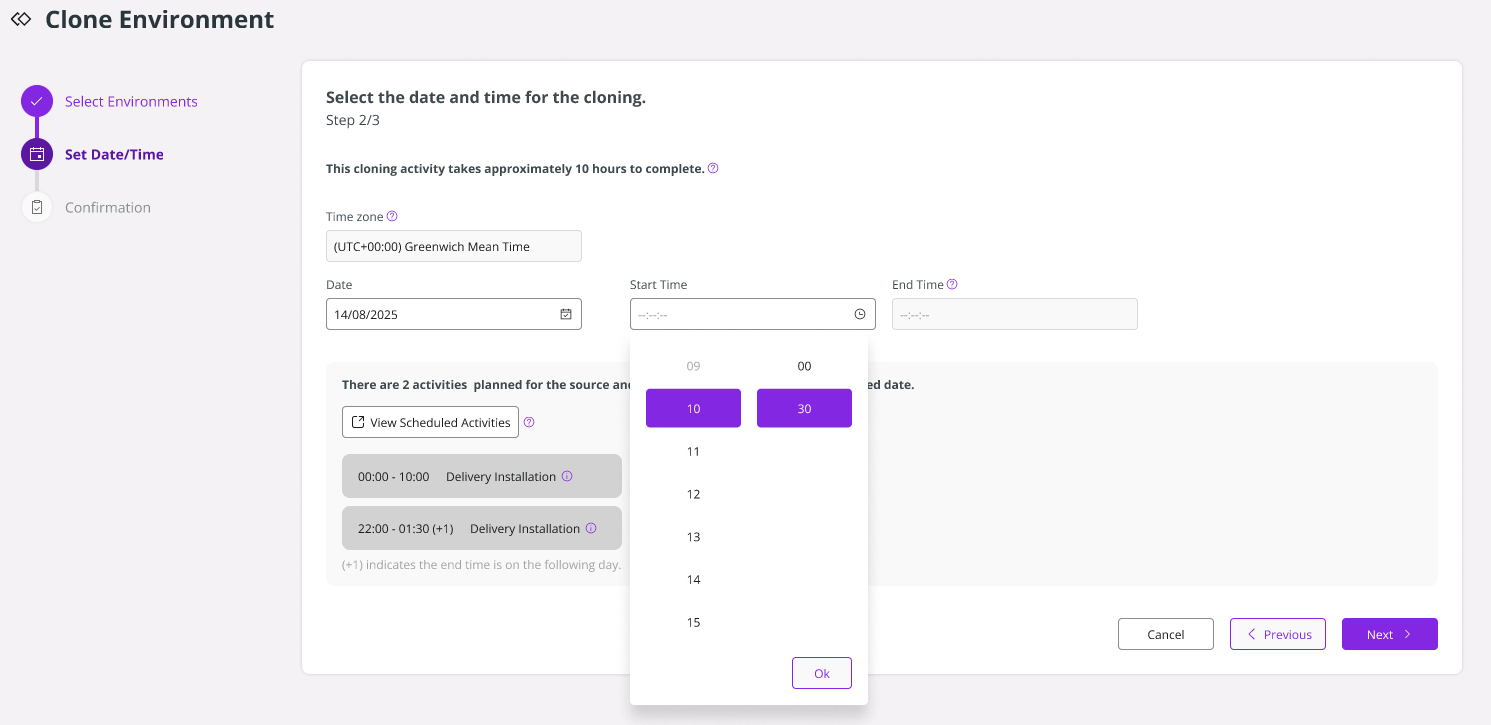 |
|---|
| Figure 7 -Selecting Time for Environment Cloning |
- Note: During the cloning process, the target environment will be temporarily unavailable, while the source environment remains active and fully operational.
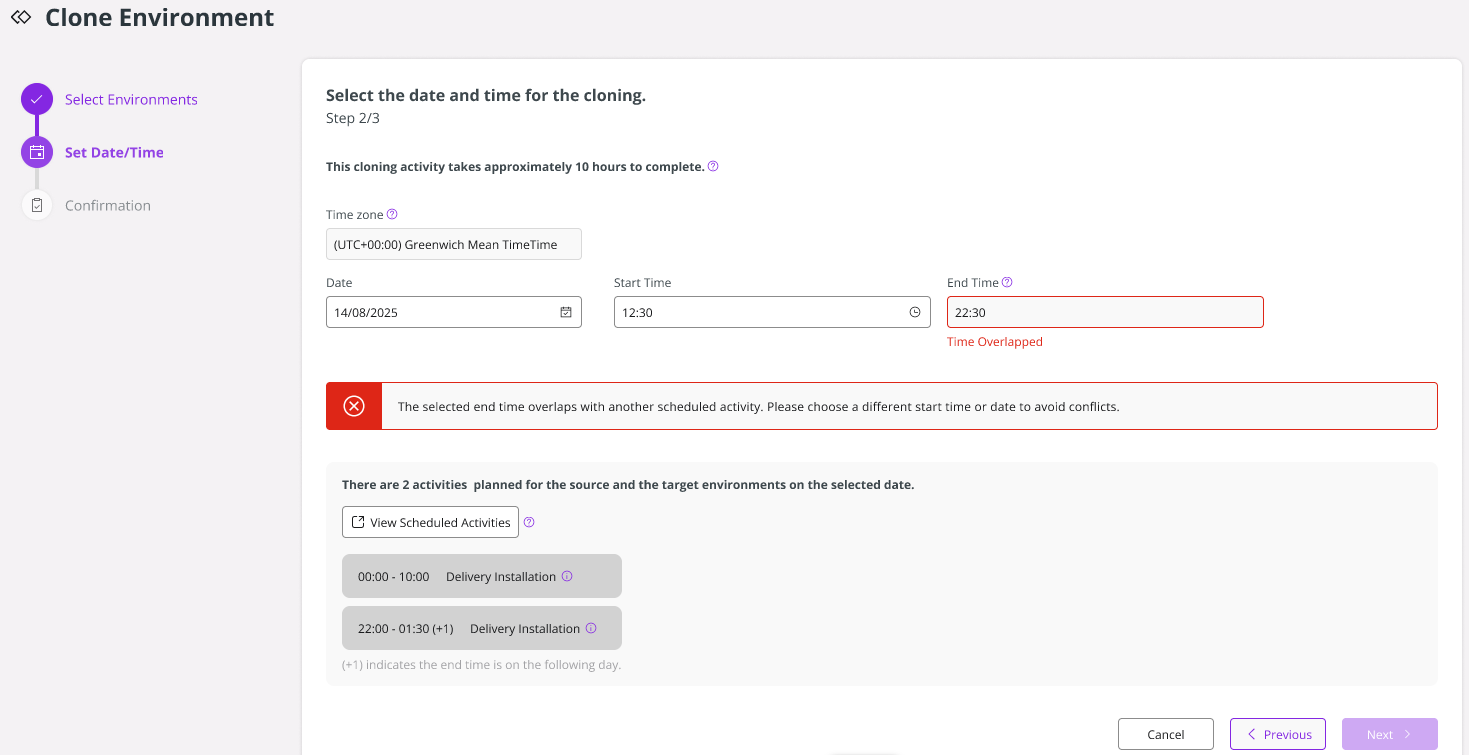 |
|---|
| Figure 8 -Time Overlap Error Message in Environment Cloning |
Confirmation¶¶
Confirmation of Success¶¶
When your environment cloning request is successfully submitted, a success TOAST pops up.
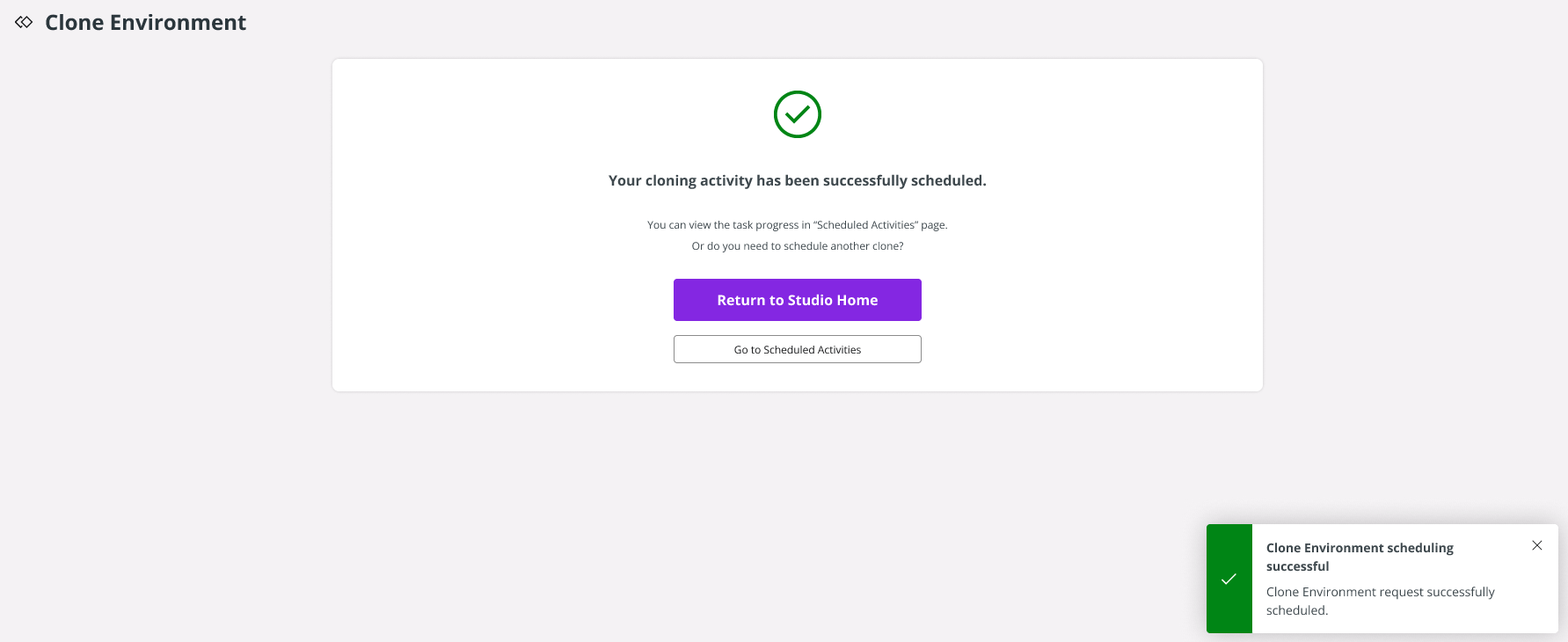 |
|---|
| Figure 9 -Success Toast of Environment Cloning |
Confirmation of Failure¶¶
If the environment cloning request fails, please try again. If the issue persists, contact IFS Support.
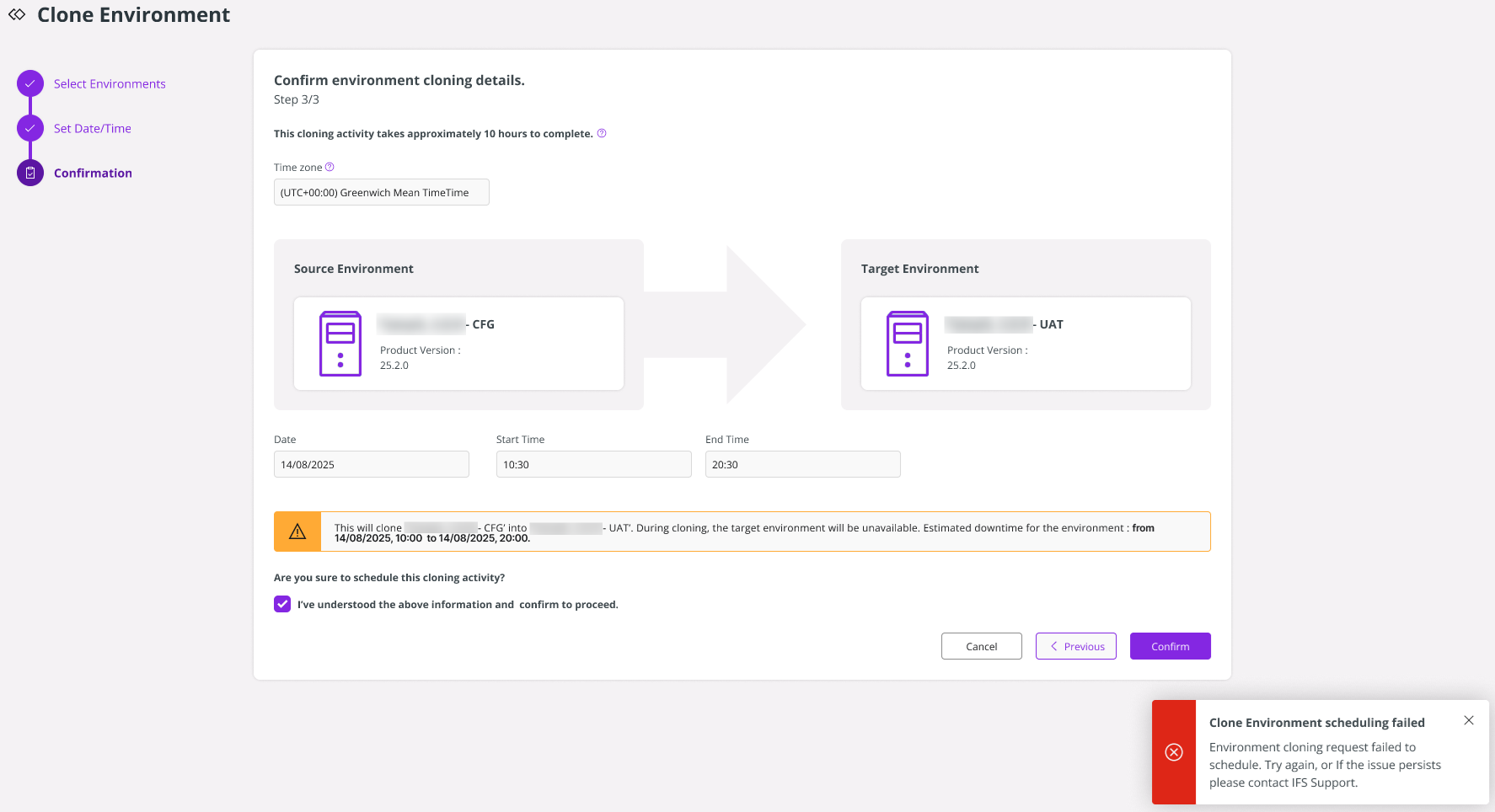 |
|---|
| Figure 10 -Error Toast of Environment Cloning |
If any conflict occurs during the environment cloning request, an error TOAST appears at the bottom of the page. Please click Previous, select another slot to proceed with cloning. Click Schedule Activities under the Activity Panel from the left sidebar to check all scheduled activities.
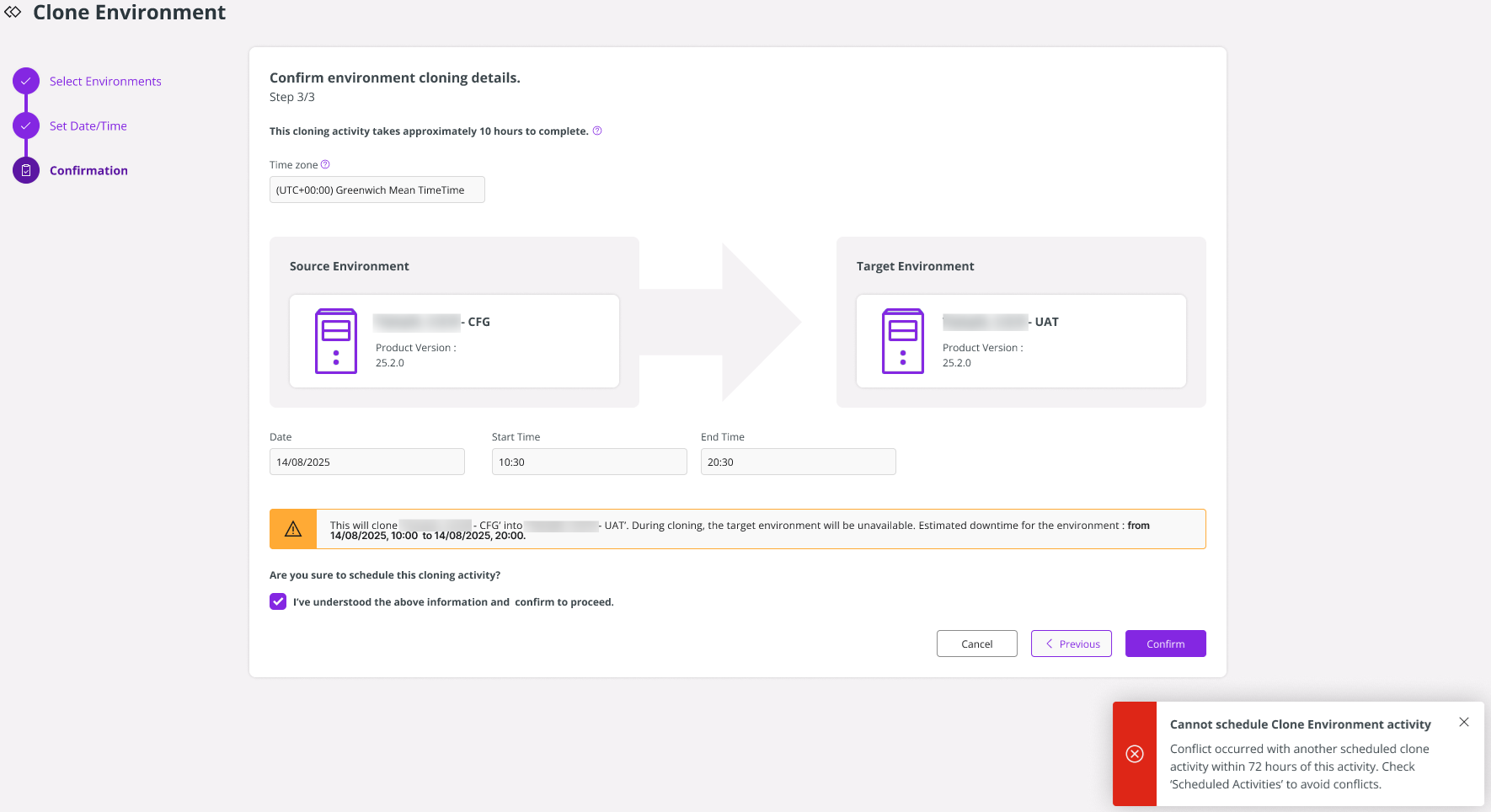 |
|---|
| Figure 11 -Error Toast of Environment Cloning |
Cancel Environment Cloning
To cancel a scheduled environment cloning activity, follow the steps in Manage Scheduled Activities.