Manage Scheduled Activities
In Environment Studio, you can view the Scheduled Activities table to see all scheduled deliveries, scheduled PSO upgrades, environment cloning tasks, and scheduled standard maintenance activities. Besides viewing the activities, the Scheduled Activities table can be used to cancel scheduled deliveries, PSO upgrades, and environment cloning tasks. It also allows you to reschedule standard maintenance activities.
Navigation
Log in to the Lifecycle Experience Center (LEC) and click Environment Studio. In the left sidebar, select Scheduled Activities under Monitoring.
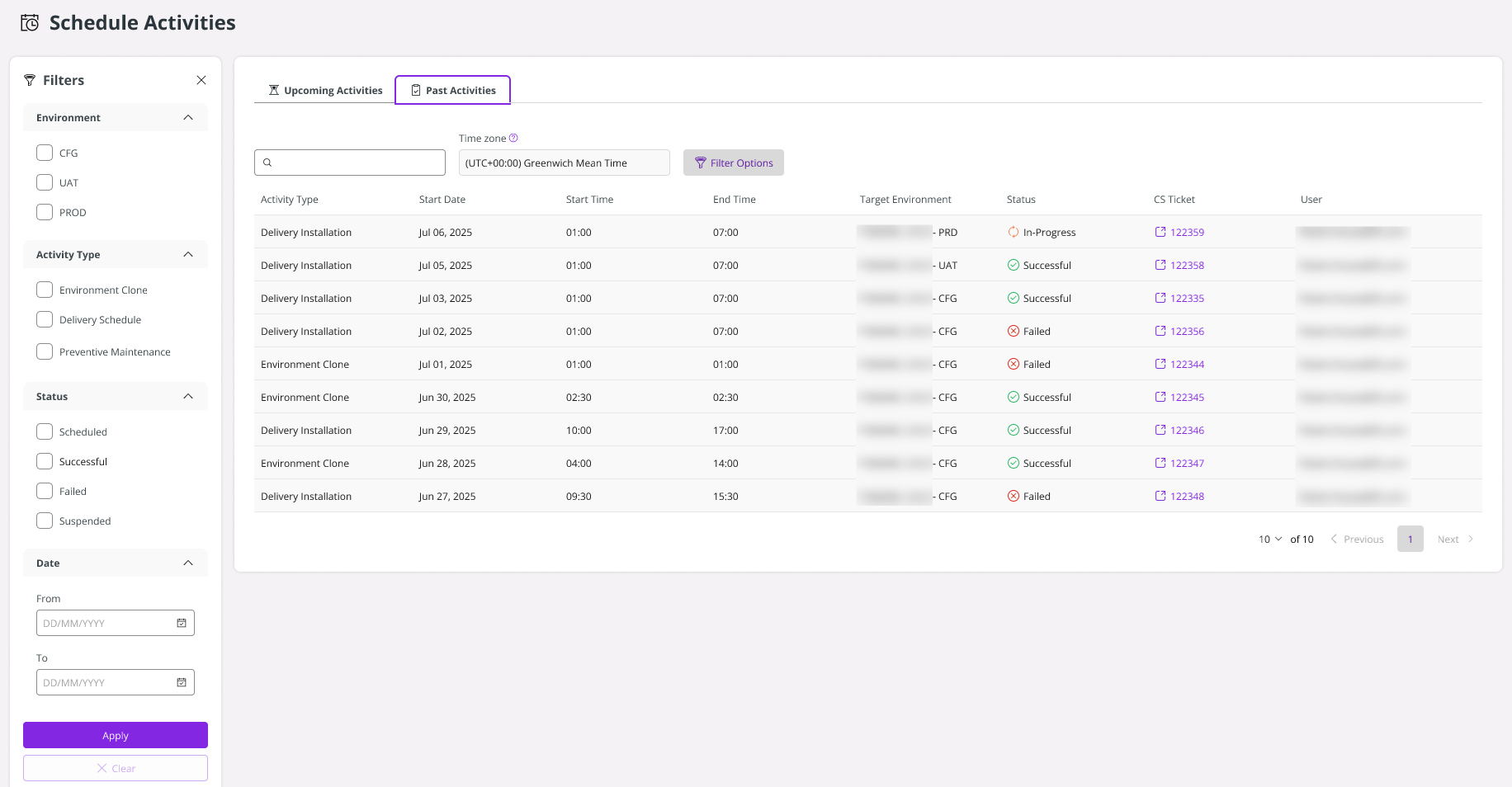
On the Scheduled Activities Page, you see the Upcoming Activities tab and the Past Activities tab.
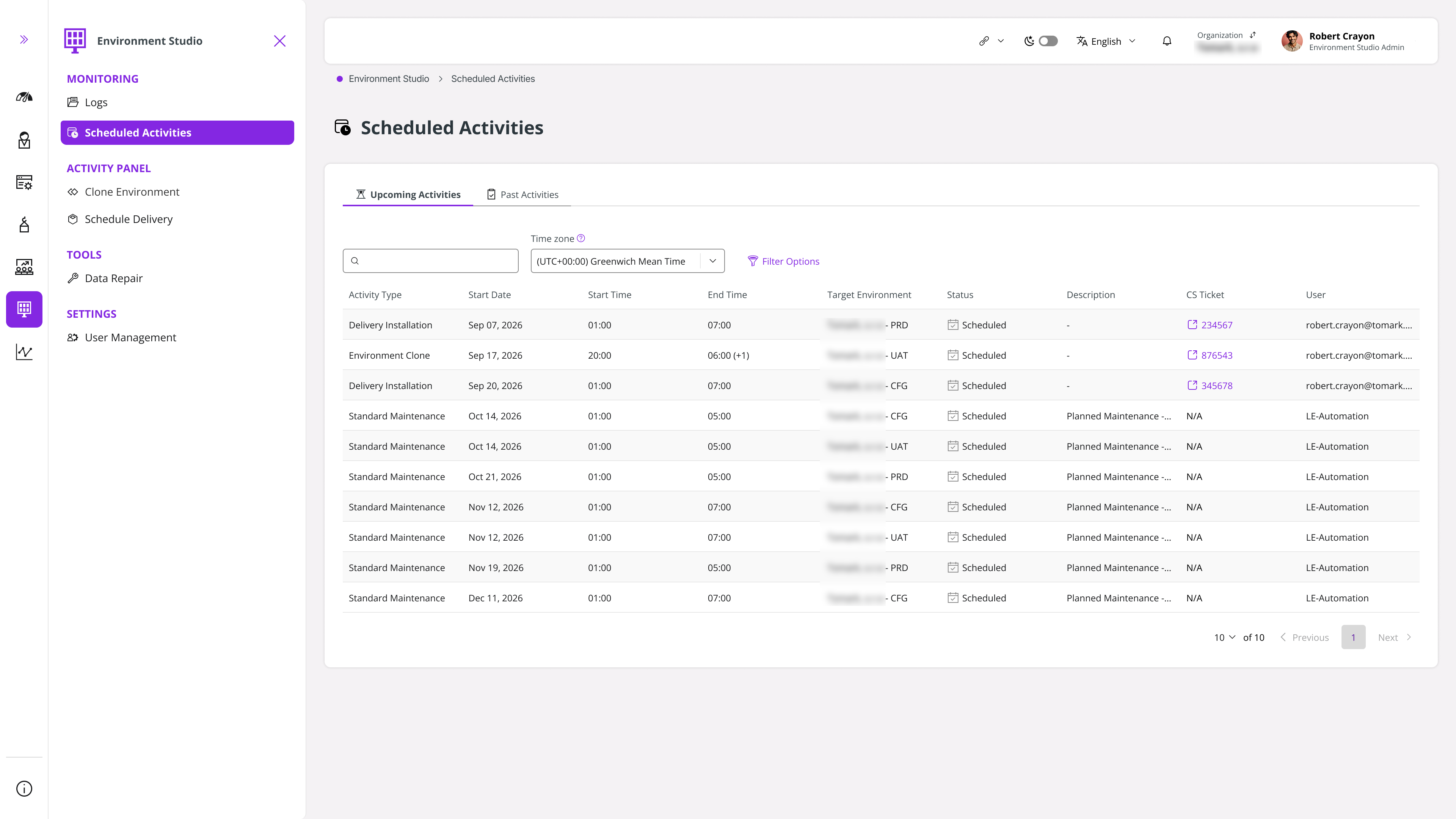
Cancel a Scheduled Activity
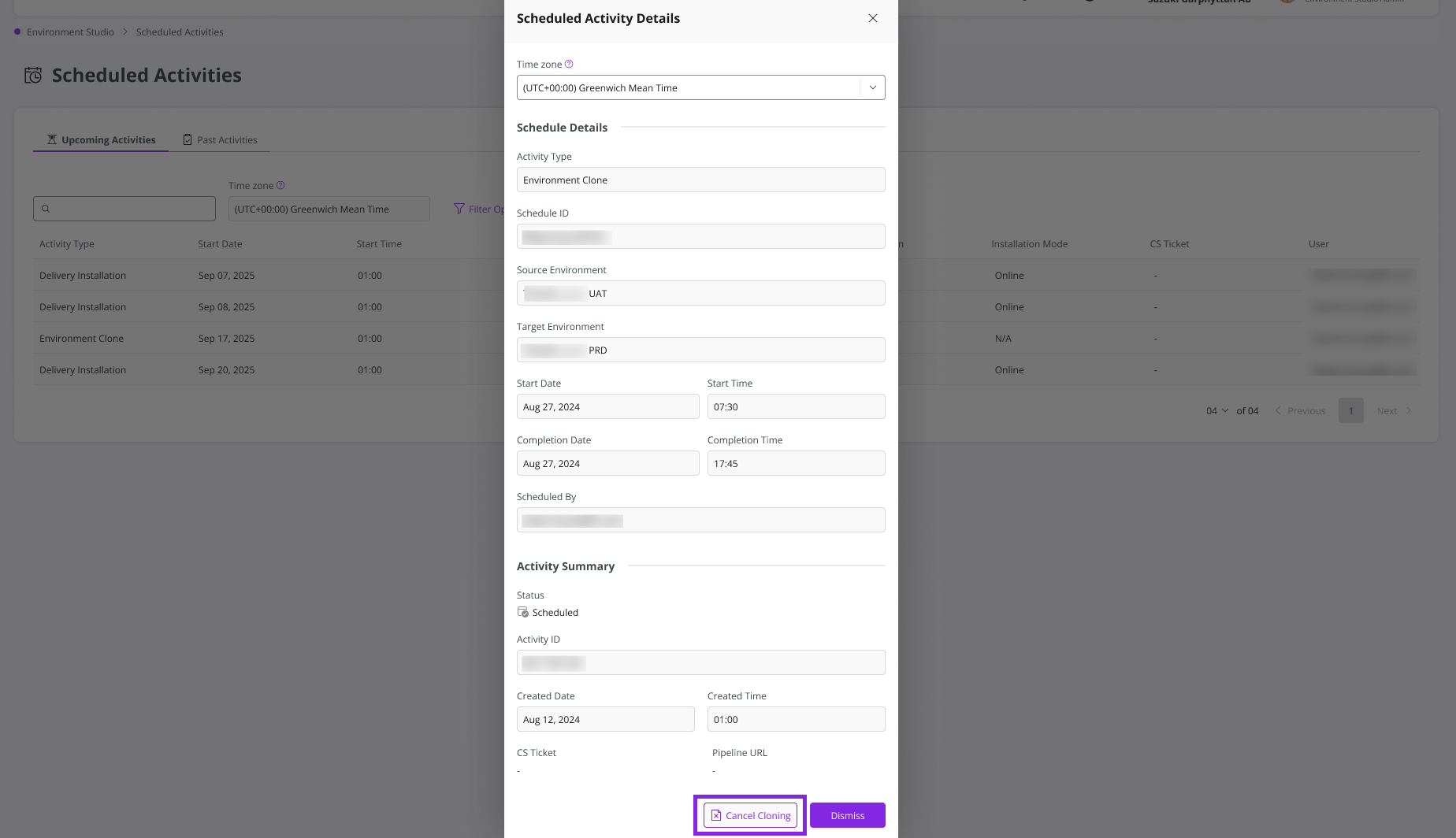
To cancel a scheduled delivery installation, PSO upgrade installation, or a scheduled cloning of an environment, go to the Upcoming Activities tab and click the scheduled activity that you want to cancel. Once clicked, the Scheduled Activity Details panel opens up. Then, click Cancel.
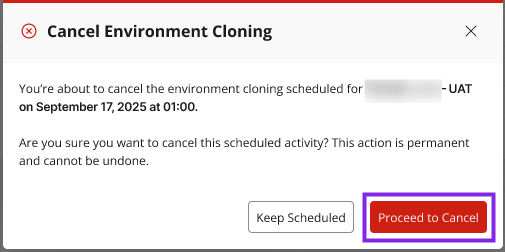
After that, a confirmation dialog pops up confirming the cancellation. Click Proceed to Cancel.
The Past Activities tab now contains a record of the cancelled activity, with its status being updated to Cancelled.
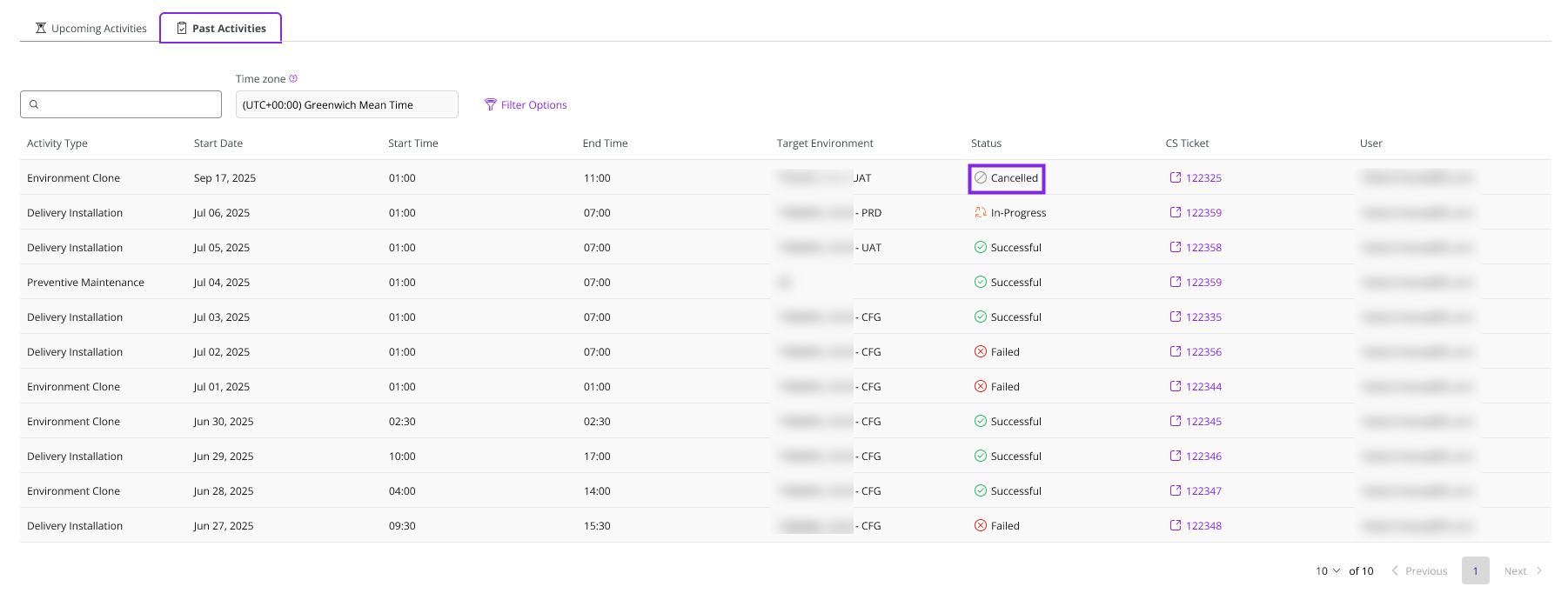
Reschedule a Maintenance Activity
All standard maintenance activities scheduled in SNOW (ServiceNow) are now available in the Scheduled Activities table. To reschedule a maintenance activity, you must be using version 25R2 or later with access to LEC Environment Studio. Please refer Flexi Maintenance Page to reschedule a standard maintenance activity.
Search Scheduled Activity
To filter out a certain activity scheduled via Environment Studio, click Filter Options.
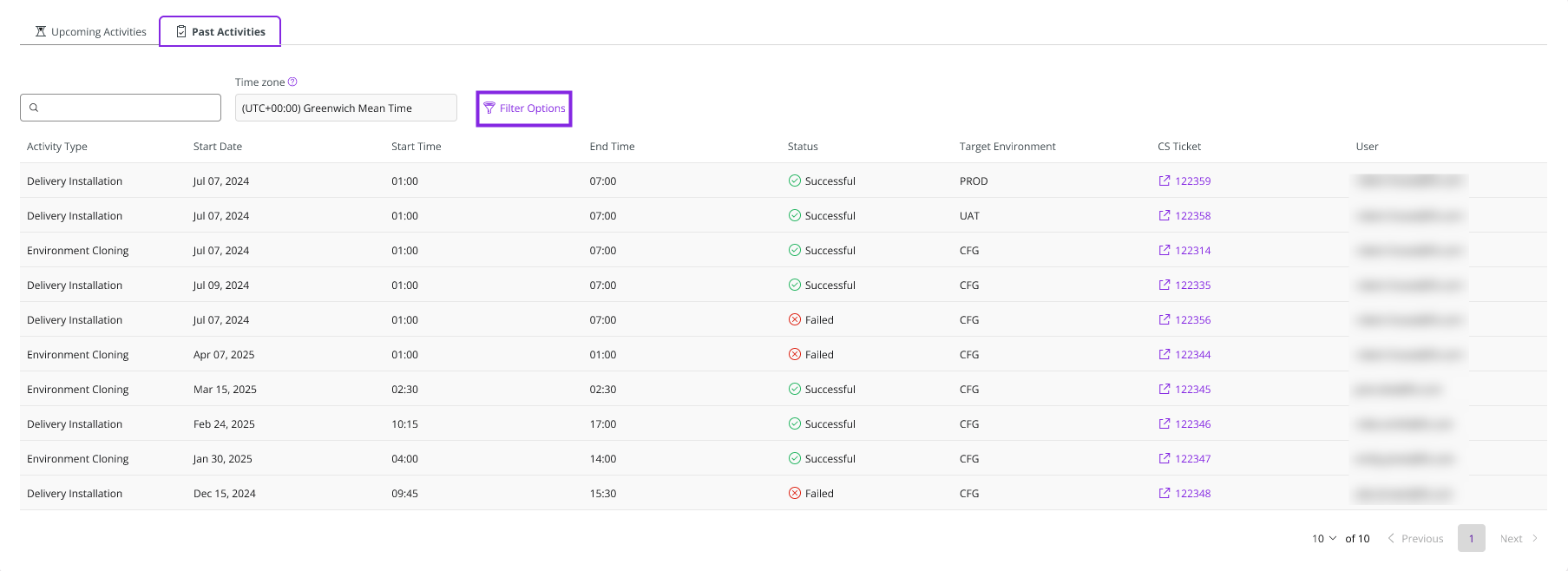
Then, the Filters side panel opens up. This allows you to filter results by Environment, Activity Type, and Status. After setting the filters, click Apply.