Flexi Maintenance
Flexi Maintenance (also referred to as Flexible Maintenance Window) is an IFS Cloud service that gives eligible customers greater control over when scheduled standard maintenance takes place, instead of being restricted to the standard IFS-defined maintenance window.
In the standard model, IFS performs planned maintenance at fixed times that apply to all customers in a region, and these planned maintenance schedules are communicated via the IFS Service Center banner.
With the introduction of Flexi Maintenance, all planned standard maintenance activities are visible and listed in the Scheduled Activities table of Environment Studio within the Lifecycle Experience Center (LEC). Additionally, customers with the Flexi entitlement can reschedule their monthly maintenance to a time window that better aligns with their business operations using the LEC Environment Studio.
Pre-requisites
- Purchase the entitlement: FLEXI
- Enable the Flexi Maintenance toggle in Admin Studio under Feature Management. (Done by an administrator from the IFS Support Team)
- IFS Cloud version 25R2 or later, with access to the LEC Environment Studio.
- Authorization for the Environment Studio Admin role to reschedule maintenance using Flexi Maintenance
Key Considerations
- Rescheduling of maintenance for an environment must be initiated at least 72 hours (three days) before its scheduled start time.
- The Non-Production maintenance should be tested and completed before the Production maintenance.
- There should be a 7-day gap between the Non-Production start time and the Production start time.
- All non-production environments share the same maintenance scheduled time. Therefore, if a customer reschedules one non-production maintenance time, then all other non-production maintenance times get updated accordingly.
- All the rescheduled dates must be after the IFS standard maintenance window.
Re-scheduling a Non-Production Maintenance
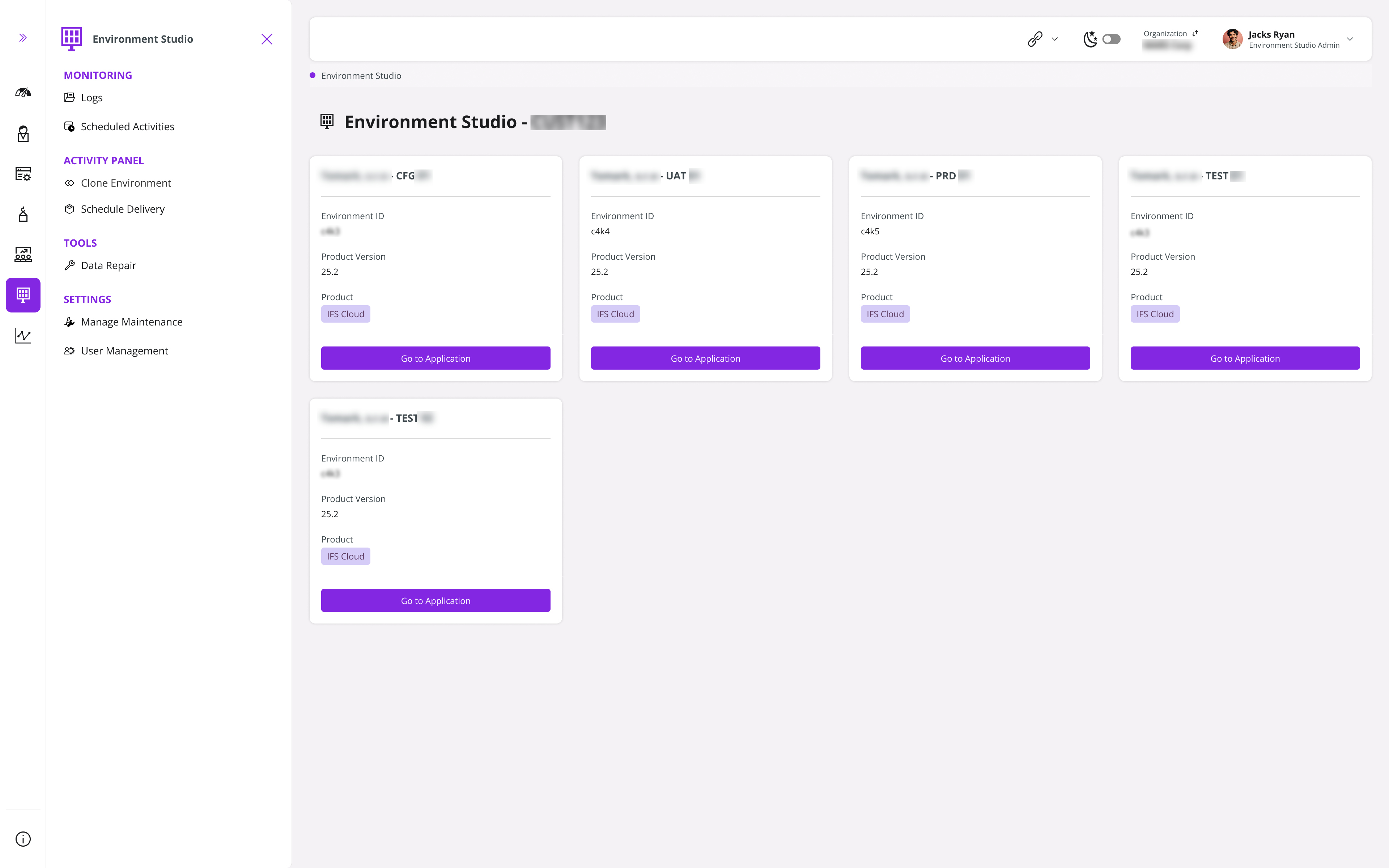
- Log in to the Environment Studio of Lifecycle Experience Center (LEC).
 |
|---|
| Figure 1 - LEC Environment Studio |
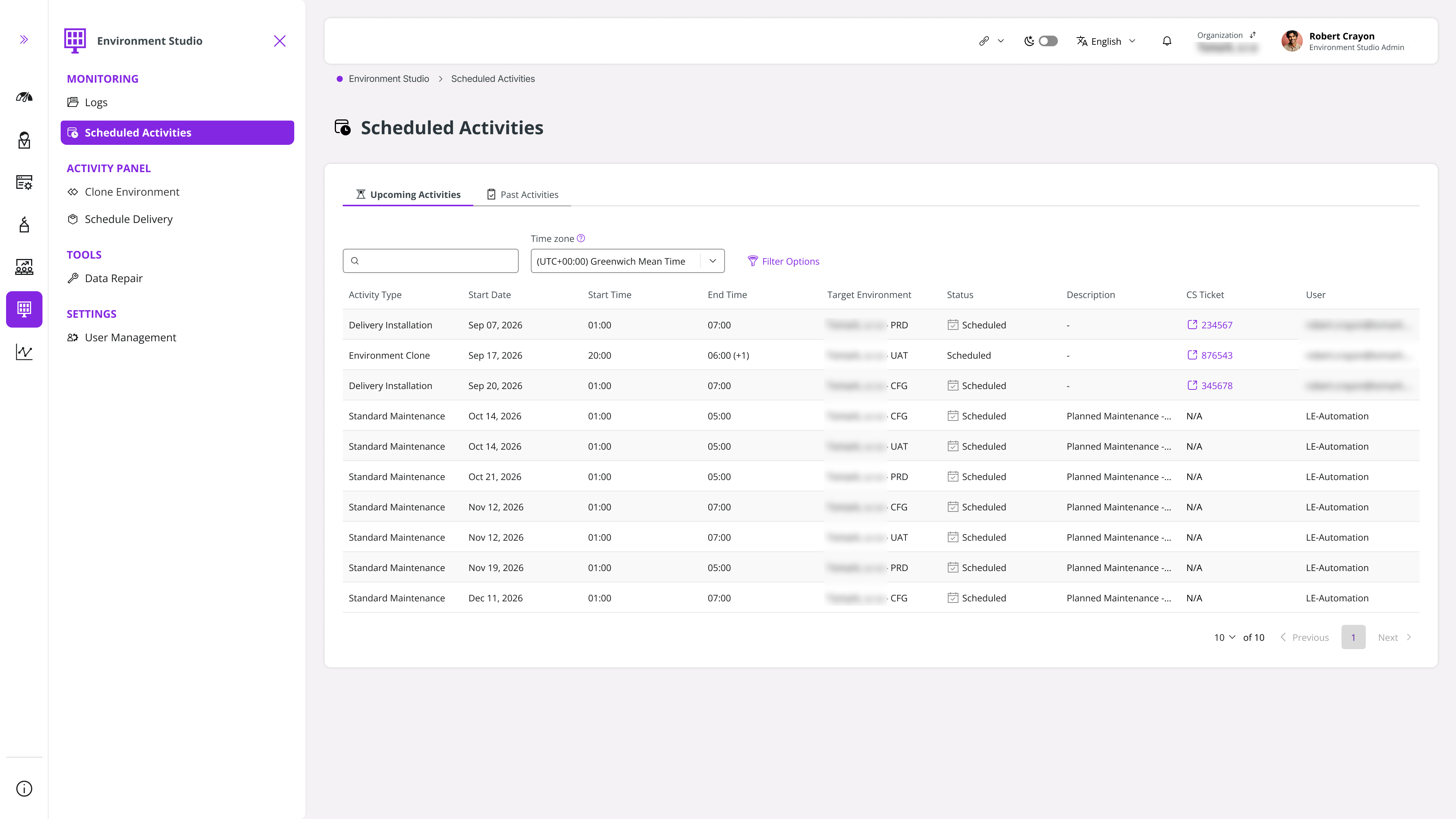
- In Environment Studio, click Scheduled Activities. All the scheduled standard maintenance activities are now visible in the Scheduled Activities table.
 |
|---|
| Figure 2 - Scheduled Activities Table |
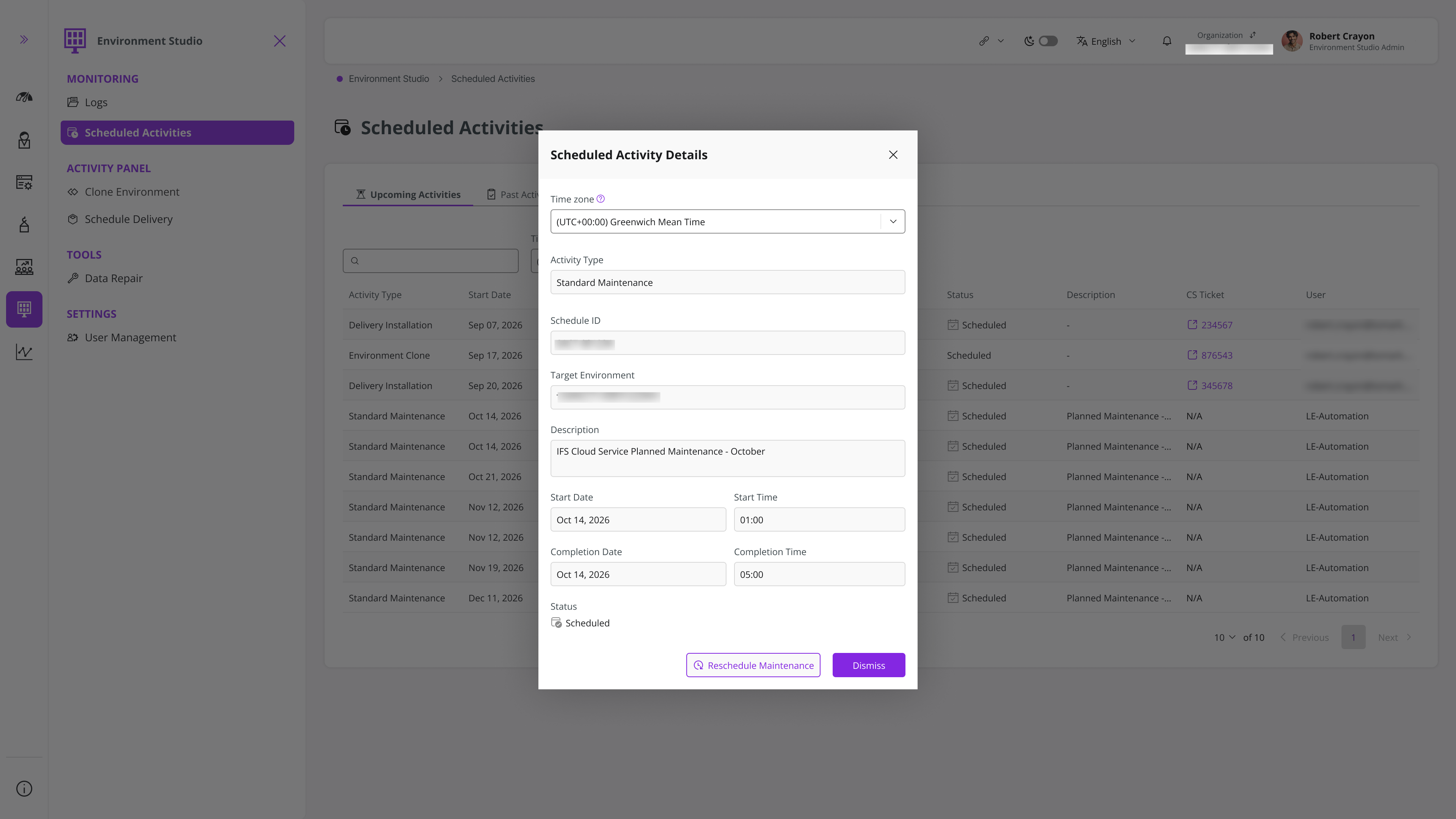
- Click the non-production maintenance activity you want to change. Then, you see the Scheduled Activity Details window. Click Reschedule Maintenance.
 |
|---|
| Figure 3 - Scheduled Activities Details |
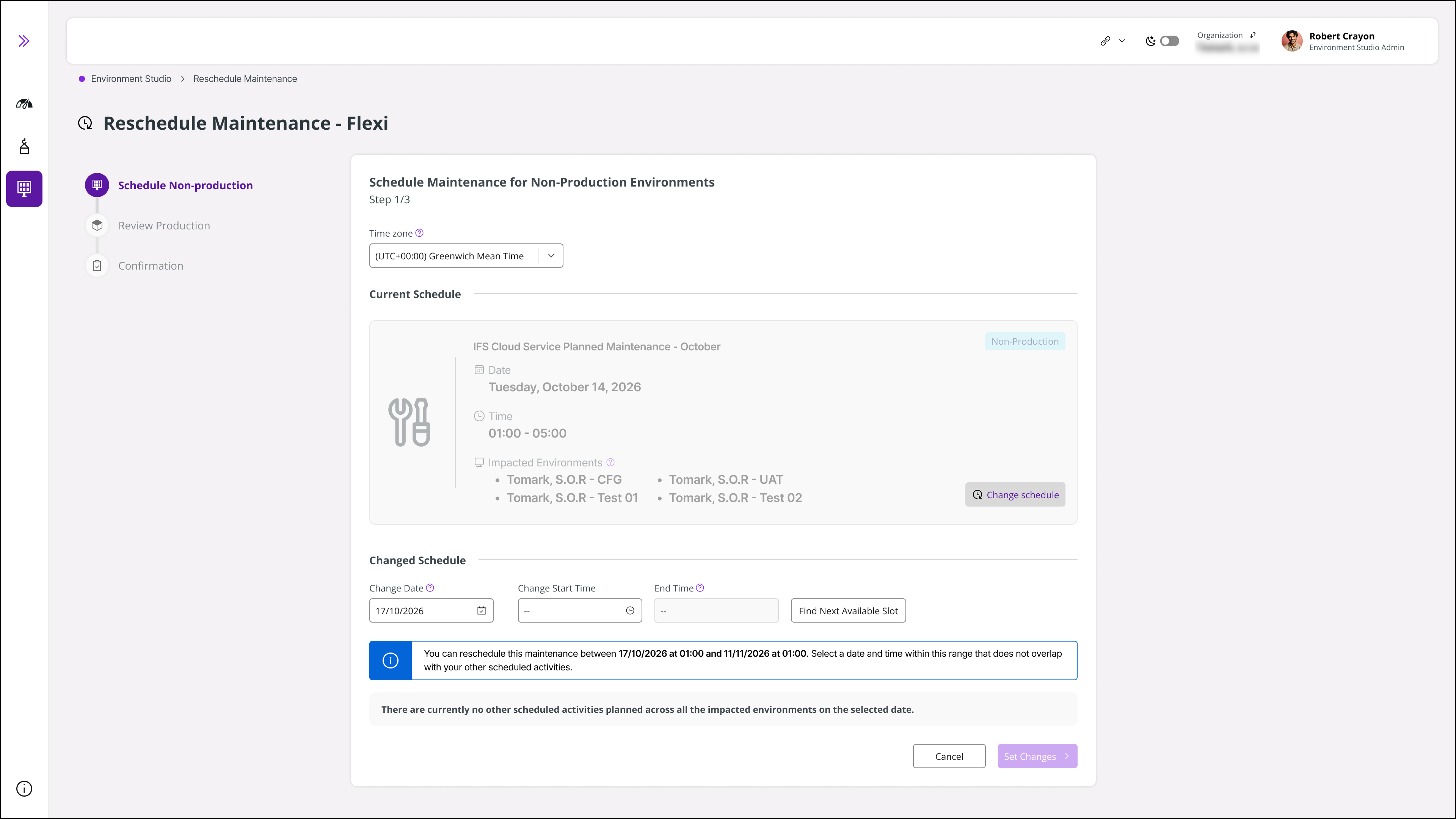
- The Reschedule Maintenance - Flexi Page opens up. You can see the stepper view with 3 main steps: Schedule Non-Production, Review Production, and Confirmation.
Schedule Maintenance for Non-Production Environments
 |
|---|
| Figure 4 - Change Non-Production Maintenance |
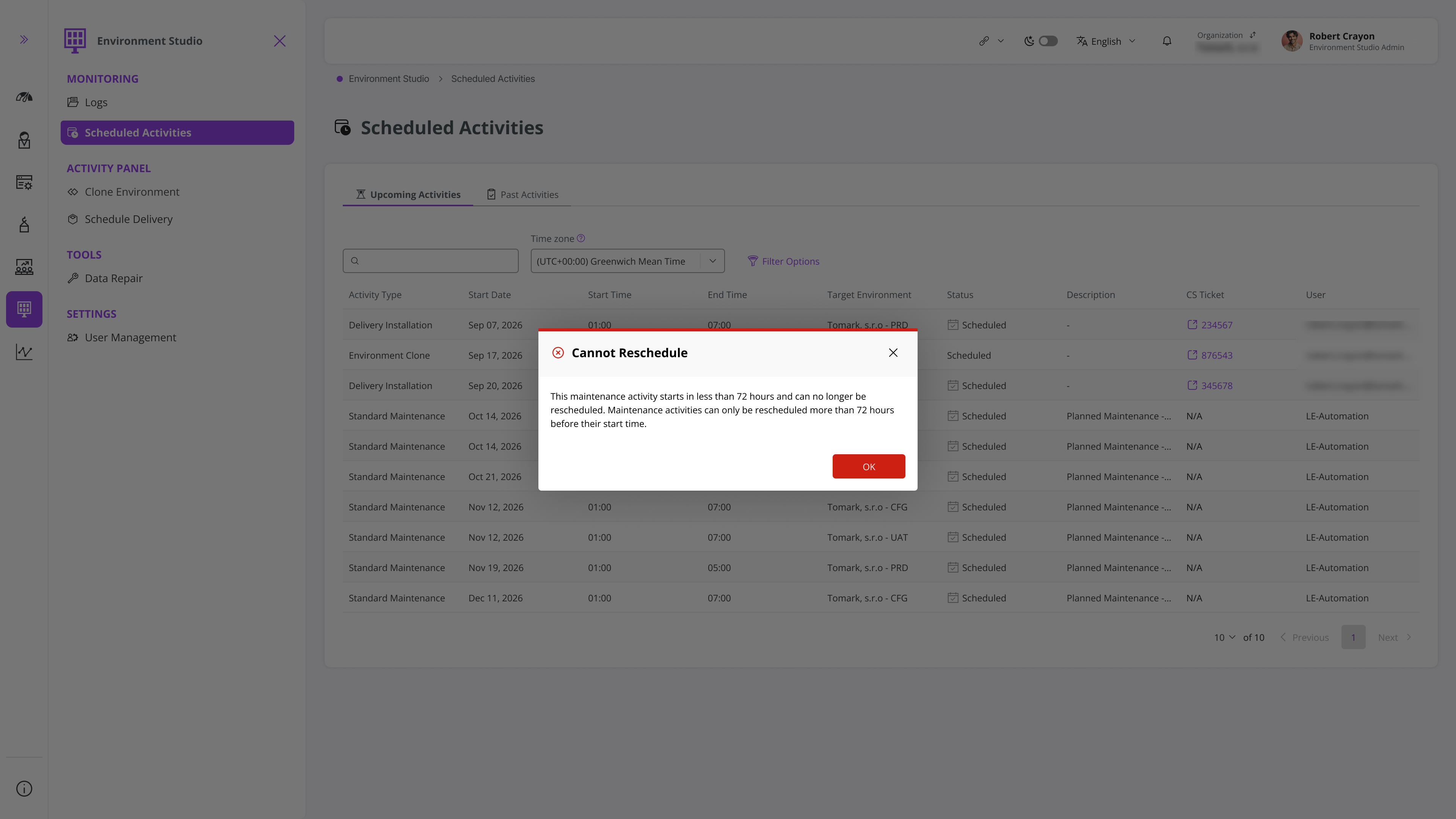
- If you attempt to reschedule maintenance less than 72 hours before the scheduled start time, an error message is displayed.
 |
|---|
| Figure 5 - Error Message on 72-hour Maintenance Initiation |
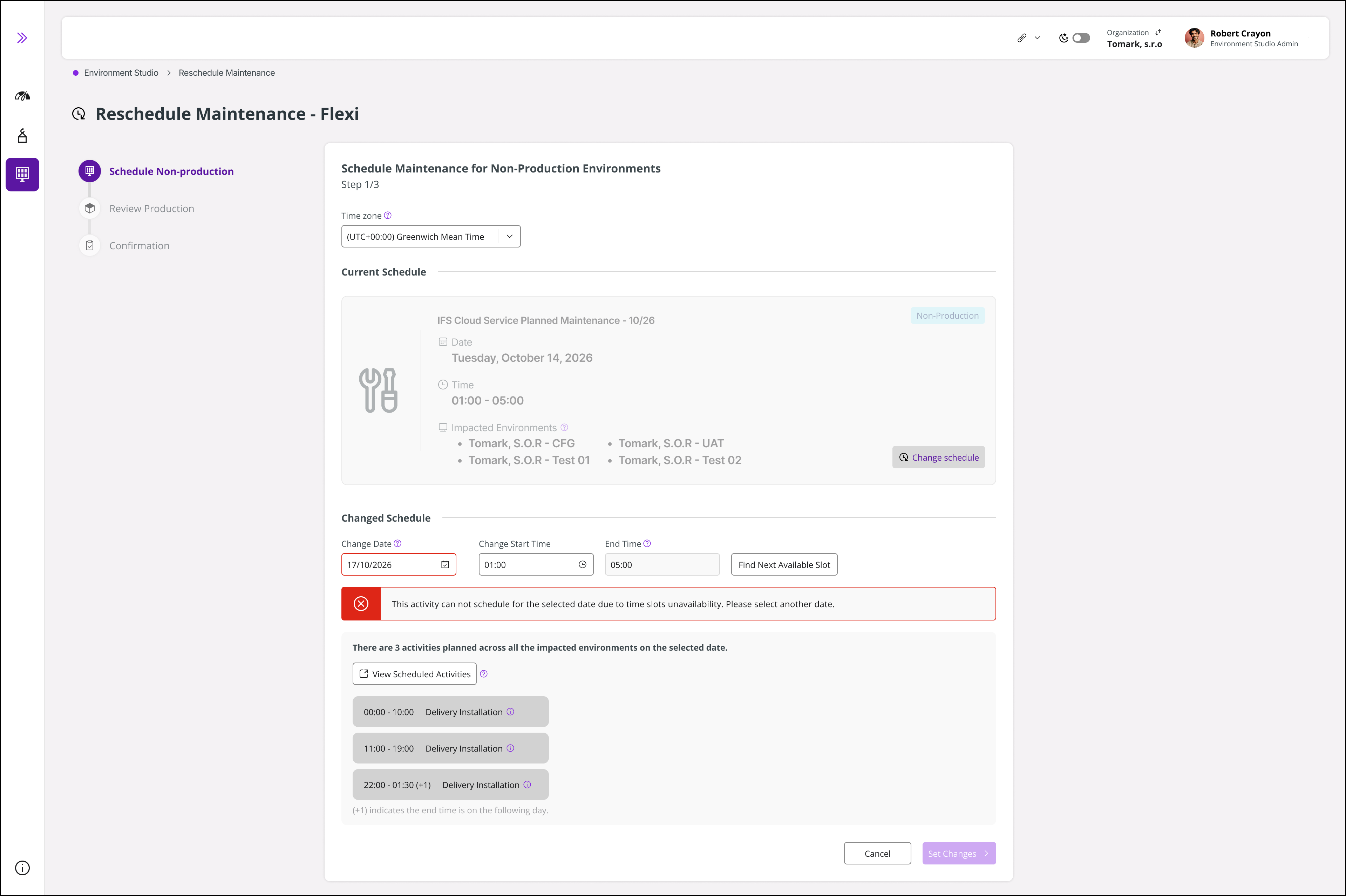
- When the scheduled date is not available for the maintenance activity, a notification appears indicating the unavailability.
 |
|---|
| Figure 6 - Changed Date is Not Available for Maintenance |
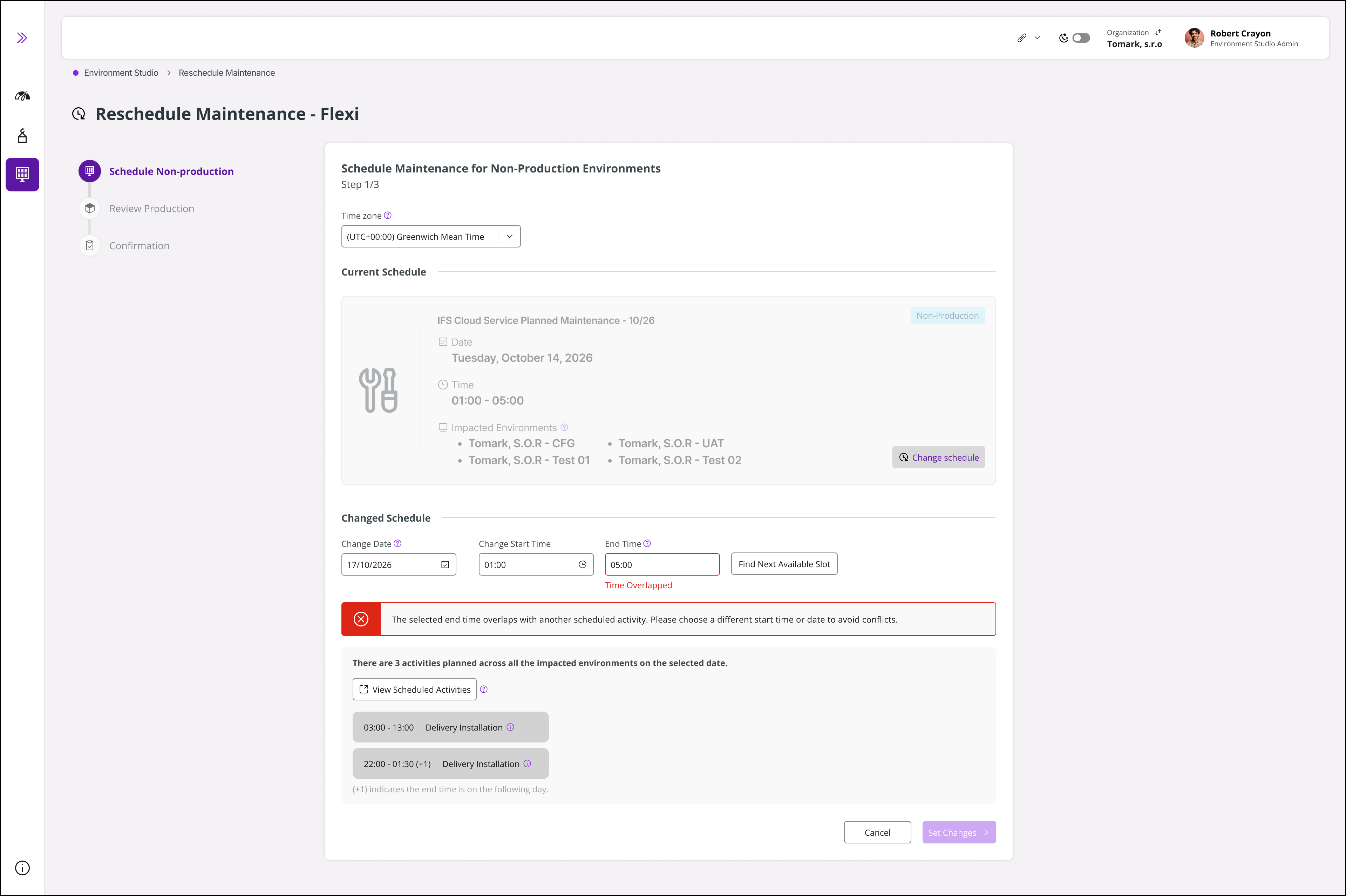
- When the date and time conflict with another scheduled activity, a notification appears indicating the unavailability.
 |
|---|
| Figure 7 - Changed Date/ Time is Not Availble for Maintenance |
- Once all changes are set for the maintenance without conflicts, click Set Changes. Then, you are taken to the Schedule Production step.
Schedule Production
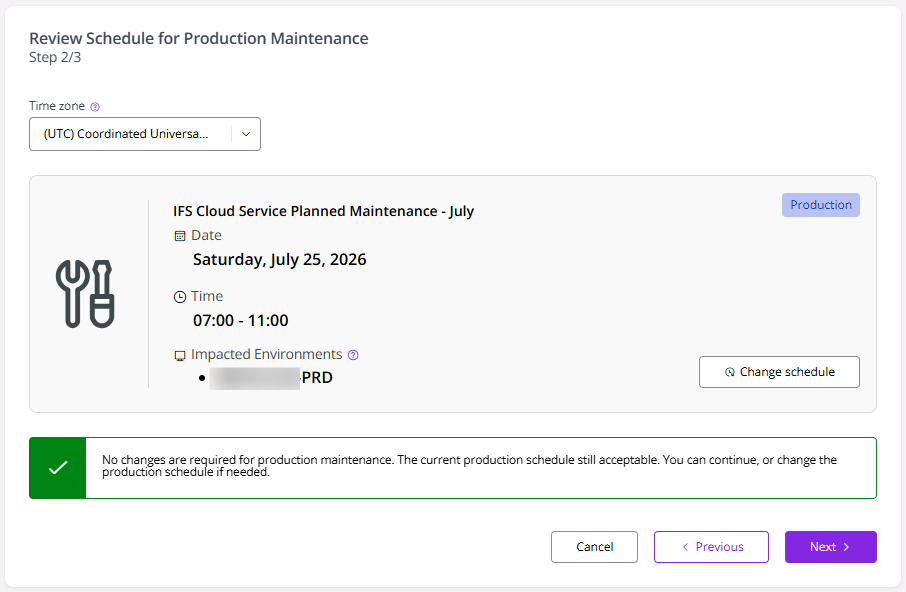
- If the changed non-production start time does not violate the constraint of keeping a 7-day gap between non-production maintenance and production maintenance, you can proceed with confirmation.
 |
|---|
| Figure 8 - Schedule Production Maintenance |
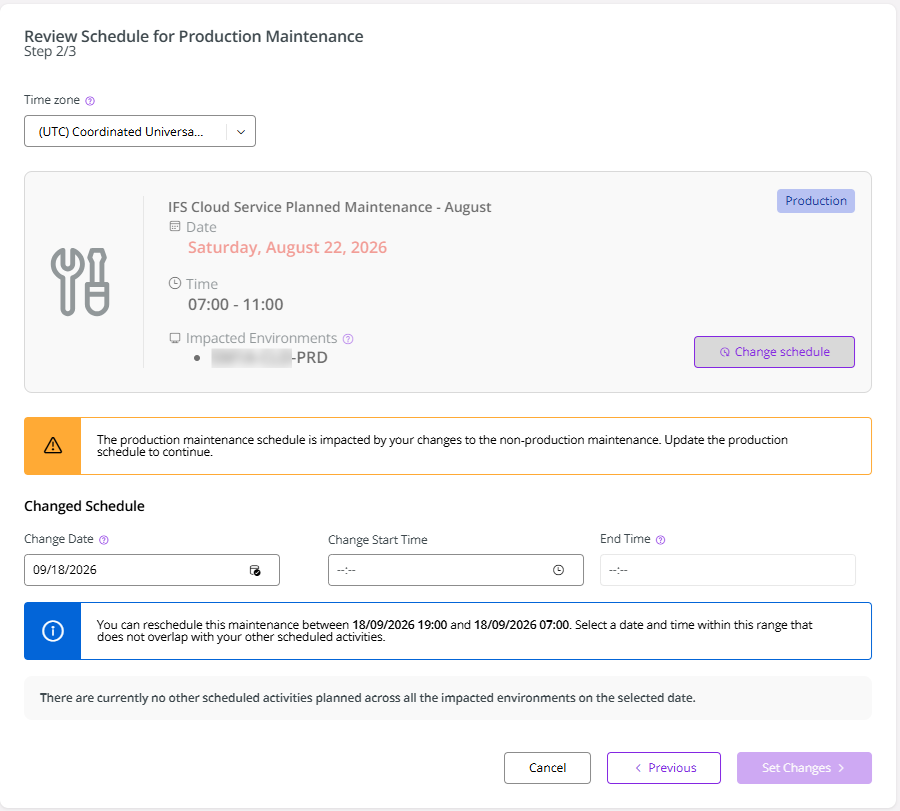
- If the changed non-production maintenance start time impacts the 7-day gap between the non-production maintenance start time and production start time, you need to change the production maintenance start time accordingly. Then, you have to set the new Date and Start Time. Click Set Changes.
 |
|---|
| Figure 9 - Change Production Maintenance Date/Time |
Confirmation
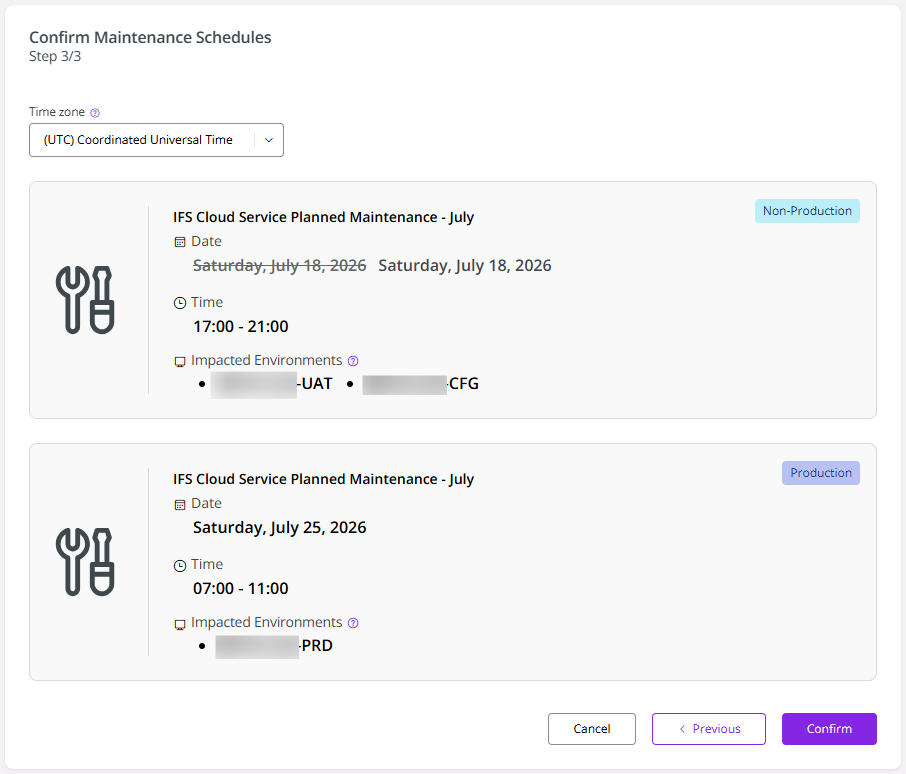
- Finally, you should verify the changes made to both non-production and production maintenance activities. After verification, click Confirm.
 |
|---|
| Figure 10 - Confirm the Rescheduled Date/Time |
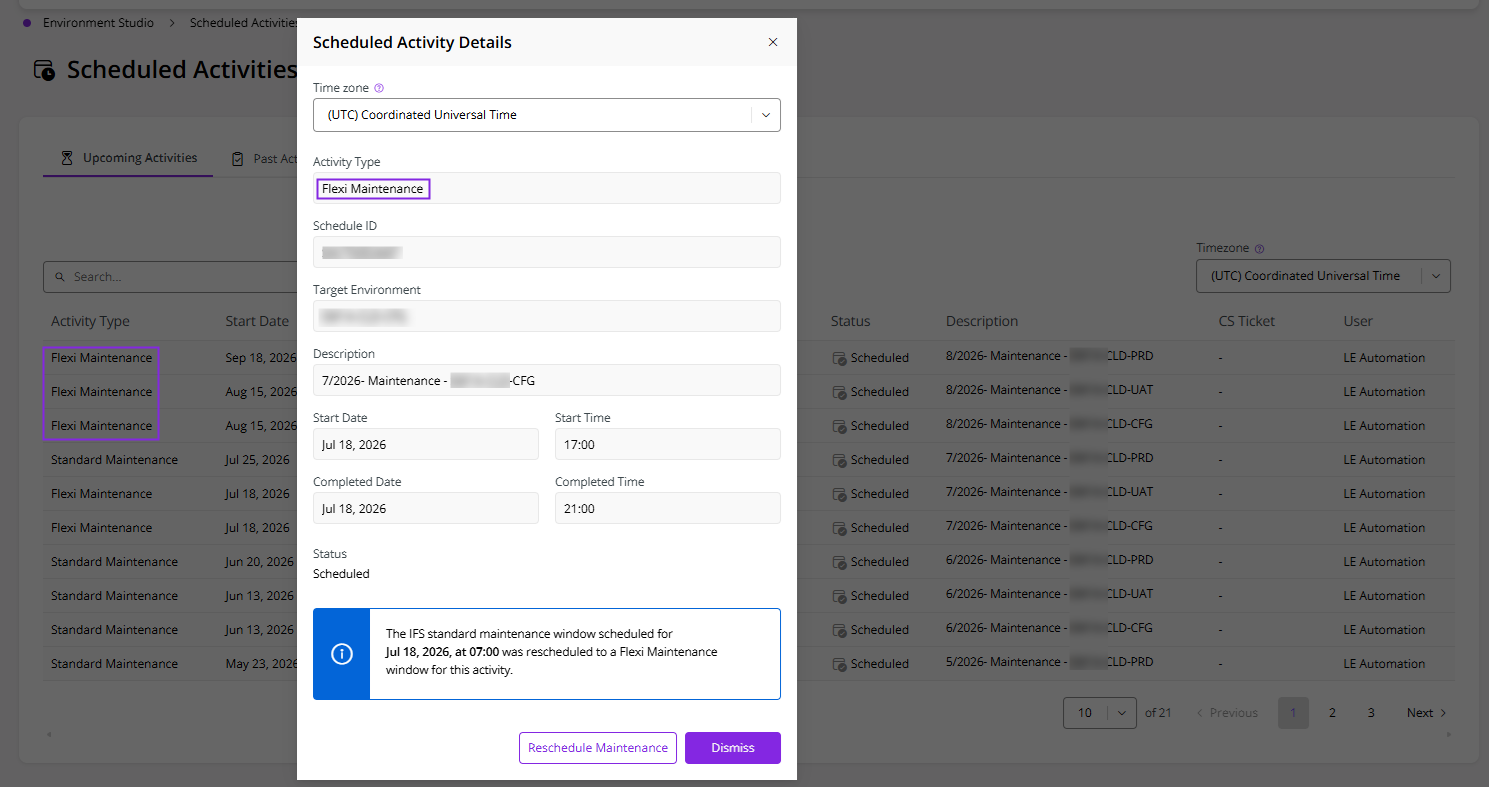
- Check the Scheduled Activities table to check the rescheduled maintenance. You should see the rescheduled maintenance activity as a Flexi Maintenance activity now.
 |
|---|
| Figure 11 - Standard Maintenance changed to a Flexi Maintenance |
Rescheduling a Production Maintenance
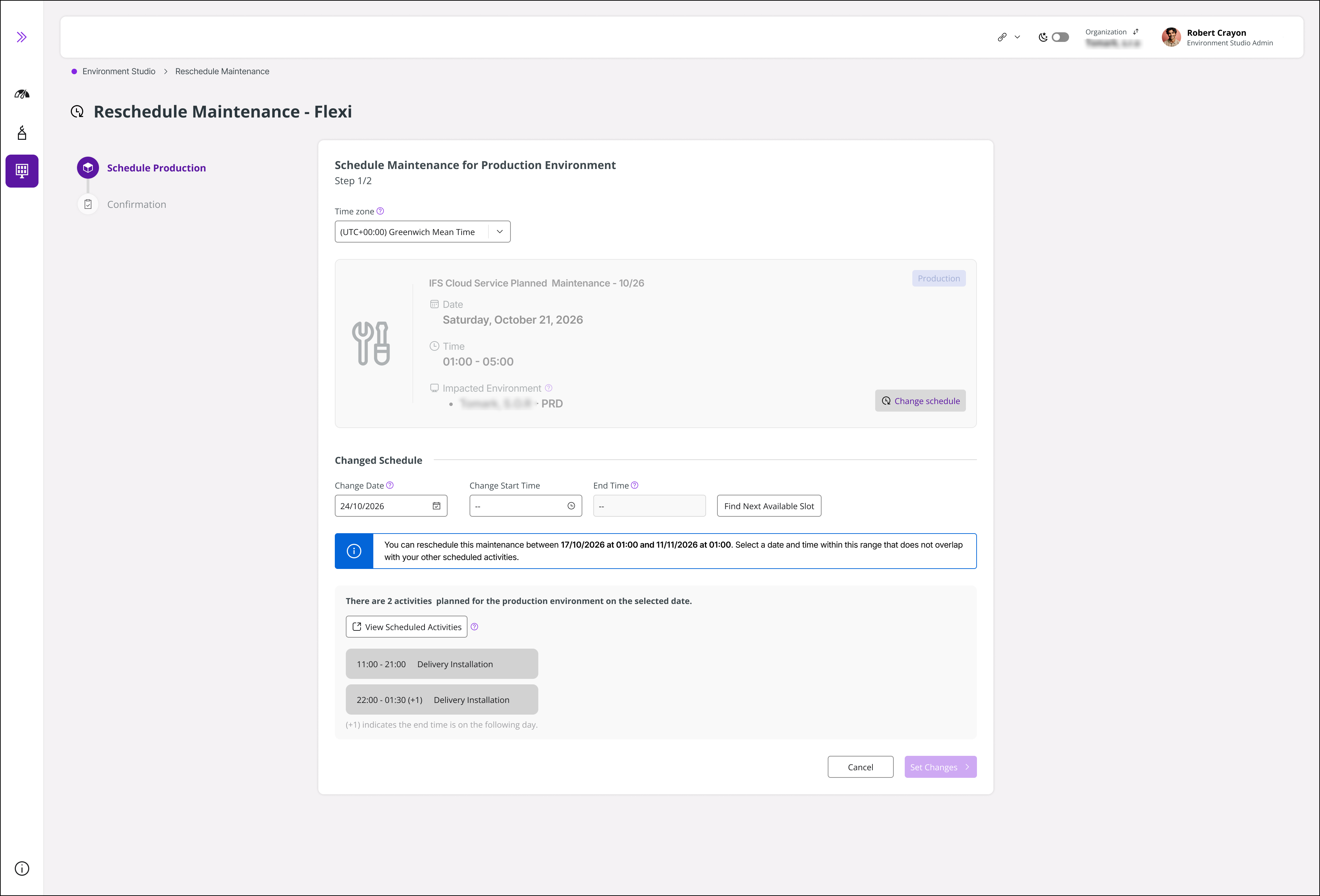
Similarly, a Production Maintenance Activity can also be rescheduled directly. When you click to reschedule a production maintenance directly, it opens up a stepper view with 2 main steps: Schedule Production and Confirmation.
 |
|---|
| Figure 12 - Schedule Production Maintenance |