Impact Analysis
Related Pages
- The IFS Impact Analyzer section of the Technical Documentation at https://docs.ifs.com.
- Select IFS Technical Documentation > IFS Cloud. Select the relevant release version and then navigate to Development Guide > Development Tools > Impact Analyzer.
Overview
Impact Analysis refers to the analysis done with the help of the Impact Analyzer tool prior to applying the release update. The analysis is performed in order to assess the impact of the existing customizations from the Release Update that the customer is planning to upgrade to.
Behavior of the Release Update Studio Navigator
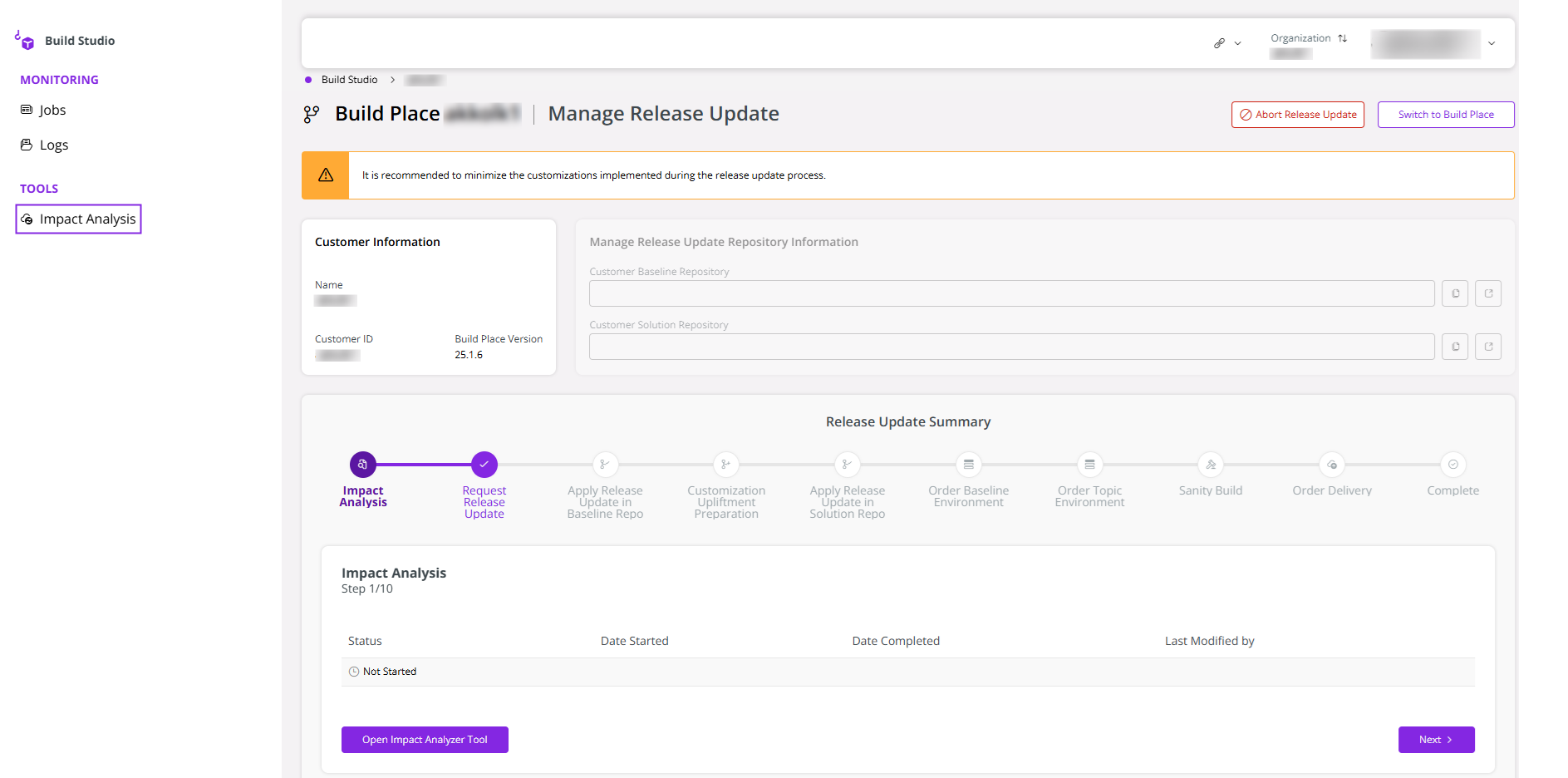
First, navigate to the Release Update Studio of the Build Place.
To run the impact analysis, click Open Impact Analyzer Tool in the Release Update Studio.
 |
|---|
| Figure 1.1 - Impact Analyzer Button in Release Update Studio |
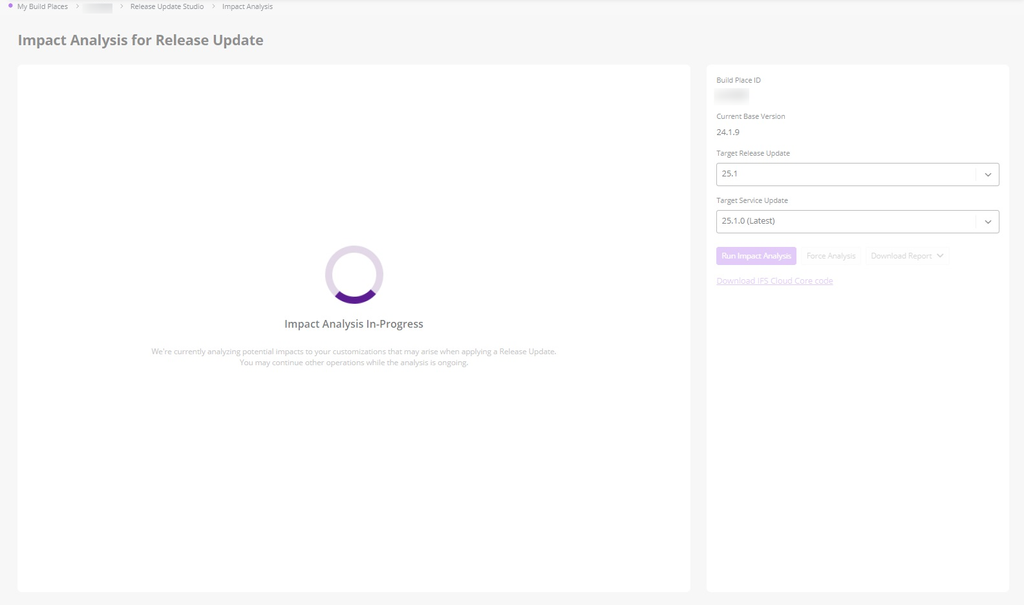
Then, a new panel opens up to run your analysis report. Select the Release Update version/ Service Update version from the Target Release Update / Target Service Update dropdown lists.
Finally, click Run Impact Analysis.
 |
|---|
| Figure 1.2 - Impact Analyzer View |
If the assessment has already been performed, the user then moves on to the next step of the Release Update process, which is to request the release update.
Steps to follow after the analysis is initiated.
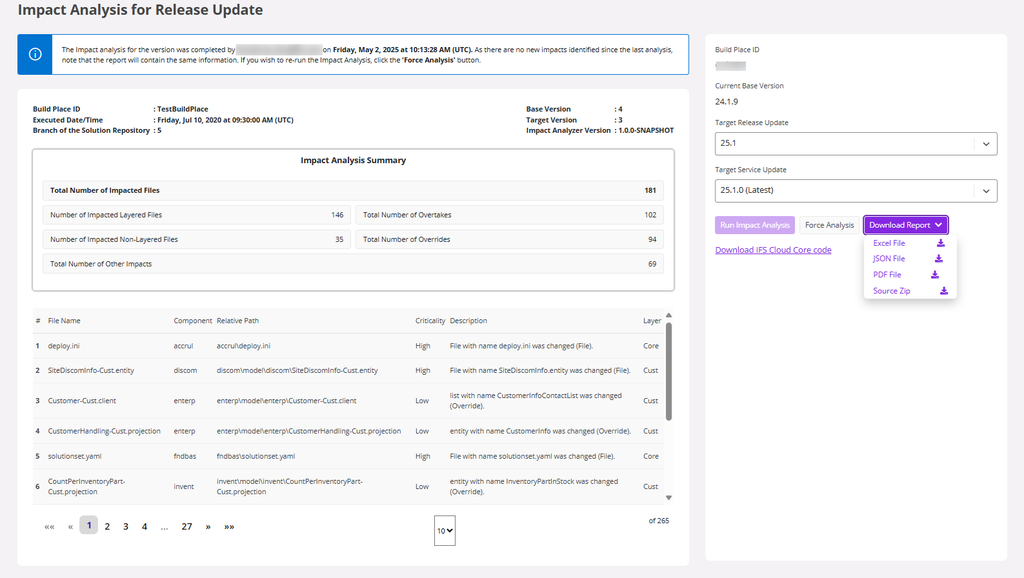
The loading screen is visible in the panel until the analysis report is ready. You can continue other Build Place operations during this time, as the report generation takes more than 30 minutes. Upon returning to the report view, please re-enter the initial values in the dropdown lists to generate the completed analysis report. Once the analysis process completes, you can download the report by clicking Download Report.
 |
|---|
| Figure 1.3 - Impact Analyzer Report Generation |
The report is available in three formats: JSON, PDF, and Excel. The JSON file can be utilized as an input for the Developer Studio, where it can be processed to generate a detailed comparison, or "diff," highlighting the differences between the current and updated versions.
 |
|---|
| Figure 1.4 - Impact Analyzer Report |
The Source Zip of the report is also downloadable, providing the impacted files and their corresponding source target files.
Please note that after the Download Report is clicked and the download is in progress, no progress bar is displayed. Please wait 1–2 minutes for completion. The download speed may vary depending on your network and file size. This limitation is temporary and will be resolved with an upcoming update.
Furthermore, if you need to observe/ analyze further on the IFS Core Code, click on the Download IFS Cloud Core Code link at the bottom of the panel.
Refer to Developer Studio Support for Impact Analysis for more details on importing the downloaded reports for analysis.
The Effect on the Release Update Summary Table
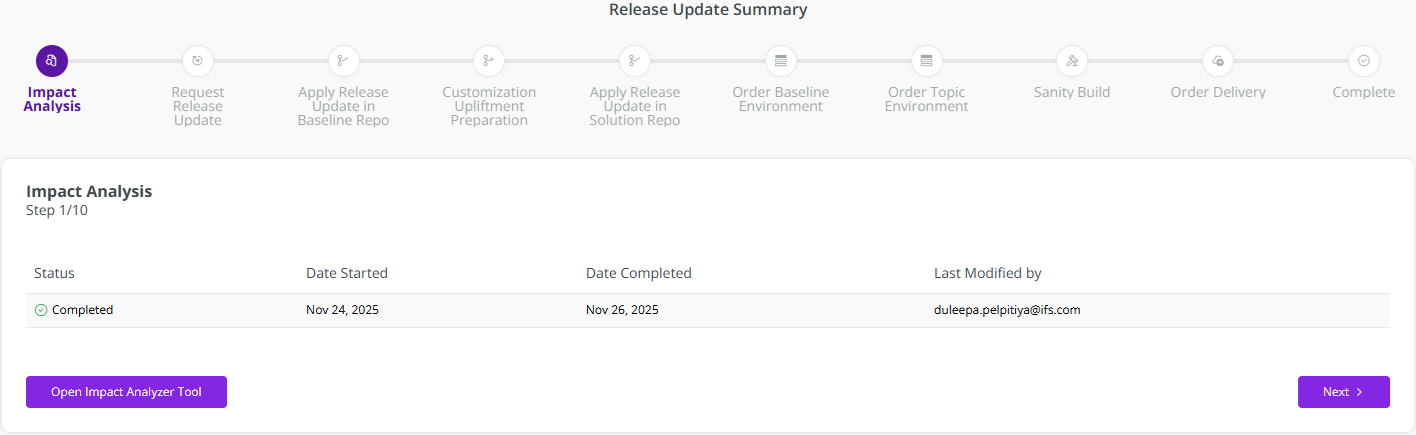
If the report is successfully generated, the status of the Impact Analysis record in the Release Update Summary table will be marked as Completed.
 |
|---|
| Figure 1.5 - Release Update stepper updated with the Impact Analysis progress |
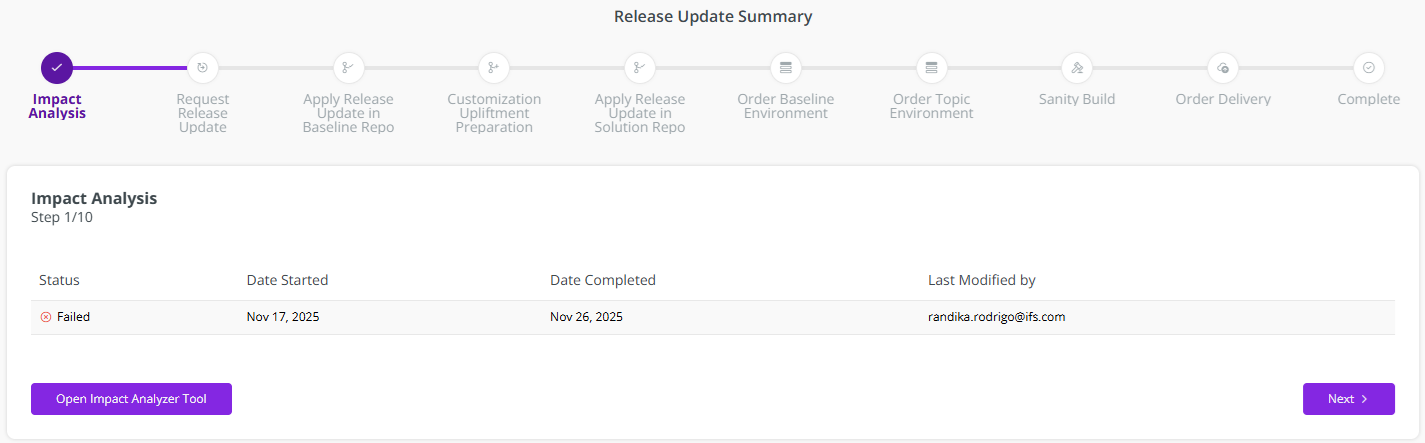
In the event that the report generation fails, the status appears as Failed in the Impact Analysis step (Figure 1.6) and the user is required to retry the process.
 |
|---|
| Figure 1.6 - Impact Analysis status recorded as failed |