Apply Release Update to Customer Baseline Repository
Overview
This section describes the process of fetching the Release Update to the customer-baseline repository from the Release Update Studio.
Prerequisites
- Request Release Update step is completed.
- Deliveries created from the current Service Update release version should exist.
Important Things to Consider Before Applying a Release Update
It is highly recommended to minimize customizations during the release update process due to the following reasons:
- The available environment quota will be shared between both the Build Place and Release Update Studio. So, ordering environments to test the customizations will reduce the environment quota available for release-update related steps.
- If customizations are done after conducting an impact analysis, the analysis needs to be conducted again to identify the impact accurately.
- Changes made in the master branch must be replicated in the release-update branch and re-tested, resulting in additional rework for users.
- If the same file is changed in both the master and release-update branches, there could be conflicts in the files.
Behavior of the Release Update Studio Navigator
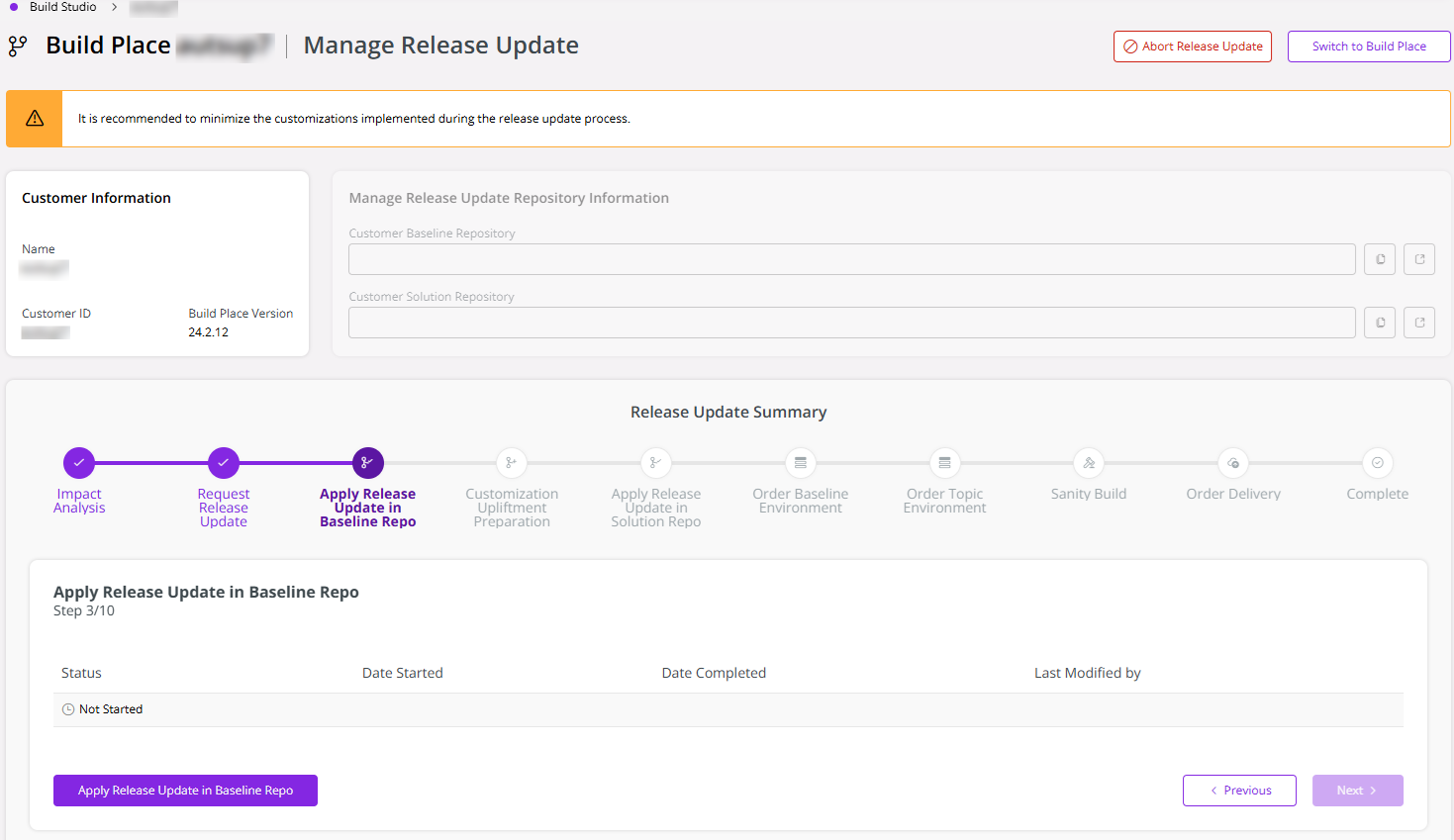
The next step after Request Release Update is Apply Release Update in Baseline Repo.
 |
|---|
| Figure 3.1 - Apply RU in Baseline Repo enabled in Release Update Studio |
To apply the Release Update to the Customer Baseline Repository, click Apply Release Update in Baseline Repo.
Applying the Release Update to the Customer Baseline Repository
22R2 and Beyond
Steps of applying the Release Update to the Customer Baseline Repository
 |
|---|
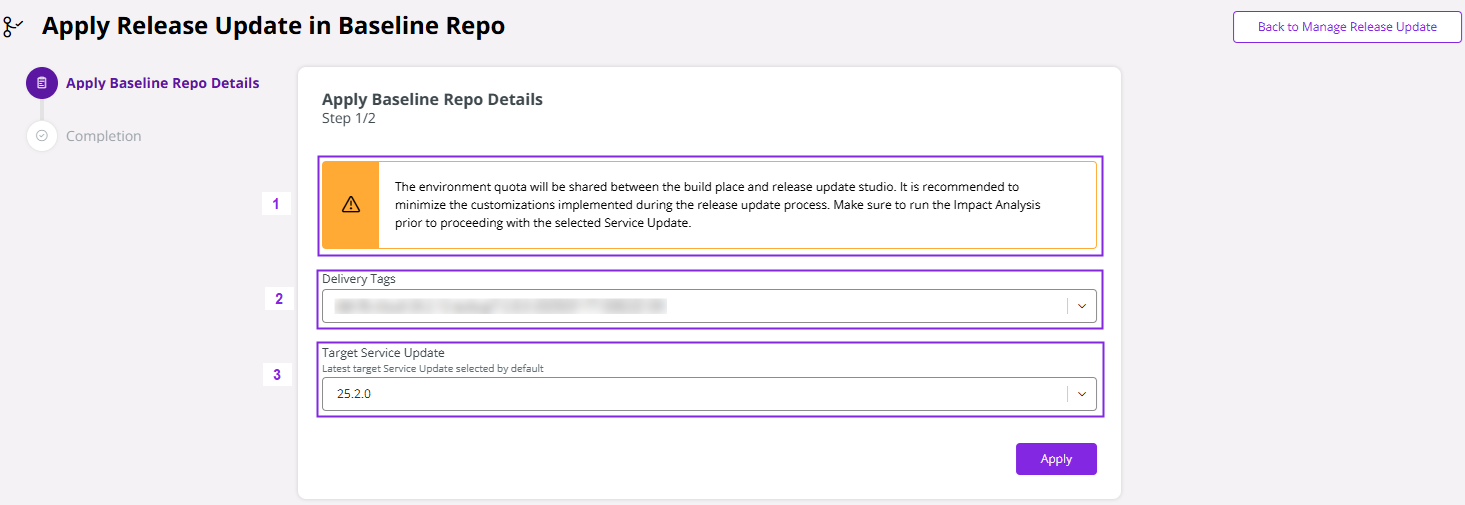
| Figure 3.2 - Apply Release Update in Baseline Repo Dialog |
Make sure to run the impact analysis prior to applying the Release Update to the Baseline Repository as mentioned in the warning-type message [1] (Figure 3.2).
Select the delivery tag from the Delivery Tags dropdown [2] (Figure 3.2).
The Delivery Tags dropdown lists all the approved deliveries related to the current product version of the Build Place in descending order. The last approved delivery is listed on top, and it is selected by default. The delivery selected from the Delivery Tags dropdown, is used to create the release-update branch when fetching the release update to the Customer Baseline Repository.Note
It is not recommended to select a delivery created for a Recreate Build Home as the baseline delivery in a Release Update process.
The latest Service Update for the release is selected in the Request Release Update step will be shown in the read-only text field [3] (Figure 3.2).
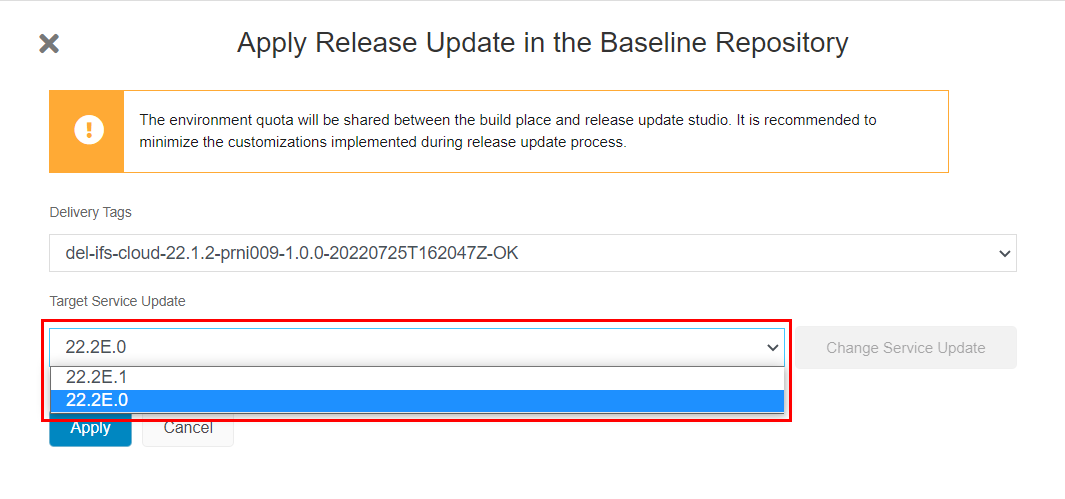
It is possible to change the service update, if required, by clicking the Change Service Update [4]. This lists the latest 3 (or less) service updates which can be applied with the release update.
The following image shows how the user can switch between Service Updates to select the Target Service Update to apply the Release Update in the Baseline repository (Figure 3.3).
 |
|---|
| Figure 3.3 - Changing Target Service Update |
- Once both parameters are selected, click Apply [5] to trigger the release update pipeline (Figure 3.2).
- If the decision is made not to proceed with the upgrade at this point, click Cancel [6] (Figure 3.2).
Backend processes of fetching the Release Update to the Customer Baseline Repository
The solution set is fetched from IFS Biz and is stored in the relevant storage account in Azure.
Central Build Services (CBS) migrates the Build Place-related settings to its corresponding Release Update Studio.
CBS creates parallel repository branches in the Azure DevOps project and sets branch policies for the release-update branch.
CBS removes all core code except the version.txt file from the release-update branch.
The version.txt file is updated to the new version in the Customer-Baseline Repository’s release-update branch.
CBS fetches the solution set from the Azure storage account, commits it to the Customer-Baseline Repository, and runs the Baseline Build.
This results in the following outcomes:
1. Creating the release-update branch in the Customer-Baseline Repository with the new release update and the solution set.
2. Creating the release-update branch in the Customer-Solution Repository from an approved delivery tag.
3. Removing all core code (except the version.txt file) from the release-update branches in both the Customer-Baseline and Customer-Solution repositories.
Before 22R2
Steps of applying the Release Update to the Customer Baseline Repository
- Select the delivery tag from the Delivery Tags dropdown [2].
The Delivery Tags dropdown lists all the approved deliveries related to the current App version in descending order. The last approved delivery is listed on top, and it is selected by default. The delivery selected from the Delivery Tags dropdown is used to create the release-update branch when fetching the release update to the Customer Baseline Repository. It is recommended to select the delivery tag related to the latest delivery deployed to the production environment of the Use Place. The reason for this recommendation is due to the fact that the latest approved delivery may not always be deployed to the production environment; it may still be in the testing stage in one of the non-production environments. - The latest Service Update for the release selected in the Request Release Update step is shown in the read-only text field [3].
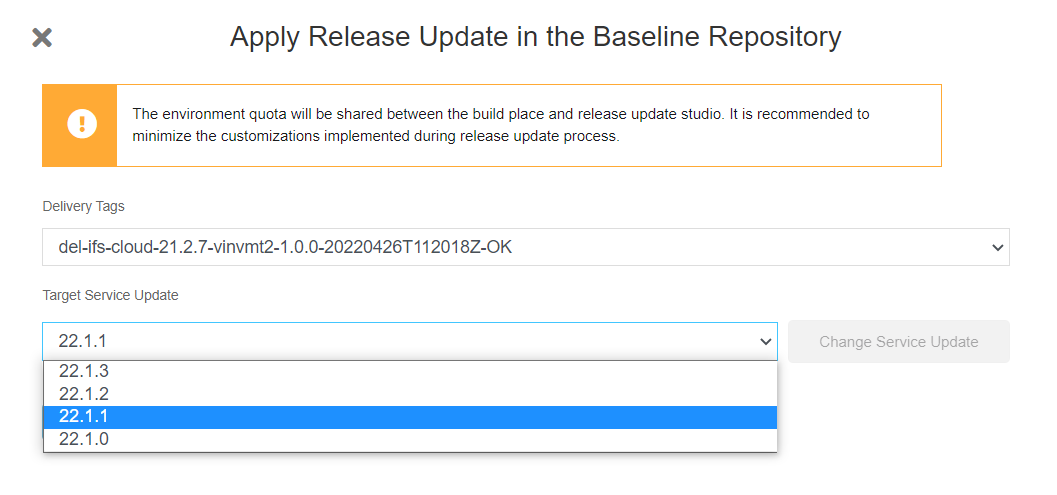
- Upon clicking on the Change Service Update [4], the button gets disabled, and the Target Service Update field [3] turns into a dropdown by giving the possibility to select any service update released under the requested release version (Figure 3.2).
 |
|---|
| Figure 3.4 - Change Target Service Update |
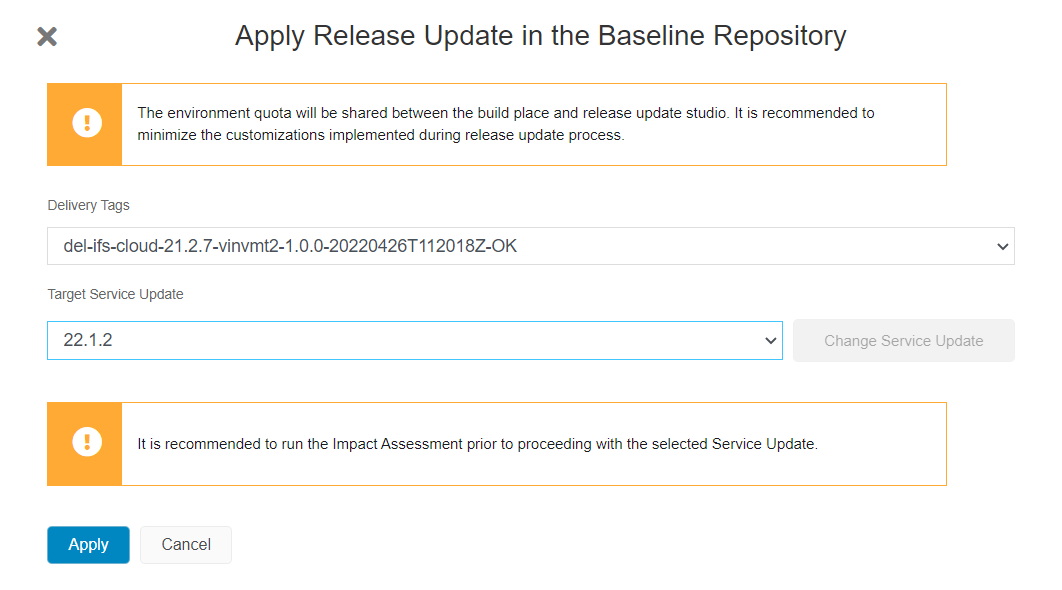
- If the target Service Update was changed, a warning-type message is shown below the Target Service Update field recommending running the Impact Analysis prior to proceeding with the selected Service Update (Figure 3.5).
 |
|---|
| Figure 3.5 - Apply Release Update dialog box |
- Once both parameters are selected, click Apply to trigger the release update pipeline.
- If the decision is made not to proceed with the upgrade at this point, click Cancel.
Backend processes of fetching the Release Update to the Customer Baseline Repository
The solution set is fetched from IFS Biz and is stored in the relevant storage account in Azure.
Central Build Services (CBS) migrates the Build Place-related settings to its corresponding Release Update Studio.
CBS creates parallel repository branches in the Azure DevOps project and sets branch policies for the release-update branch.
CBS pulls the selected release update from the master repository to the release-update branch in the Baseline Repository.
CBS fetches the solution set from the Azure storage account, commits it to the Baseline Repository, and runs the Baseline Build.
This results in the creation of the release-update branch in the baseline repository with the new release update and the solution set, and the release-update branch in the Customer Solution Repository is created from an approved delivery tag.