Insight Studio🆕
Overview
The Insight Studio refers to a single reporting solution that allows the customer immediate insights into their activities so they can react to those needs and demands. This user-friendly platform is tailored to streamline the monitoring and analysis of data, enabling users to make informed decisions and drive business success.
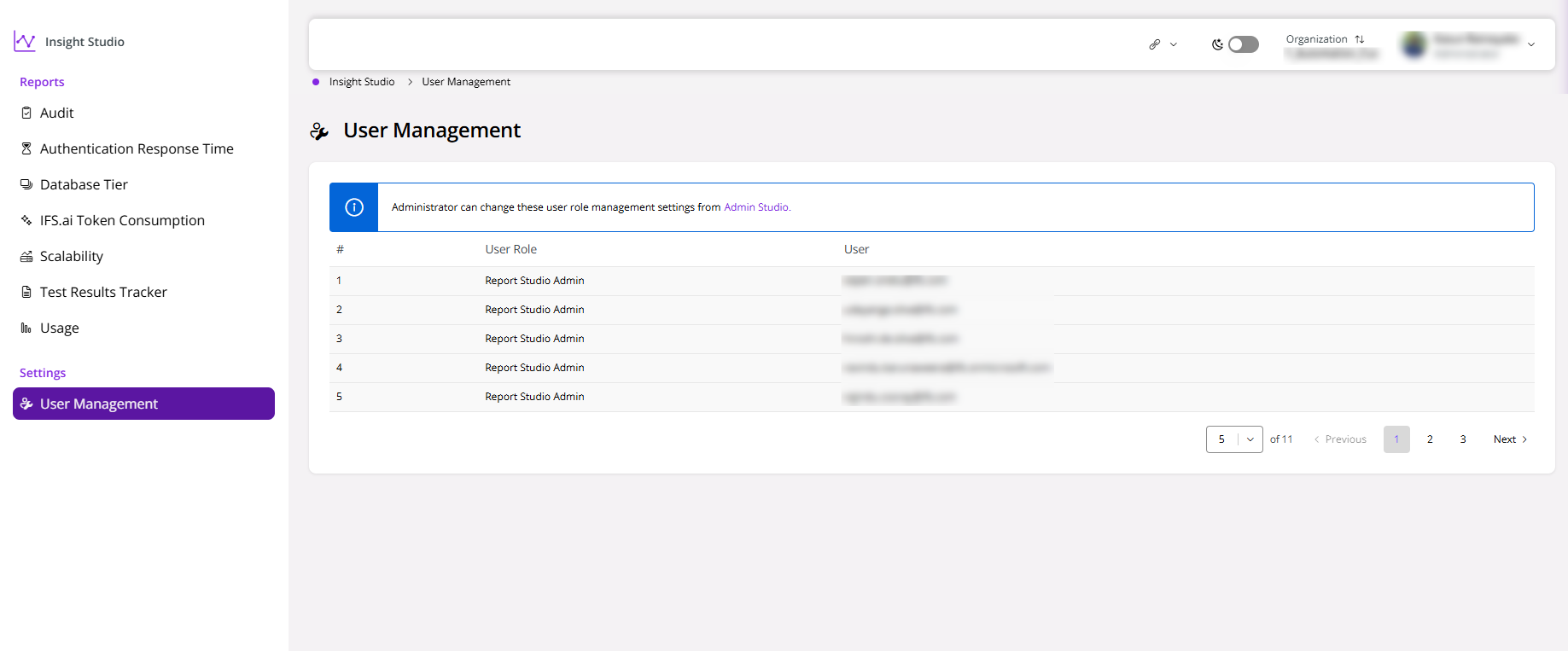
Report Studio Admins can view and monitor all reports within Report Studio.
To grant the Report Studio Admin role to a user, a Customer Admin must assign it using Admin Studio.
Note: When accessing the Insight Studio in Lifecycle Experience Center (LEC), make sure to update the browser to the latest version and to set the browser settings so as not to block any redirect URLs.
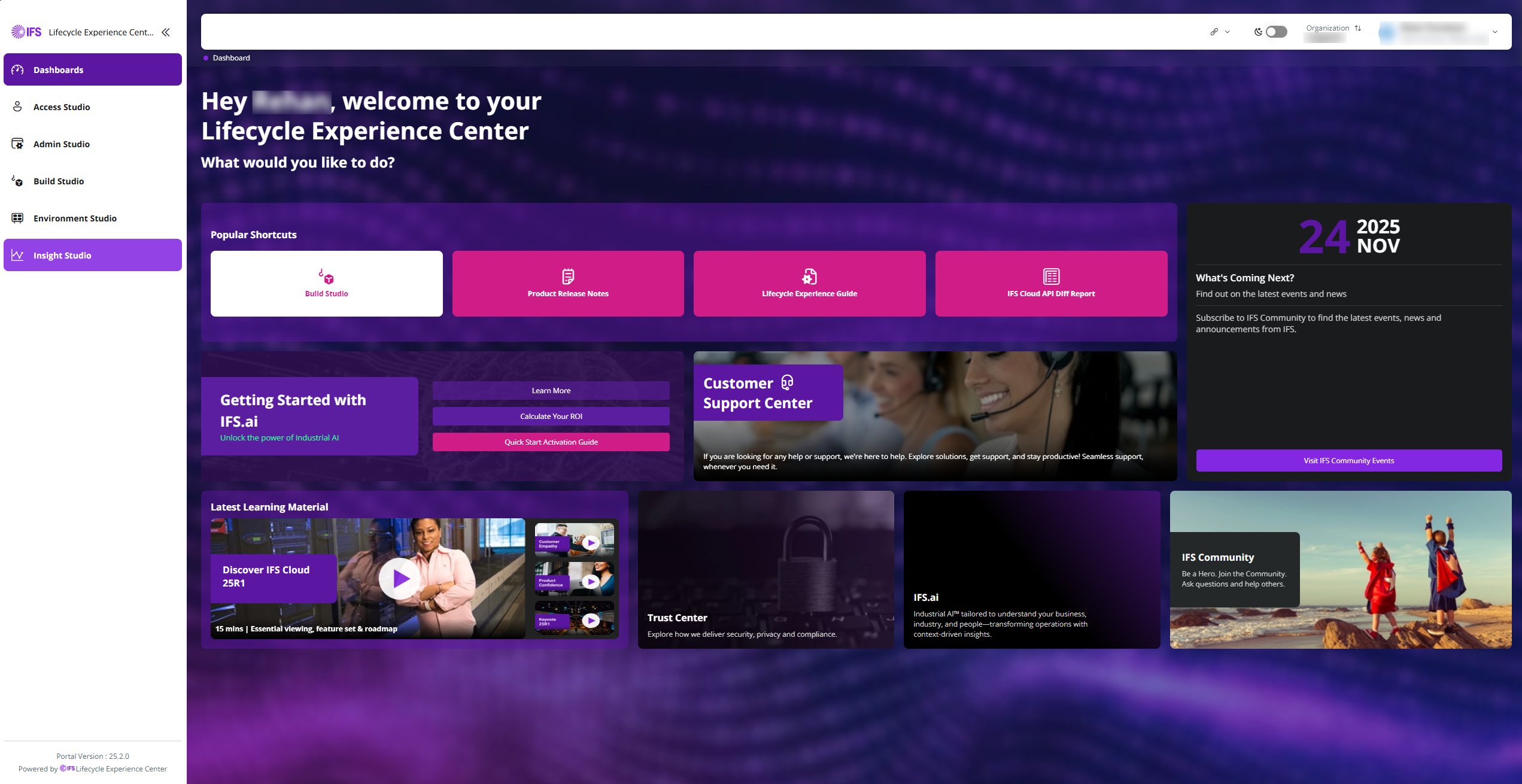
In order to access Insight Studio, login to the Lifecycle Experience Center (LEC) with your credentials and select Insight Studio.
 |
|---|
| Figure 1 - LEC Home Dashboard |
Functionality
Once the Insight Studio is clicked, you will be navigated to the reports within the Insight Studio. Each report contains the report title, a documentation URL, and a dropdown to switch between customer organizations if the user has access to multiple Build Places. The common functionality of the Insight Studio is explained in detail below:
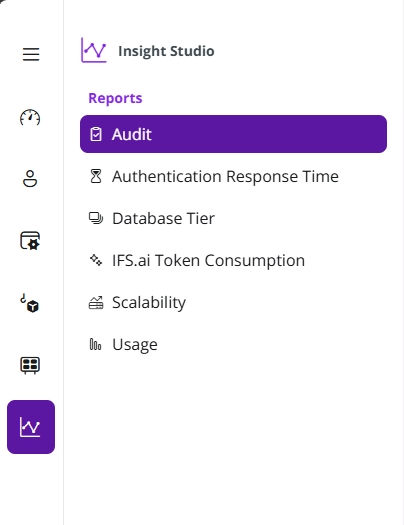
- Left side menu bar - A navigation bar shown on the left side of the studio to show all available reports (Figure 2).
| |
|:--:|
|Figure 2 - Left Navigation menu in Insight Studio |
- Report Title - The format of the report title will be
|
|:--:|
|Figure 2 - Left Navigation menu in Insight Studio |
- Report Title - The format of the report title will be
Documentation URL - Each report contains a URL to the documentation, which navigates to the detailed documentation on the report.
Customer Selection Dropdown - Partner users or any user who has access to multiple customers can see an option to switch between customer organizations using the link dropdown at the top (Figure 3).

Figure 3 - Dropdown to Select Customers
Reports
The Service Insight Studio currently maintains the following reports:
User Management
The list of users who have been granted access to the Insight Studio can be viewed by navigating to the User Management section, which is available under Settings.