Service Authentication
Overview
The Service Authentication page enables administrators to configure the integration of IFS Cloud Remote deployments with the IFS AI platform. This integration allows access to AI-powered services such as Copilot, ML Service, and more.
Prerequisites
Before you begin, ensure the following:
- IFS Cloud Environment Deployment: Your environment must be deployed with version 25.1.1 or later and must be fully operational.
- Custom-values.yaml File: Ensure this file is prepared and ready for updates during the integration process.
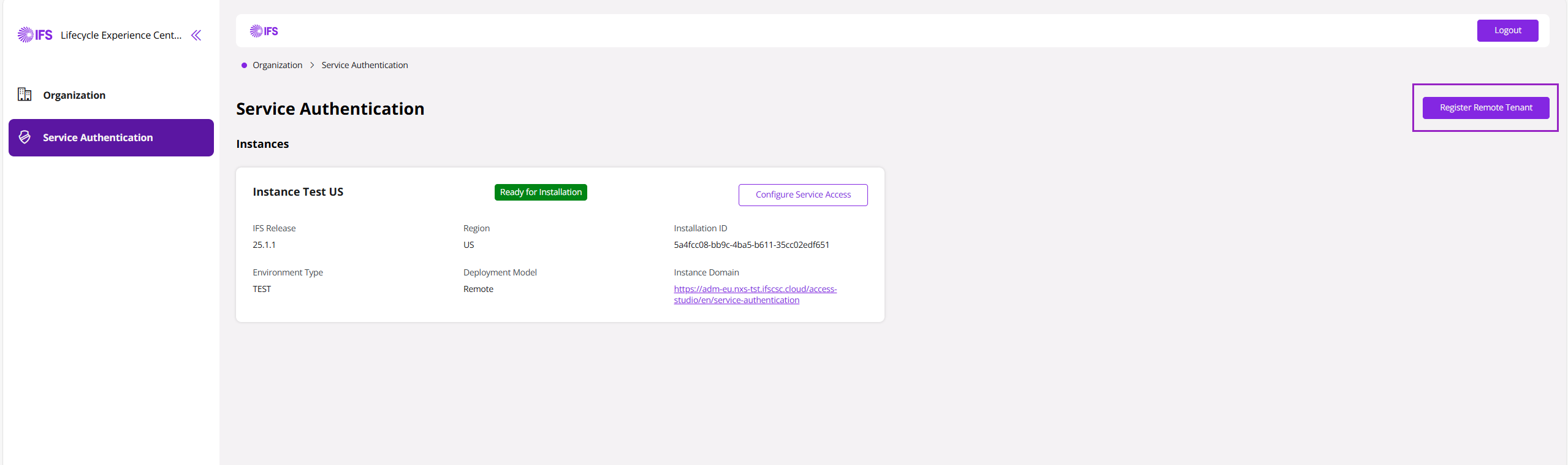
Upon your first login, the Service Authentication page will be empty, as no tenants have been created yet.
Registering a Remote Instance
To begin the integration, you must provision a new tenant in the IFS AI platform.
- Click the Register Remote Tenant button located in the top-right corner.
- Fill out the Register a New Remote IFS Tenant form as follows:
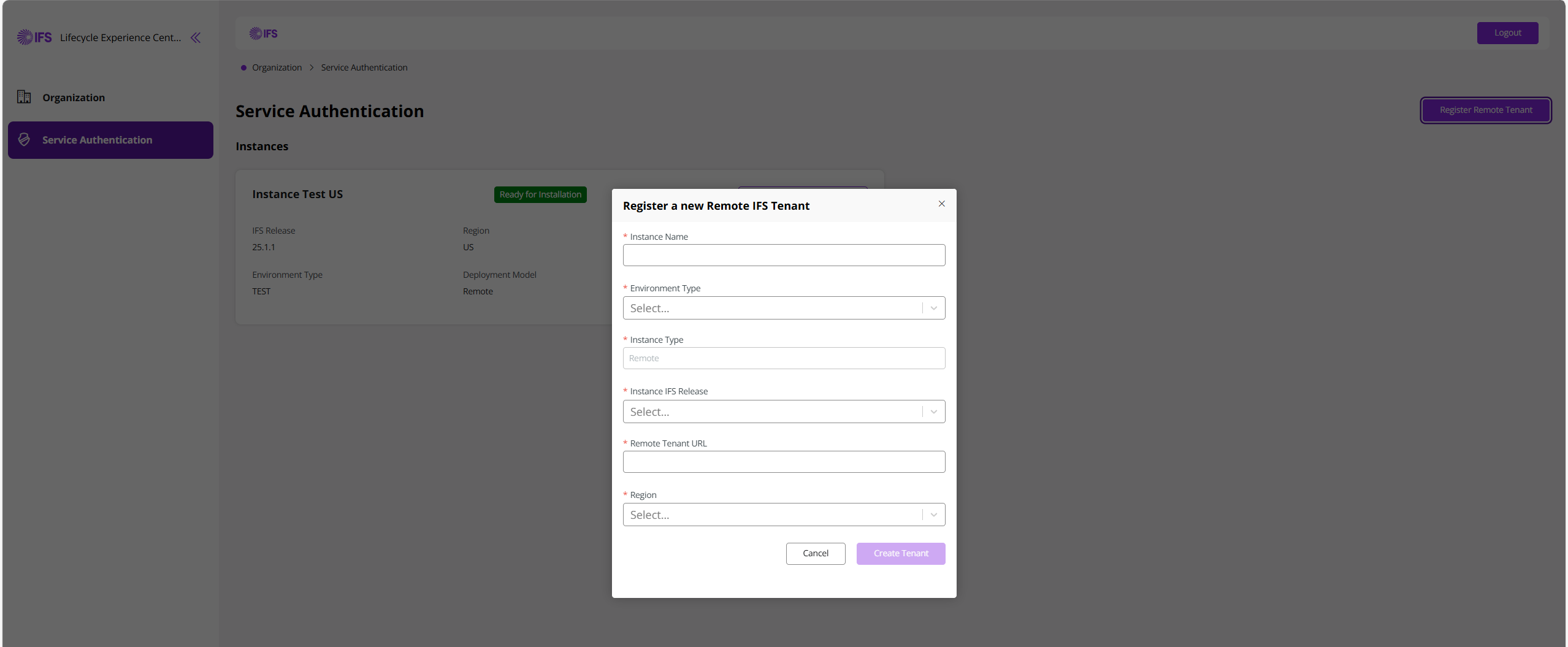
Tenant Registration Fields
| Field | Description | Requirement |
|---|---|---|
| Environment Name | Enter a 3-character, lowercase identifier. It must start with a letter, followed by any two letters or digits (e.g., dev, tst, d01) | Mandatory |
| Short Description | Add a short description to help identify the tenant and its intended purpose | Optional |
| Environment Type | Select either Non-PROD or PROD | Mandatory |
| Residency Type | Defaults to REMOTE. No changes needed | Mandatory |
| Product Version | The version of the IFS Cloud environment to be integrated | Mandatory |
| Region | Choose your organization’s primary region | Mandatory |
Click Create Tenant to initiate provisioning.
You will then be redirected to the Service Authentication page where the Tenant Provisioning Status is displayed.
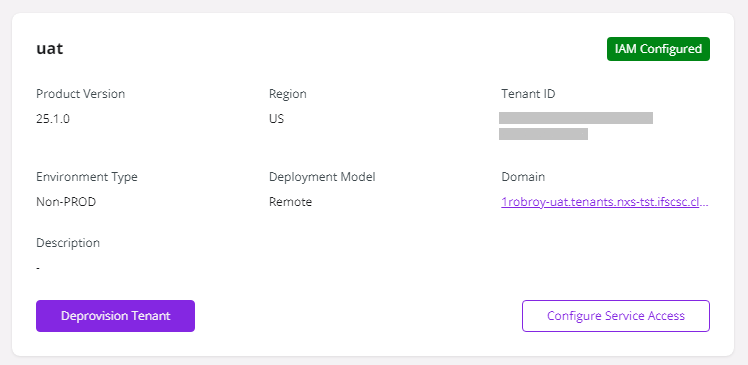
Tenant Provisioning Statuses
| State | Description |
|---|---|
Requested | The provisioning request has been successfully submitted and is awaiting processing |
Provisioning | Tenant provisioning is currently in progress, including resource creation and initial setup |
Provisioned | Tenant provisioning is complete, and service access configuration is ready to begin |
IAM Configured | Tenant has been successfully configured, and integration with IFS Cloud Remote deployment is complete |
Failed/ Deleted | The provisioning process has failed due to an error, or the tenant has been deleted and is no longer active |
Deprovisioning | The tenant is in the process of being decommissioned, with resources and configurations being removed |
Deprovision Tenant
Deprovisioning a tenant permanently removes an existing tenant from the IFS AI platform. This operation deletes the tenant and all associated data and configuration. Once completed, the action cannot be reverted.
To deprovision a tenant:
Select the tenant you want to remove.
Click Deprovision Tenant.
In the Confirm Deprovision dialog:
Read the warning message carefully.
Type
deletein the confirmation field.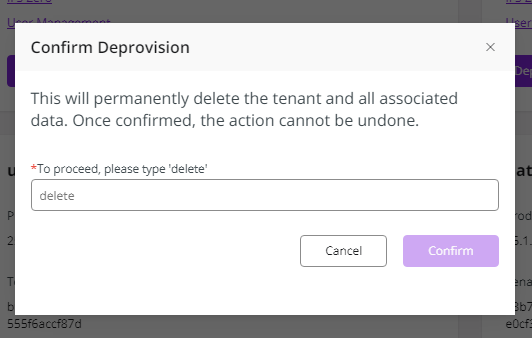
Click Confirm to complete the deprovisioning.
After confirmation, the tenant is permanently deleted and is no longer available in Access Studio.
Configuring Service Access
Once the tenant status updates to Ready for Installation, proceed with service access configuration:
Click Configure Service Access
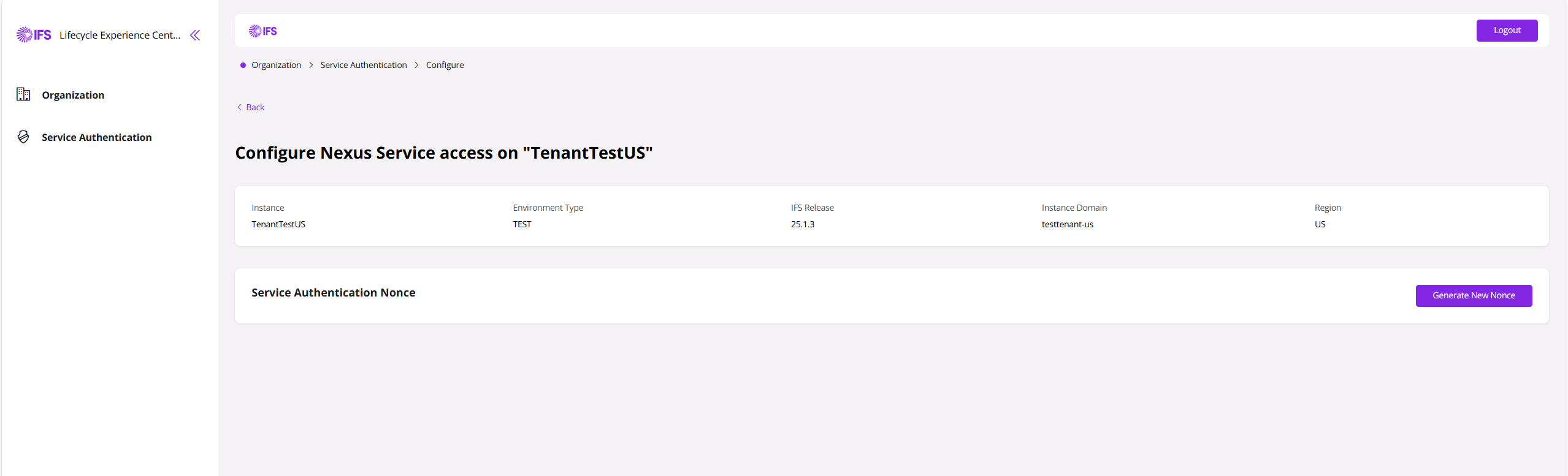
On the configuration page, you can:
Generate a One-time token
Copy the Tenant URL
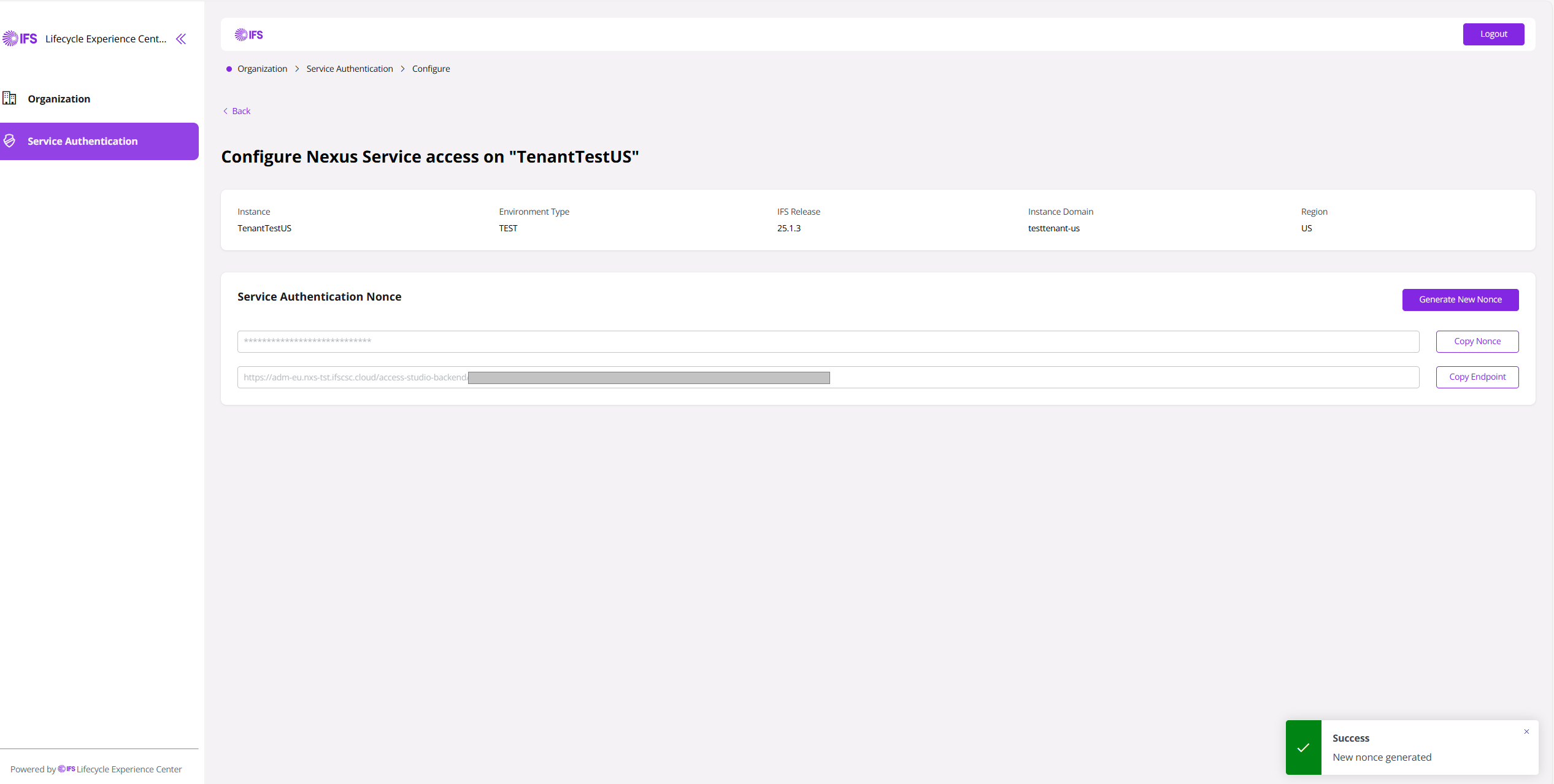
One-time token Validity and Usage
When using a one-time token, please keep the following in mind:
- Single Use Only: A one-time token can be used only once. After it’s used during installation, it becomes invalid immediately.
- 24-Hour Expiry: Each one-time token is valid for 24 hours from the time it’s generated. After this period, it will automatically expire and cannot be used.
- One at a Time per Tenant: Only one active one-time token can exist for a tenant at any time. If a new one-time token is generated, it will automatically cancel any previously generated one.
These values must be added to the
custom-values.yamlfile used in the IFS Installer.Run the IFS Installer with the updated file to complete the integration process.
For additional guidance on connecting to AI Services, refer to the IFS Technical Documentation.
Completion
Once the integration is successfully completed, the tenant status will update to Installed, indicating that the IFS Cloud Remote deployment has been fully integrated with the IFS AI platform.