Impact Analysis
Related Pages
- The IFS Impact Analyzer section of the Technical Documentation at https://docs.ifs.com.
- Select IFS Technical Documentation > IFS Cloud. Select the relevant release version and then navigate to Development Guide > Development Tools > Impact Analyzer.
Overview
Impact Analysis refers to the analysis done with the help of the Impact Analyzer tool prior to applying the Release Update. The analysis is performed in order to assess the impact of the existing customizations from the Release Update that the customer is planning to upgrade to.
Behavior of the Impact Analyzer Tool
First, navigate to the Release Update View in the Build Place.
To run the Impact Analysis, click Open Impact Analyzer Tool in the Release Update View.
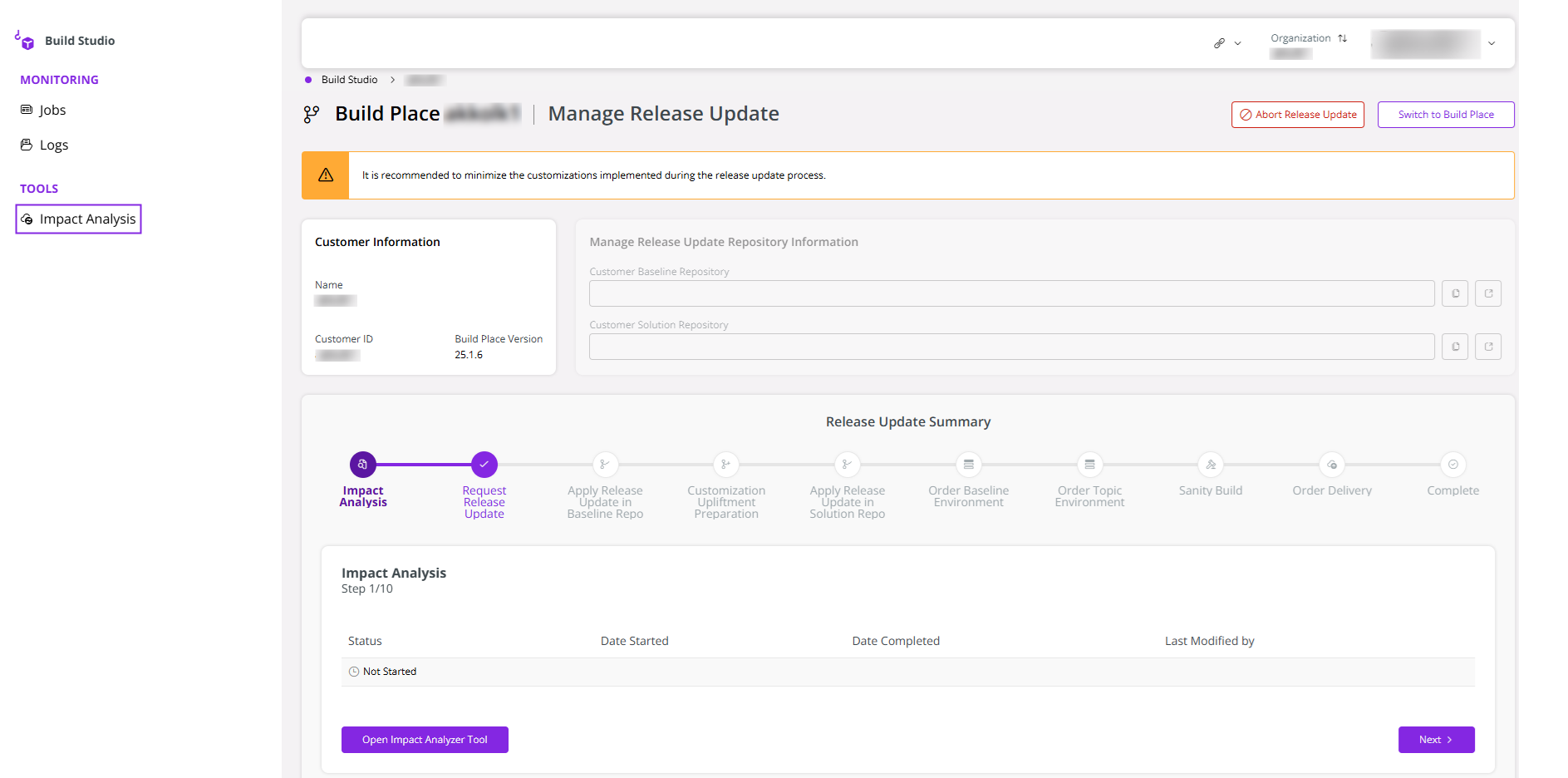 |
|---|
| Figure 1 - Impact Analyzer Button in Release Update Studio |
Then, a new panel opens up to run your analysis report. Select the Release Update version/ Service Update version from the Target Release Update / Target Service Update dropdown lists.
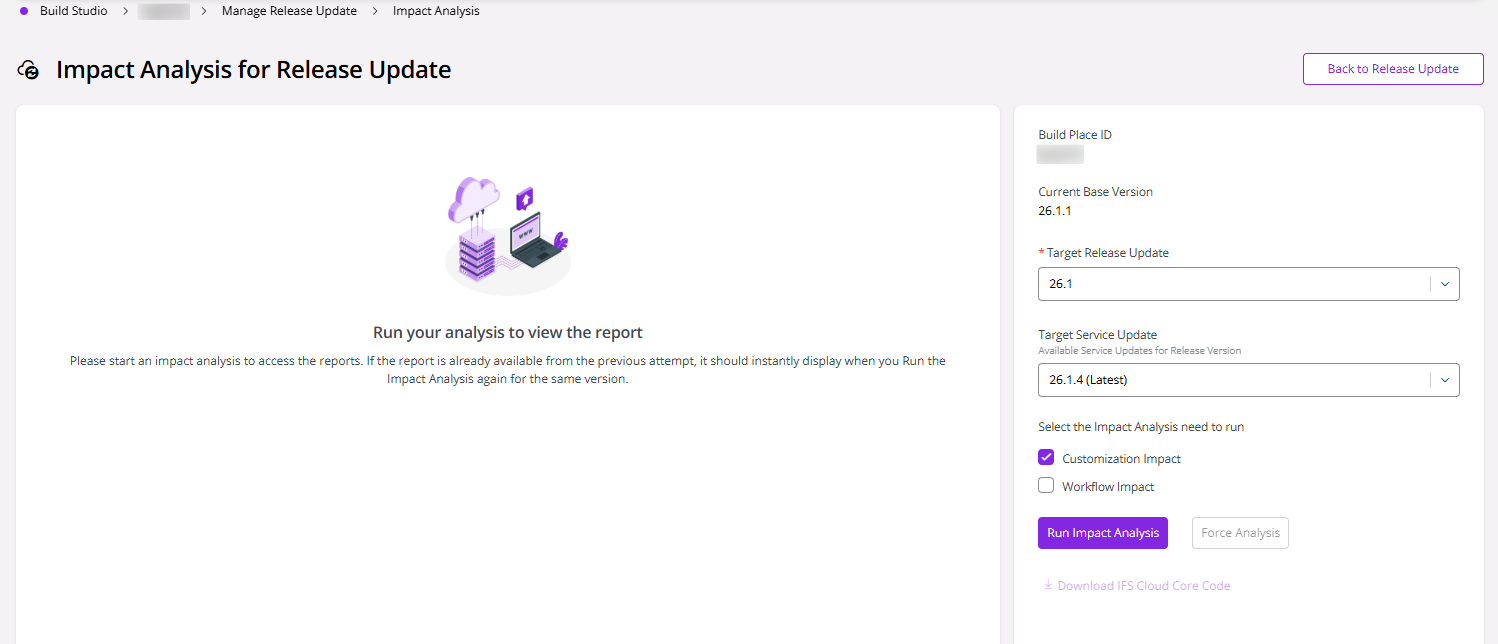 |
|---|
| Figure 2 - Impact Analysis for Release Update |
Then, select the type of the Impact Analysis to run. There are two options available:
Customization Impact: Scans the Customer Solution for customizations that overlap with, or are otherwise affected by, changes introduced in the target Release Update or Service Update.
Workflow Impact: Scans the Customer Solution for workflows and workflow projection actions that call an API with a known breaking change in the target Release Update or Service Update, and flags them as potentially affected. For more information, see Workflow Impact Analysis.
After selecting the type of analysis, click Run Impact Analysis.
After the analysis is performed, the user then moves on to the next step of the Release Update process, which is to request the Release Update.
Steps to follow after the analysis is initiated.
The loading screen is visible in the panel until the analysis report is ready. You can continue other Build Place operations during this time, as the report generation takes more than 30 minutes. Upon returning to the report view, please re-enter the initial values in the dropdown lists to generate the completed analysis report. Once the analysis process completes, you can download the report by clicking Download Report.
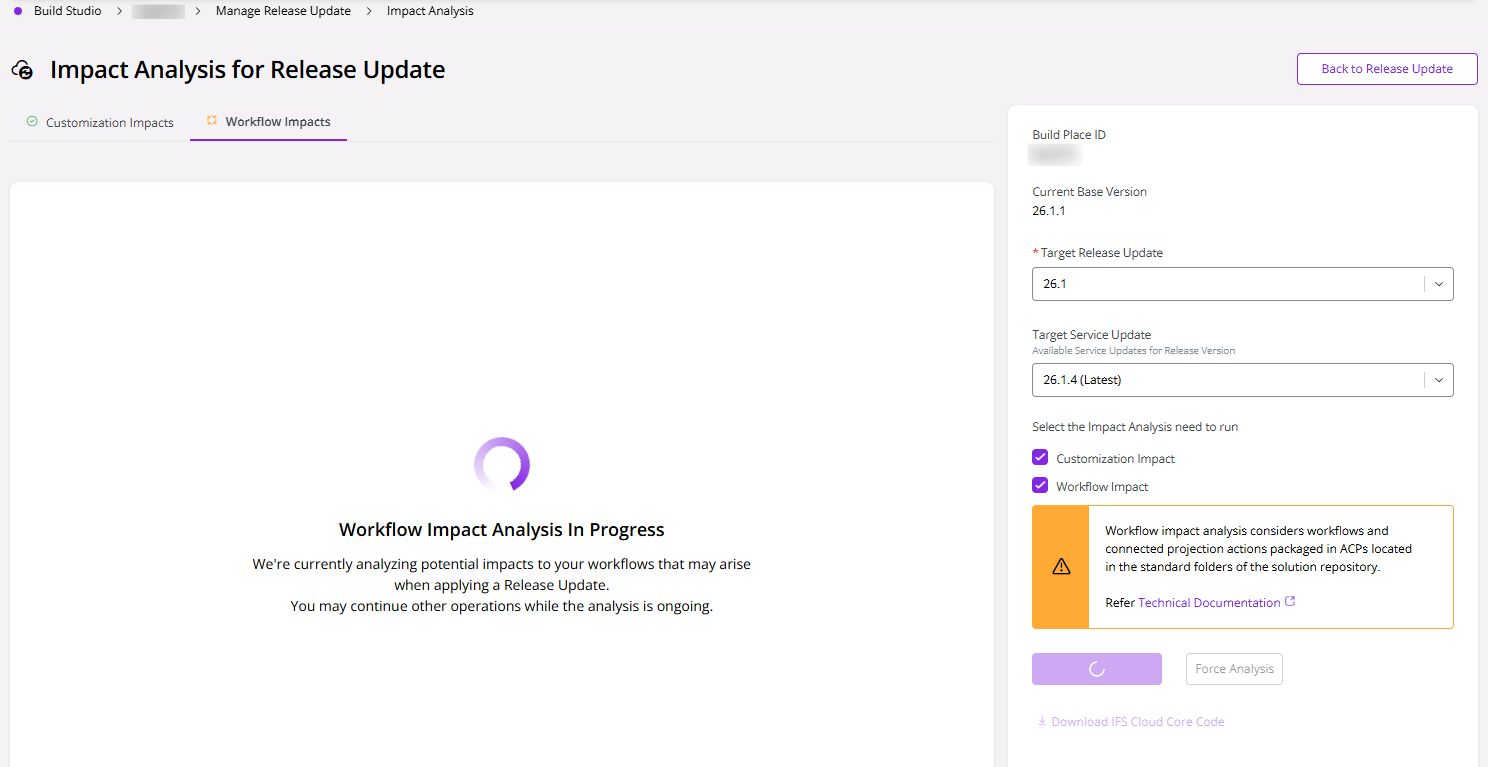 |
|---|
| Figure 3 - Impact Analyzer Report Generation |
Once analysis has completed, a banner is displayed at the top of the page. It states who last ran the analysis and when (e.g. The Impact analysis for the selected Release Update version was completed by user on date/time (UTC)), and clarifies that since no new impacts were identified since the last run, the report contains the same information.
If you run Impact Analysis for a version that is already been analyzed, the system does not re-scan anything; it just displays the existing report instantly (this applies per analysis type, so Customization Impact and Workflow Impact are each tracked separately). Click Force Analysis to re-run the analysis and generate a fresh result. Force Analysis overrides this shortcut and triggers a fresh scan, using the same Branch of the Customer Solution repository.
Note
Both Impact Analysis and Force Analysis scan the same Branch.
Once analysis has run, results are shown as two tabs on the Impact Analysis page itself. Customization Impacts and Workflow Impacts; each with its own completion checkmark.
Customization Impact Analysis Report
The Customization Impact Analysis Report is available in three formats: JSON, PDF, and Excel. The JSON file can be utilized as an input for the Developer Studio, where it can be processed to generate a detailed comparison, or "diff," highlighting the differences between the current and updated versions. The download option is available inline with the Release Update Summary Table or in report-viewer UI.
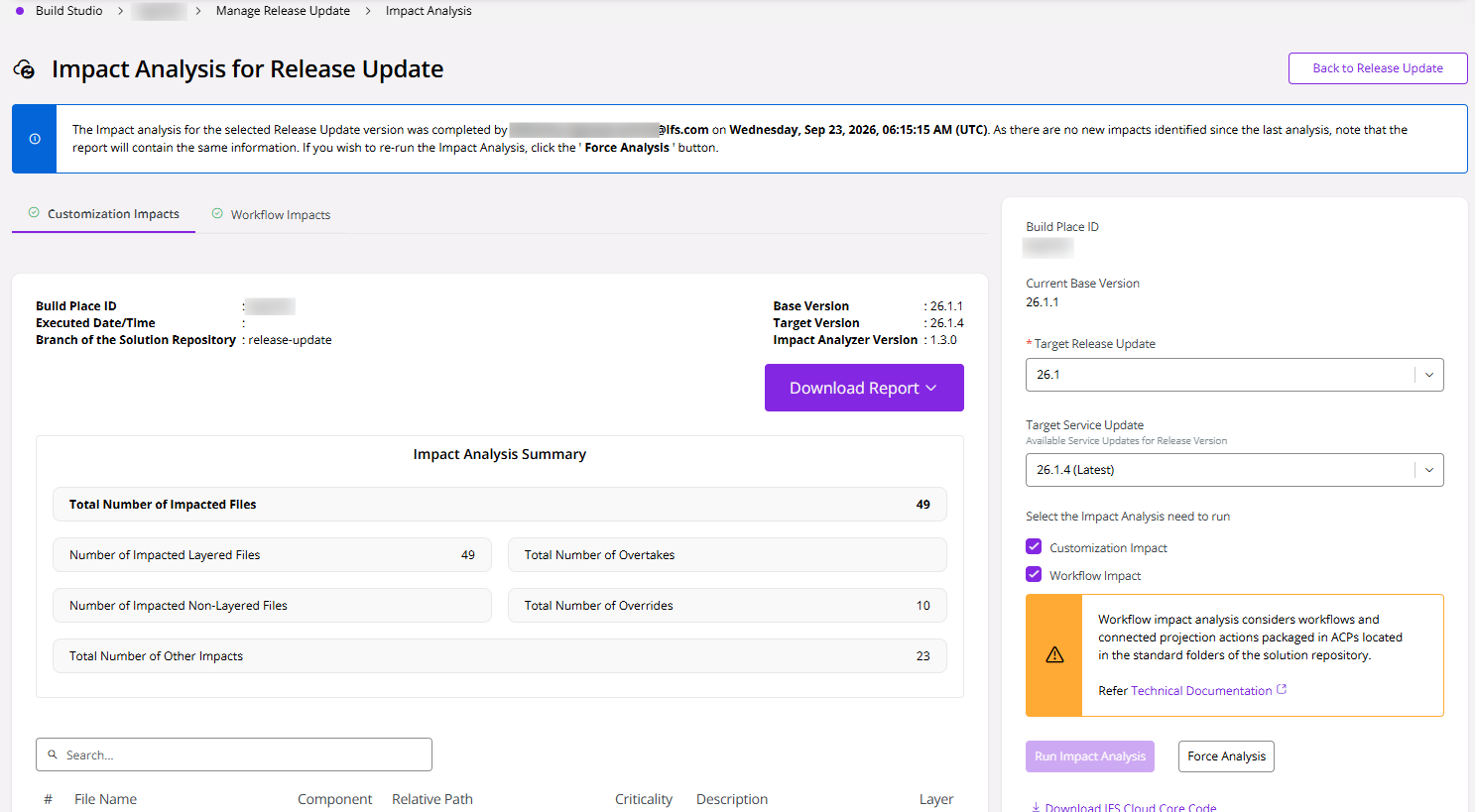 |
|---|
| Figure 4 - Impact Analyzer Report |
The Source Zip of the report is also downloadable, providing the impacted files and their corresponding source target files.
Please note that after the Download Report is clicked and the download is in progress, no progress bar is displayed. Please wait 1–2 minutes for completion. The download speed may vary depending on your network and file size. This limitation is temporary and will be resolved with an upcoming update.
Furthermore, if you need to observe/ analyze further on the IFS Core Code, click on the Download IFS Cloud Core Code link at the bottom of the panel.
Refer to Developer Studio Support for Impact Analysis for more details on importing the downloaded reports for analysis.
Impact Analysis Status Update
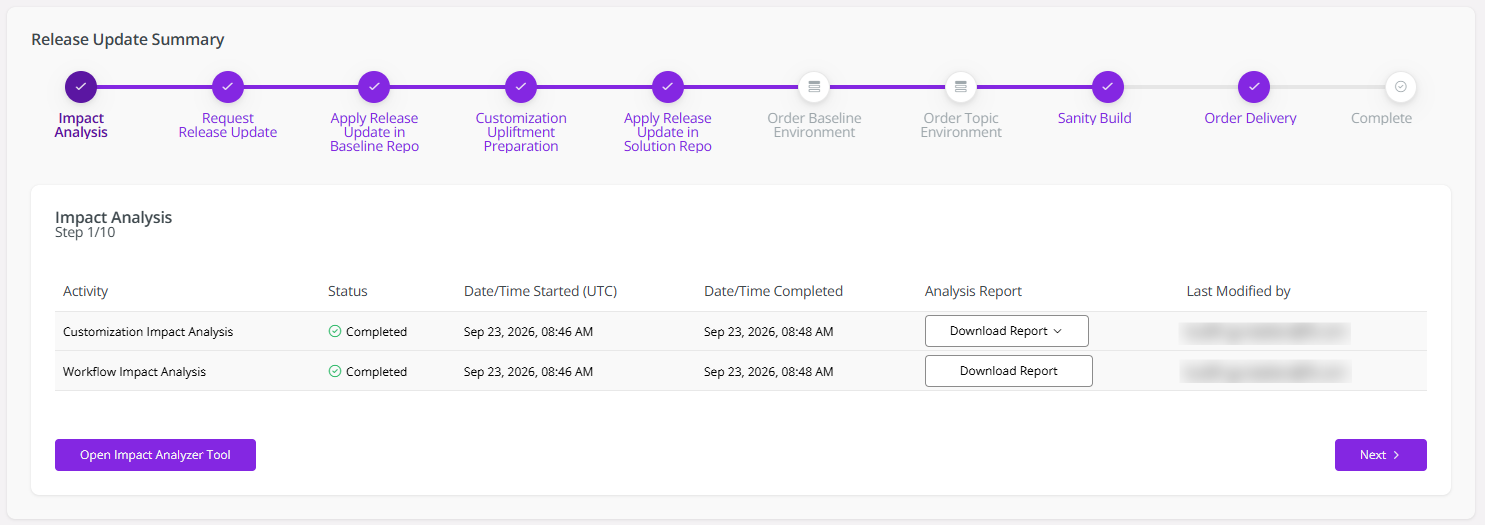
If the report is successfully generated, the status of the Impact Analysis record in the Release Update Summary table will be marked as Completed.
 |
|---|
| Figure 5 - Customization Impact Analysis status recorded as Completed |
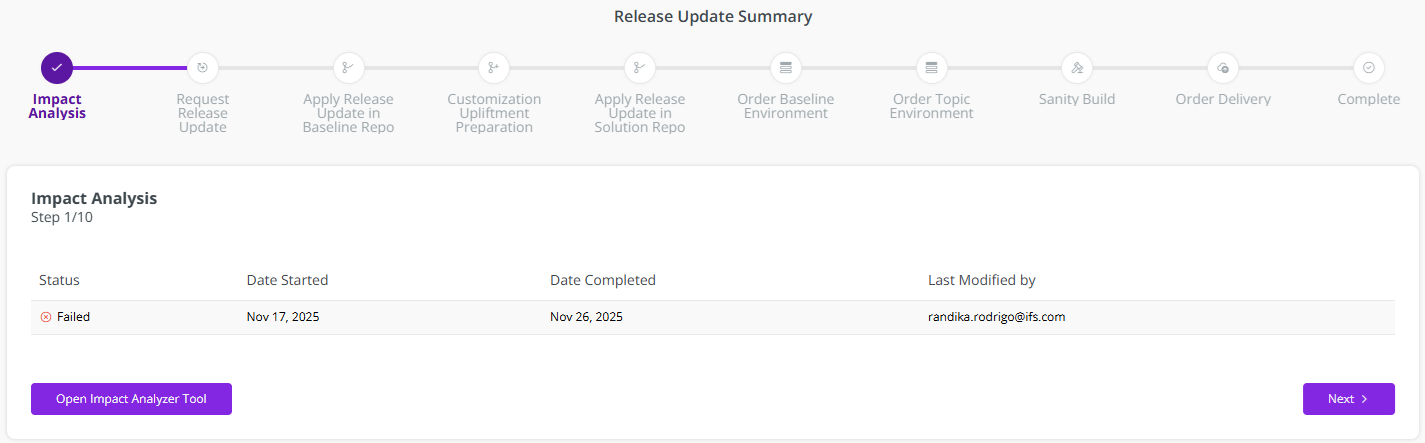
In the event that the report generation fails, the status appears as Failed in the Impact Analysis step (Figure 1.6) and the user is required to retry the process.
 |
|---|
| Figure 6 - Customization Impact Analysis status recorded as failed |