Approve Entitlement Changes
Note
The approval of Entitlement changes in LEC Entitlement Studio is available exclusively to FedRAMP customers.
When Entitlement changes are submitted, they are placed in a Needs Approval state in Entitlement Studio and cannot be deployed until they have been reviewed and approved by a Customer Administrator of your organization.
There are two types of Entitlement changes:
- A new Capability purchased by an existing customer.
- A change to a Token Batch/Allowance amount purchased by an existing customer.
Approve a New Capability Purchased by an Existing Customer
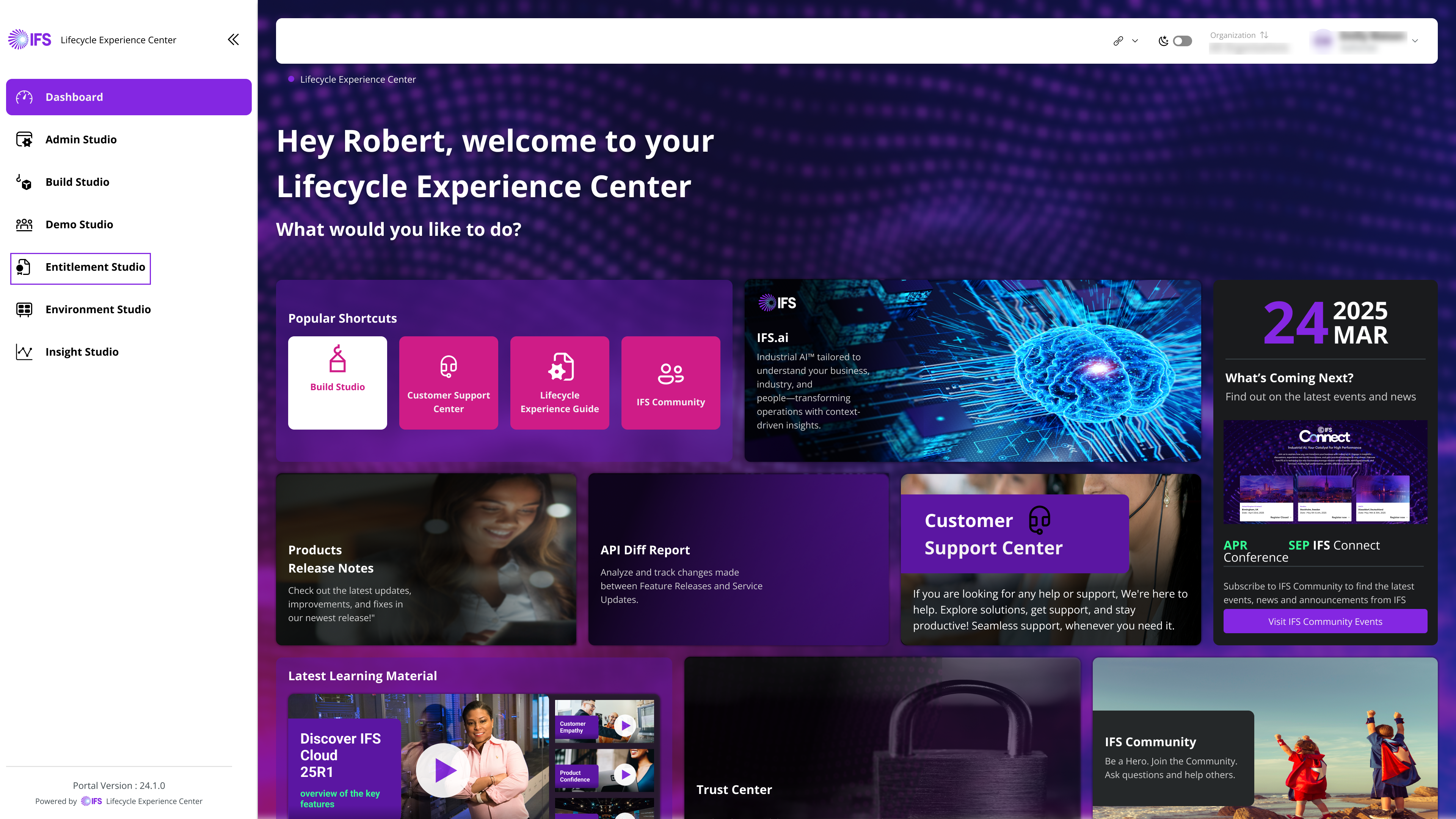
- Log in to Lifecycle Experience Center (LEC) and select Entitlement Studio. You see the list of Entitlements under Customer Entitlements.
 |
|---|
| Figure 1: Entitlement Studio in LEC |
- Review the Entitlements purchased by the organization. Additionally, click the download icon to download the Solution Set based on the latest version of the IFS Cloud version among all customer Entitlements.
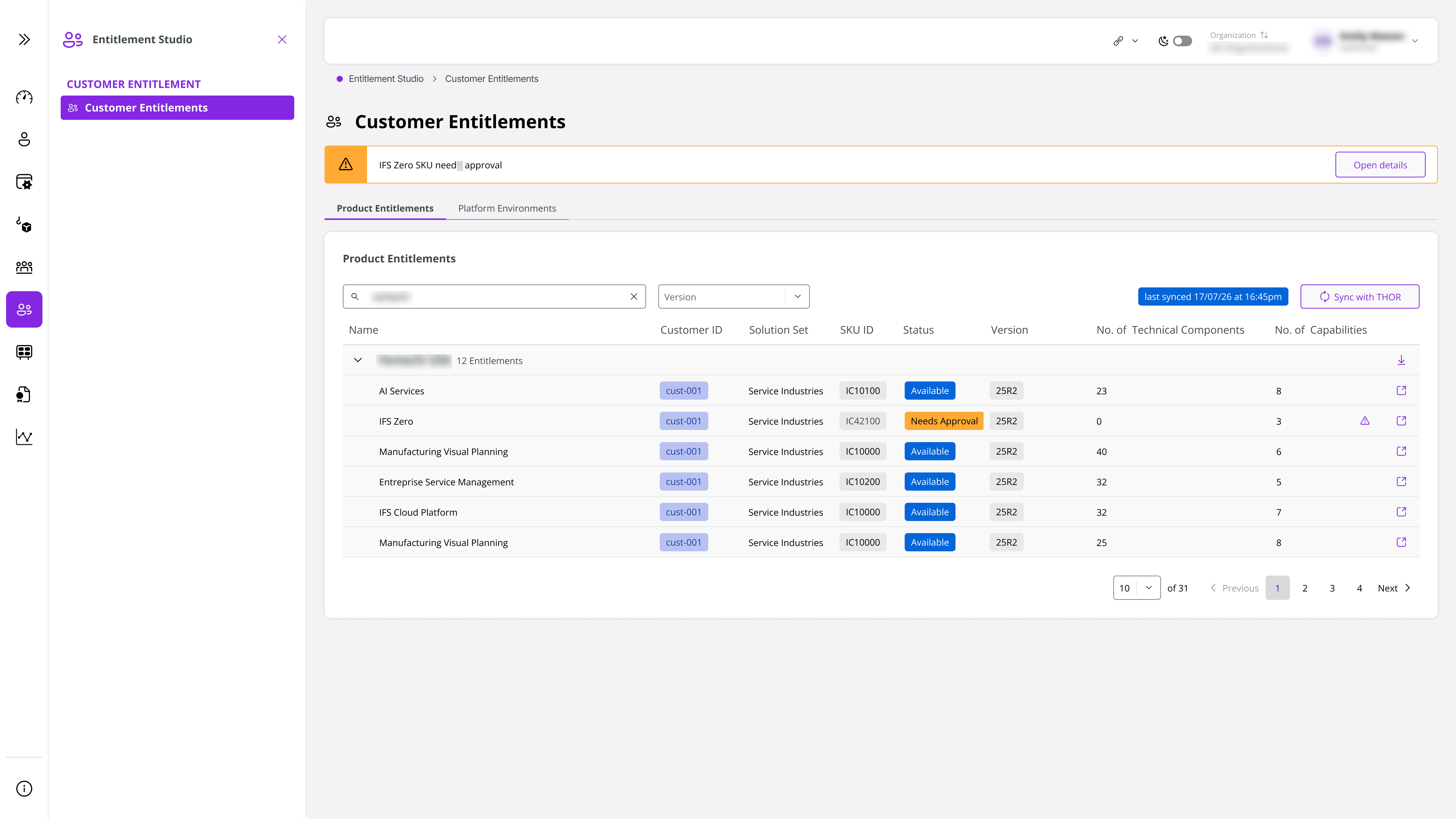
- Locate the Capability marked Needs Approval. Click the warning icon to review the Capabilities awaiting approval. The banner at the top indicates that the associated SKUs require approval. Both the warning icon and the Open Details button take you to the same Capability review page.
 |
|---|
| Figure 2: Capabilities Pending Approval in Entitlement Studio |
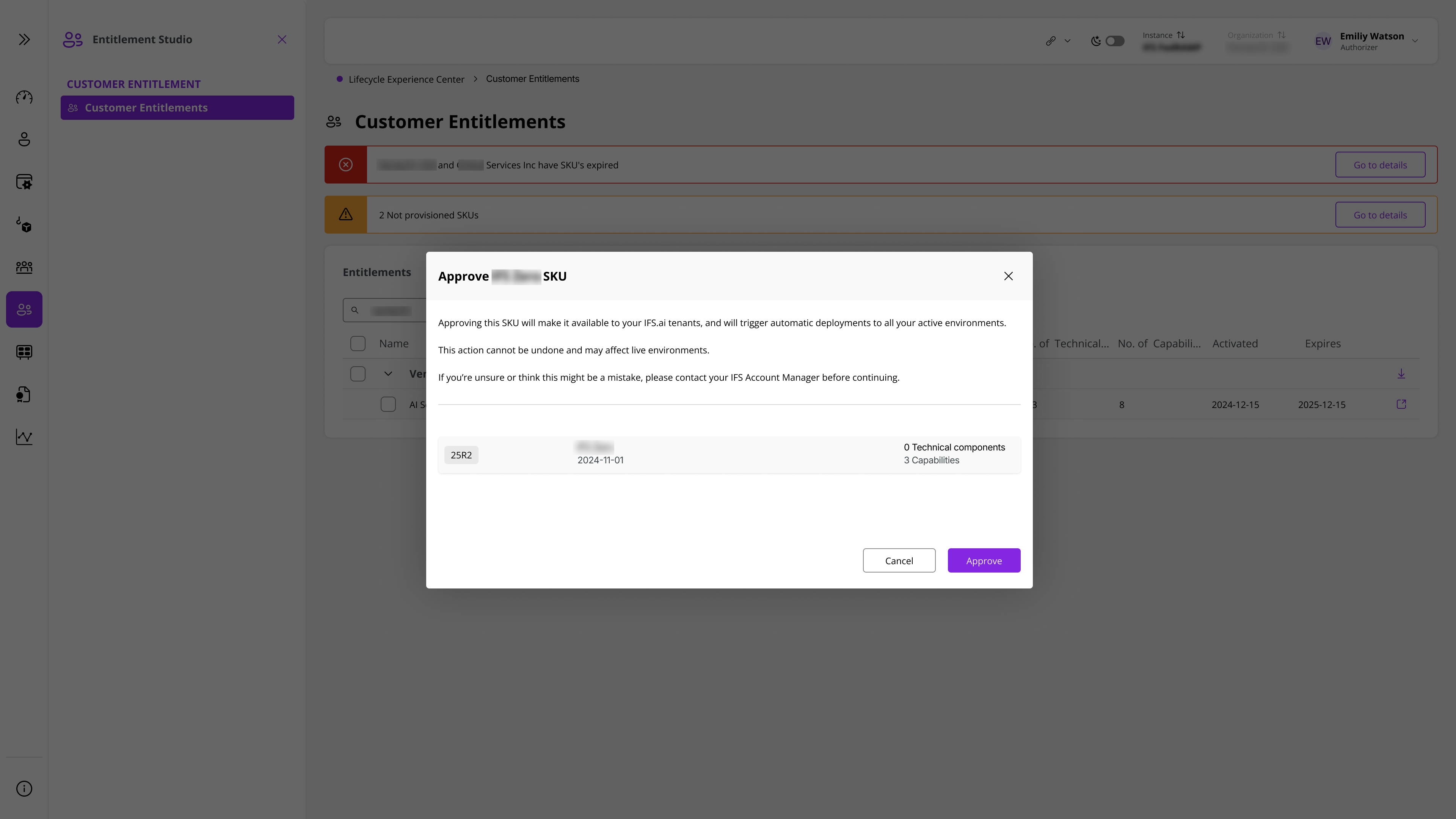
- Click Approve to approve the pending capabilities.
 |
|---|
| Figure 3: Capabilities Approval Dialog |
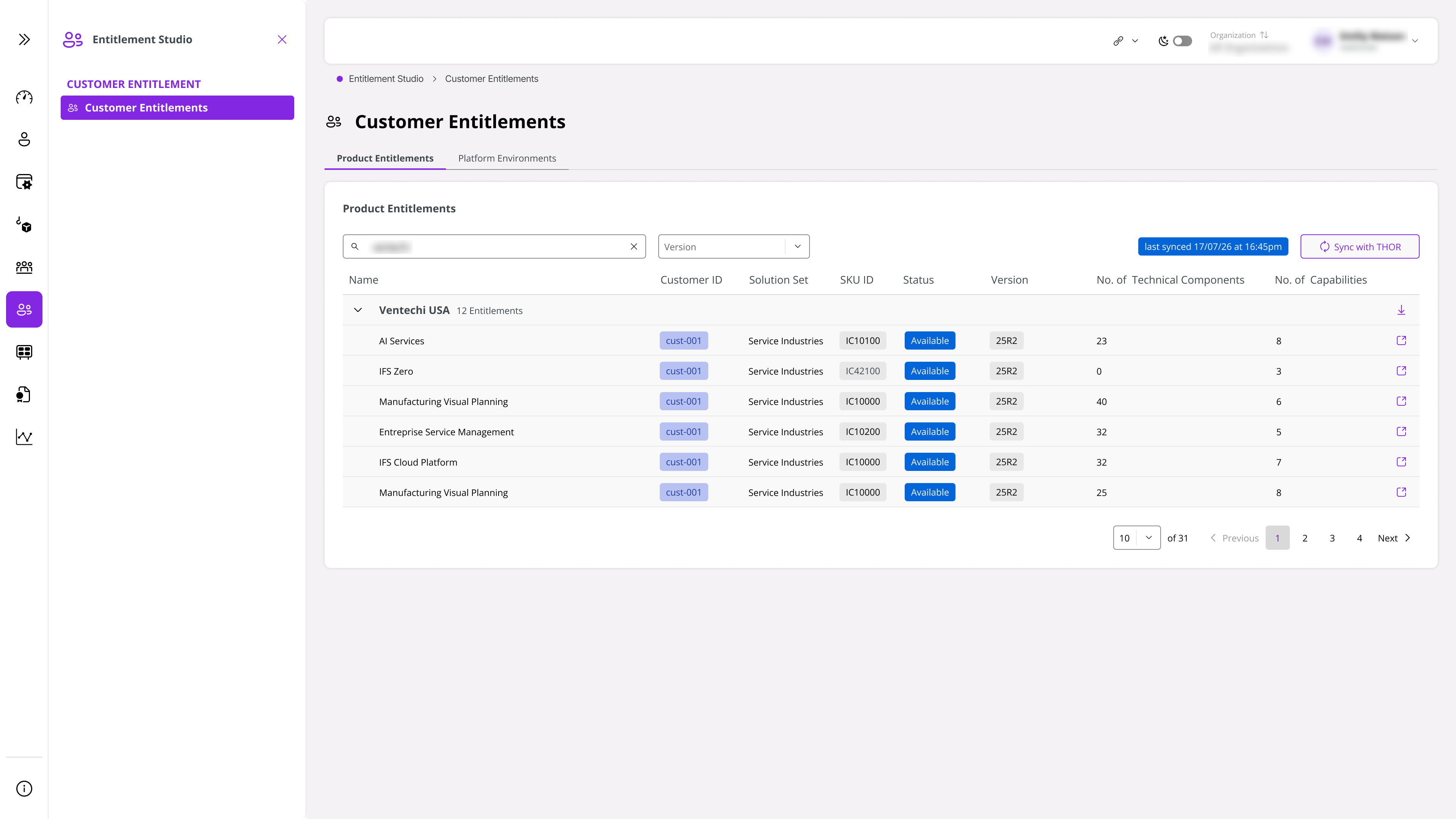
- Once approved, the capability's status changes to Available and is deployed to Nexus.
 |
|---|
| Figure 4: Status of the Capability Changed to Available |
Approve a Change to a Token Batch Amount Purchased by an Existing Customer
Example: a customer increases their Token allowance for a component such as IFS.ai consumption.
Sign in to LEC and select Entitlement Studio, then select the customer organization.
Locate the component with a pending change marked Needs Approval*. Click the warning icon to review the Tokens awaiting approval. The banner at the top indicates that the associated SKUs require approval. Both the warning icon and the Open Details** button take you to the same Token review page.
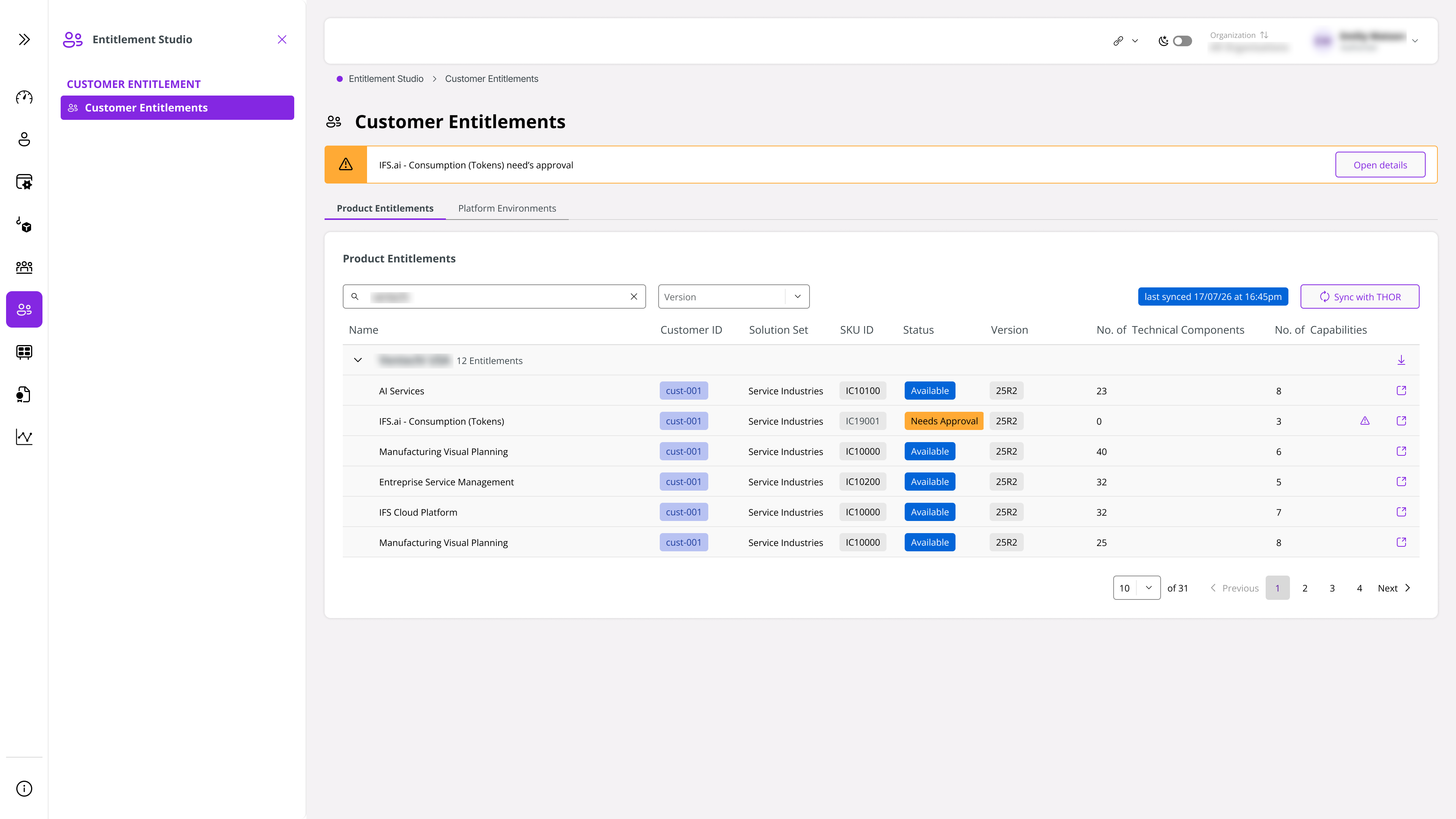 |
|---|
| Figure 5: Token Change in Pending Approval |
- Review the summary; the current Token amount, the quantity being purchased, and the expiry date. Click Approve.
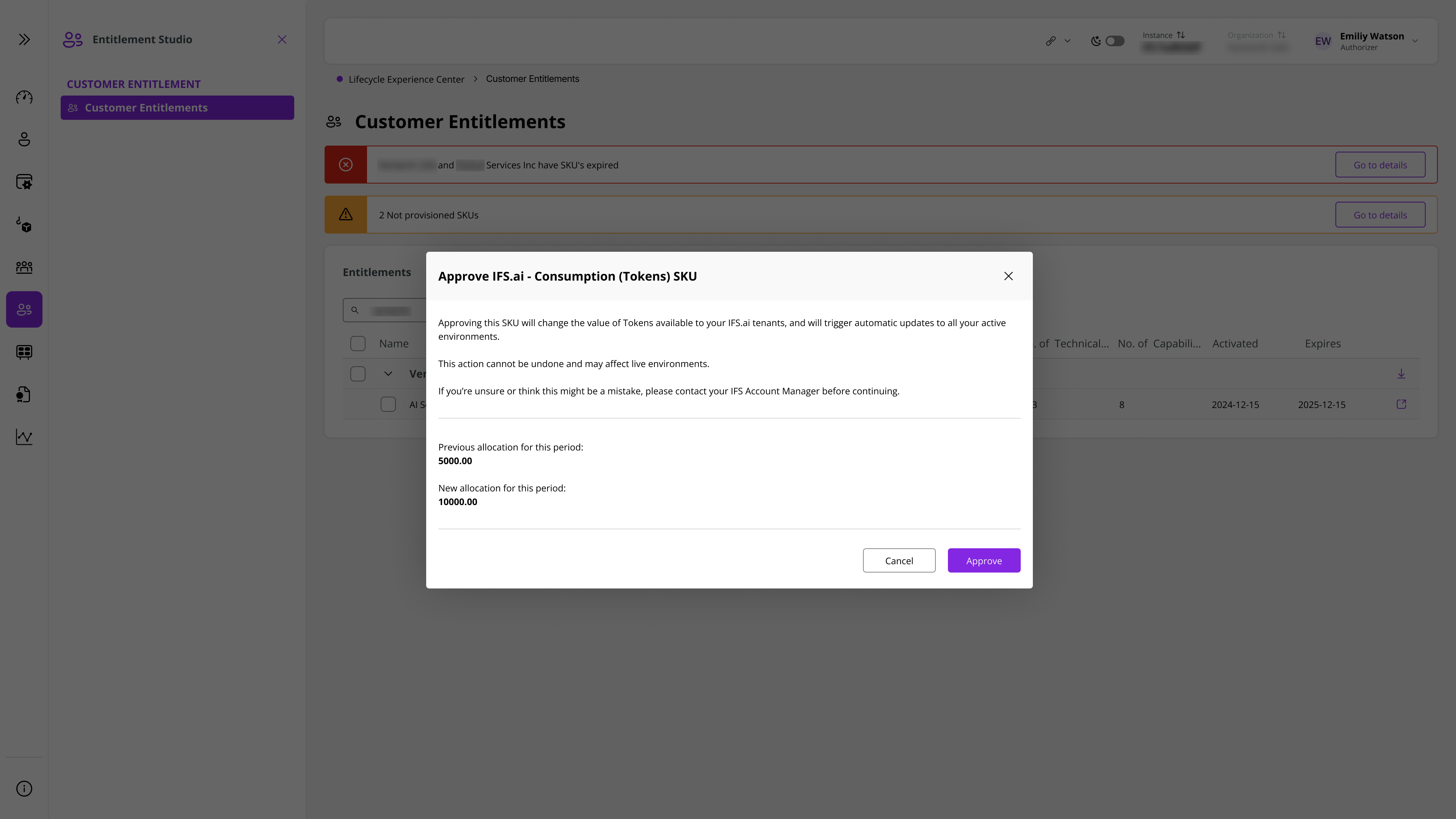 |
|---|
| Figure 6: Token Change Approval Dialog |
- Once approved, the new Token allocation becomes available to the customer.
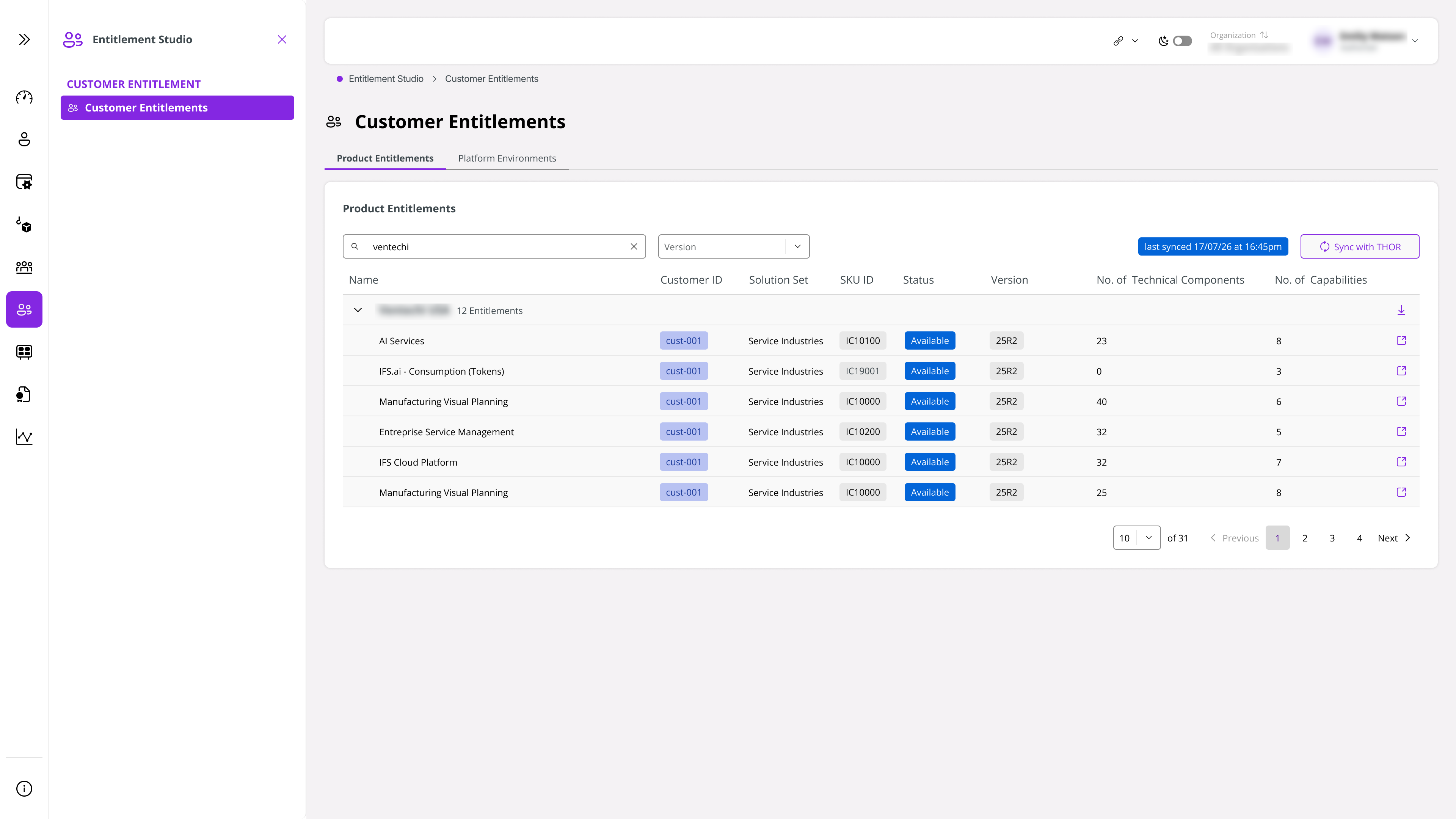 |
|---|
| Figure 7: Status of Token Change Set to Available |