Help Panel
Help Panel is an interactive assistant designed to provide guidance if you are unfamiliar with how to perform your duties within the IFS Cloud Web platform.
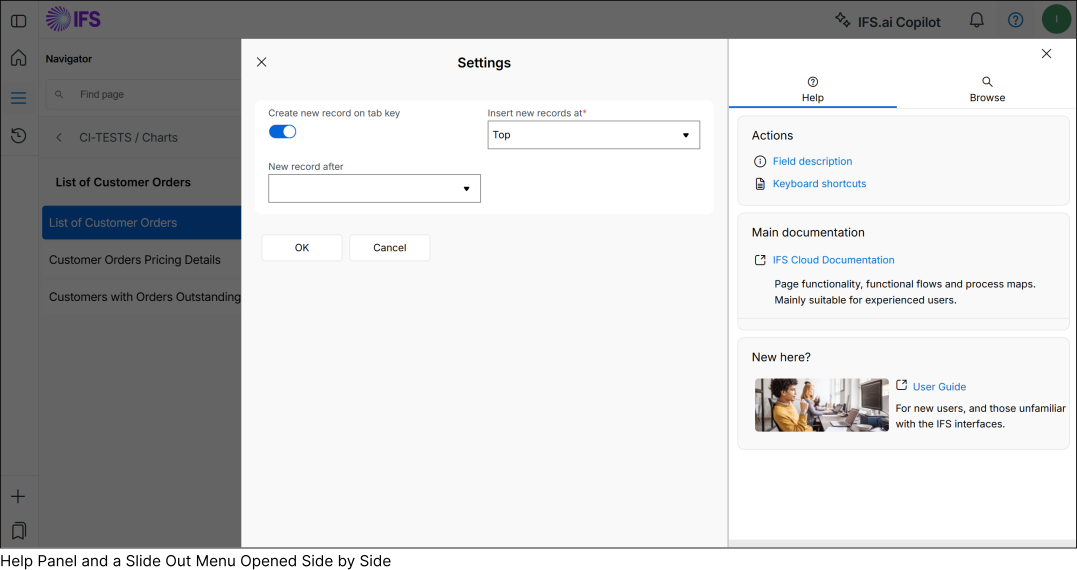
Note: If you have any slide-out menus open, you won't be able to access IFS.ai Copilot. However, if you already have IFS.ai Copilot open within your IFS Cloud Web application and then access a slide-out menu, both IFS.ai Copilot and the slide-out menu will be displayed side by side for your convenience.
Help Tab
The Help tab offers a comprehensive overview of all available support features within IFS Cloud Web, comprising three main sections.
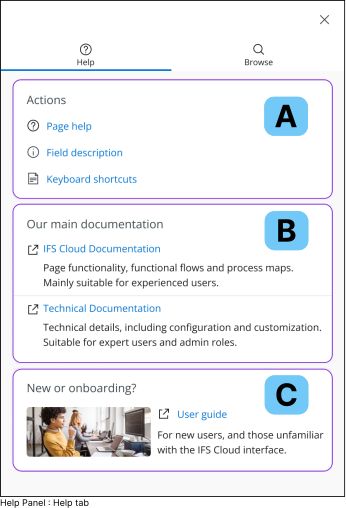 |
A : Actions Consists documentation on all the actions you can execute within the IFS Cloud Web pages, such as Note: Field Descriptions and Page Help are linked with IFS Cloud Web pages, therefor these selections will not appear when you open IFS.ai Copilot on the home screen. |
|
B : Our main Documentation
Comprises detailed documentation on IFS Cloud Web applications and an administrative guide on configuring the application.
|
|
|
C : New or onboarding
New users of IFS Cloud Web can utilize the content within this section to expedite their onboarding process. |
Browse Tab
The Browse tab allows you to search information within IFS Cloud Web, enabling you to quickly locate product documentation from the repository. This facilitates rapid access to the information you need.
In order to access the information , click on any link shown in the Search results section.
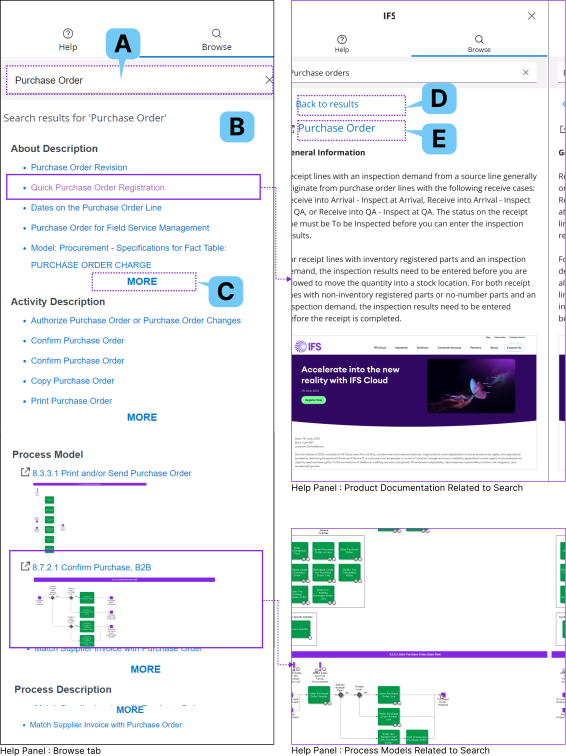 |
A : Search Bar Enter your search keywords into the Search Bar(A) and press the Enter key to initiate the search.
Upon initiating a search, the system categorizes the information according to predefined product documentation categories, streamlining your search process. |
|
B : Search results Upon initiating a search, the system categorizes the information according to predefined product documentation categories, streamlining your search process. All search results related to your query will be listed in the Search Results section. |
|
|
C : More
Click on the MORE(C) button to reveal additional results organized into main sections within the Search results(B) section. |
|
|
D : Back to results
After accessing a link within the Search Results (B) section, simply click on the Back to results (C) button to return to the search results section. |
|
|
E : Navigation Link
If you wish to navigate to the page where the search results originated from, an icon will be displayed next to any title linked to IFS Cloud support documentation. Simply click on the title next to the icon to navigate to the page. Note: Process models are always accompanied by a navigation link. When you click on the link, it will open up in a new browser tab, allowing you to explore the process model more thoroughly. |