Embedding IFS Dashboards in IFS Cloud
Embedding IFS Dashboards in IFS Cloud is a capability intoduced in Data Services Platform (DSP). These IFS Dashboards are connected to a Data Product of DSP and are created and maintained by IFS Data Product Developers (currently internal IFS RnD). All IFS Dashboards are predefined and cannot be customized directly within IFS Cloud. These dashboards use Apache Superset as the visualization engine, hosted within the IFS.ai Platform. Superset provides modern and interactive dashboard capabilities, while the Trino query engine is used to efficiently retrieve and render the underlying data.
This page describes how these dashboards can be accessed and viewed within IFS Cloud Web.
Dashboard Access Configuration
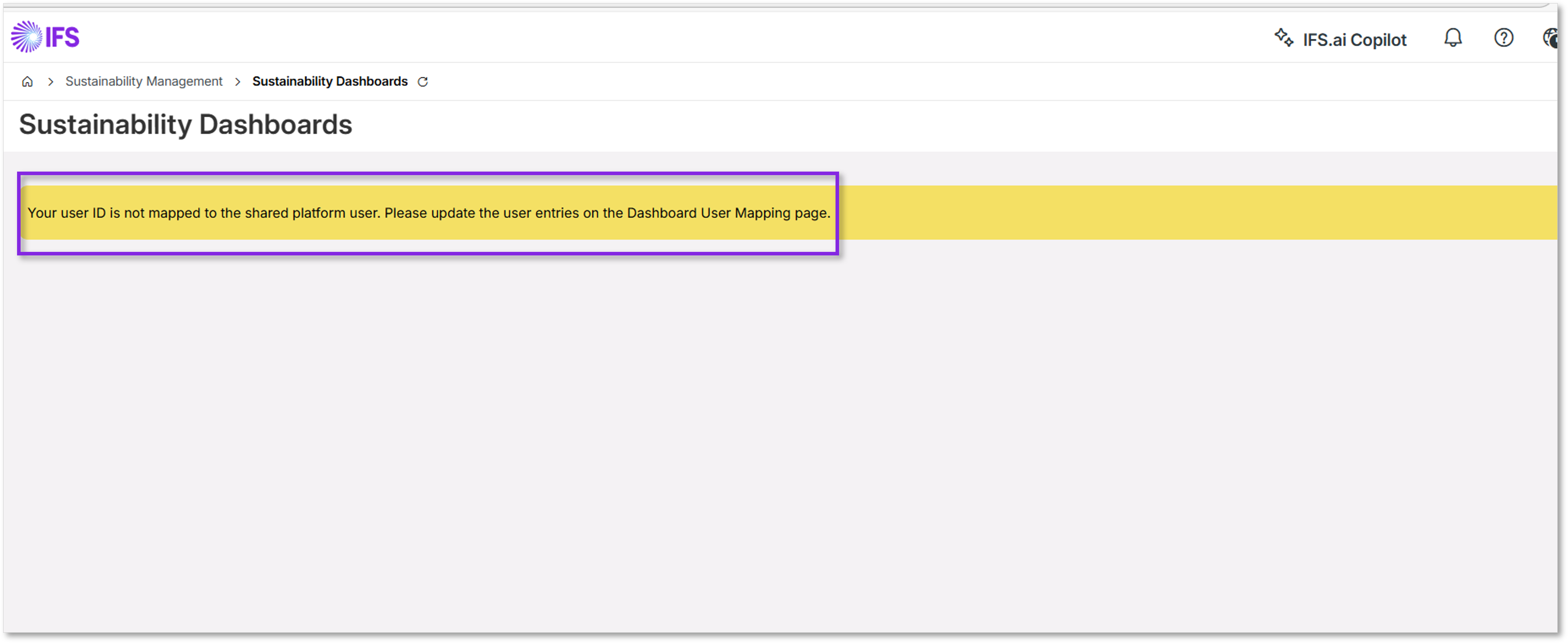
To view the embedded dashboards, Dashboard User Mapping must first be configured. This mapping links the IFS Cloud user account with the corresponding User ID (email) in the IFS.ai Platform.
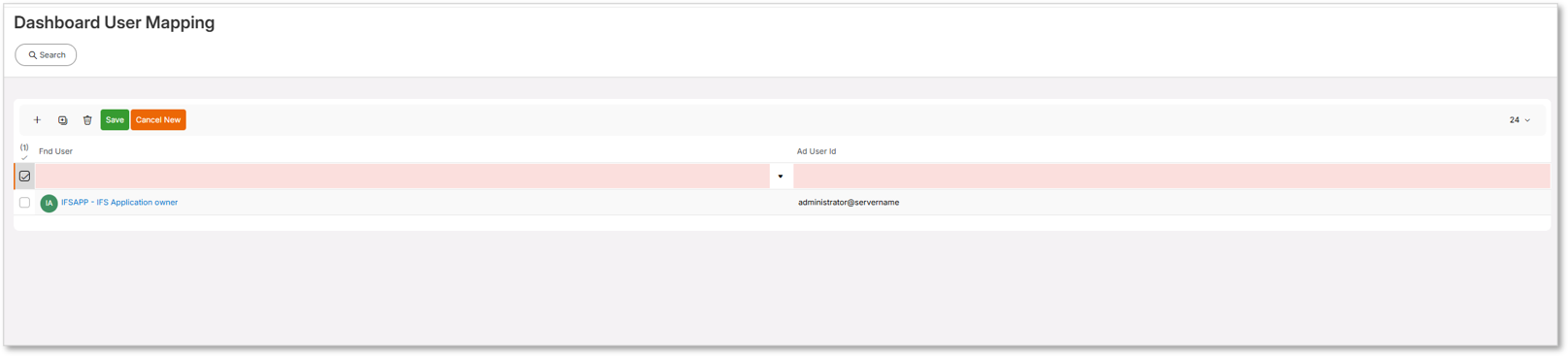
Follow these steps to configure the mapping:
- Navigate to the Dashboard User Mapping page. Navigation path: Reporting and Analysis->Solution Manager->Data Services->Dashboard User Mapping.
- Click the + icon to create a new entry and select the Fnd User.
- The AD User ID field is automatically populated using the default directory email.
- If required, update the AD User ID so that it matches the correct IFS.ai Platform User ID (email address).
- Once the mapping is complete, log in as the respective user and open the dashboard. It will display the relevant data with the appropriate access level security applied.
Key Features of Embedded IFS Dashboards
Each embedded dashboard provides the following capabilities:
- Filtering
- Full-screen view
- Export options (PDF or Image)
- Refresh functionality
- Automatic refresh based on intervals
- Explicit refresh
View and Export Dashboard
Each visual in the dashboard has a kebab (⋮) menu that lets you download it as a PDF or image and, open it in full-screen mode for improved focus and readability when analyzing data.
Refresh Dashboard
The dashboard can be refreshed either explicitly or by configuring an auto‑refresh interval.
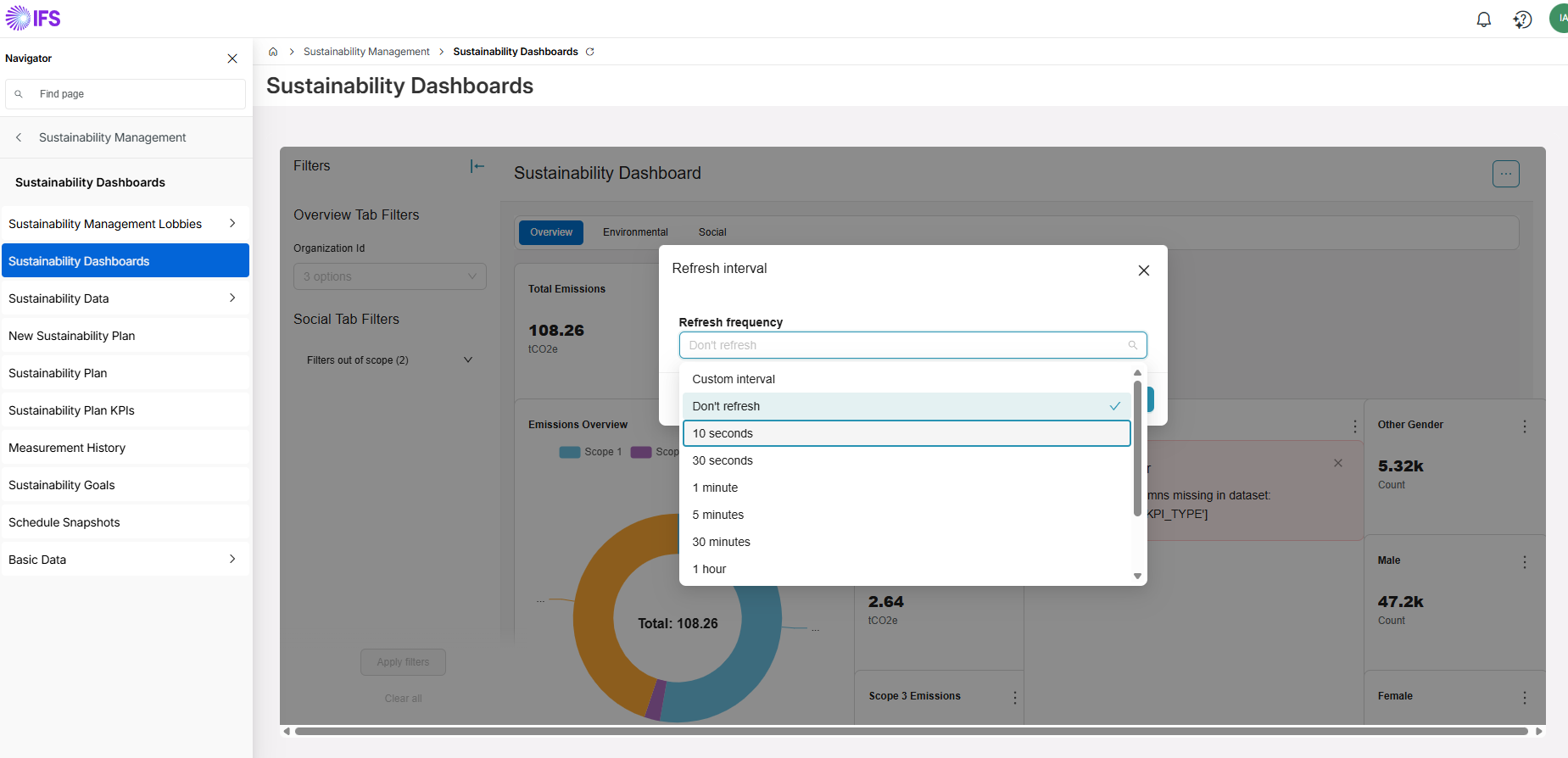
Setting an auto-refresh interval- When the Set auto-refresh interval option is selected, you can select a refresh frequency by selecting from the default values or by adding a custom interval.
Explicit refresh-Selecting the Refresh Dashboard option initiates refreshing the dashboard explicitly, indicating via a status message.
Note
If the IFS Cloud user does not have the required permissions to access these dashboards, an access-related message will be displayed.
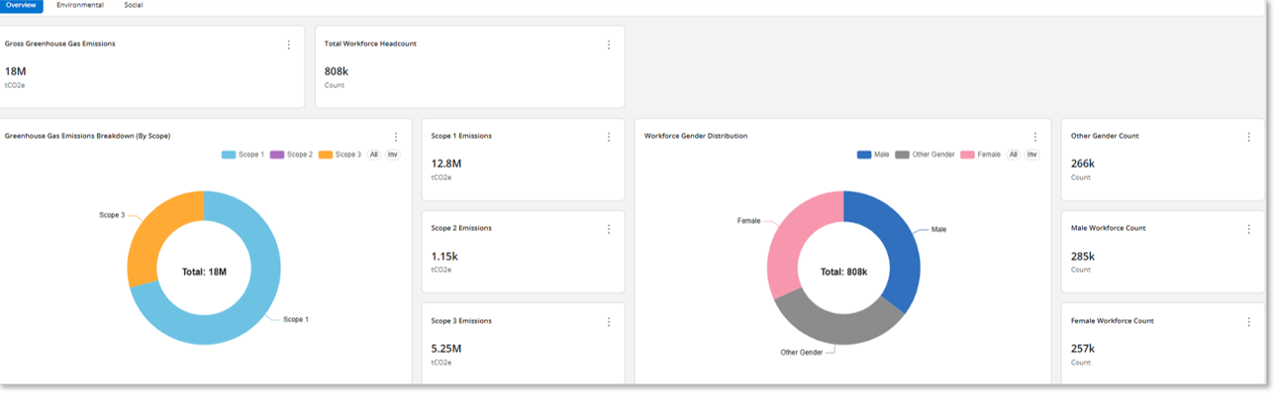
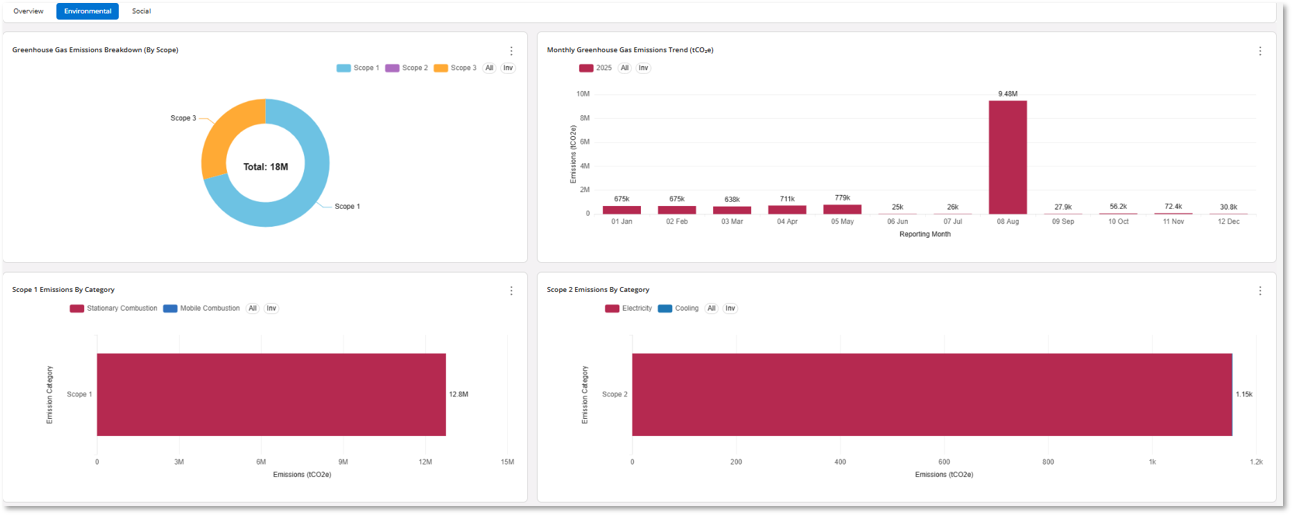
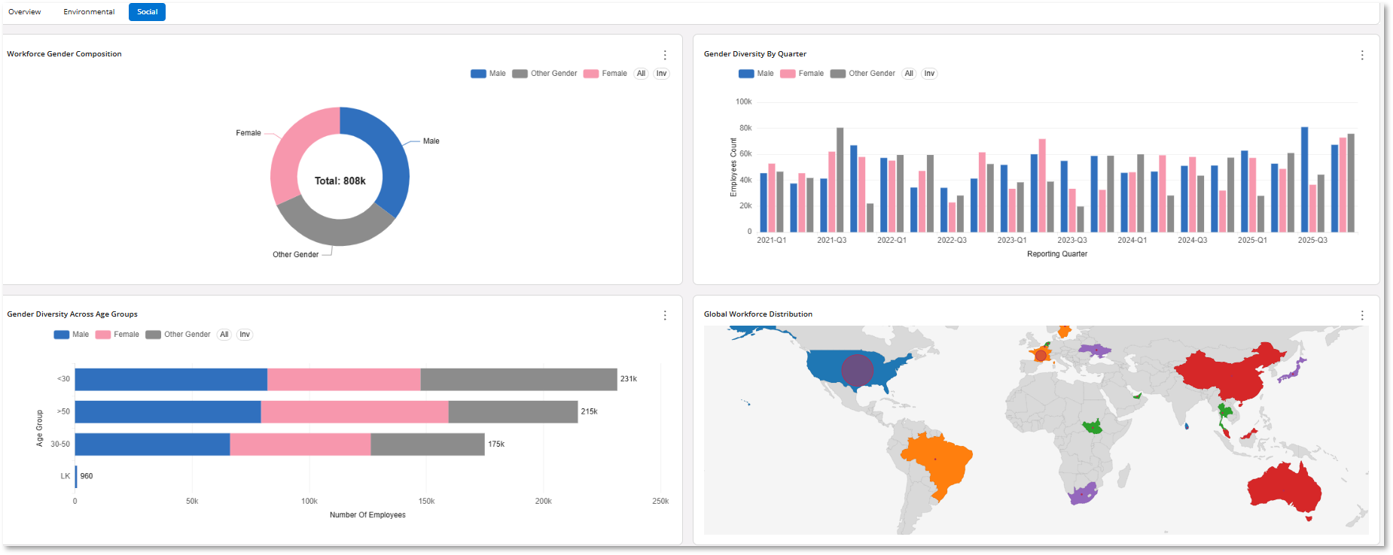
Below are a few images of an example dashboard created for the Sustainability domain.