Data Streaming Enabled Tables
This page describes the tables enabled for data streaming in IFS Cloud, which are used for the Data Sync capability and Data Products in Data Services Platform (DSP), along with the actions you can perform on them and other information you need to know.
Introduction
Data Sync capability in Data Services Platform (DSP) enables you to sync selected data from the per-tenant IFS.ai Data Lake to your organization's own data lake environment (Amazon Simple Storage Service - AWS S3, Azure Data Lake Storage - ADLS Gen2, Google Cloud Storage - GCP-GCS).
DSP supports the following three synchronization sources:
- Data Products — Syncs every table linked to a chosen Data Product automatically, without the need to select tables individually.
- Tables — Lets users select and sync individual tables, whether or not they belong to a Data Product.
- Data Lake Folders — Syncs file-based and document contents at the folder level (Gold, Silver, Bronze, and Bronze's sub-folders; External and Batch folders can also be selected).
Table Synchronization
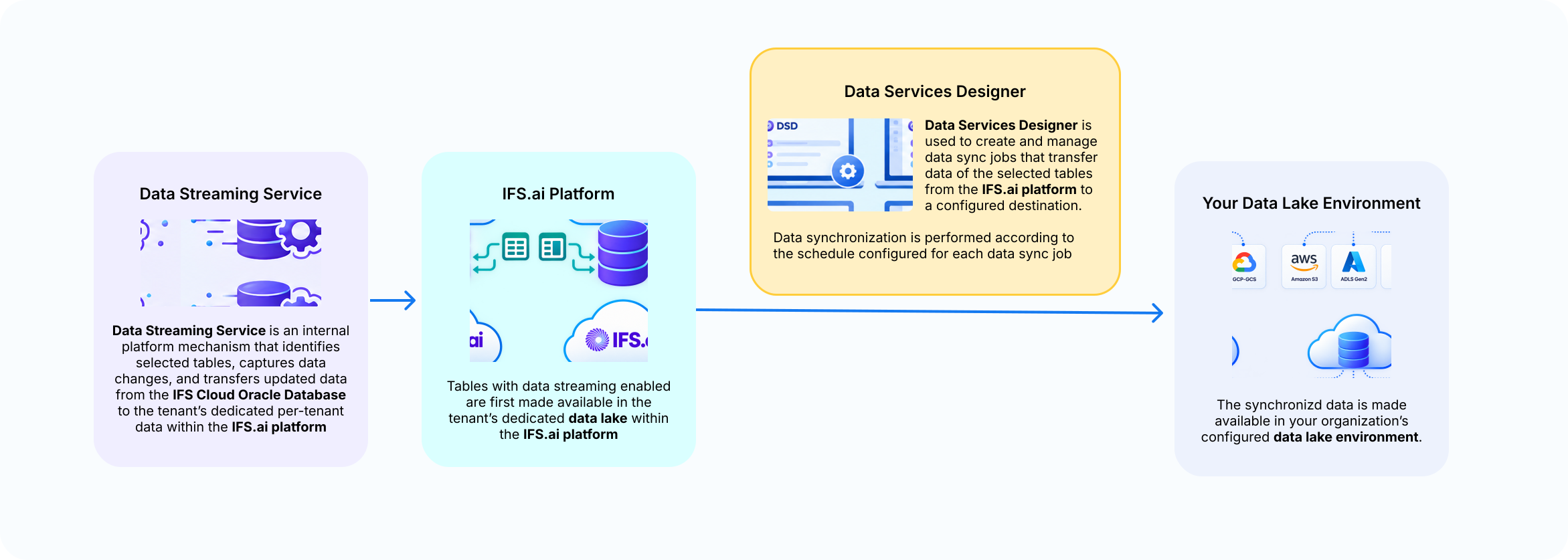
To facilitate Data Sync capability in DSP, a Data Streaming Service; an internal platform mechanism, is used to identify the tables that need to be synchronized and to identify changes made to selected tables. This service captures data changes and transfers them from the IFS Cloud Oracle database to the tenant's dedicated data lake within the IFS.ai platform.
Once the data streamed tables are available in the tenant's data lake on the IFS.ai platform, you can sync them to your organization's own data lake environment by creating and managing a sync job in Data Services Designer within DSP.
The diagram below illustrates the table synchronization solution.
Note
Sync frequency for any synchronization source type can be set from 30 minutes up to several hours in DSP. In practice, changes made in IFS Cloud can reach your organization’s own data lake environment within a few minutes to around 30 minutes, depending on data volume, processing time, and network conditions. Note that the initial data load may take longer than 30 minutes and will depend on the volume of data being loaded.
Note
Data Sync capability in DSP is supported only for IFS Cloud Service/IFS Managed Customers. Support for Remote Customers will be addressed in the future.
IFS Cloud Web Interface for Data Streaming Enabled Tables
To view tables that have data streaming enabled, or to select additional tables, navigate to the Data Streaming Enabled Tables page in IFS Cloud.
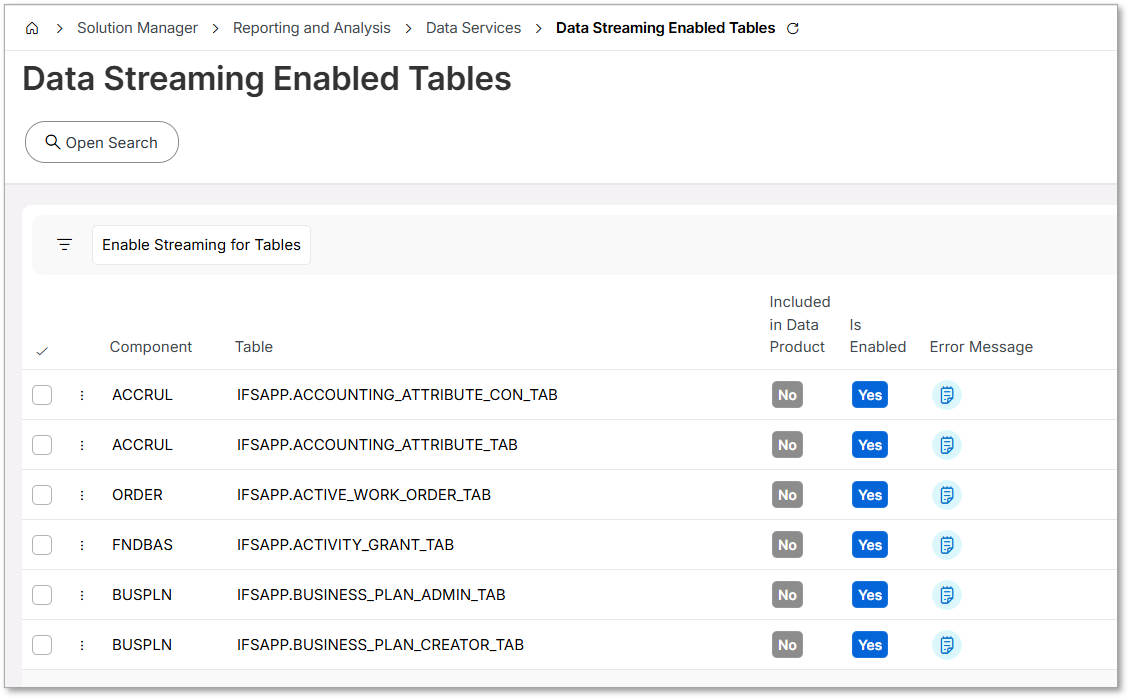
The fields displayed on this page are explained in the table below.
| Field | Explanation |
|---|---|
| Component | A component in IFS Cloud is a modular business unit that encapsulates related functionality, data, and APIs for a specific business domain. |
| Table | A table in IFS Cloud is a component-owned database structure used to store business data and accessed exclusively through validated business logic. |
| Included in a Data Product | This indicates whether the selected table is included in a Data Product or not. |
| Is enabled | This indicates whether data streaming is currently enabled for the selected table or not. |
| Error Message | Displays the error message associated with any issues that occur during the data streaming enablement process. |
Note
To access this page in IFS Cloud, users need to have the DTS_ADMINISTRATOR permission set assigned to them.
Adding New Tables to Enable Data Streaming
As mentioned above, in addition to tables included in Data Products, users can select tables to enable data streaming from IFS Cloud.
Note
A maximum of 100 tables are allowed to be selected. Therefore, ensure only the required tables are selected.
To use this feature, the tenant must be entitled to the corresponding capability. When this entitlement is available, authorized users can add new tables to enable data streaming.
Follow the steps below to select additional tables.
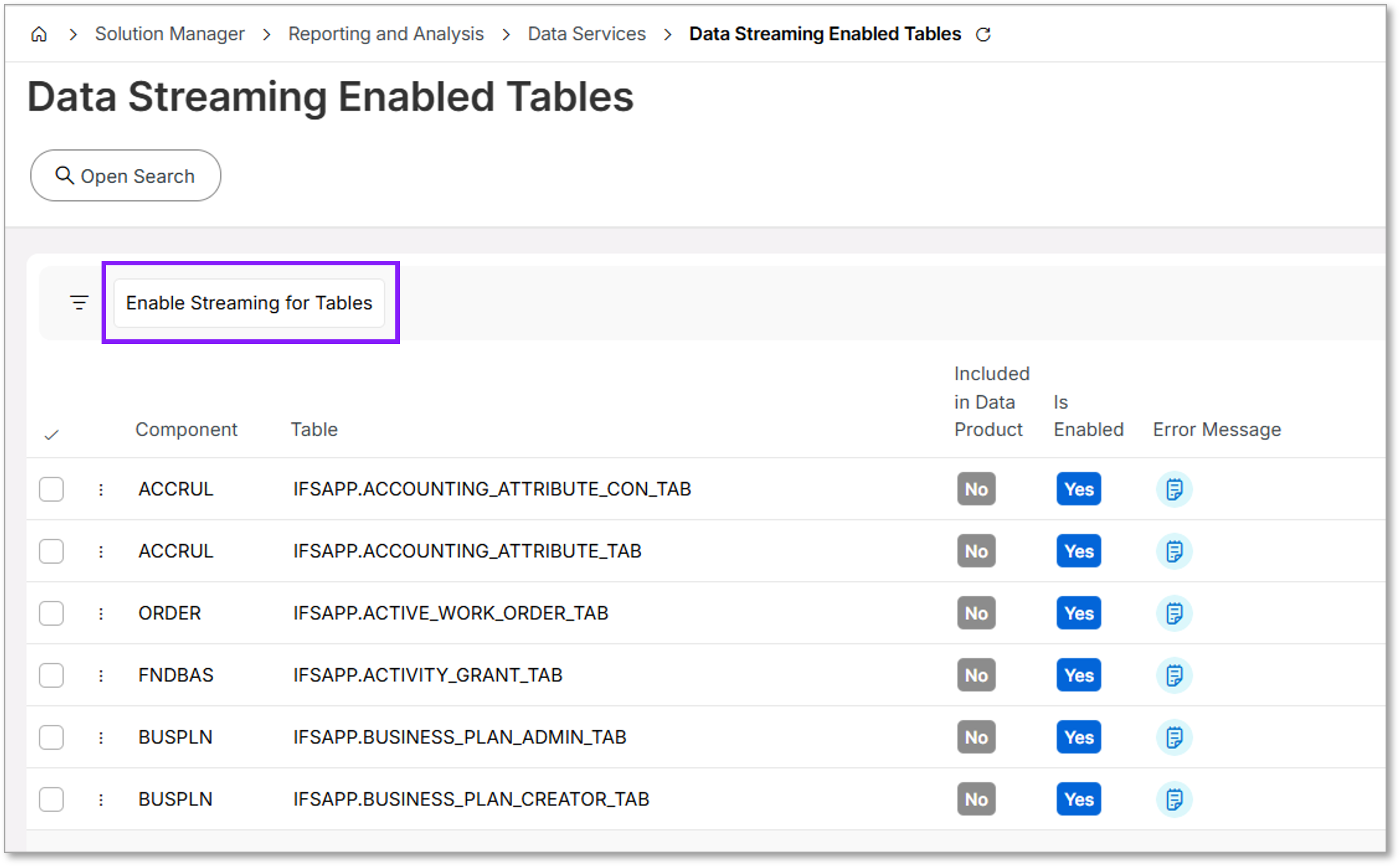
Step 1: Launch the Table Selection Assistant
Click Enable Streaming for Tables to open the Table Selection for Data Streaming assistant.
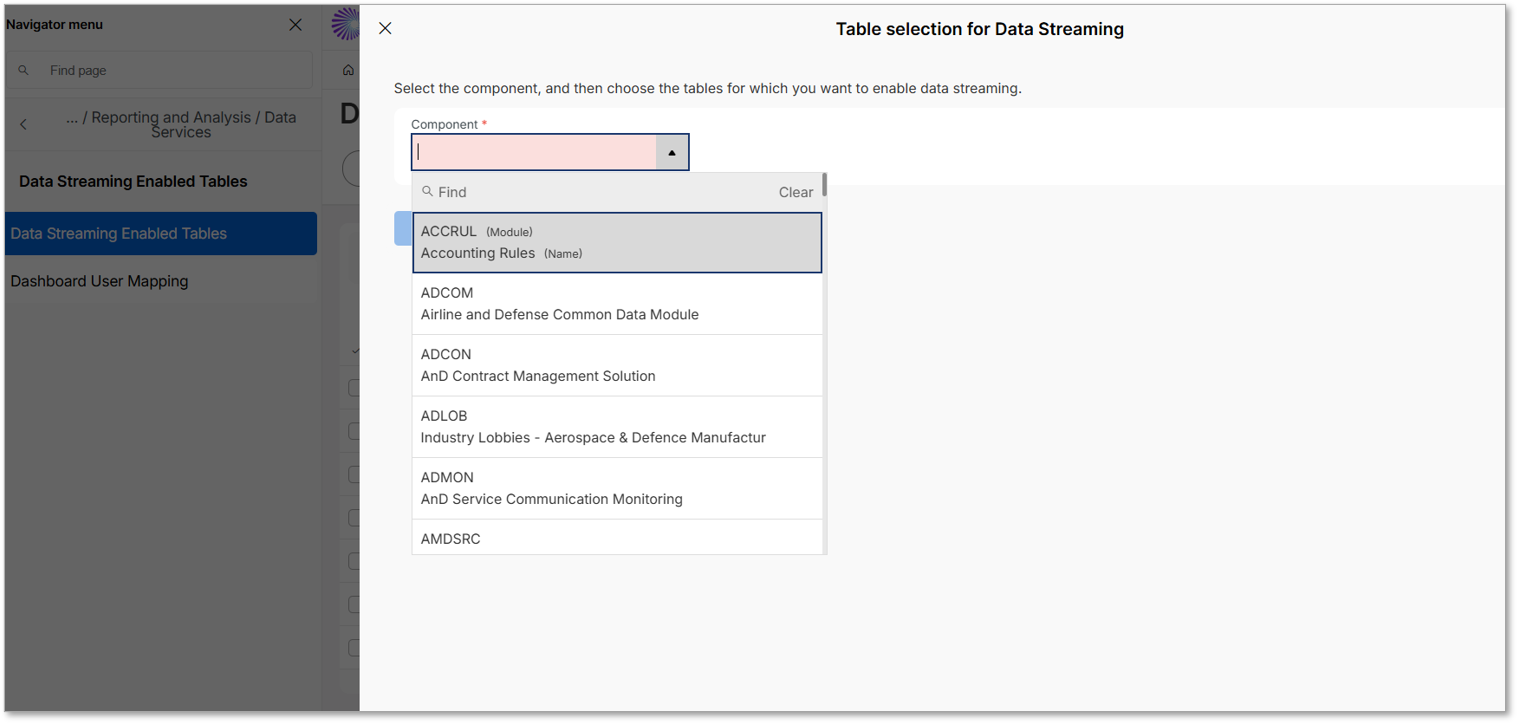
Step 2: Select a Component
Within the assistant, select the required Component from the list of values.
Step 3: Select Tables
Once a component is selected, the tables associated with it are displayed. You can select one or more tables.
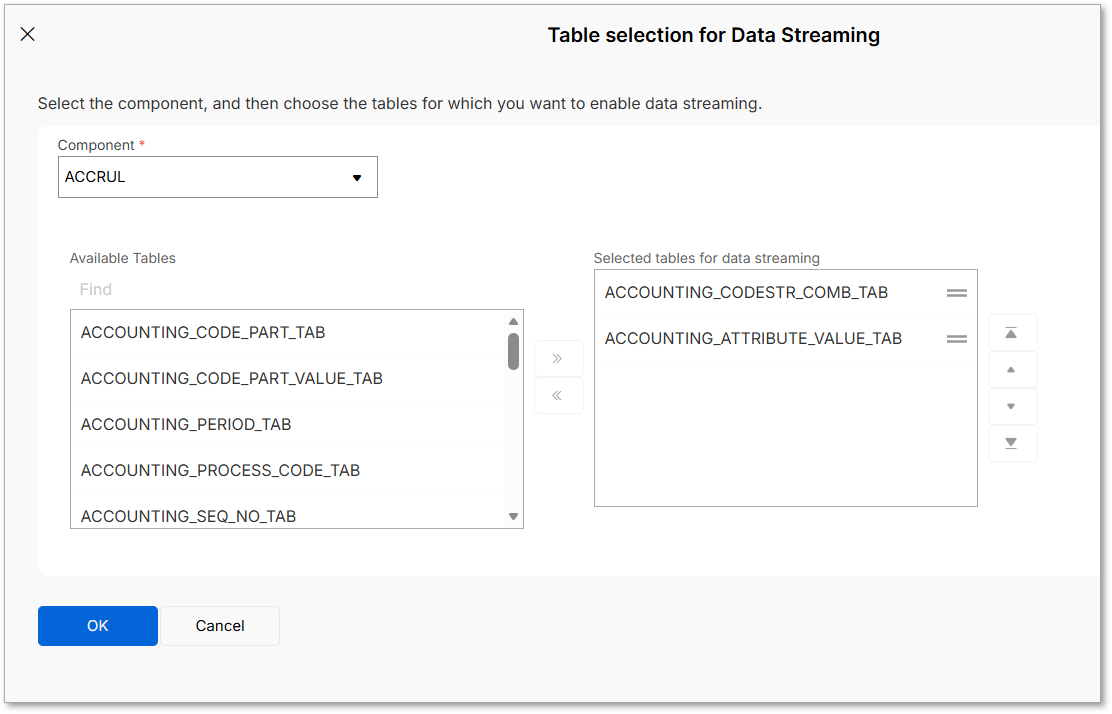
Step 4: Confirm the Selection
Click OK to complete the table selection process and enable data streaming for the selected tables.
Additional Options Available for User-Selected Tables
There are several additional configuration options available for tables that are selected by an authorized user. These options allow users to manage the data streaming behavior and perform specific actions on the selected tables.
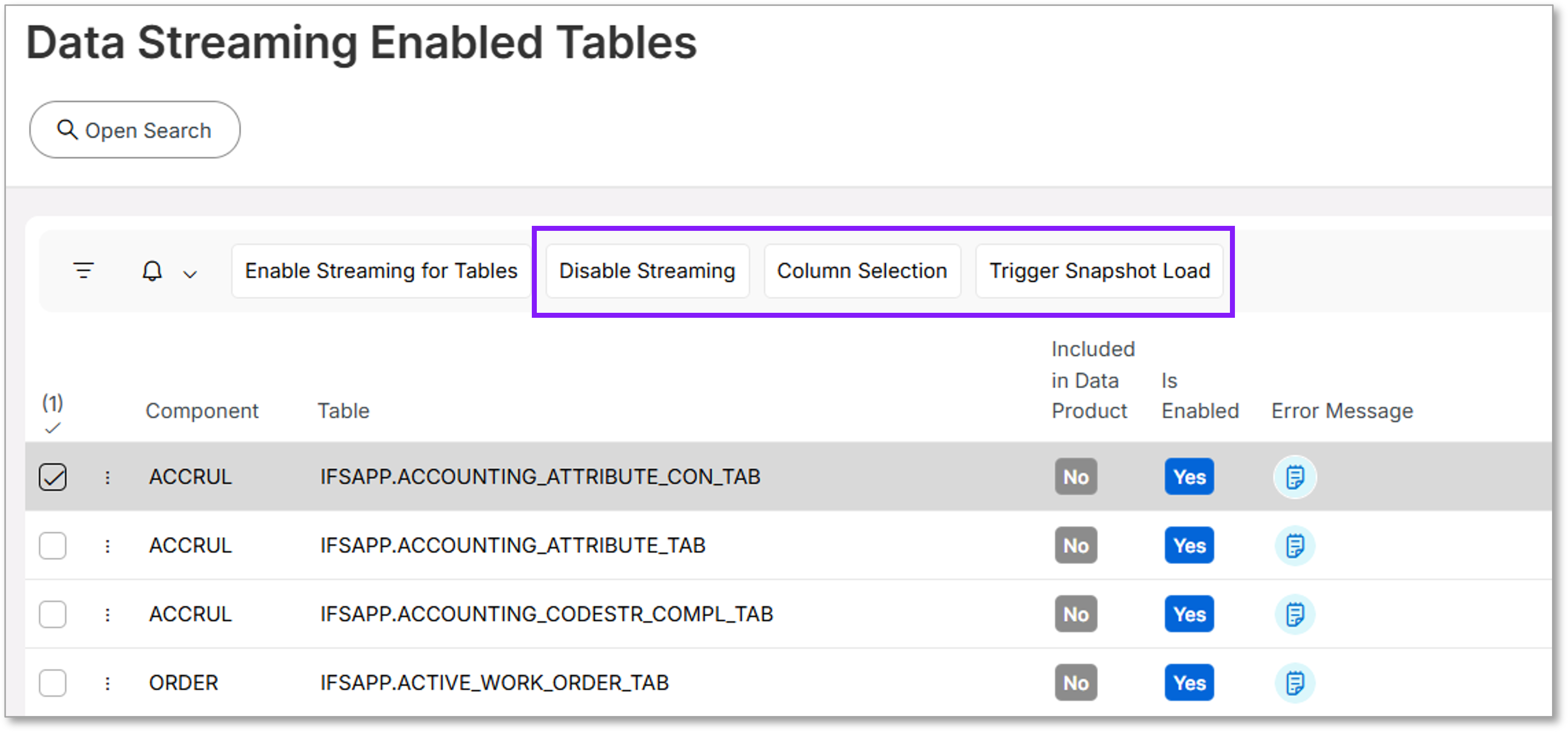
1. Disabling Data Streaming
Data streaming can be disabled only for tables that were explicitly selected by the user. Data streaming cannot be disabled for tables that are included in Data Products defined by Internal Data Product Developers (currently, IFS R&D).
To disable data streaming, select the table and click Disable Streaming.
When this action is performed:
- The selected table is removed from streaming data capture tracking.
- Supplementary logging for the table is revoked at the database level.
The Disable Streaming action can be applied to one or multiple tables at the same time. Once disabled, the tables will be removed from the Data Streaming Enabled Tables list.
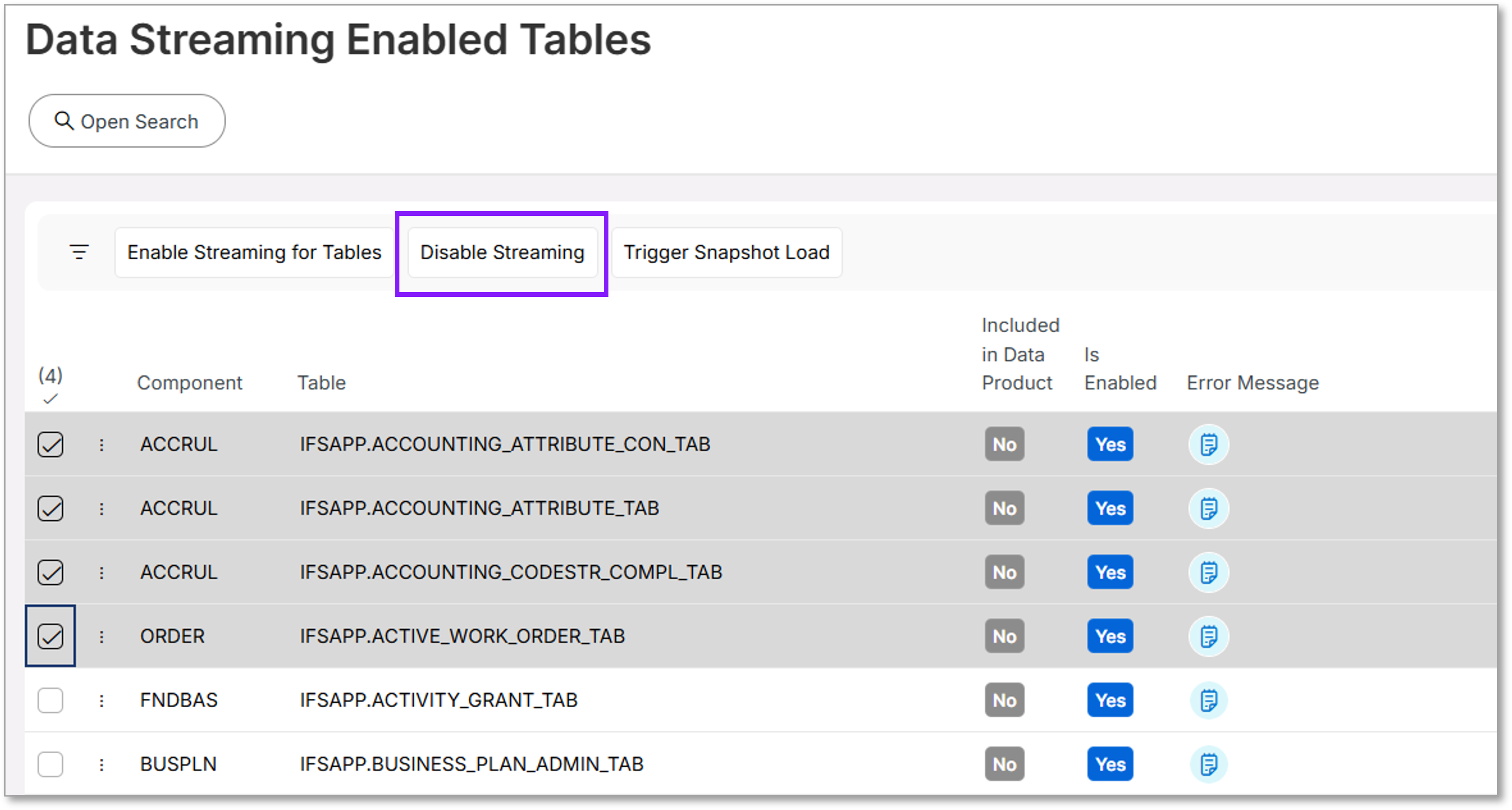
Note
If your entitlement associated with the Data Product or Data Sync capability is removed or no longer exists, associated tables will automatically be removed from the Data Streaming Enabled Tables list.
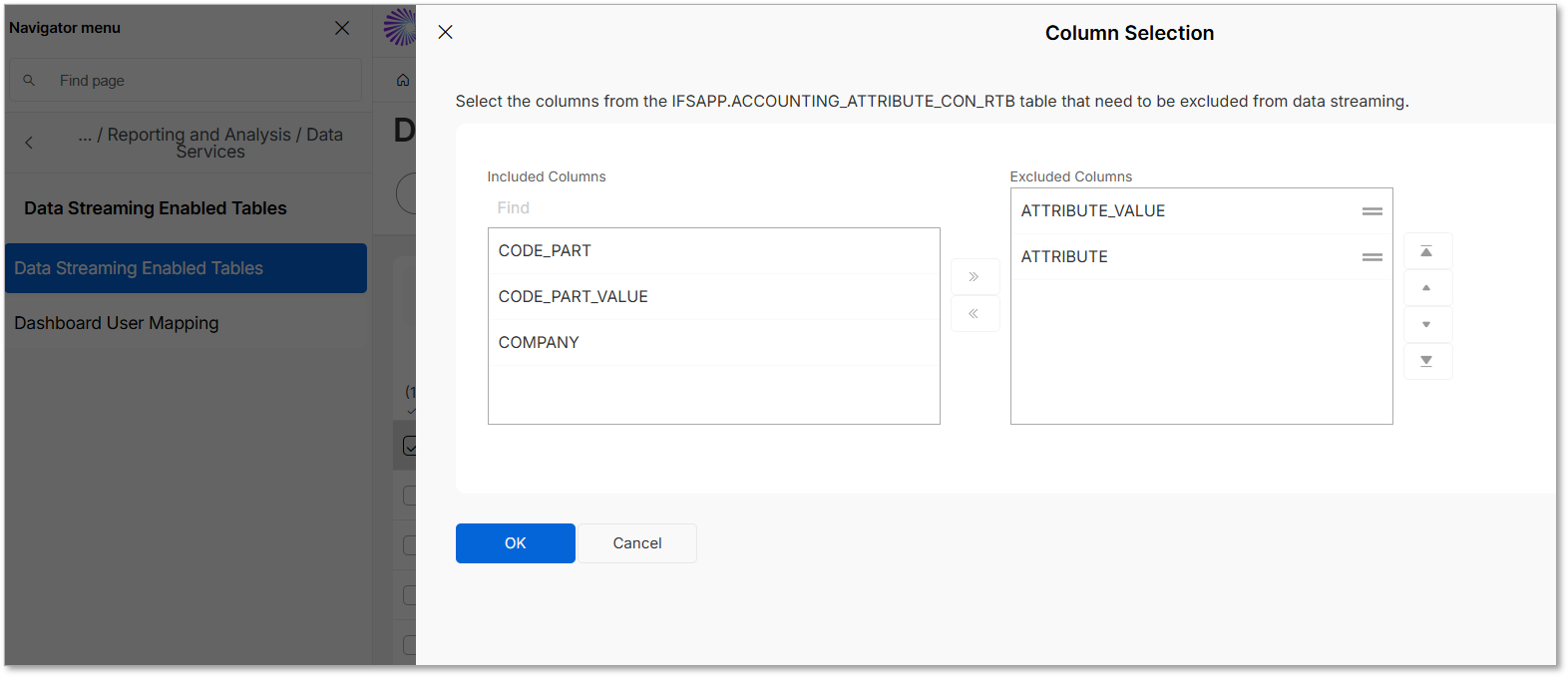
2. Column Selection
The Column Selection assistant displays columns included for the selected table. By default, CLOB and BLOB type columns are excluded.
From this interface, users can optionally exclude additional columns from the data streaming process.
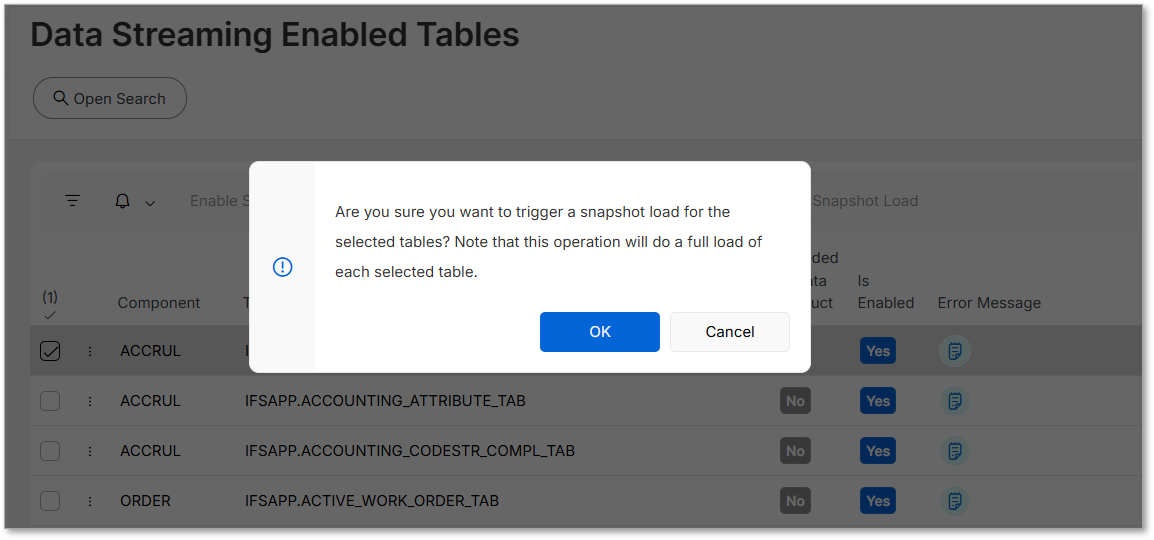
3. Trigger Snapshot Load
When a table is enabled for data streaming, the initial synchronization always performs a full load of the table. After the initial load, subsequent data changes are captured through data streaming according to the configured synchronization settings.
If a new full snapshot of the table is required at a later stage, it can be triggered using the Trigger Snapshot Load option.
When this option is selected:
- A confirmation prompt will appear.
- Selecting OK initiates a full snapshot load for the selected table.
Background Services for Data Streaming Configuration
Data streaming configuration is performed automatically by background services in DSP. These services determine which tables should have data streaming enabled and configure the required components to capture the data changes.
The Table Management Service first retrieves the tenant's entitlement information from LEC using the Tenant ID. Based on these entitlements, it identifies:
- The tables associated with the tenant's entitled Data Products.
- Any tables manually selected through the Data Streaming Enabled Tables page in IFS Cloud.
Once the list of eligible tables is prepared, the Data Streaming Service configures data streaming for those tables by:
- Updating the required system tables, and snapshot load configuration tables.
- Enabling Supplementary Logging on the selected tables.
- Configuring the Data Streaming Service to monitor the tables and capture database changes.
After the configuration is complete, changes made to the configured tables are automatically captured and transferred to the tenant's dedicated IFS.ai Data Lake, making them available for Data Sync in DSP.
The primary product component responsible for enabling data streaming in IFS Cloud is the CDCFW component.
Note
The Data Streaming Service restarts to detect changes to the data streaming configuration. These restarts must be at least 30 minutes apart. As a result, when a new table is enabled for data streaming, data capture may not begin immediately.
If the last restart happened more than 30 minutes ago, the Data Streaming Service will detect the new table and restart within a few minutes. However, if the last restart was less than 30 minutes ago, the service waits until 30 minutes have elapsed since that restart before restarting again.
So capture can begin anywhere from a few minutes to 30 minutes after a table is enabled, depending on the last restart time.
This 30-minute detection delay is a separate mechanism from the 30-minute sync interval described earlier in this document. The detection delay applies only once, when a table is newly added for data streaming.
Known Limitations of the Data Streaming Service
Enabling data streaming requires Supplemental Logging to be turned on at the Oracle container level; this is what allows Oracle to record sufficient detail about each row change for data capture.
However, this comes with a trade-off: Oracle does not support Online DDL operations on tables that have Supplemental Logging enabled, unless Oracle GoldenGate is being used. This directly conflicts with IFS Cloud's online upgrade mechanism, which relies on Oracle's Edition-Based Redefinition (EBR) to apply certain DDL changes and to achieve near-zero-downtime upgrades.
As a result, enabling data streaming, which requires Supplemental Logging, interferes with online upgrading. Therefore, a tenant using data streaming needs to account for this limitation and consider the unavailability of data streaming when planning an online upgrade.
Workload Jobs Related to the Data Streaming Configuration
The following workload jobs are directly or indirectly related to the data streaming flow in DSP. These jobs process data streaming-generated data, maintain supporting datasets, and refresh analytical structures used by downstream services such as dashboards and transformations.
| Workload Job | Description | When to Run |
|---|---|---|
| RAW_TO_MIRROR_WORKLOAD | Once the data streaming-enabled tables are available in the per-tenant Data Lake in the IFS.ai platform, this workload transforms the Raw tables generated by the data streaming ingestion pipeline into Mirror tables in the Data Lake. Raw tables contain row-level change events captured from the Oracle source database. The Mirror layer processes these change events and reconstructs the latest state of each table, making the data easier to consume for analytics and downstream workloads. The job uses metadata about data streaming-enabled tables, primary keys, and table structures to correctly merge and update records in the Mirror tables. | Run this workload after enabling data streaming for new tables, especially when tables are added manually, so the newly enabled tables are included in the Raw-to-Mirror transformation pipeline. The scheduled time for this workload job can be adjusted according to your requirements. |
| ENUMERATION_WORKLOAD | This workload job loads and maintains the enumeration value dataset used in DSP. Enumeration datasets contain code and display value pairs defined in IFS Cloud. The workload processes enumeration metadata and creates a dataset in the Data Lake so that these mappings can be used by analytics, data transformations, and queries that require human-readable values instead of internal codes. | This workload is delivered as part of the solution package and does not normally need to be executed during initial setup. It should be triggered after a Service Update or when enumeration values are updated to refresh the enumeration dataset. |
Read more about workload jobs: Workload Job Definitions