IFS.ai Copilot for Mobile
How to Enable IFS.ai Copilot for Mobile
To access IFS.ai Copilot, whether in IFS Cloud (web) or in the IFS Mobile apps, the following prerequisites must be met:
- The component FNDGPT needs to be active.
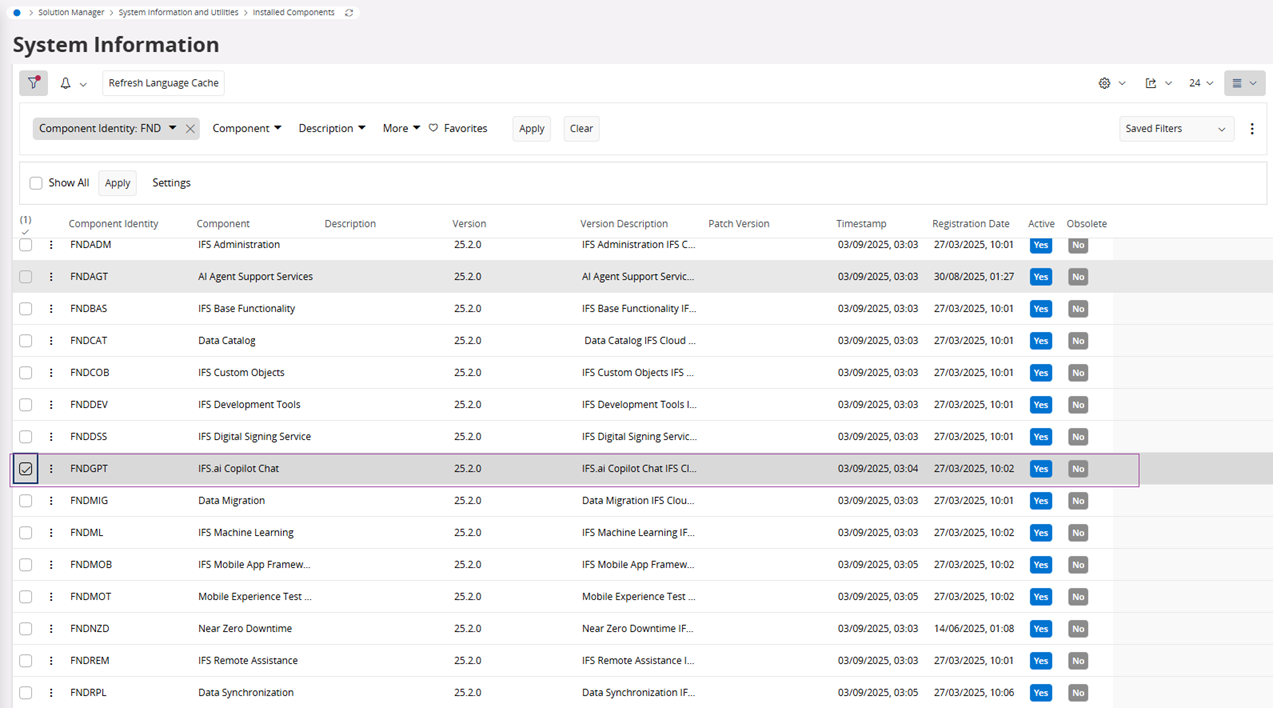
- The system parameter IFS.ai Copilot Chat needs to be ON (ON is the default value).

- The permission set FNDGPT_RUNTIME needs to be granted to the user.
Note : For a user to be able to administer and publish prompts to others in the organization, this prerequisite needs to be filled:
The permission set FNDGPT_ADMIN is granted to the user.
Additional Requirements for Mobile Copilot
In addition to the common prerequisites above, the following requirements apply specifically to the IFS Mobile apps:
- To enable Copilot in mobile apps, set the application parameter AI_COPILOT_CHAT to ON. (The default value for this parameter is OFF)

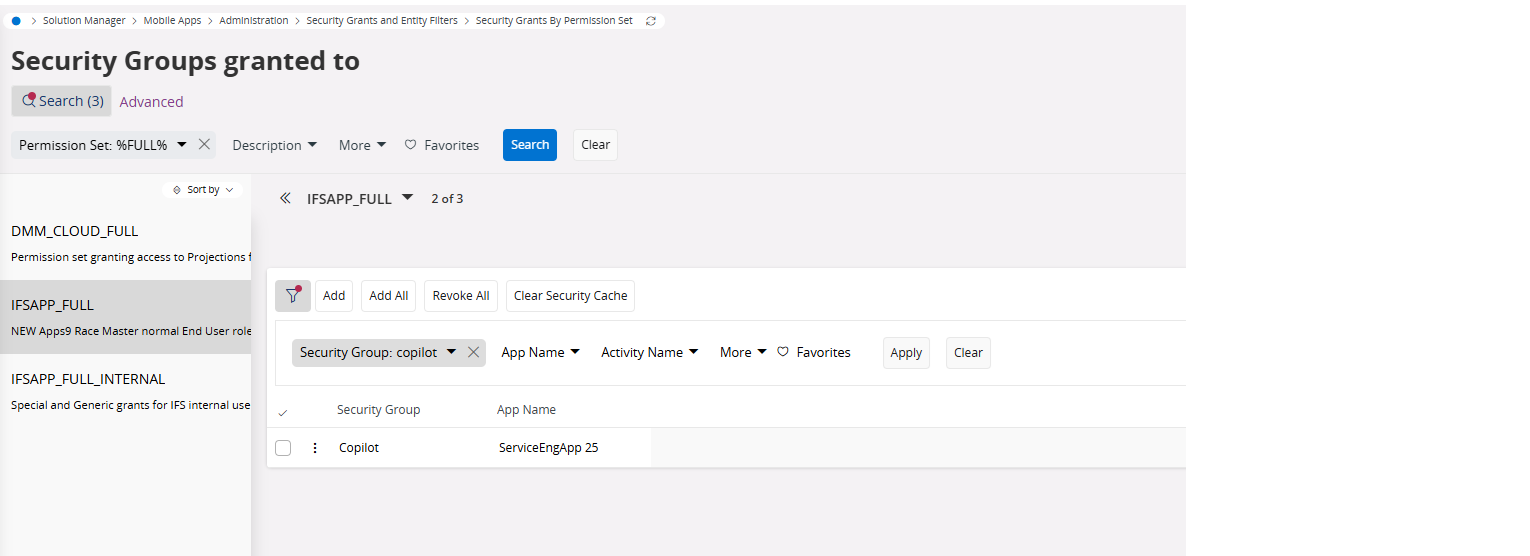
- For an end-user to be able to access Copilot in a mobile app, the particular user must be assigned to the Copilot security group through a permission set.
How to Enable the Speech-to-Text Feature for Mobile Copilot
Before starting the configuration, ensure that the following prerequisites are met:
- Access to the Azure Portal
- An Azure Speech Services resource provisioned in the target Azure subscription
Configuration Steps
Step 1: Obtain Azure Speech Services Credentials
- Sign in to the Azure Portal.
- Navigate to Speech Services under Azure resources.
- Select the Speech Services resource that will be used for IFS Mobile Copilot.
- From the resource overview:
- Note the Location/Region where the resource is deployed.
- Example values: eastus, westeurope
- Navigate to Keys and Endpoint.
- Copy one of the available Subscription Keys (Key 1 or Key 2).
Note: The selected region and subscription key must belong to the same Speech Services resource and must remain valid to ensure uninterrupted Speech-to-Text functionality.
Step 2: Configure IFS Cloud Application Parameters
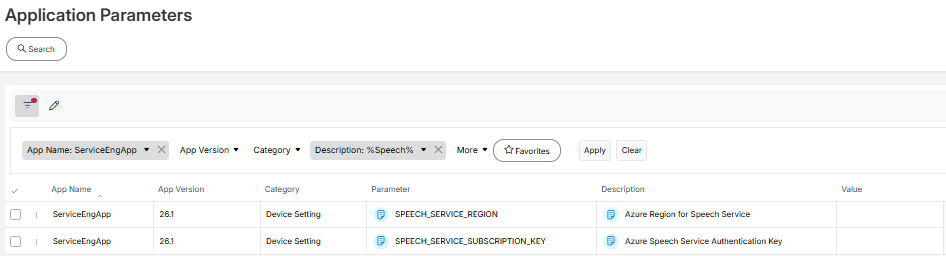
- Log in to IFS Cloud and navigate to Application Parameters.
In the Application Parameters page, locate and configure the following parameters.
Step 3: Activate the Configuration
To apply the updated application parameters, reinitialize the IFS Cloud Mobile application.
IFS.ai Copilot for Different Mobile Apps
To be able to access the mobile Copilot features for different product apps, the user needs to be granted with the relevant permissions:
IFS.ai Copilot for Service Technicians
Permission set to be granted : COPILOT_SERVICE_TECHNICIAN
Available in the following pages in the native MWO app:
- Work Details
- My Work