User Settings
User Creation Settings
When creating a new user, there are several options to select from with regard to setting a new password for the user. These options can be selected on the User Settings page. Only one setting can be active at any given time.
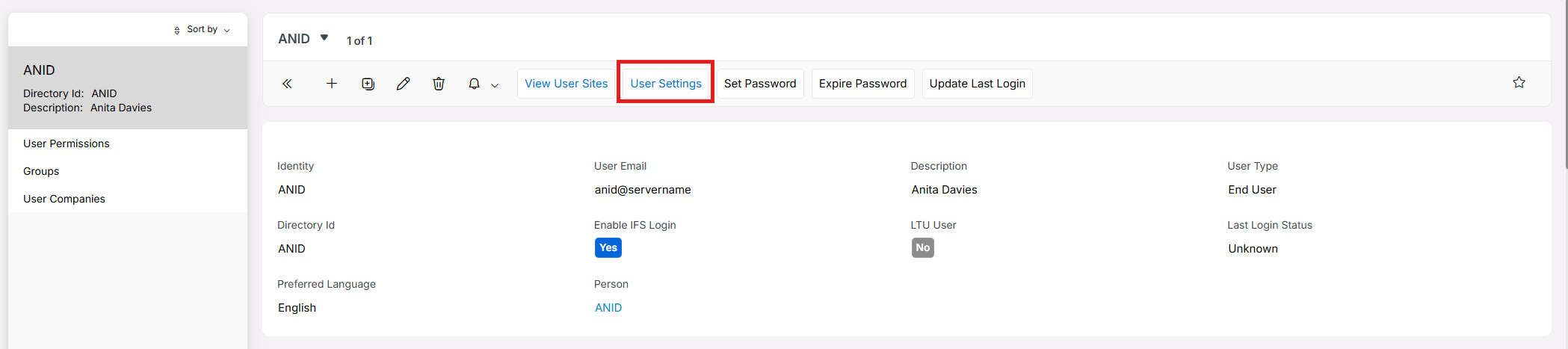
By selecting the current setting and pressing the edit button, you will be taken to an assistant where new settings can be selected.
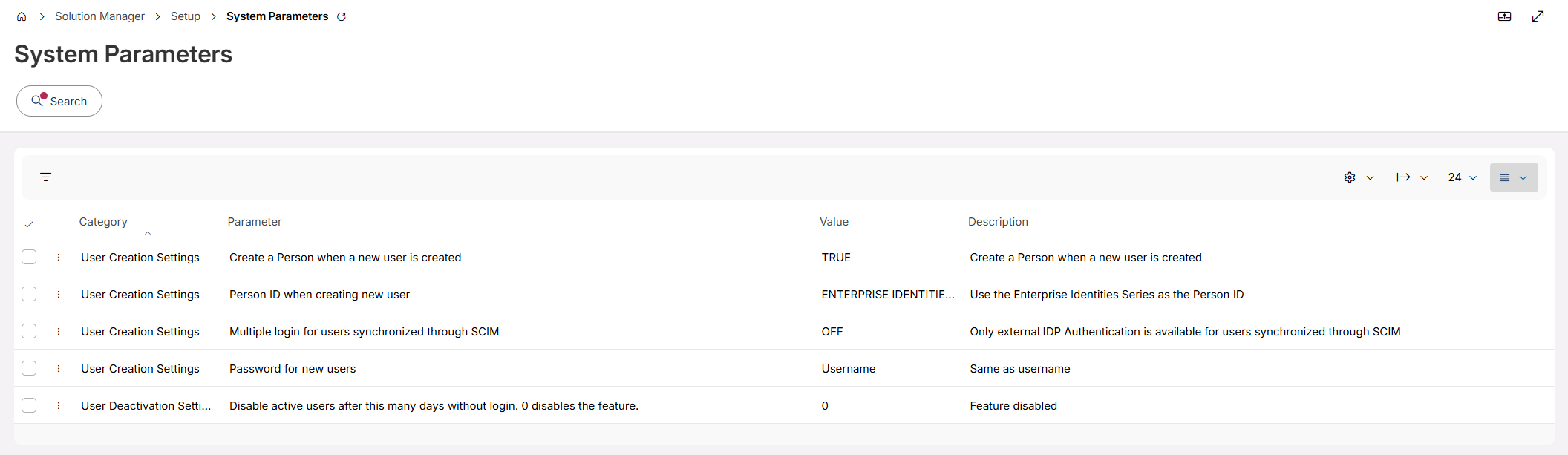
System Parameters
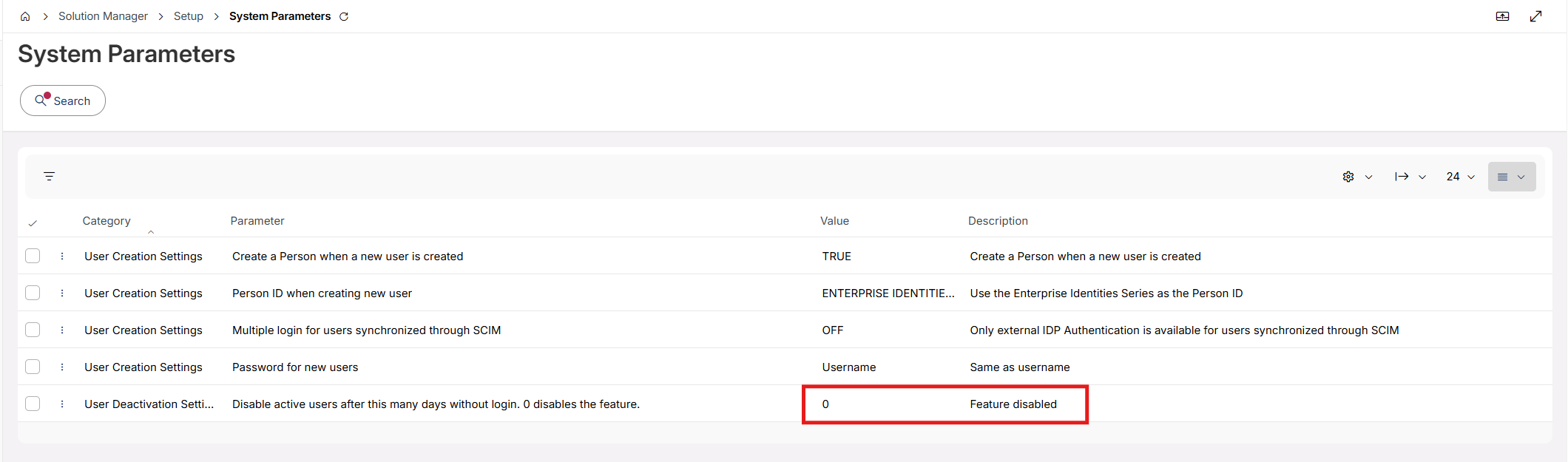
Password for new users
Use one of the following options to set the password for a new user.
| Ask | No password is set Initially. Use the Set Password option to manually create a password after the user is created. (This is the default option) |
| Highly recommended to use in customer production environments. A password is sent to the new user's email address when the user selects "first time logging in" on the login page. Set up your Email Server for IAM before selecting this option. | |
| Username | The password is set to the new user's username. The user is prompted to change this at first login. Not recommended for customer production environments. Use it in test and development environments. |
| Custom | The administrator enters a custom password that is set for all new users on creation. The user is prompted to change it at first login. |
Multiple logins for users synchronized through SCIM
When this flag is set to OFF, the Default IDP is set to false for all users synchronized through SCIM.
Create a person when a new user is created
When this parameter is set to True, a Person is created when a new user is created. When this parameter is set to Fales, a Person will not be created for the new user.
Person ID when creating new user
When this parameter is set to COPY USER NAME, the suer identity is copied to the Person ID. When it is set to ENTERPRISE IDENTITIES SERIES, the Enterprise Identities Series is used as the Person ID.
Creating a new User

To create a new User, go to the User or Users page in Solution Manager, under Users and Permissions. Select the "+" button to open the Creating a new User option.
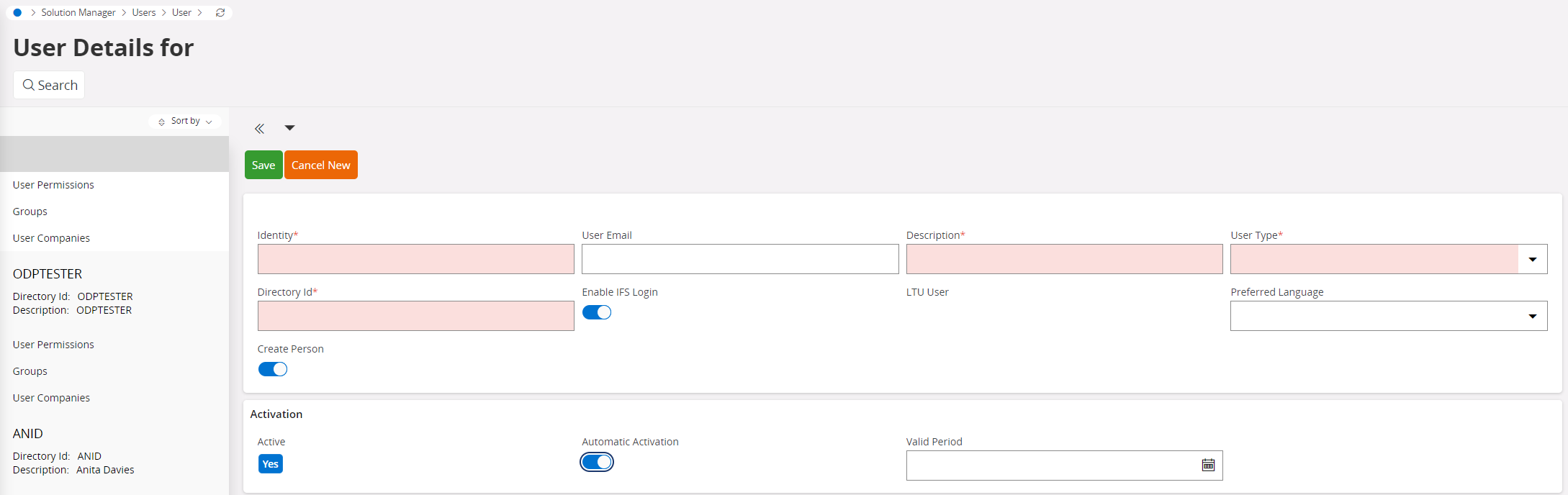
The fields highlighted in red are mandatory.
- Identity - A unique identifier for a User in IFS Cloud
- Description - A user description. Normally set to the User's full name.
- User Type - Should be set to End User for normal IFS Cloud End users and Service User for users that are used for integration purposes. Service users can not log in to the IFS Cloud application directly.
- Directory Id - Used for System Authentication. The IAM user's username will be fetched from/matched to this ID. Hence this will be used as the username when logging in to IFS Cloud.
- Enable IFS Login - If this option is selected, the user will be directed to log in via the IFS home page instead of using the external Identity Provider (IdP).
- LTU User - LTU user is derived based on the permission grants that a user is given. A user that has only LTU permissions will be considered an LTU user. Otherwise they will be considered a Full User.
- User Activation - The Activation section includes Active, Automatic Activation, and Valid Period. Users can select either Active or Automatic Activation as their preference.

Note
If Automatic Activation is Yes, a date range for Valid Period is mandatory. Based on the current date and the date range, Active is set to Yes or No automatically.
Activation begins at 00:01 on the start date and ends at 00:00 on the end date. For example, with a start date of April 1, 2025, and an end date of April 22, 2025, activation begins at 00:01 on April 1 and ends at 00:00 on April 22. The user is not active on the end date.
Preferred Language and User Email are not mandatory. If User Creation Settings are set to Email, the User needs to have an Email address connected to receive a password.
A new user starts with last login status Never Logged In. For more information, see Last Login Date and Login Status.
IAM User Details
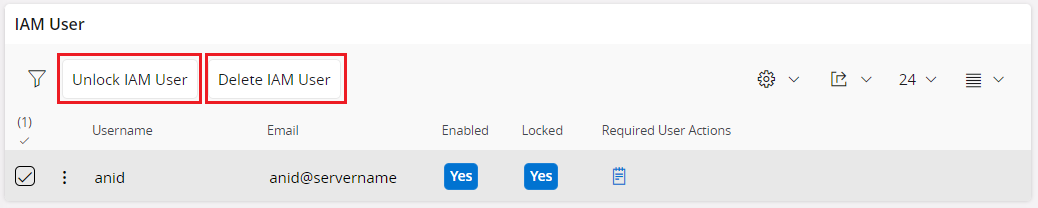
IAM User is the entity that handles the real authentication for IFS Cloud. Each user has a synchronized IFS IAM user, whish is shown here. The IFS User's DIRECTORY_ID equals the username here. This section only shows users created or synchronized automatically, and cannot be used to create users.
Unlock User: Allows administrators to unlock the user from the user details page. For example, when a user is locked due to a Brute force attack. (Use of too many incorrect password attempts).
Delete User: Allows administrators to delete the IAM user from the user details page itself. Deleting an IAM user will not delete the IFS User. After deletion, the user's next login is treated as a first-time login.
Shared Secret
This is for PunchOut integration. For more details refer to the PunchOut Integration page.
Connect to Person
The person object defines information that is valid for the person rather than a user of IFS Applications, such as addresses, phone numbers, and picture. To connect a user to a person set the system parameter Create a Person when a new user is created to TRUE.
Consider the following scenarios:
| Scenario | Create person when a new user is created | Person ID when creating a new user | Result |
|---|---|---|---|
| 1 | TRUE | COPY USER NAME | The person is created the same as the user identity |
| 2 | TRUE | ENTERPRISE IDENTITIES SERIES | The person is created with the enterprise identity series value |
| 3 | FALSE | Not applicable | No person is created |
User Deactivation Settings
Disable active users after this many days without login
Active users can be disabled automatically when they have not logged in for a set number of days. Set the number of days (N) an active user can go without logging in before the user is disabled automatically. The check uses the last login date and status stored on the user, so it keeps working after IAM login events are cleaned up.
| Value | Behavior |
|---|---|
| 0 | The feature is off. No users are disabled automatically. This is the default value and keeps the current behavior. |
| Greater than 0 | A daily background job disables eligible active users that have not logged in for more than N days. |
Users that are never disabled
- System users and service users
- Application Monitoring User
- Users with the system privilege Administrator or Auth Administrator
- Users whose last login status is Unknown, because there is no reliable login history available