Last Login Date and Status
IFS Cloud maintains the last login date and last login status for each user account. This information enables administrators to monitor who is accessing the system and identify accounts that have never been used to log in.
IAM login events of type LOGIN and CLIENT_LOGIN are copied to the user record as the last login date, with status LOGGED_IN using a background job.
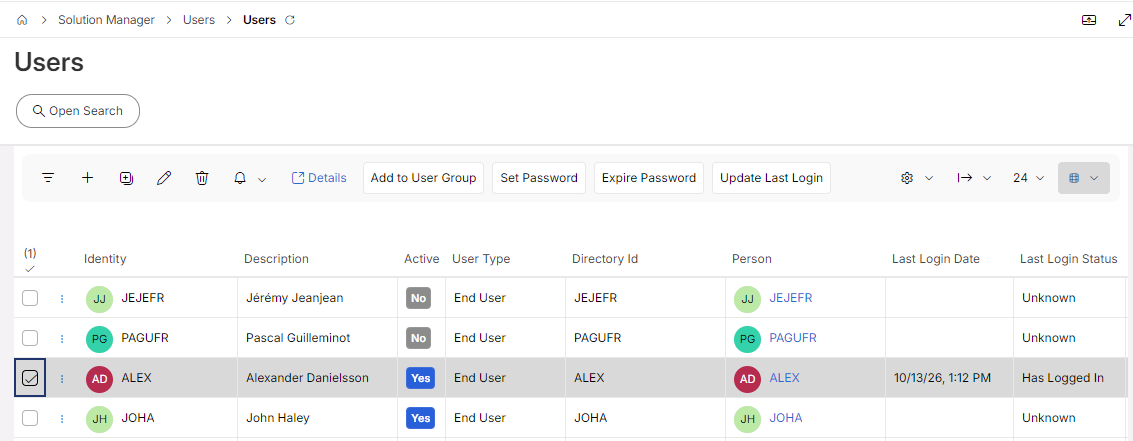
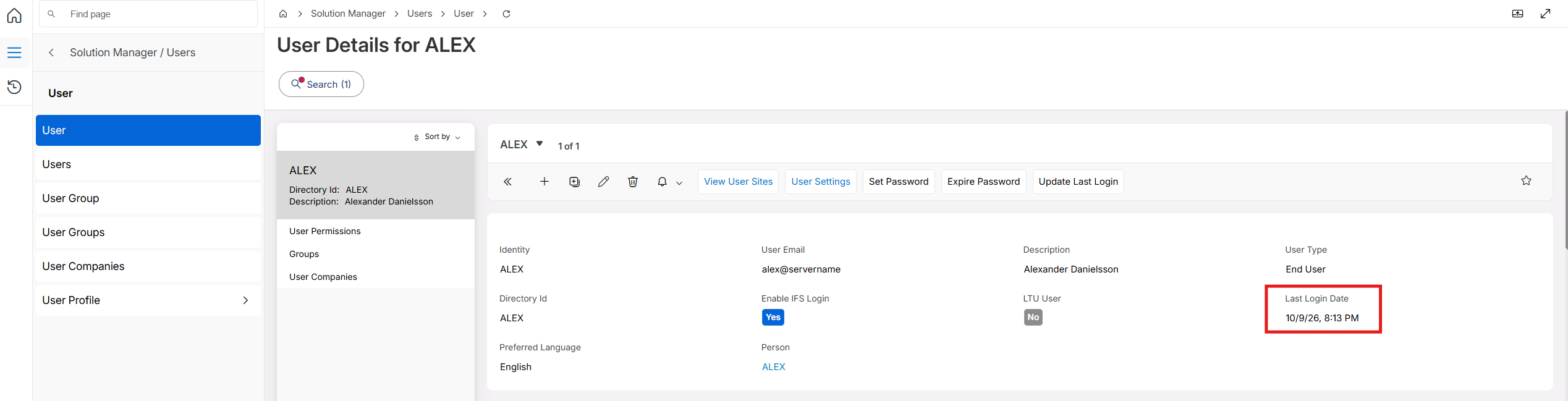
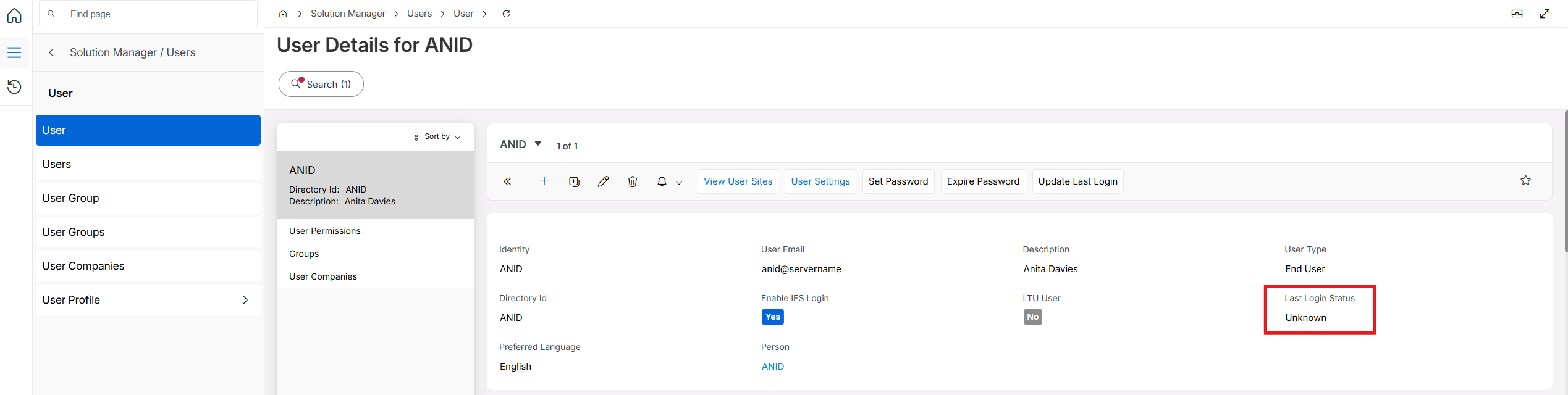
The Users page shows the Last Login Date and Last Login Status columns. The User page (user details) shows the last login date when the user has logged in, and the last login status when no login date is recorded.
| Last Login Status | Description |
|---|---|
| Has Logged In | A successful login event was found. Last Login Date column shows the date and time of the latest login. |
| Never Logged In | A user has not logged in yet. All new users start with this status. |
| Unknown | This is of an existing user whose login event has not yet been found. The status changes to Has Logged In when a login event is found. |
Update User Last Login Status
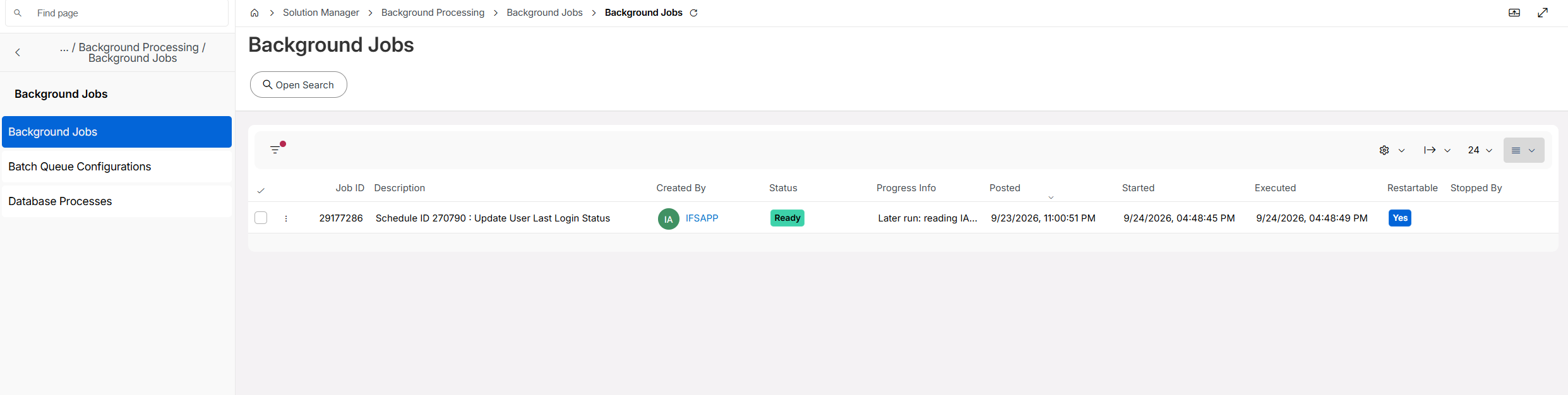
The background job Update User Last Login Status copies IAM login events to the user records. It runs daily at 23:00, so it finishes before IAM event cleanup at 00:00. You can monitor it on the Background Jobs page in Solution Manager.
The job uses the system parameter USER_LOGIN_SERVED as a watermark:
- First run – USER_LOGIN_SERVED has the value
*, which means the job has not run yet. The job reads all login events still in the IAM event table, up to the current server time, and writes the latest event for each user. - After each run – The job stores the completion time in USER_LOGIN_SERVED.
- Later runs – The job reads only events after the stored time, which is about the last day. Events that are already processed are not read again.
The job never replaces a newer last login date with an older one if it reads an older event again.
Note
Do not change USER_LOGIN_SERVED manually.
Update last login manually
An administrator can update the last login on demand, without waiting for the nightly job.
- Go to the Users page in Solution Manager, or open a user on the User page.
- On the Users page, select one or more users.
- Select Update Last Login.
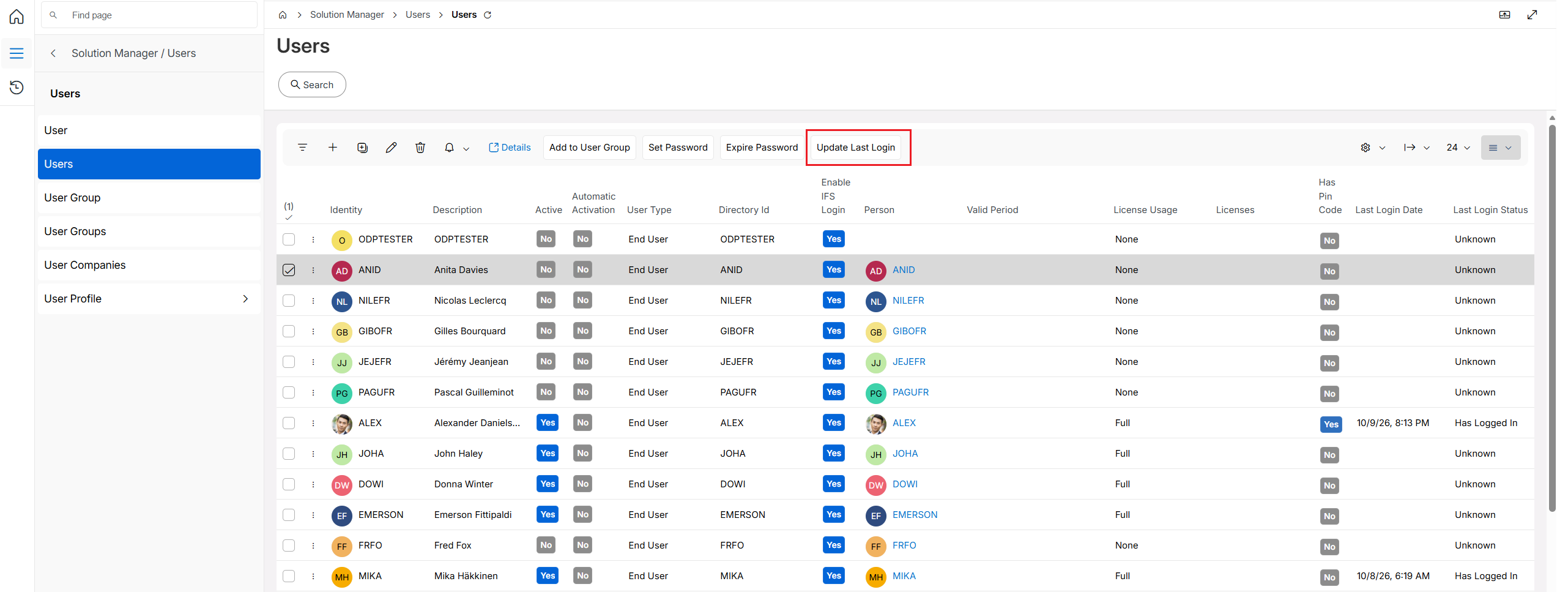
Users with a login event are updated. Users with no login event are skipped and keep their current values. A message shows the result:
| Selection | Scenario | Display message |
|---|---|---|
| One user | Last login is updated | Success: "Last login updated for < user >" |
| One User | No login event is found. Last login is not updated | Information: "No new last login found for the selected user. Last login was not updated." |
| Multiple Users | Some user are updated and others aren't | Success: "Last login updated for < n > users. No new last login found and not updated for < n > users." |
Note
The manual update considers only IAM login events that are currently retained. If no login event is available for a user within the retained period, the existing Last Login value is preserved.