Functional Areas
The Segregation of Duties analysis is a tool to analyze how well your security is setup separating the duties between users. The analysis shows inappropriate user access and identifies which users have access to specific functions in the system.
A Functional Area is defined by a set of security objects. Functional Areas are used when setting up rules for which areas that can be accessed by the same user. They can also be used to track which users have access to an area.
Create a Functional Areas
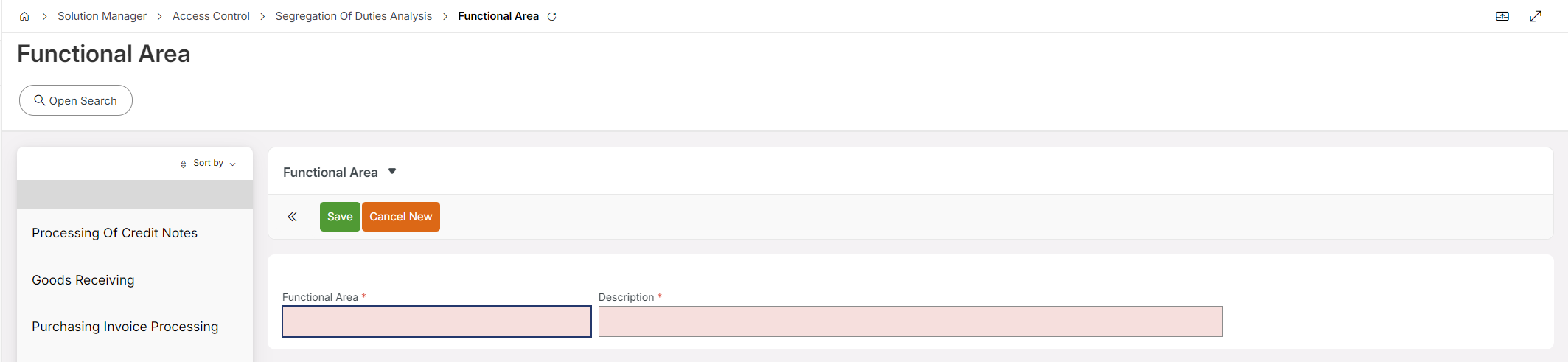
To create a new functional area, click on New Functional Area in Solution Manager > Access Control > Segregation of Duties Analysis. Use the New command. Enter a Functional Area name and a Description. Then use the tabs below the header to record which security objects the Functional Area covers. You can add Projections, Projection Actions, Projection Entities, and Projection Entity Actions; but it is not mandatory update all four tabs.
Modify a Functional Areas
To Modify a functional area, go to Solution Manager > Access Control > Segregation of Duties Analysis > Functional Area and select the functional area you want to change. Use the Edit command to change the description. In the tabs, use the New command to add projections, projection actions, projection entities, and projection entity actions, and the Delete command to remove them.
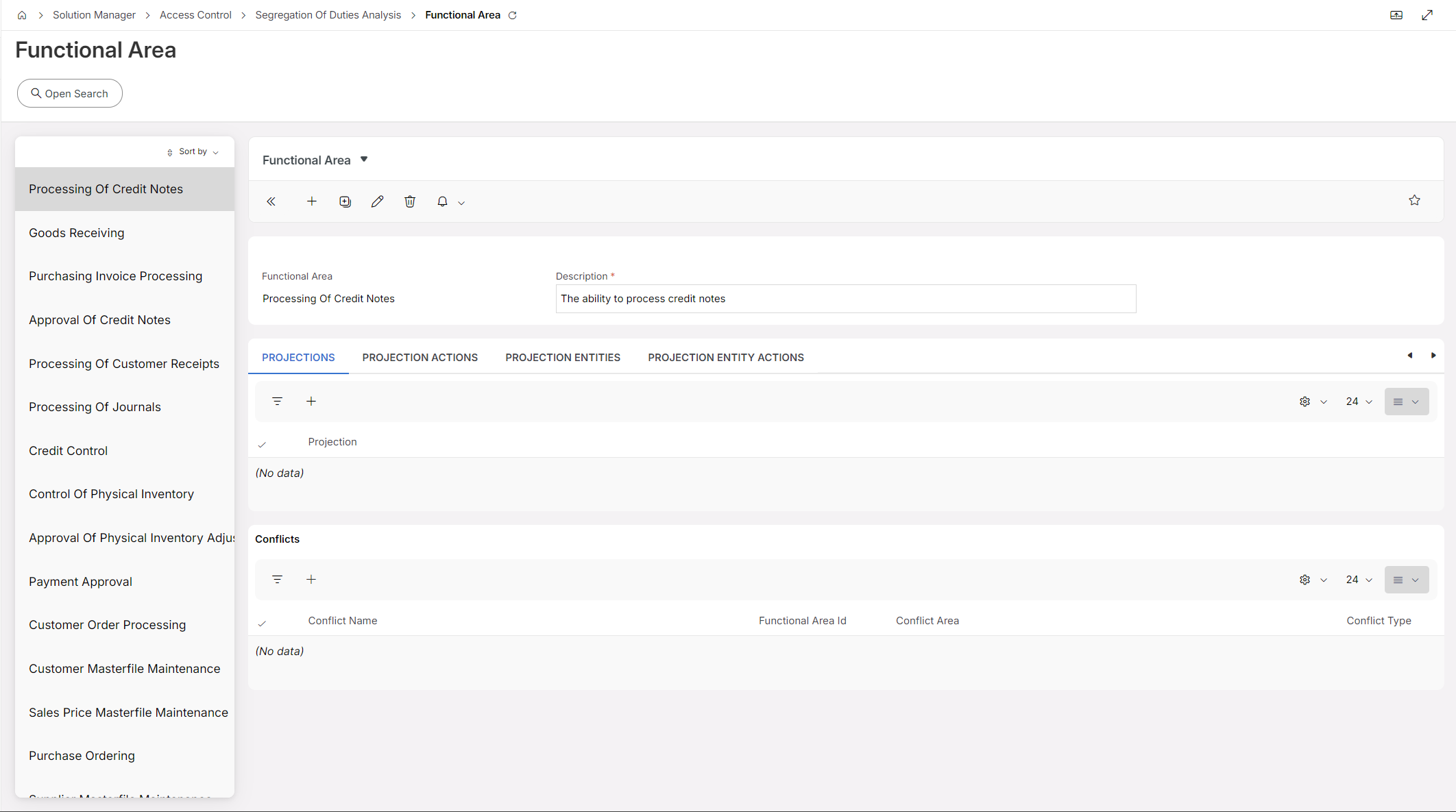
Note: Projection entities are evaluated on their CUD operations (create, update, and delete). When you add a Projection to a functional area, the system only checks if the user has at least Read access to it. You can then evaluate granular permissions, such as whether a user can Create, Update, or Delete a specific entity using a specific Projection Entity, or whether they can access other actions through a specific Projection Action or Projection Entity Action you want to analyze.
Import and export a Functional Area
A Functional Area can be exported to and imported from the file system via XML files.
Export
Navigate to the New Functional Areas page. Select the Functional Area that you want to export and then click the Export command. Save the export file. You can export multiple files at once as a compressed file.
The export file contains the Functional Area ID, the description, the connected objects, and conflicts.
Import
A Functional Area export file is imported by clicking on the Import command on the Functional Areas page, multiple file imports are allowed
The Functional Area name is unique within the system and you get a question if you want to replace PR merge the Functional Area if a Functional Area with the same name already exists.
Setting up Functional Area Conflicts
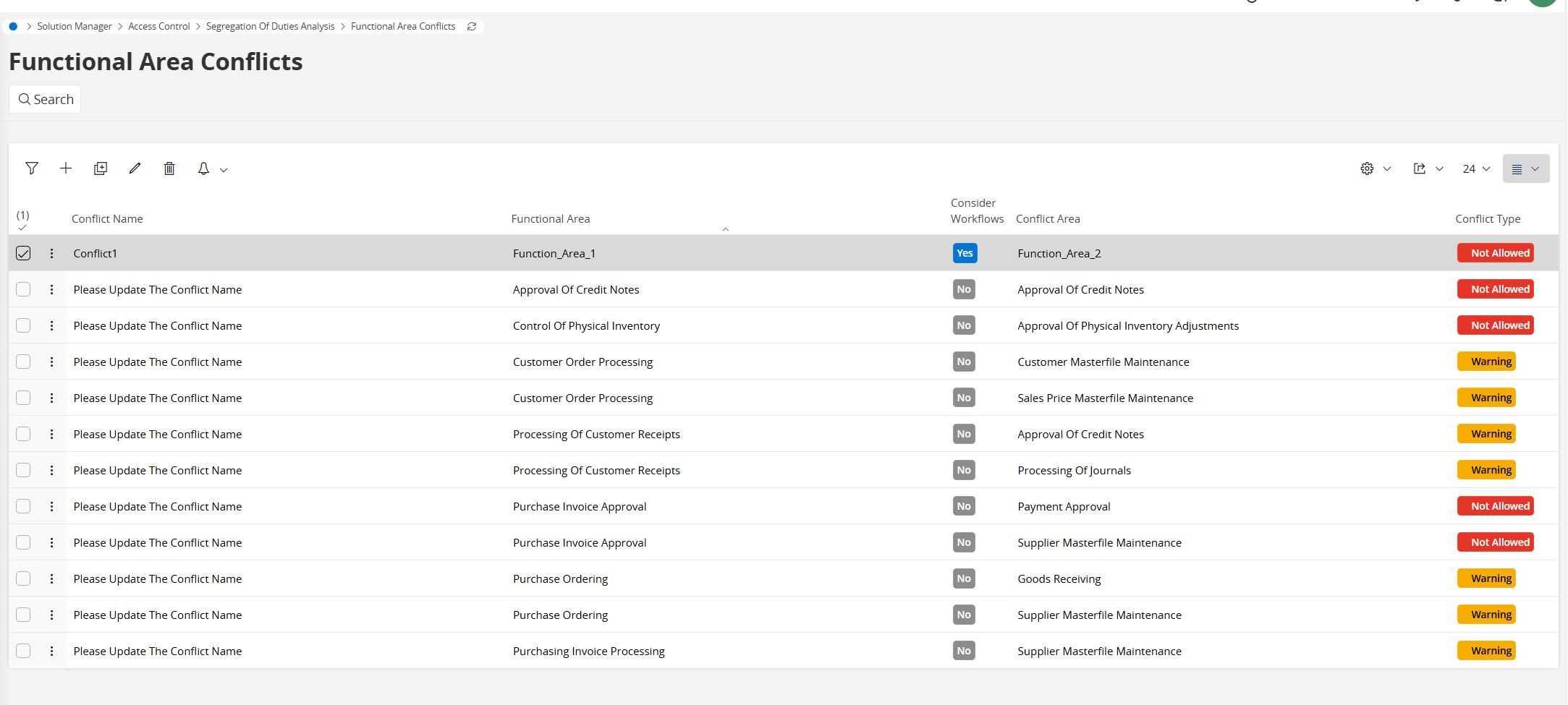
Clicking on Functional Area Conflicts in the navigator or on the Functional Areadetails page shows the setup of Functional Area Conflicts. A conflict between two Functional Areas indicates duties that need to be protected which the same user should not have access to. There are two types of conflicts; Warning and Not Allowed. This indicates the severity of the conflict. Which rules that are needed and the severities very much depend on the size of the company.
The Consider Workflows column specifies whether the activities performed through a Workflow should be considered in the conflict.