Export and Import User Profiles
User Profiles store individual user configurations and UI preferences in IFS Cloud. System administrators can export user profiles as XML files for backup purposes or to migrate user configurations across environments (such as from CFG or UAT to PRD).
Exporting User Profiles
Administrators can export individual or multiple user profiles directly from the Profiles page.
Steps to Export Profiles:
- Navigate to Solution Manager > Users and Permissions > User Profile > Explore Profile > Profiles.
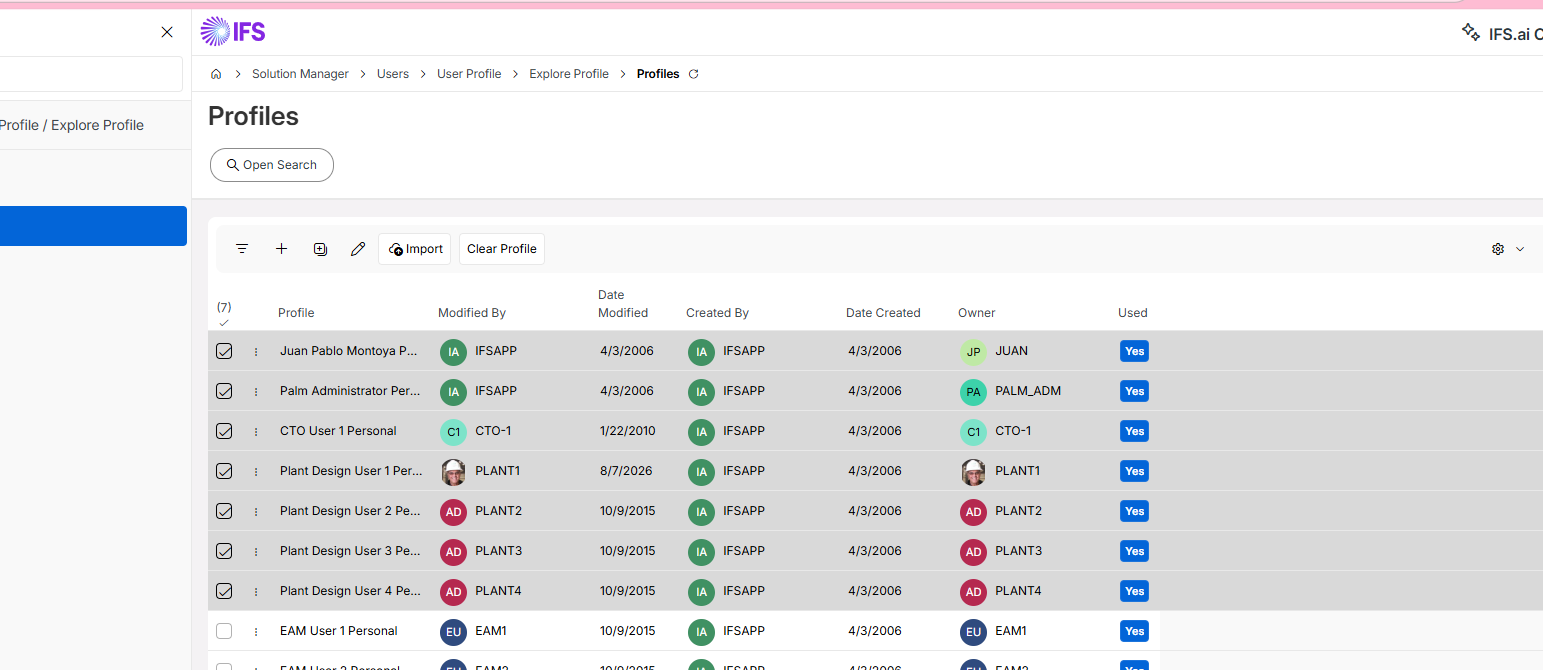
- Select one or multiple user profile records from the list.
- Click the Export command in the page toolbar.
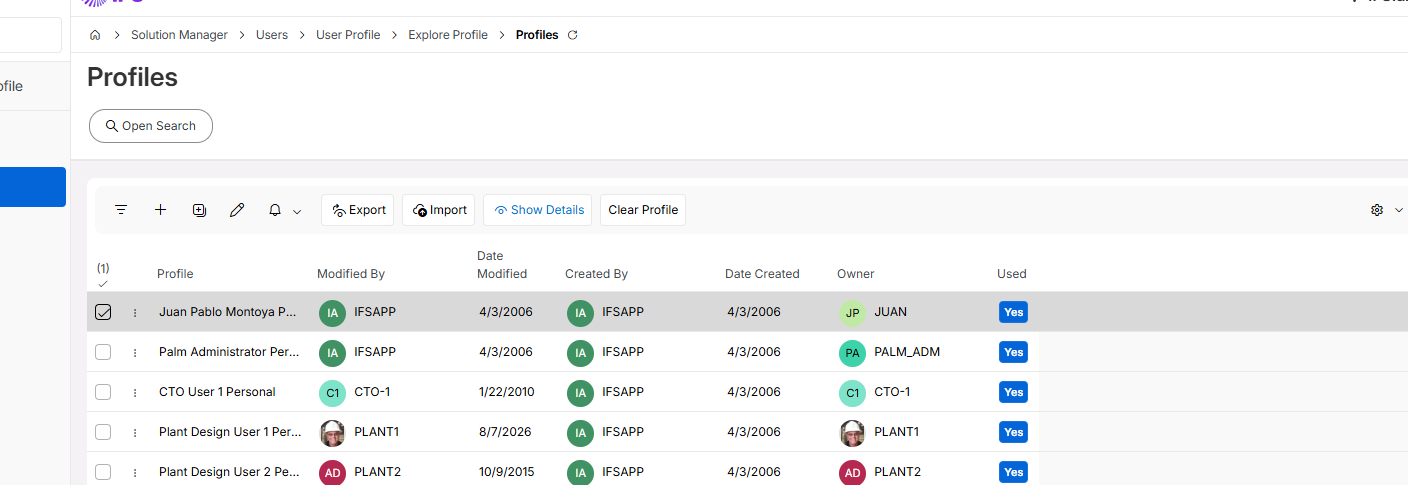
- The exported XML file(s) will be downloaded to your browser's default download directory.
Note: When multiple profiles are selected, each profile is exported into its own XML file named after the respective profile and owner.
Importing User Profiles
User profiles can be imported in two ways: a single profile XML file can be imported into one or several selected user profiles, or one or several profile XML files can be imported for the specific user defined as the OWNER within each file. In both cases, the imported settings are merged into the target user's existing personal profile.
Importing a Profile into Selected Profiles
Administrators can import a single profile XML file into one or multiple user profiles directly from the Profiles page.
Steps to Import a Profile into Selected Profiles:
- Navigate to Solution Manager > Users and Permissions > User Profile > Explore Profile > Profiles.
- Select one or multiple user profile records from the list.
- Click the Import command in the page toolbar.
- Select the profile XML file (
.XML) to import. The settings are merged into the selected user profiles.
Note: With this method, the file is imported into the selected user profiles regardless of the
OWNERdefined in the XML file.
Importing Profiles with the Import Profiles Assistant
The Import Profiles assistant enables administrators to import one or multiple user profile XML files simultaneously. Each profile XML file is imported for the specific user defined as the OWNER within the file, and the settings are merged into that user's existing personal profile.
Steps to Import Profiles with the Import Profiles Assistant:
- Navigate to Solution Manager > Users and Permissions > User Profile > Import Profiles.
- In the Select Files step, click Browse XML... (or drag and drop) to select one or multiple profile XML files (
.XML). - Click Next to proceed to the Review Selection step.
- Review the file validation details in the list:
- File Name: Name of the uploaded XML file.
- Profile: Profile name defined in the XML.
- Owner: Target user identity defined in the XML.
- Valid: Status badge indicating whether the file is valid for import.
- Notes: Informational or validation messages if an issue is detected with a file.
- Click Import to finalize the import process.
Validation Rules and Notes:
- Owner Resolution: Each XML file must have a valid
OWNERattribute corresponding to an existing active IFS Cloud user. - Personal Profile Requirement: The target user must already have an initialized personal profile in the system.
- Duplicate Prevention: If multiple uploaded XML files target the same
OWNER, only the first valid file is imported; subsequent files targeting the same owner are marked as invalid and skipped. - Merge Behavior: Settings in the imported XML are merged into the target user's personal profile. Any existing settings not present in the XML file remain intact and unchanged.