Translate Texts
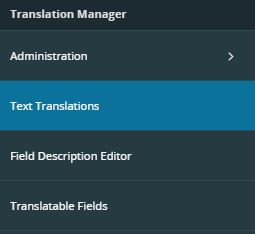
Figure 1. Text Translation page in the navigator structure
Manage Text Translations
Text translations are managed in the Text Translations page. When navigating to the Text Translation page, a Search window will appear in order to filter out the relevant Prog texts, see Figure 2.
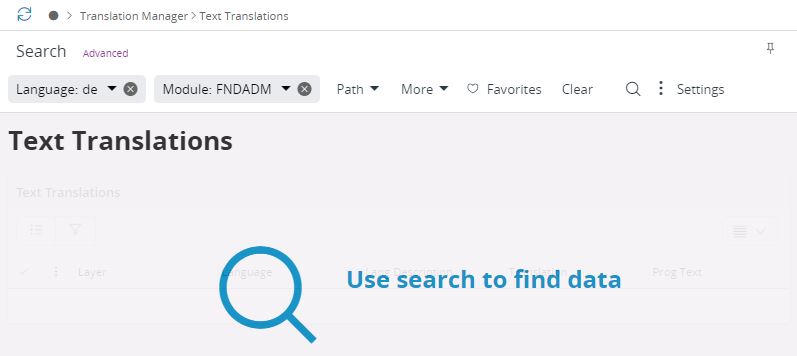
Figure 2. Search Text Translations
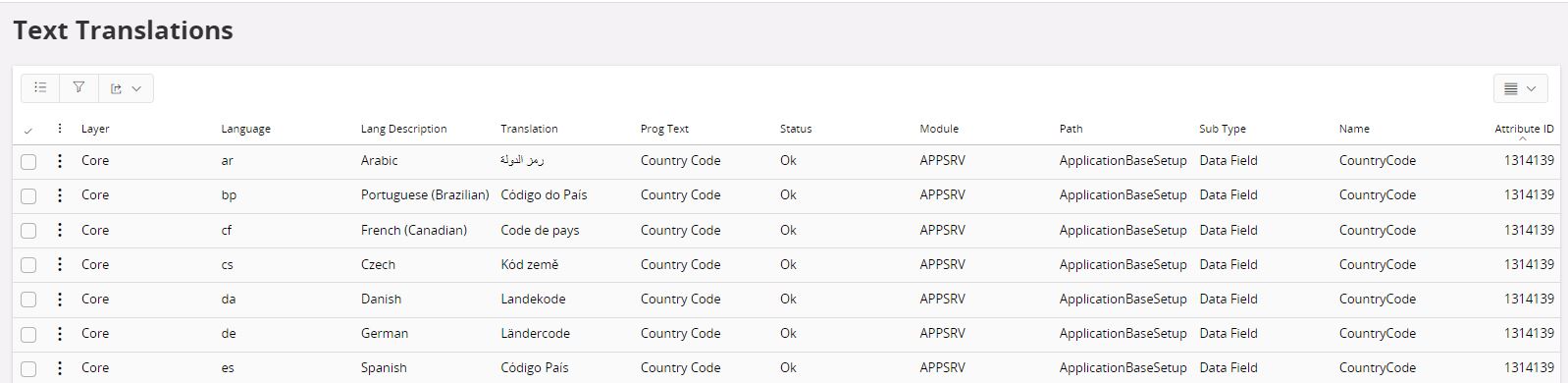
Figure 3. Text Translations page
The Prog Text shows the original text which is coded into the application, this is the text that is translated. The Translation field is where the translation for the corresponding Prog Text is displayed. clicking on a record will show several operations in Figure 4.

Figure 4. Options when right clicking on a record
Reject Translation
Translations can be rejected if they are evaluated to be inaccurate. Multiple translations can be rejected in a single action.
To reject one or more text translations:
- Select the text translation record(s) you want to reject.
- Click Reject Translation.
The Reject Translation window opens (Figure 5), showing the Language, Prog Text, and Translation for each selected record.
- If the rejection relates to a support case, enter the Case Id.
- In the Reject Information field, describe the reason for the rejection and click OK.
The rejection will then be sent to the translation agency which will update their translation memory accordingly.
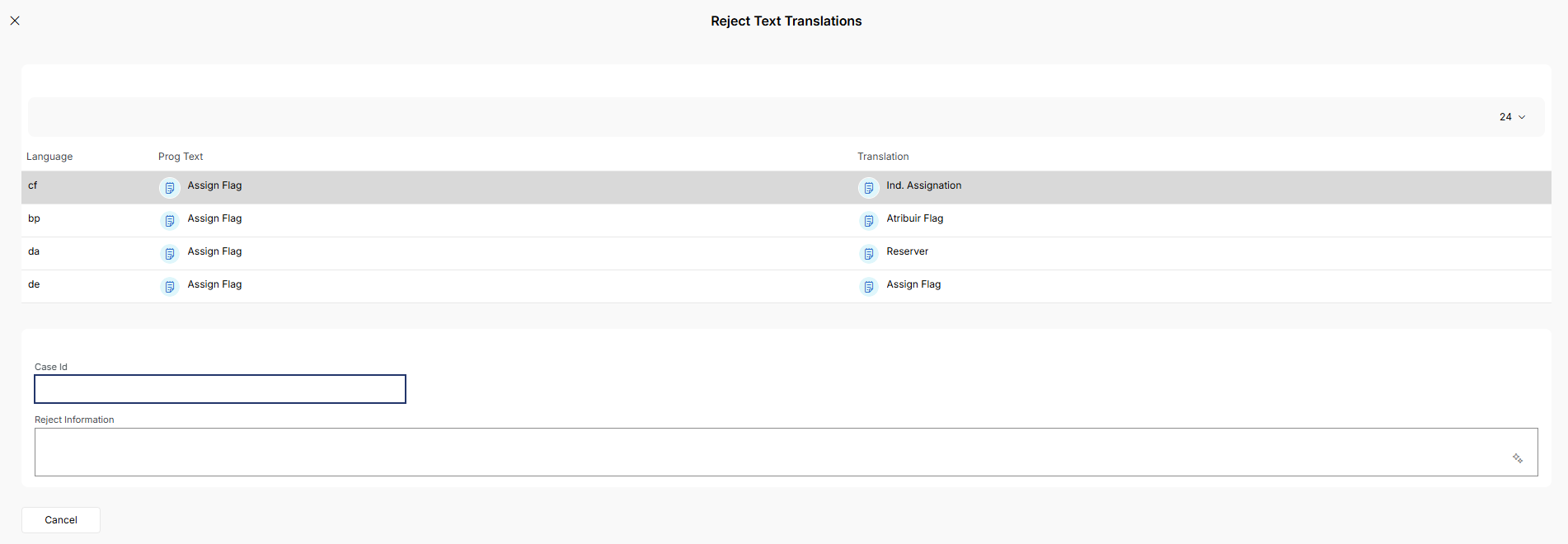
Figure 5. The Reject Translation window
Suggest Translation
In order to get suggestions for text translations, there is suggestion functionality available to give support in the process. It provides suggestions of translations based on previous translations of the Prog Text that you use the suggest functionality for . In order to receive suggestions, do like this:
- Select the record that should be translated.
- Press Suggest Translation button.
- A dialog will appear where you can see the Prog Text of the chosen record and also the suggested translations, see Figure 6. The ratio displays the number of occurrences for the specific translation.
- Here you should pick the appropriate Translated Text and click OK. Try to pick a translation that corresponds closely to the Prog Text.
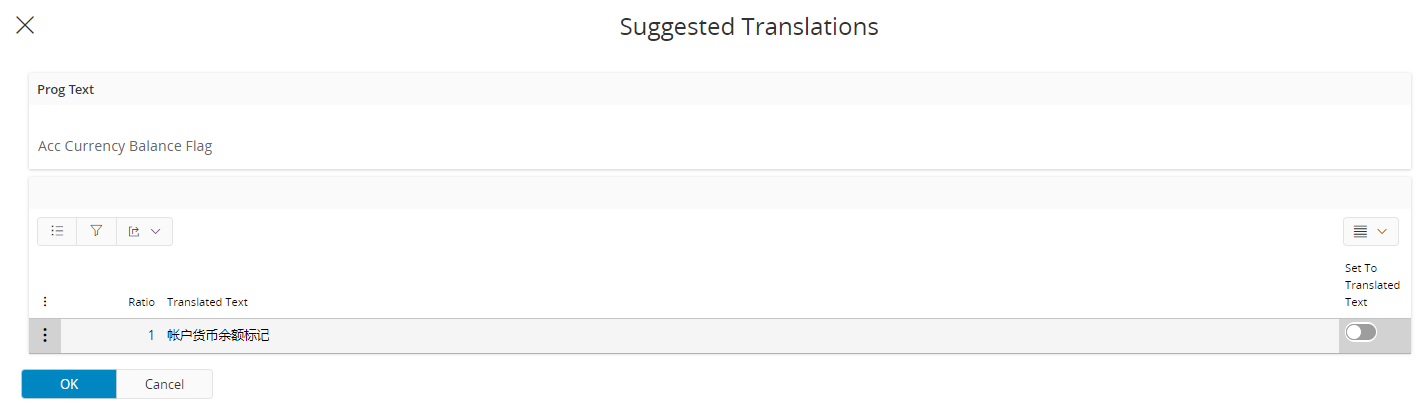
Figure 6. Suggested Chinese Translations for the Prog Text "Quantity"
Remove Rejection
To remove a rejection from a previously rejected text translation:
- Select the text translation record(s) with REJECTED status.
- Click Remove Rejection.
The REJECTED status, Case ID, and Reject Information are cleared from the selected records.
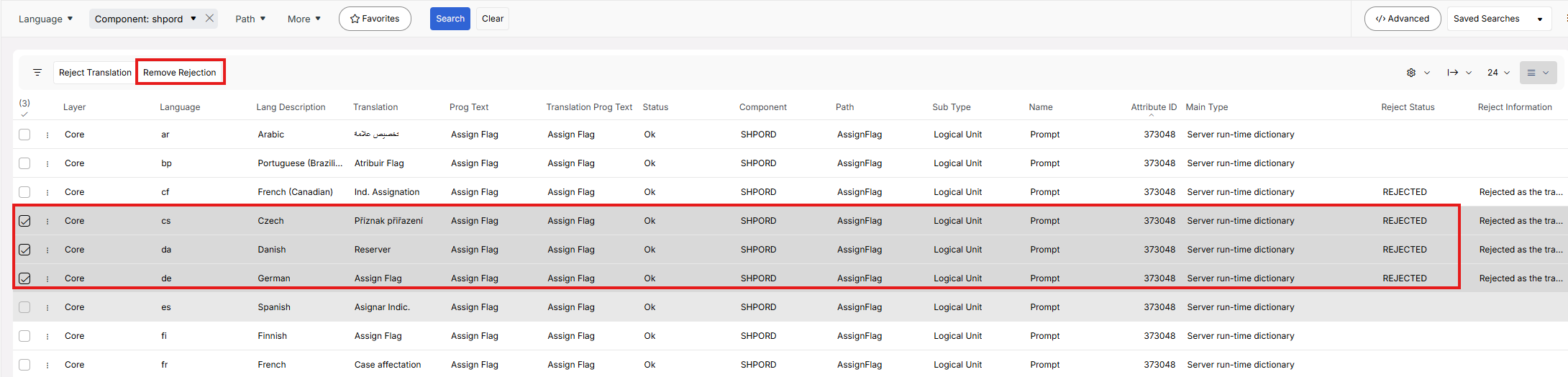
Figure 7. Remove rejection of previously rejected text translations