Non-Restartable Scheduled Tasks and Background Jobs in Transport
Non-restartable background jobs for the Transport area are as follows:
- Shipment flow for Mandatory events (e.g. Reserve, Create Pick List, Report Picking, etc.)
- Shipment flow for Optional events (e.g. Print Proforma Invoice, Print Shipment Delivery Note, Print Packing List, etc.)
- Release Distribution Order
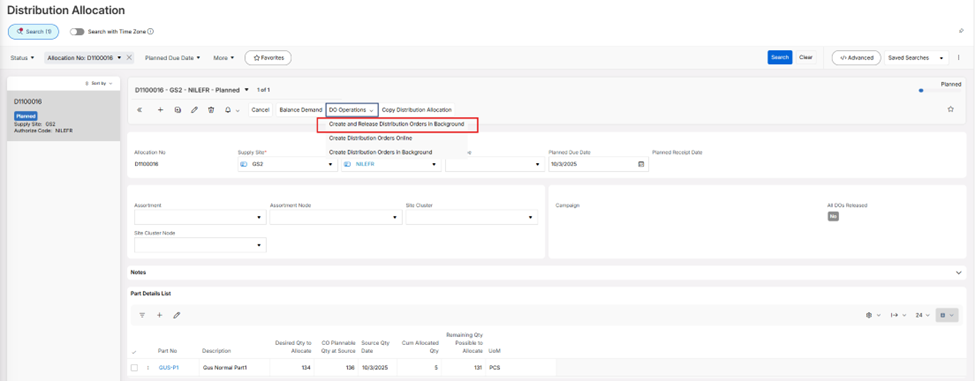
- Create and Release Distribution Order in Background using Distribution Allocation
- Print Consolidate Pick List for Source
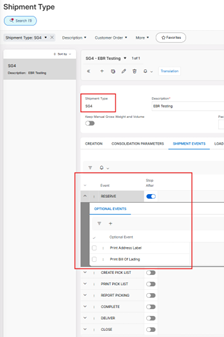
Shipment flow will be processed according to the Stop After Events enabled in the Shipment Type.
The Online Processing toggle in the Shipment Type indicates if the shipment flow will be processed online or in the background. In this case, Online Processing toggle is disabled, and shipment flow will be processed in background.
When a background job starts before the pre-cutover time and it is still running when the cutover starts, this background job will be stopped by the installer.
If the background job is stopped by the installer in the middle of the execution, the Trace field at the Background Jobs page will update the success points and the user can manually continue the process from the last success point.
Once the cutover period is over, it will start to re-execute the stopped background jobs which are identified as restartable.
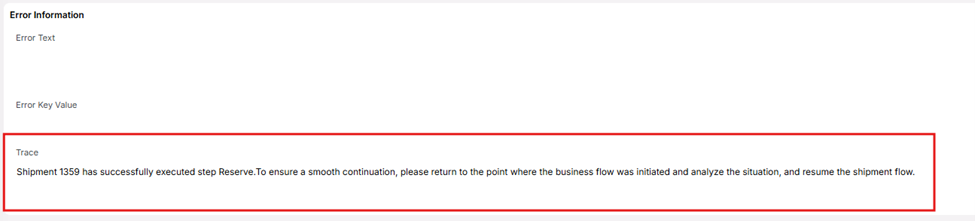
When a non-restartable background job is executed, it will start to log success points in the Trace field in the Background Jobs page.
For example, when a non-restartable background job was stopped for the Shipment Mandatory Event it will show below information in the Trace field:
“Shipment P1 has successfully executed step P2. To ensure a smooth continuation, please return to the point where the business flow was initiated and analyze the situation, and resume the shipment flow”. (P1 – Shipment No and P2 – Succeeded Shipment Event)
Similarly, for the Optional Shipment Events, responses will be as below:
“Shipment P1 has successfully executed step P2, successfully executed optional event P3. To ensure a smooth continuation, please return to the point where the business flow was initiated and analyze the situation, and resume the shipment flow”. (P1 – Shipment No, P2 – Succeeded Shipment Event, P3 - Succeeded Optional Shipment Event)
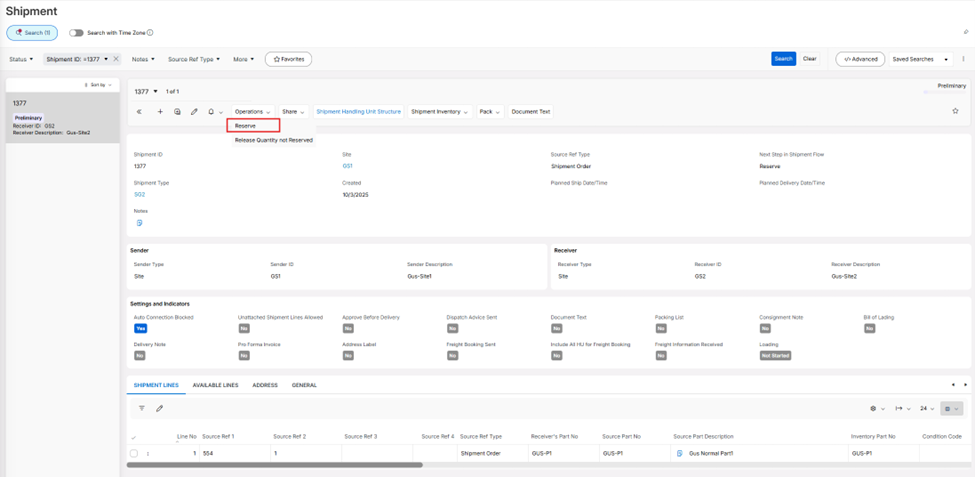
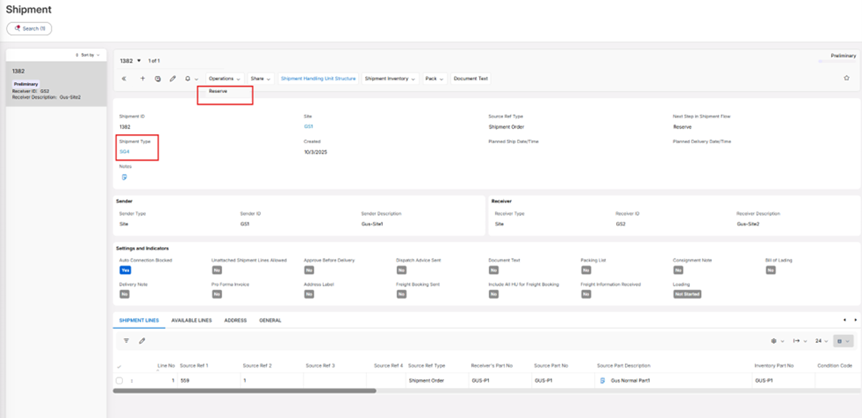
1. Reserve a Shipment (Mandatory Shipment Events)
In the Shipment page:
In the Background Jobs page:
2. Reserve a Shipment (Optional Shipment Events)
In the Shipment Type page:
In the Shipment page:
In the Background Jobs page:

3. Release a Distribution Order
In the Distribution Order page:
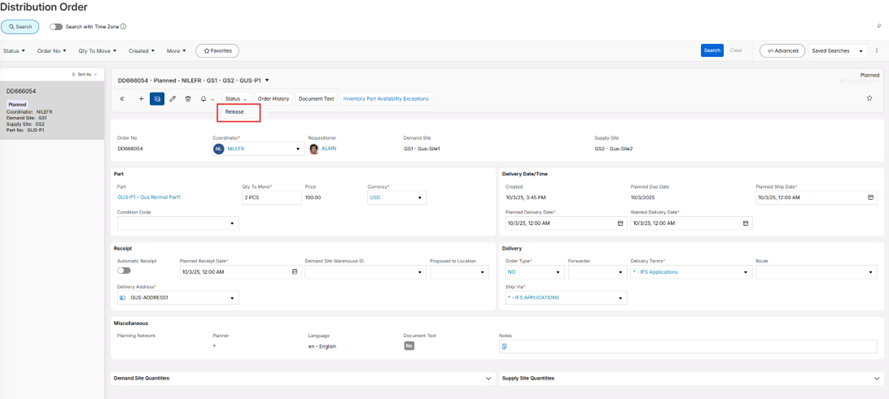
If the Customer Order which is created from the Distribution Order is connected to a shipment and the shipment flow proceeds with the shipment events (mandatory/optional), the Trace field will be updated with the relevant information.
4. Create and Release Distribution Order in Background using Distribution Allocation
In the Distribution Allocation page:
5. Print Consolidated Pick List for Source
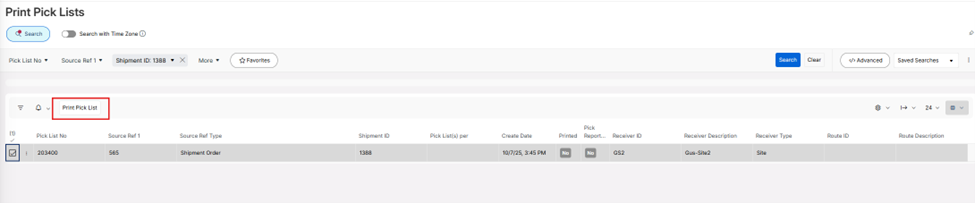
In the Print Pick Lists page: